
Background

Task summaries reduce the number of notifications Lumos sends for onboarding and offboarding tasks. This article shows you how to enable task summaries by product flow.

How does Lumos “Quiet” my Notifications?

When enabled, Lumos will stop sending one notification for each manual task related to Onboarding or Offboarding. Instead, Lumos will send one notification every ~5 minutes to update you on how many more tasks have come in. You will then be routed to the Web UI to address all the tasks pertaining to Onboarding/Offboarding.

Steps to Enable

1. Go to Notification settings

Navigate to Notifications and find the option to Enable Task Summaries. Within it, you can select Onboarding, Offboarding, and Movers. Access Reviews always sends task summaries and can’t be turned off.
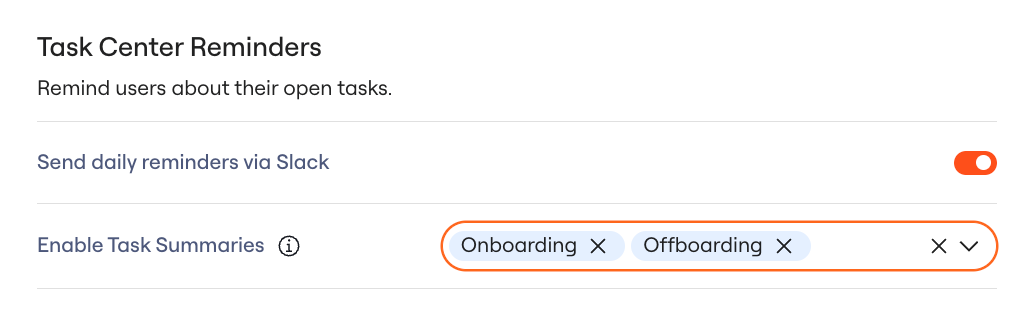
image.png

2. Scroll down to the bottom of the page and click “Save Changes”.

3. Setup complete

FAQs

Will this summarize all notifications for my On- and/or Offboardings?

Not all of them. Manual tasks, including deprovisioning tasks and error tasks, are batched into the summary. For new hires, Lumos still sends a notification for each app that was provisioned so that new hires can see what they were provisioned to.

Can I customize the window before Lumos starts to quiet my On- and/or Offboarding notifications?

At this time, this window is not configurable.

Is this supported for other product areas?

Yes. Besides Onboarding and Offboarding, you can turn on task summaries for Movers, and Access Reviews always sends them. To request this functionality for other types of workflows in Lumos, contact your CSM or support@lumos.com.