

After this article
You’ll know how to configure Wait steps in your onboarding, offboarding, Mover, and AppStore workflows, allowing you to create precisely timed sequences of actions.Background
Wait steps pause a workflow so that onboarding and offboarding actions happen at specific times. For example:- Ensuring a new Identity Provider account is created 7 days before a start date, but activating the account only when a new employee joins
- Waiting for a SCIM event to complete before continuing on with a provisioning workflow
- Putting accounts in legal hold for a set period before permanent deletion
Adding a Wait Step to Your Workflow
Wait steps are available in onboarding, offboarding, Mover, and AppStore workflows.- Open the workflow you want to edit.
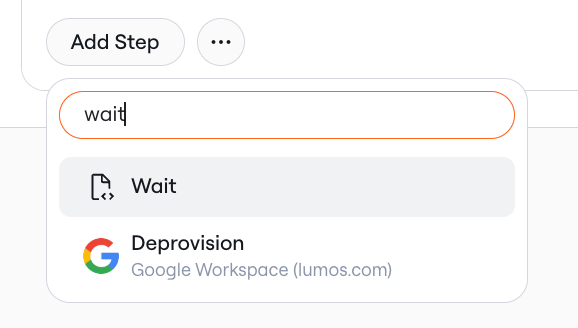
- Click Add Step and choose Wait.
- Enter a whole number for Wait Time and choose Minutes, Hours, or Days. The workflow pauses for that long before it runs the next step.
Monitoring Waiting Workflows
When a workflow reaches a Wait step, it stays in progress until the wait ends:- In onboarding, offboarding, and mover records, the run shows as In Progress while it waits. Open the record to see its steps, including the Wait step.
- For app workflows, go to the app’s Workflows tab and open Workflow Records. The run’s Workflow Status shows Scheduled until the wait ends.
Wait Step Use Cases
Here are some common ways customers use Wait steps: Onboarding- Create accounts 7 days before start date, then wait until the employee’s exact start time before activating them
- Immediately disable access when an employee departs, then wait 30 days before permanently deleting their account
- Grant fine-grained access to a role or license using SCIM push groups, wait 1 minute for the changes to propagate, then run direct actions on the account in your AppStore workflows