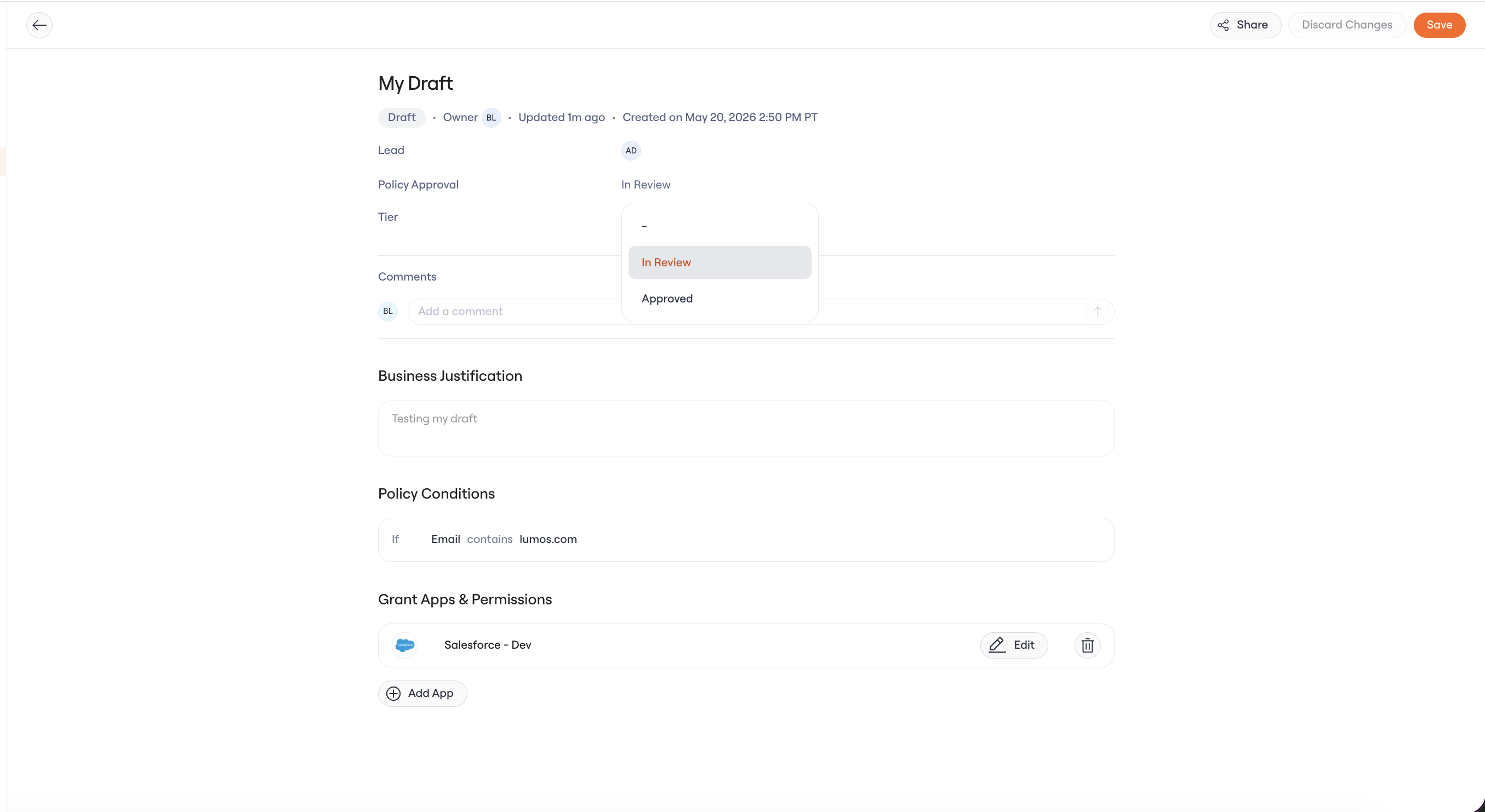
1. Open Access Policies in Lumos
Log in with your Single Sign-On (SSO) login or email and open the Access Policies page. You will only see the policies you own.2. Check each app and permission
Open your policy. Next to every app and permission, Lumos shows how your team actually uses it: Widely Used, Rarely Used, or Rarely Assigned. Use that to decide:- Widely Used: keep it. Your team depends on it.
- Rarely Used: remove it. Anyone who still needs it can request it through the AppStore, so removal is low-stakes.
- Rarely Assigned: tighten it or remove it.
- Something missing: add it with Add App. If your team uses an app the policy does not grant, this is the time to fix that.
3. Make the edits
Add, edit, and remove apps and permissions directly on the draft policy. When you edit an app, you pick from that app’s groups and roles. Two things you cannot change: who the policy covers (the conditions) and when it goes live. If the policy seems aimed at the wrong team, flag it to your admin team instead of working around it.4. Share it for a second look
If your process asks for another sign-off, click Share and add the people responsible for the access the policy grants: the owner of a group it grants, an app admin, or a security reviewer. The policy is read-only for them, so their verdict arrives as comments. Answer each comment on the policy and resolve it once the change is made or the question is settled. Resolved threads stay on the policy, so the reasoning is still there at the next review.5. Record the approval status
If your policy has an approval field, keep it current: In Review while sign-off is still out, Approved once everyone has signed off. Your admin team tracks the rollout from this field, then publishes the policy.