> ## Documentation Index
> Fetch the complete documentation index at: https://docs.lumos.com/llms.txt
> Use this file to discover all available pages before exploring further.
# Notifications Catalog
The Notification Catalog provides a centralized view of every notification Lumos can send across your organization. Use it to browse notifications by product area, preview what they look like, and send test emails before rolling them out.
## Accessing the Notification Catalog
Navigate to **Settings > Notifications > Notifications Catalog**: [https://app.lumosidentity.com/settings/notifications/catalog](https://app.lumosidentity.com/settings/notifications/catalog)
## Browsing Notifications
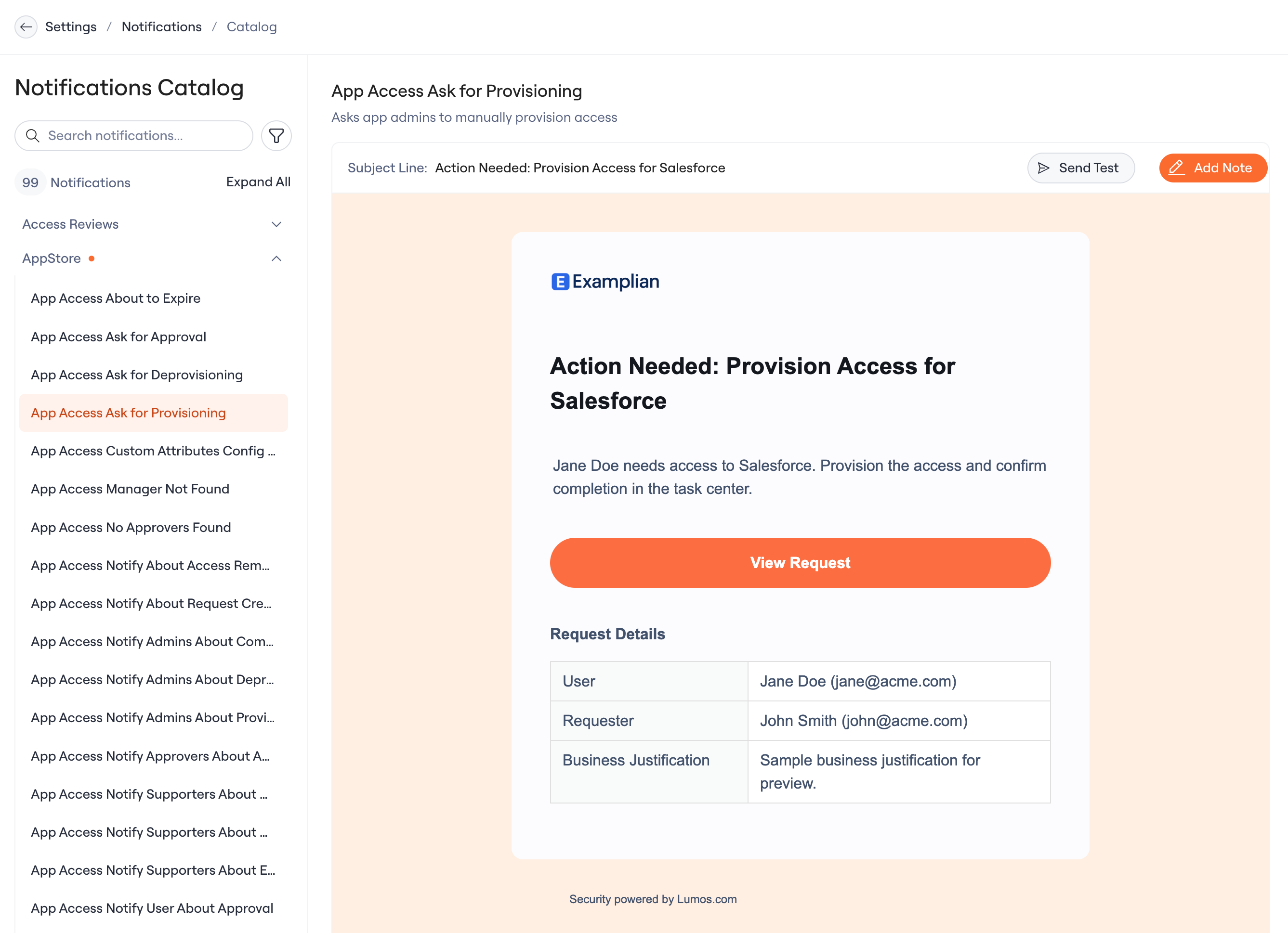
The catalog is organized into a sidebar on the left and a preview panel on the right.
 ### Sidebar
Notifications are grouped by product area — Access Reviews, AppStore, Onboarding, Offboarding, and more. Each group shows the number of notifications it contains.
## Previewing a Notification
Select any notification from the sidebar to see its details in the preview panel:
* **Name and description** — what the notification is and when it’s sent
* **Subject line** — the email subject recipients will see
* **Email preview** — a full rendering of the email with sample data
The preview uses sample data to show a realistic example of what the notification looks like. It does not reflect any specific user or request in your environment.
## Sending a Test Notification
Click **Send Test** to send a test email for the selected notification. The test email is delivered to your own inbox using the same sample data shown in the preview.
Use this to verify how the notification renders in your email client before enabling it for your organization.
### Sidebar
Notifications are grouped by product area — Access Reviews, AppStore, Onboarding, Offboarding, and more. Each group shows the number of notifications it contains.
## Previewing a Notification
Select any notification from the sidebar to see its details in the preview panel:
* **Name and description** — what the notification is and when it’s sent
* **Subject line** — the email subject recipients will see
* **Email preview** — a full rendering of the email with sample data
The preview uses sample data to show a realistic example of what the notification looks like. It does not reflect any specific user or request in your environment.
## Sending a Test Notification
Click **Send Test** to send a test email for the selected notification. The test email is delivered to your own inbox using the same sample data shown in the preview.
Use this to verify how the notification renders in your email client before enabling it for your organization.