> ## Documentation Index
> Fetch the complete documentation index at: https://docs.lumos.com/llms.txt
> Use this file to discover all available pages before exploring further.
# Getting Started with Custom Lumos Roles
Give your cross-functional partners the exact access they need — no more, no less. Custom Roles let you safely delegate work in Lumos without granting full admin, so teams like Security, Audit, Procurement, HR, and Helpdesk can collaborate directly in the platform.
## Overview
Lumos supports two types of Custom Roles:
* **Custom Org Roles** apply organization-wide. Use these to give users a tailored combination of permissions across all of Lumos. Examples include an Access Review Manager, Read-Only Auditor, Helpdesk Viewer, or Procurement Partner.
* **App Resource Roles (Beta)** apply to specific apps when assigned. Use these to customize what an App Admin can do on a particular app. For example, allow a team lead to approve access requests for an app but prevent them from changing the app's provisioning workflows.
With Custom Roles, you can:
* Allow users to access only the parts of Lumos that matter to them, like Access Reviews, AppStore, Identities, Vendors, or Integrations
* Choose whether they can *view* or *manage* each module with coarse-grained permissions
* Create purpose-built roles such as Access Review Manager, Read-Only Auditor, Helpdesk Viewer, or Procurement Partner
* Customize App Admin capabilities on a specific app instead of granting the full App Admin bundle
* Assign these roles to users confidently while maintaining least-privilege and reducing operational risk
Custom Roles replace the old “all-or-nothing admin” model with a safer, more flexible way to onboard collaborators, speeding up deployments and removing bottlenecks for IT.
***
## Step 1: View default roles
You can view the scope of all legacy Lumos default roles, along with the members assigned to them, in one centralized place under **Settings → User Roles**.
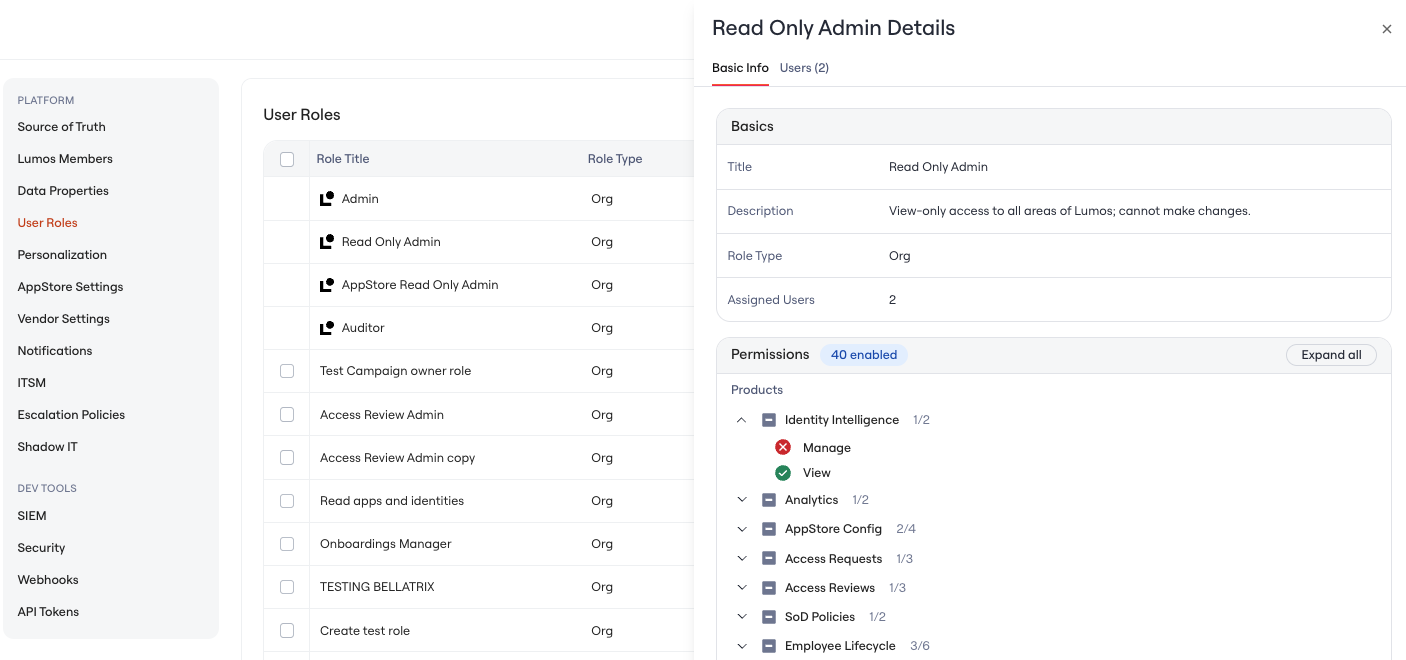
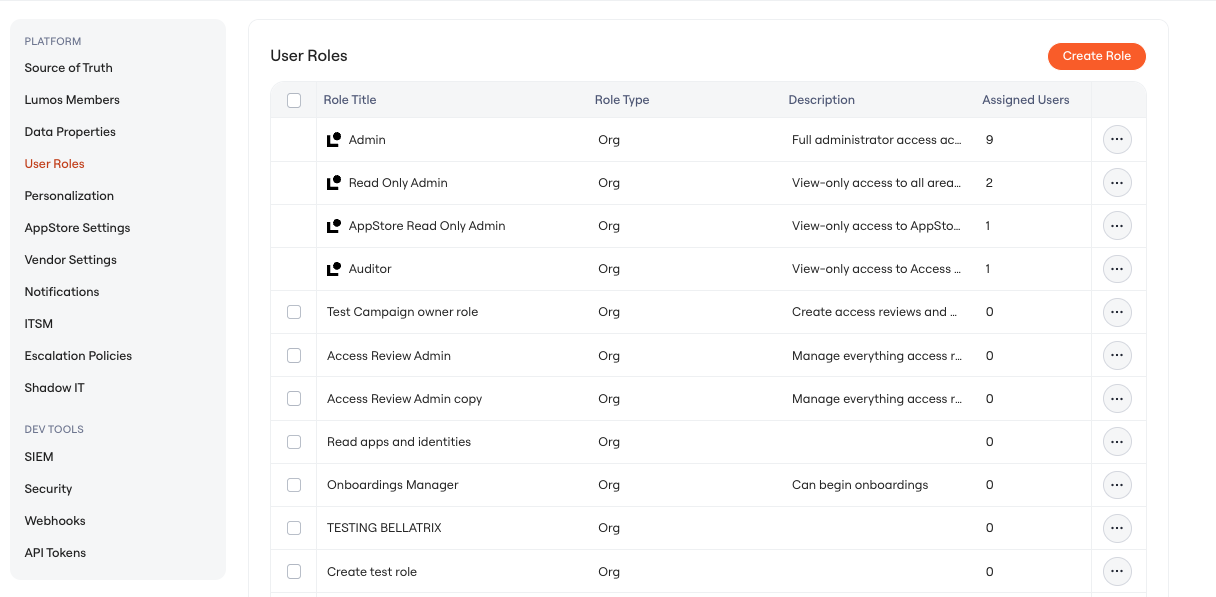 Clicking on a role opens a details panel showing its description, module access, and the full list of permissions. The **Users** tab displays all Lumos members who currently hold that role.
 ***
## Step 2: Create a Custom Role
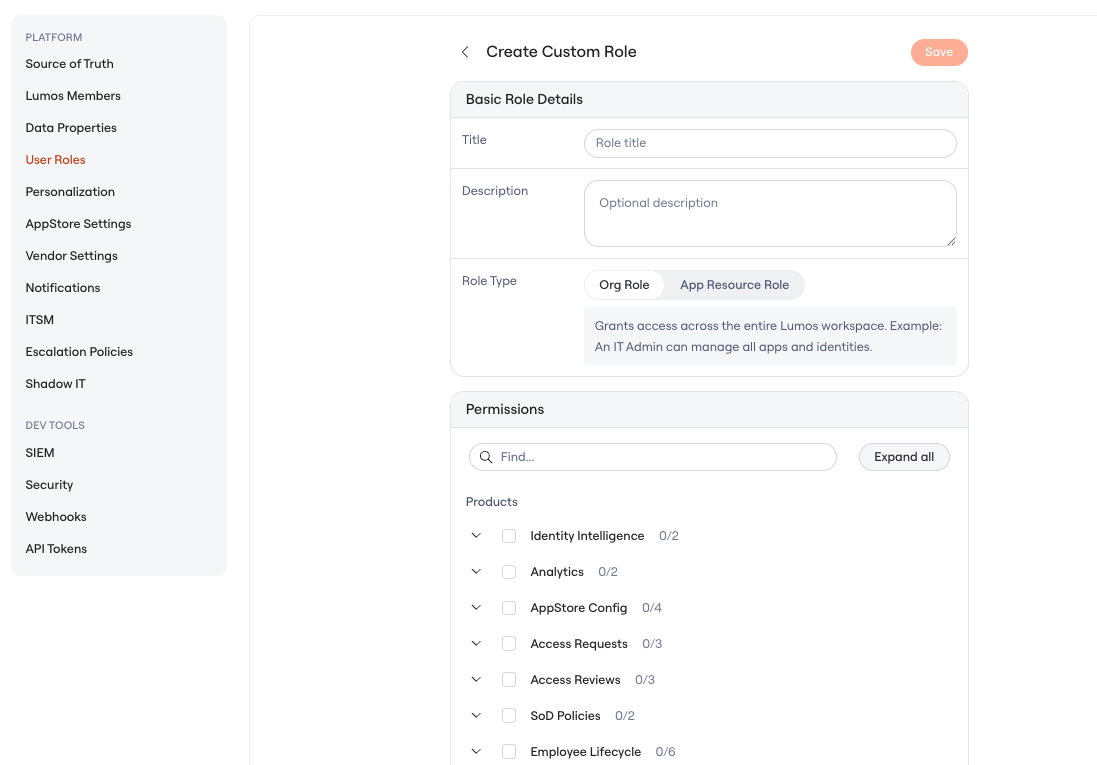
Select **Create Role** to open the configuration page. In **Basic Role Details**, enter:
* **Title** — the name of the role as it will appear in the User Roles table and the Access Level picker
* **Description** — optional, but recommended so other admins know what the role is for
* **Role Type** — choose between **Org Role** and **App Resource Role**
***
## Step 2: Create a Custom Role
Select **Create Role** to open the configuration page. In **Basic Role Details**, enter:
* **Title** — the name of the role as it will appear in the User Roles table and the Access Level picker
* **Description** — optional, but recommended so other admins know what the role is for
* **Role Type** — choose between **Org Role** and **App Resource Role**
 ### Choosing the right Role Type
* **Org Role** — grants permissions across the entire organization. The user holds the role regardless of which application or resource they are working with.
* **App Resource Role** — grants permissions only on specific applications when assigned. The user holds the role for the apps you assign it to, and no others. *"Grants access only to specific resources when assigned. Example: An App Admin can manage GitHub, but not other apps."*
App Resource Roles are useful when you want to customize what an App Admin can do for a single app. For example, a team lead might be allowed to approve access requests and edit entitlement names and descriptions for one app, but should not be able to change provisioning workflows or define approval workflow steps for that same app.
### Configure permissions
In the **Permissions** section, choose the appropriate product surfaces and coarse-grained permissions such as **View**, **Manage**, or **Create**.
* For an **Org Role**, the catalog covers Products (Identity Intelligence, Analytics, AppStore Config, Access Requests, Access Reviews, SoD Policies, Employee Lifecycle), Inventory (Apps, Identities, Non-Human Identities, Vendor Agreements, Spend Records, Found Documents, Access Policies, Knowledge Hub), and Workspace (Activity Logs, MCP Governance, On-Prem Agents, Org Settings, Custom Attributes, Tasks).
* For an **App Resource Role**, the catalog is intentionally narrower and includes only the permissions that make sense at a per-app scope: AppStore Config, Access Requests, Apps, and Tasks. At the bottom of the permission picker the UI shows: *"Additional permissions are not supported for this role."*
### Choosing the right Role Type
* **Org Role** — grants permissions across the entire organization. The user holds the role regardless of which application or resource they are working with.
* **App Resource Role** — grants permissions only on specific applications when assigned. The user holds the role for the apps you assign it to, and no others. *"Grants access only to specific resources when assigned. Example: An App Admin can manage GitHub, but not other apps."*
App Resource Roles are useful when you want to customize what an App Admin can do for a single app. For example, a team lead might be allowed to approve access requests and edit entitlement names and descriptions for one app, but should not be able to change provisioning workflows or define approval workflow steps for that same app.
### Configure permissions
In the **Permissions** section, choose the appropriate product surfaces and coarse-grained permissions such as **View**, **Manage**, or **Create**.
* For an **Org Role**, the catalog covers Products (Identity Intelligence, Analytics, AppStore Config, Access Requests, Access Reviews, SoD Policies, Employee Lifecycle), Inventory (Apps, Identities, Non-Human Identities, Vendor Agreements, Spend Records, Found Documents, Access Policies, Knowledge Hub), and Workspace (Activity Logs, MCP Governance, On-Prem Agents, Org Settings, Custom Attributes, Tasks).
* For an **App Resource Role**, the catalog is intentionally narrower and includes only the permissions that make sense at a per-app scope: AppStore Config, Access Requests, Apps, and Tasks. At the bottom of the permission picker the UI shows: *"Additional permissions are not supported for this role."*
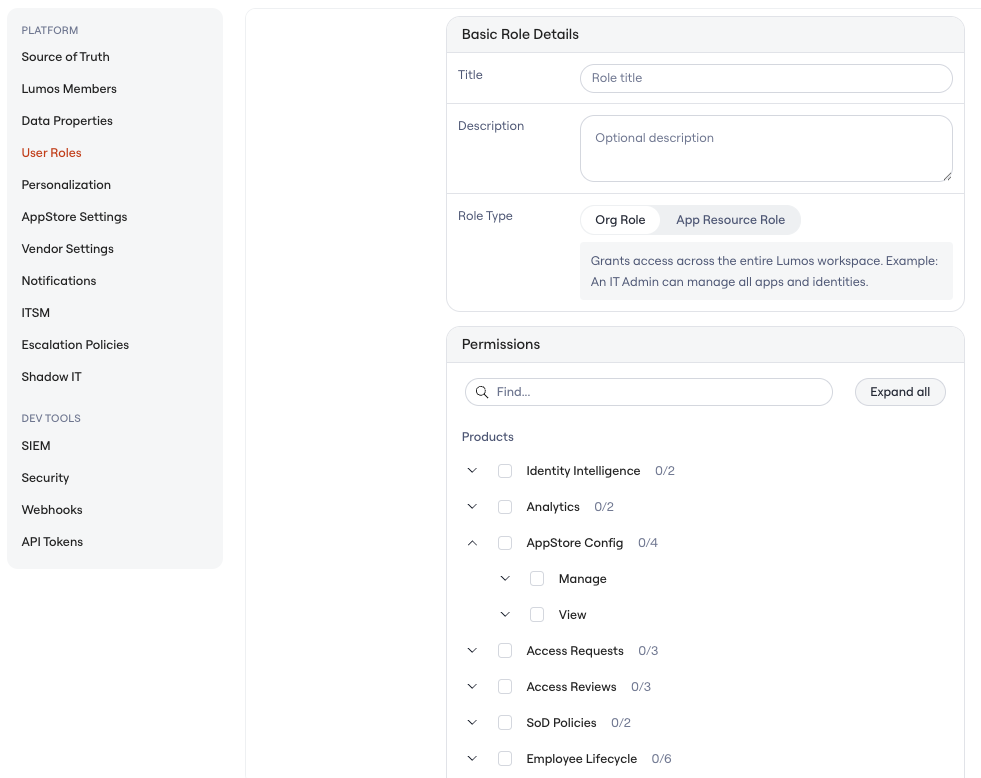
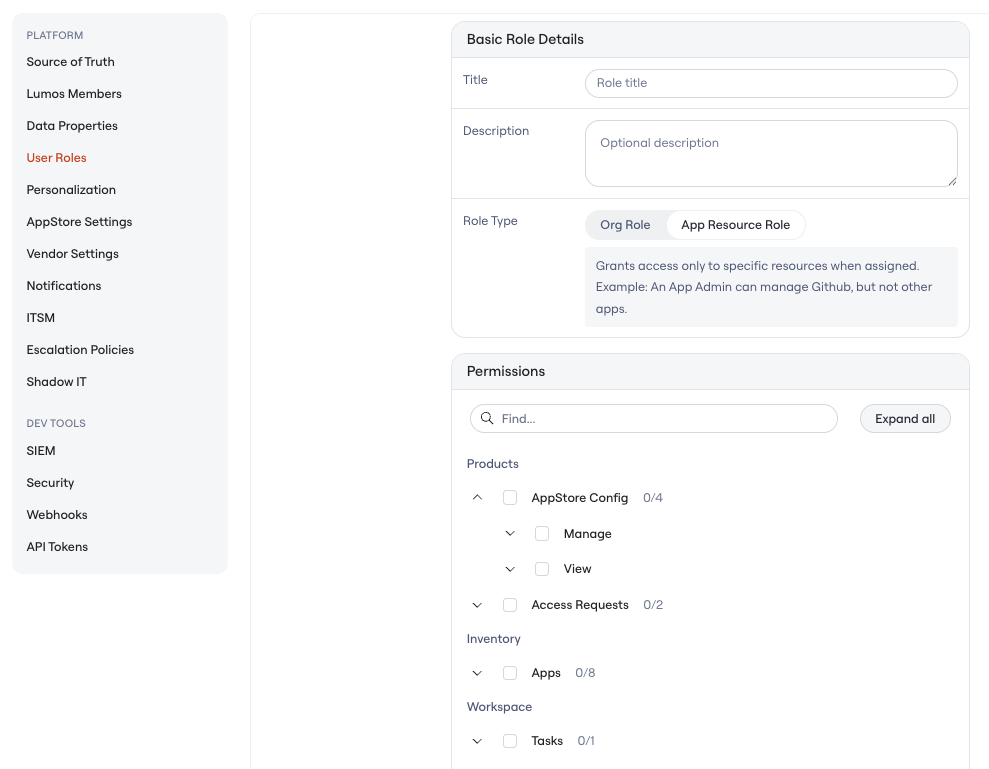 Once saved, the new custom role appears in the User Roles table.
***
## Step 3: Assign the role
How you assign the role depends on the role type.
### Assign a Custom Org Role
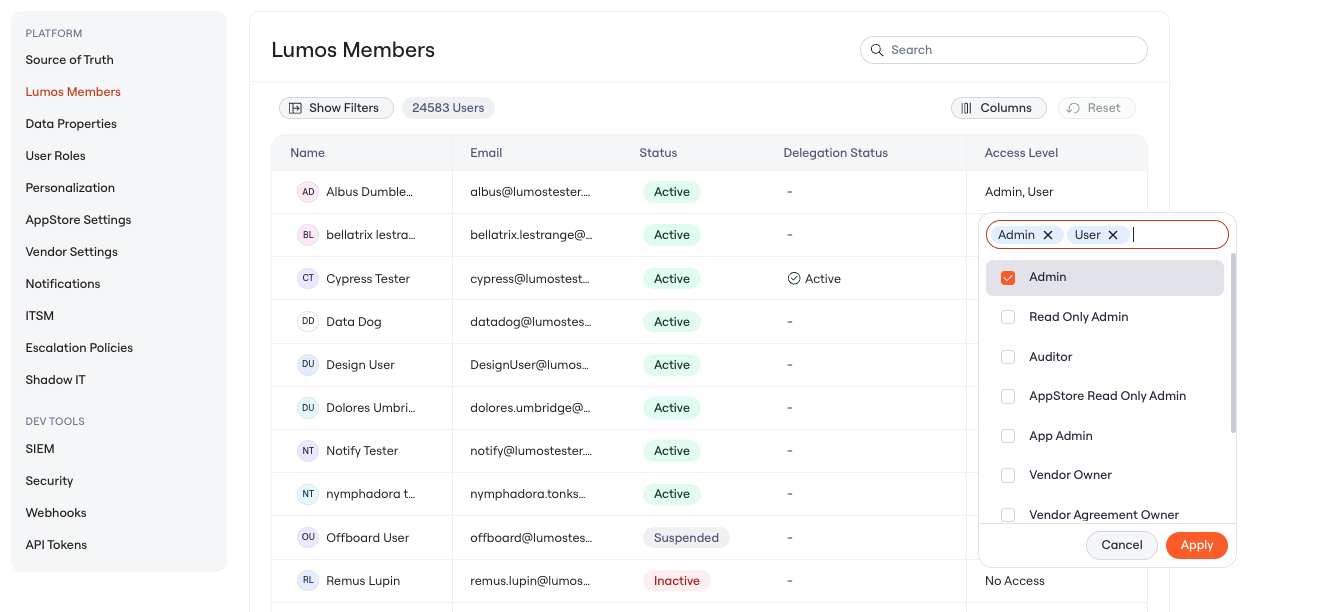
Assign org roles from the **Settings** page **→ Lumos Members** tab by using the dropdown in the **Access Level** column. A user can hold multiple roles at once, and the permissions are additive.
Once saved, the new custom role appears in the User Roles table.
***
## Step 3: Assign the role
How you assign the role depends on the role type.
### Assign a Custom Org Role
Assign org roles from the **Settings** page **→ Lumos Members** tab by using the dropdown in the **Access Level** column. A user can hold multiple roles at once, and the permissions are additive.
 ### Assign an App Resource Role
App Resource Roles are assigned **per app** from the app's page. Open the app in Lumos, find the role-assignment area, and assign the role to a user or group. The same App Resource Role can be assigned to different users on different apps independently.
### Assign an App Resource Role
App Resource Roles are assigned **per app** from the app's page. Open the app in Lumos, find the role-assignment area, and assign the role to a user or group. The same App Resource Role can be assigned to different users on different apps independently.
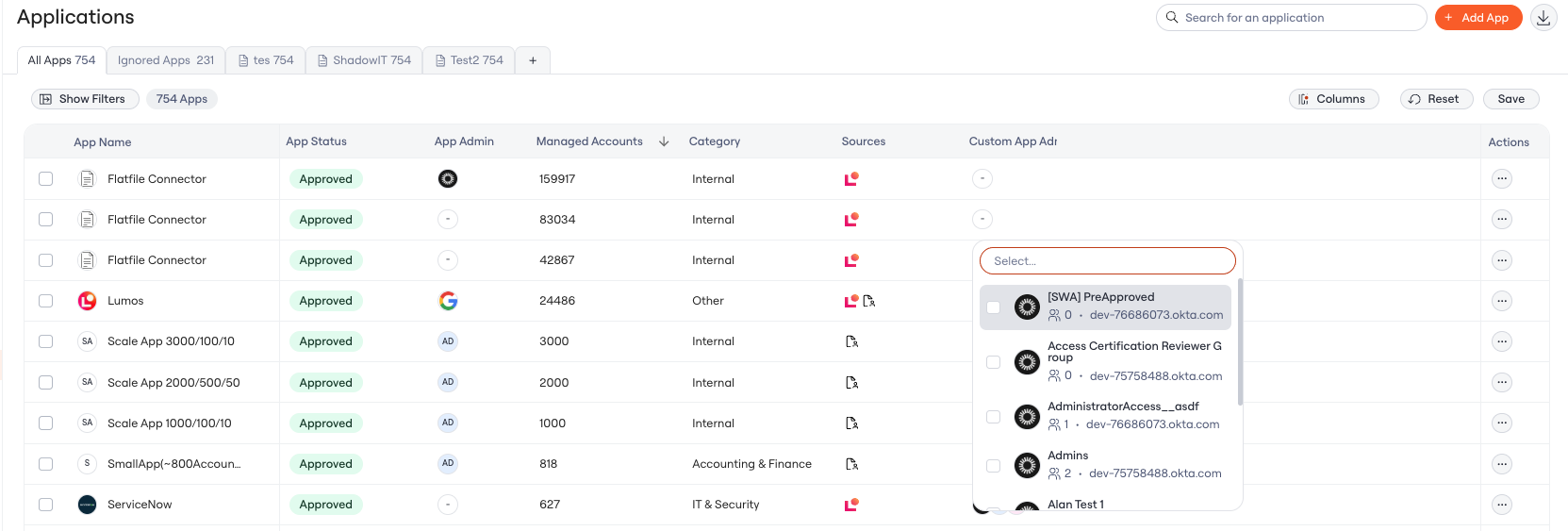 When a user is assigned an App Resource Role on a specific app, they receive the role's permissions for that app only. They do not automatically receive those permissions on any other app.
***
## Behavior and limits
* **Admin only.** Only users with the Admin role can create, edit, or delete Custom Roles.
* **Edits take effect on next session.** When you change a Custom Role's permissions, assigned users see the updated permissions the next time they log in or refresh their session.
* **Deletion is allowed.** If you delete a Custom Role, users who held that role fall back to the default **User** role.
* **No limits today.** There is no cap on the number of Custom Roles per tenant or the number of users that can be assigned a given role.
* **Partial API support.** Custom Role creation and editing are not yet available via the public Lumos API. You can grant and revoke Custom Org Roles through the existing role API endpoints, the same way as built-in roles. App Resource Role assignments are not yet supported via the API.
* **No Activity Log audit today.** Custom Role create, edit, delete, and assignment events are not yet captured in the Activity Log.
* **Reserved names.** Built-in Lumos role names are reserved and cannot be used as Custom Role titles.
***
## Tips and examples
### Example Org Roles
* **Access Review Manager** — Manage access reviews, create review campaigns, manage review assignments. Cannot configure integrations or change org settings.
* **Read-Only Auditor** — View access reviews, view activity logs, generate review reports. No write access anywhere.
* **Helpdesk Viewer** — View apps, view accounts, view access requests, view tasks. Cannot make changes.
* **Procurement Partner** — View and manage vendor agreements, manage spend records, view dashboards. No access to AppStore configuration or integrations.
### Example App Resource Roles
* **Approvals-only App Admin** — Manage and view AppStore Config (Approvals), manage Access Requests, view Apps (Accounts, Basic Details, Workflows). The team lead can act on approvals for the assigned app but cannot edit provisioning workflows or change integration settings.
* **Entitlement Editor** — Manage and view Apps (Permissions, Basic Details). The app owner can clean up entitlement names and descriptions, but cannot change workflows, approvals, or integration settings.
* **App Viewer** — View Apps (Accounts, Basic Details, Workflows), View AppStore Config. The finance team can audit configuration on a specific app without making changes.
***
## Frequently asked
**Who can create Custom Roles?**
Only users with the Admin role can create, edit, or delete Custom Roles.
**Can a Custom Role be both Org and App scoped?**
No. When you create a Custom Role, you choose either Org Role or App Resource Role. If you need both behaviors for the same user, create two roles and assign both.
**What happens to assigned users when I delete a Custom Role?**
Users no longer have that assignment. Reassign them to another role afterwards if they need elevated permissions.
**Can a user have multiple Custom Roles?**
Yes. Custom Roles stack with built-in roles and with each other. The user's effective permissions are the union of every role they hold.
**Will more resource types be supported?**
Yes. Apps is the first resource type. Future expansion will include additional resource types such as policies and identities, on the same Resource Role model.
**Can I manage Custom Roles via the API?**
Partly. You can't create or edit Custom Roles through the public API yet. You can grant, revoke, and view Custom Org Role assignments through the existing role API endpoints, the same way as built-in roles. App Resource Role assignments are not yet supported via the API. See [Lumos Roles](/kb/identities/lumos_roles/lumos-roles) for the endpoints.
When a user is assigned an App Resource Role on a specific app, they receive the role's permissions for that app only. They do not automatically receive those permissions on any other app.
***
## Behavior and limits
* **Admin only.** Only users with the Admin role can create, edit, or delete Custom Roles.
* **Edits take effect on next session.** When you change a Custom Role's permissions, assigned users see the updated permissions the next time they log in or refresh their session.
* **Deletion is allowed.** If you delete a Custom Role, users who held that role fall back to the default **User** role.
* **No limits today.** There is no cap on the number of Custom Roles per tenant or the number of users that can be assigned a given role.
* **Partial API support.** Custom Role creation and editing are not yet available via the public Lumos API. You can grant and revoke Custom Org Roles through the existing role API endpoints, the same way as built-in roles. App Resource Role assignments are not yet supported via the API.
* **No Activity Log audit today.** Custom Role create, edit, delete, and assignment events are not yet captured in the Activity Log.
* **Reserved names.** Built-in Lumos role names are reserved and cannot be used as Custom Role titles.
***
## Tips and examples
### Example Org Roles
* **Access Review Manager** — Manage access reviews, create review campaigns, manage review assignments. Cannot configure integrations or change org settings.
* **Read-Only Auditor** — View access reviews, view activity logs, generate review reports. No write access anywhere.
* **Helpdesk Viewer** — View apps, view accounts, view access requests, view tasks. Cannot make changes.
* **Procurement Partner** — View and manage vendor agreements, manage spend records, view dashboards. No access to AppStore configuration or integrations.
### Example App Resource Roles
* **Approvals-only App Admin** — Manage and view AppStore Config (Approvals), manage Access Requests, view Apps (Accounts, Basic Details, Workflows). The team lead can act on approvals for the assigned app but cannot edit provisioning workflows or change integration settings.
* **Entitlement Editor** — Manage and view Apps (Permissions, Basic Details). The app owner can clean up entitlement names and descriptions, but cannot change workflows, approvals, or integration settings.
* **App Viewer** — View Apps (Accounts, Basic Details, Workflows), View AppStore Config. The finance team can audit configuration on a specific app without making changes.
***
## Frequently asked
**Who can create Custom Roles?**
Only users with the Admin role can create, edit, or delete Custom Roles.
**Can a Custom Role be both Org and App scoped?**
No. When you create a Custom Role, you choose either Org Role or App Resource Role. If you need both behaviors for the same user, create two roles and assign both.
**What happens to assigned users when I delete a Custom Role?**
Users no longer have that assignment. Reassign them to another role afterwards if they need elevated permissions.
**Can a user have multiple Custom Roles?**
Yes. Custom Roles stack with built-in roles and with each other. The user's effective permissions are the union of every role they hold.
**Will more resource types be supported?**
Yes. Apps is the first resource type. Future expansion will include additional resource types such as policies and identities, on the same Resource Role model.
**Can I manage Custom Roles via the API?**
Partly. You can't create or edit Custom Roles through the public API yet. You can grant, revoke, and view Custom Org Role assignments through the existing role API endpoints, the same way as built-in roles. App Resource Role assignments are not yet supported via the API. See [Lumos Roles](/kb/identities/lumos_roles/lumos-roles) for the endpoints.