> ## Documentation Index
> Fetch the complete documentation index at: https://docs.lumos.com/llms.txt
> Use this file to discover all available pages before exploring further.
# Authenticating Your Sending Domain
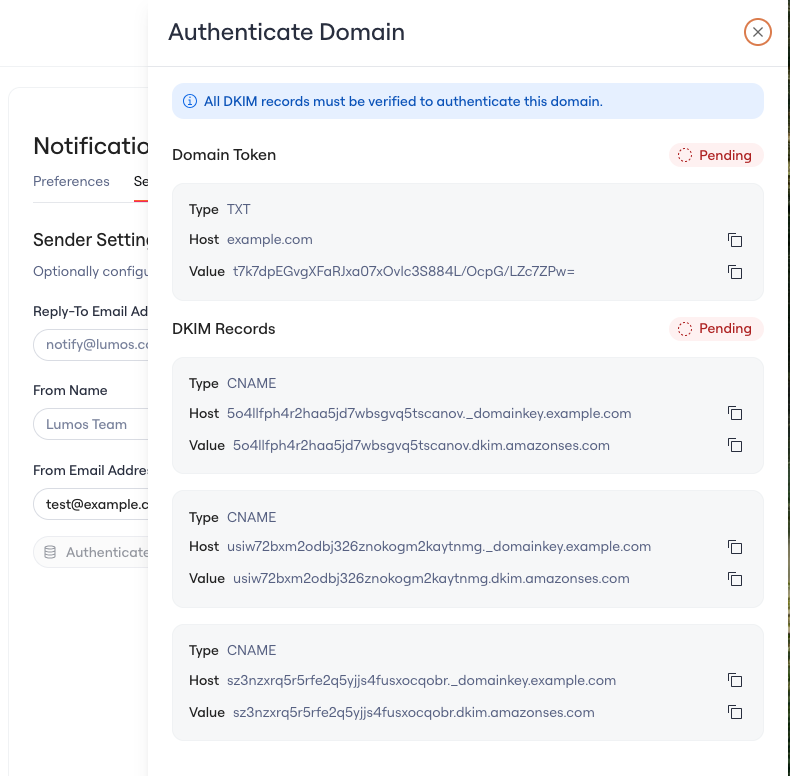
Customize the email address, reply-to address, and sender name your users see when Lumos sends them email. Before Lumos can send from an address on your domain, you need to authenticate the domain by adding three `CNAME` records at your DNS provider. This article walks through copying those records from Lumos and publishing them.
## Prerequisites
* Admin role in Lumos.
* Access to your DNS provider (or the ability to ask your system administrator to add records for you).
## Instructions
### In Lumos
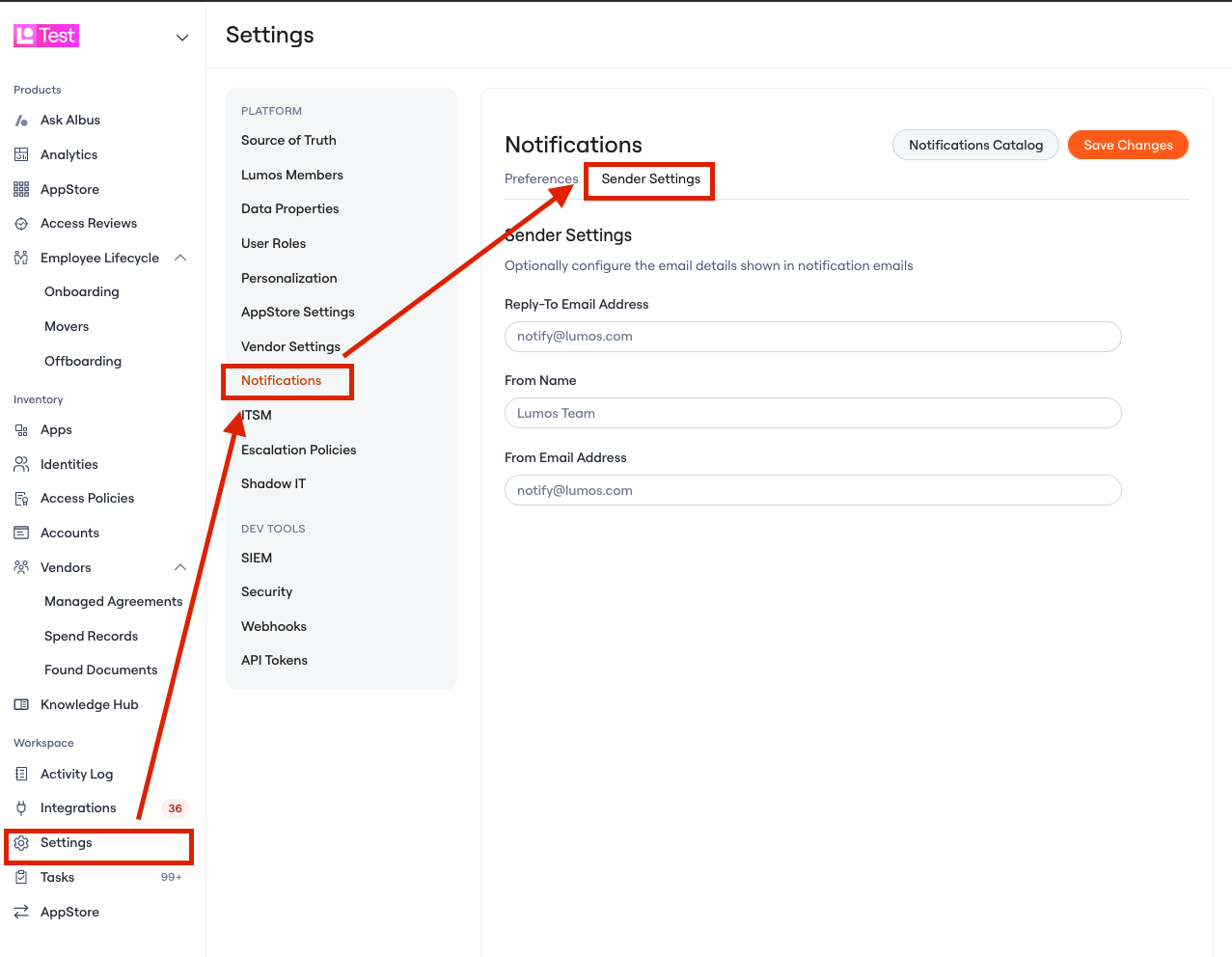
1. Go to Settings → Notifications → Sender Settings to open the "Authenticate Domain" page.
 2. Copy the three `CNAME` records shown on the page.
 ### In your DNS provider
1. Log in to your DNS provider. If you're not sure who hosts your DNS, ask your system administrator.
2. Add each `CNAME` record to your domain's DNS settings. Use the exact record names provided by Lumos.
3. Save your DNS changes.
### Back in Lumos
1. Return to the "Authenticate Domain" page.
### In your DNS provider
1. Log in to your DNS provider. If you're not sure who hosts your DNS, ask your system administrator.
2. Add each `CNAME` record to your domain's DNS settings. Use the exact record names provided by Lumos.
3. Save your DNS changes.
### Back in Lumos
1. Return to the "Authenticate Domain" page.
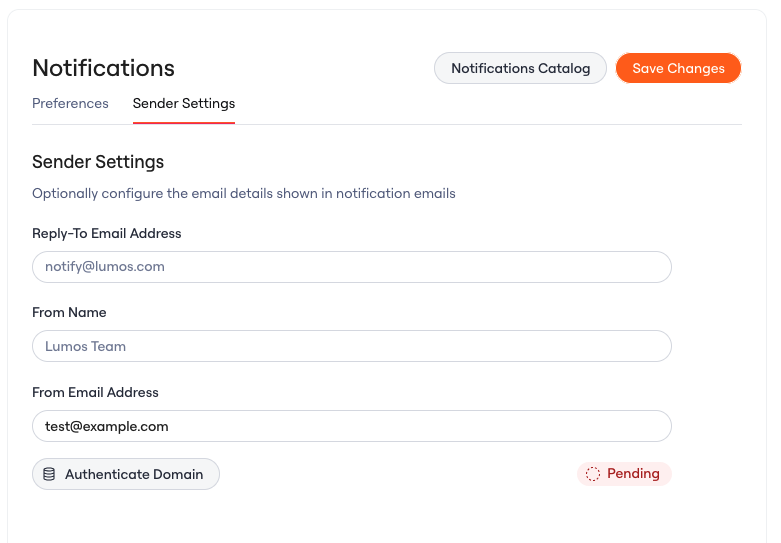 2. Wait for the status badge to change to `Verified`. DNS changes can take up to 72 hours to propagate.
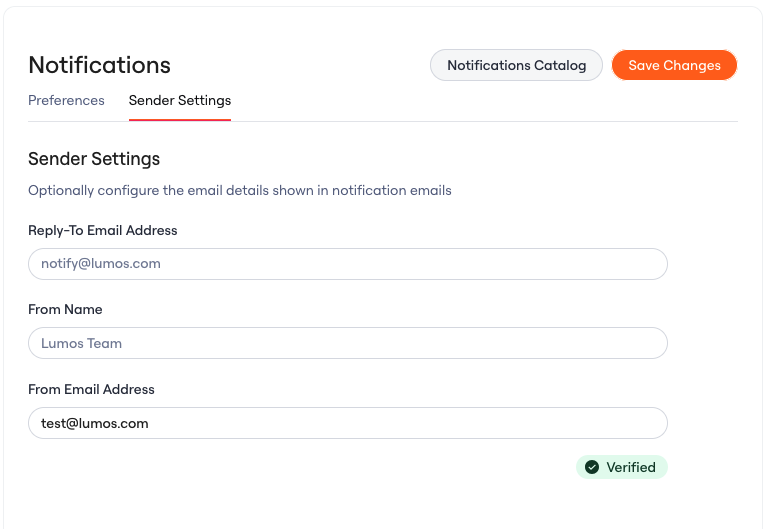 3. Once the badge shows `Verified`, Lumos starts sending email from your customized address.
## Correct CNAME format
The `_domainkey` portion is part of the record name and should be used exactly as Lumos provides it. Do not add a leading underscore.
* Correct: `abc123._domainkey.domain.com`
* Incorrect: `_abc123._domainkey.domain.com`
## FAQ
**How do I check verification status?**
Return to the "Authenticate Domain" page. If the badge shows `Verified`, you're set. Most DNS providers update within a few hours.
**What if the badge never updates to** `Verified`**?**
* Confirm each record name matches exactly what Lumos provided (no extra underscores, no truncated `_domainkey` portion).
* Confirm the records were saved at your DNS provider.
* If it has been more than 72 hours and the records are correct, contact [support@lumos.com](mailto:support@lumos.com).
3. Once the badge shows `Verified`, Lumos starts sending email from your customized address.
## Correct CNAME format
The `_domainkey` portion is part of the record name and should be used exactly as Lumos provides it. Do not add a leading underscore.
* Correct: `abc123._domainkey.domain.com`
* Incorrect: `_abc123._domainkey.domain.com`
## FAQ
**How do I check verification status?**
Return to the "Authenticate Domain" page. If the badge shows `Verified`, you're set. Most DNS providers update within a few hours.
**What if the badge never updates to** `Verified`**?**
* Confirm each record name matches exactly what Lumos provided (no extra underscores, no truncated `_domainkey` portion).
* Confirm the records were saved at your DNS provider.
* If it has been more than 72 hours and the records are correct, contact [support@lumos.com](mailto:support@lumos.com).