> ## Documentation Index
> Fetch the complete documentation index at: https://docs.lumos.com/llms.txt
> Use this file to discover all available pages before exploring further.
# Adding Permission Display Names and Descriptions
## Why this matters
Ever looked at a permission like AWS-538697941105-AAD-platformengineers and thought, *“What is that?”* You’re not alone.
Permission names are often cryptic and do not provide enough context as to what access that permission grants. That’s a problem when reviewers are asked to approve or revoke access without knowing what the access actually does.
Lumos enables you to add display names and descriptions to your permissions. This helps Reviewers make better decisions during Access Reviews and reduces manual sharing of external links.
You have 2 ways in which you can add Permission Display Names and Permissions
1. Active Directory Sync
2. CSV upload
## Syncing Display Names and Permissions from Active Directory
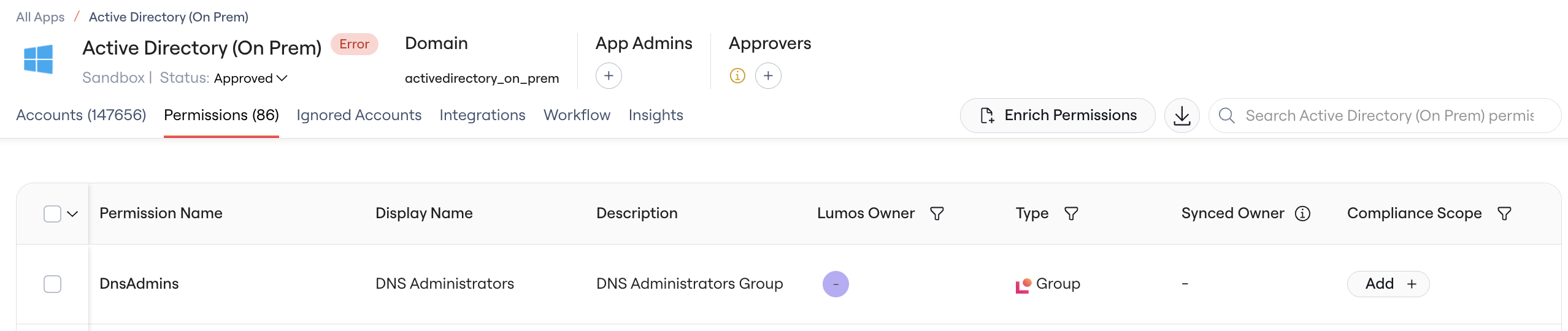
1. Setup your Active Directory Integration [Connecting Active Directory](/integrations/library/active-directory)
2. Navigate to the Apps table > Single App > Permissions Tab
3. View synced Display Names and Descriptions in the Permissions Tab
 ## Uploading Display Names and Permissions via CSV
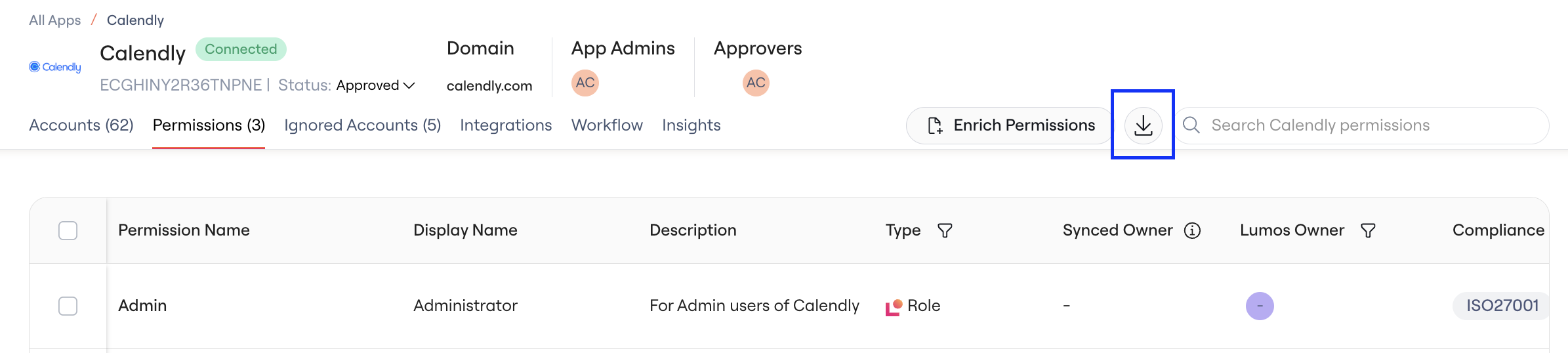
### 1. Download the CSV files with Permissions data
**Click** on the download CSV icon
## Uploading Display Names and Permissions via CSV
### 1. Download the CSV files with Permissions data
**Click** on the download CSV icon
 ### 2. Update the CSV files with Permission display names, descriptions, and owners
**Enter** or Copy/paste values for Permission display names and descriptions in the CSV file.
**Map Owner columns (optional)**
You can also map owner information to assign Lumos owners to permissions:
* **Owner Email**: Maps to a user's email address (recommended method)
* **Owner Given Name** & **Owner Family Name**: Maps to user's first and last name
**How Lumos Owners are Matched:**
* **Primary Method: Email Lookup** - If you provide an email address, Lumos searches for an exact match (case-insensitive) within your domain
* **Fallback Method: Full Name Lookup** - If no email is provided but first and last names are given, Lumos searches by the full name combination
* **Duplicate Resolution** - If multiple users have the same full name, the assignment is skipped and reported as an error to prevent incorrect assignments
**Potential Owner Matching Errors:**
* **User not found** - No user matches the provided email or full name
* **Multiple users found** - Multiple users have the same full name (ambiguous match)
### 3. Upload the CSV file
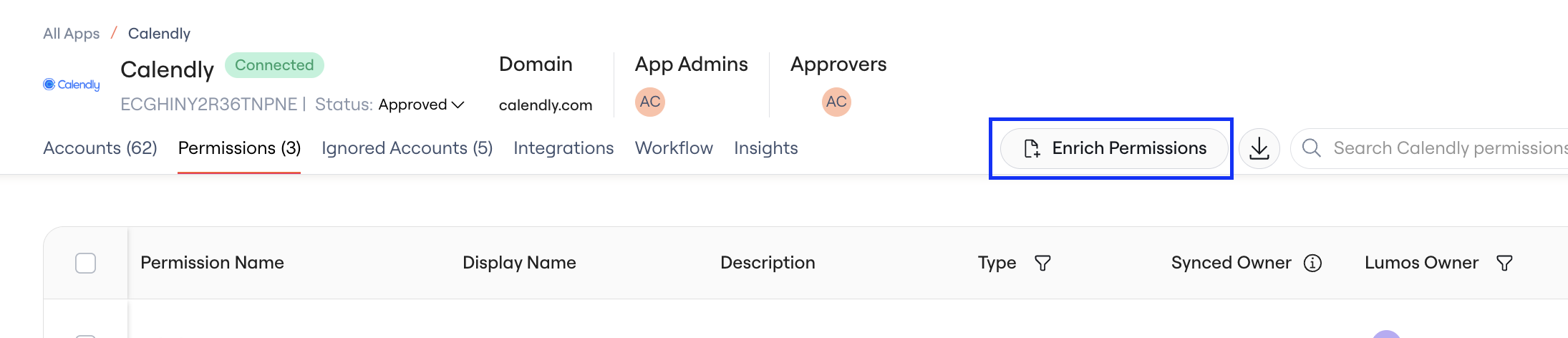
**Click** on Enrich Permissions
### 2. Update the CSV files with Permission display names, descriptions, and owners
**Enter** or Copy/paste values for Permission display names and descriptions in the CSV file.
**Map Owner columns (optional)**
You can also map owner information to assign Lumos owners to permissions:
* **Owner Email**: Maps to a user's email address (recommended method)
* **Owner Given Name** & **Owner Family Name**: Maps to user's first and last name
**How Lumos Owners are Matched:**
* **Primary Method: Email Lookup** - If you provide an email address, Lumos searches for an exact match (case-insensitive) within your domain
* **Fallback Method: Full Name Lookup** - If no email is provided but first and last names are given, Lumos searches by the full name combination
* **Duplicate Resolution** - If multiple users have the same full name, the assignment is skipped and reported as an error to prevent incorrect assignments
**Potential Owner Matching Errors:**
* **User not found** - No user matches the provided email or full name
* **Multiple users found** - Multiple users have the same full name (ambiguous match)
### 3. Upload the CSV file
**Click** on Enrich Permissions
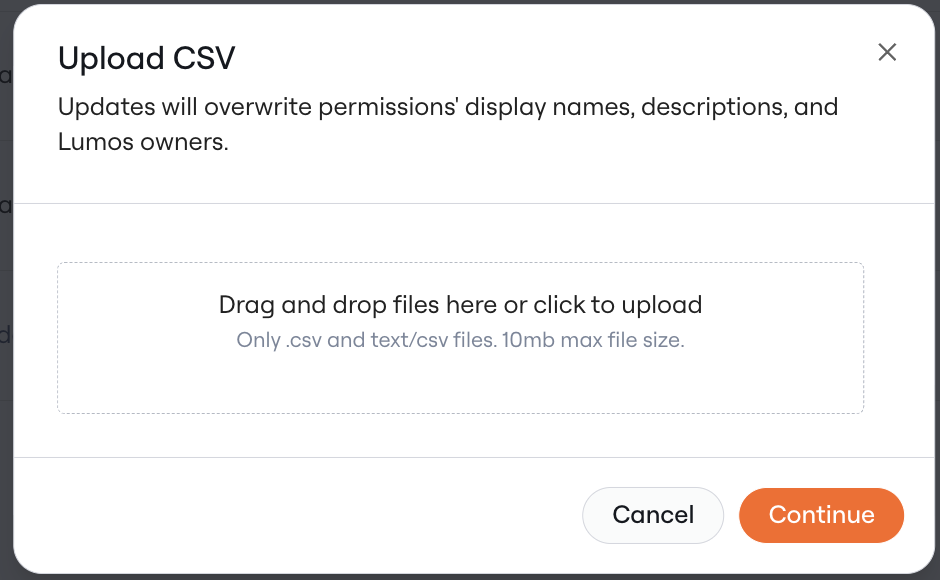
 **Select** the appropriate CSV file (max size of 10 MB supported)
 **Map** your CSV columns
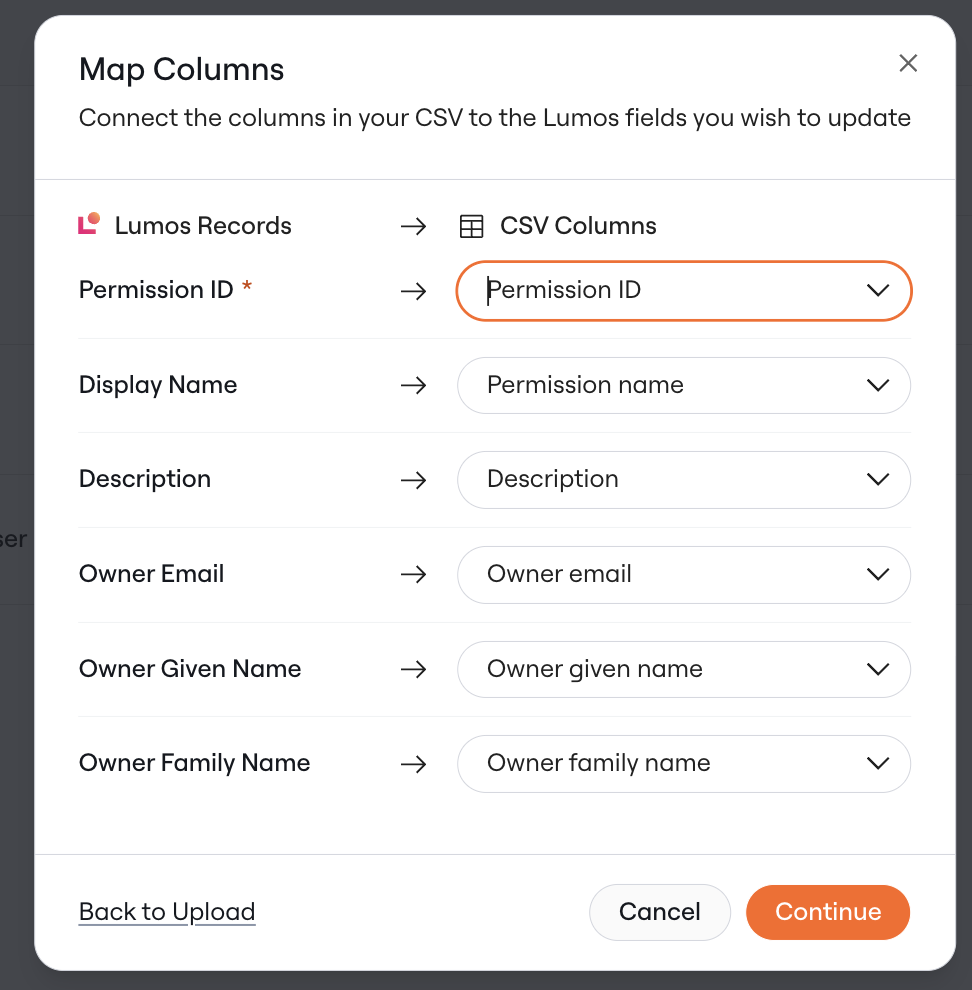 The Permission ID column is required. You can map the Display Name and Description columns to add the values to Lumos. If columns are not mapped they will not be synced.
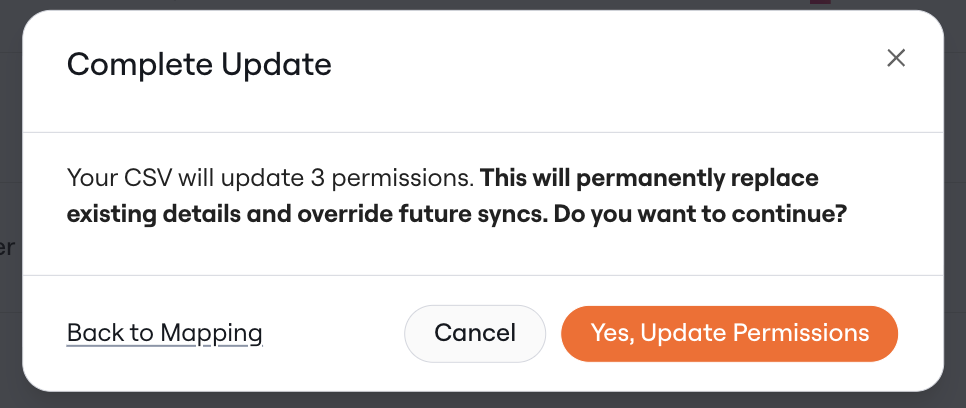
**Confirm** that permissions should be updated.
Any existing display names and descriptions will be overwritten and permanently replaced with the values mapped from the CSV
A blank row will permanently delete any existing value
The Permission ID column is required. You can map the Display Name and Description columns to add the values to Lumos. If columns are not mapped they will not be synced.
**Confirm** that permissions should be updated.
Any existing display names and descriptions will be overwritten and permanently replaced with the values mapped from the CSV
A blank row will permanently delete any existing value
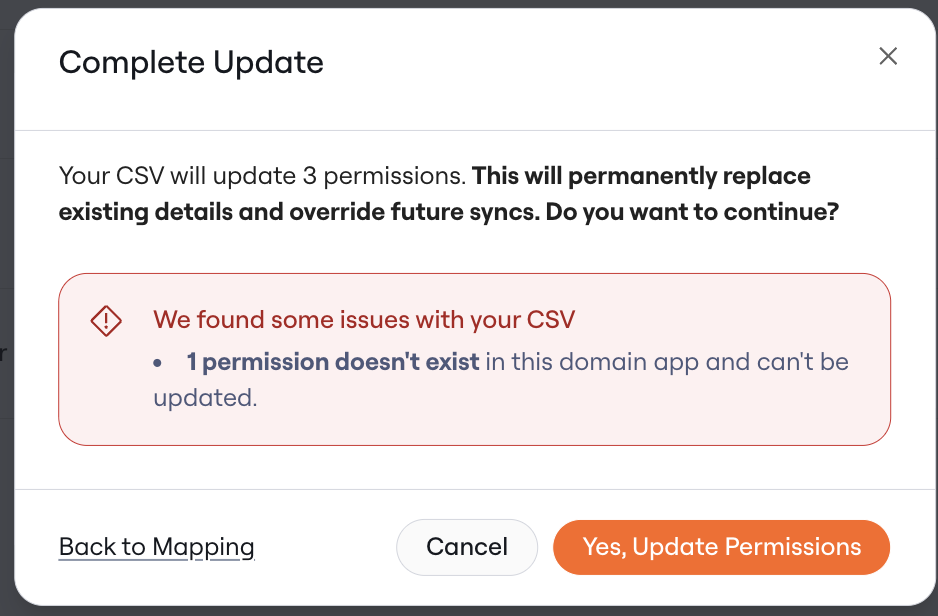
 **Resolve** any issues with the CSV upload.
CSV upload will not add/delete/edit any existing permissions. It will only add/update/delete display names and descriptions.
**Resolve** any issues with the CSV upload.
CSV upload will not add/delete/edit any existing permissions. It will only add/update/delete display names and descriptions.
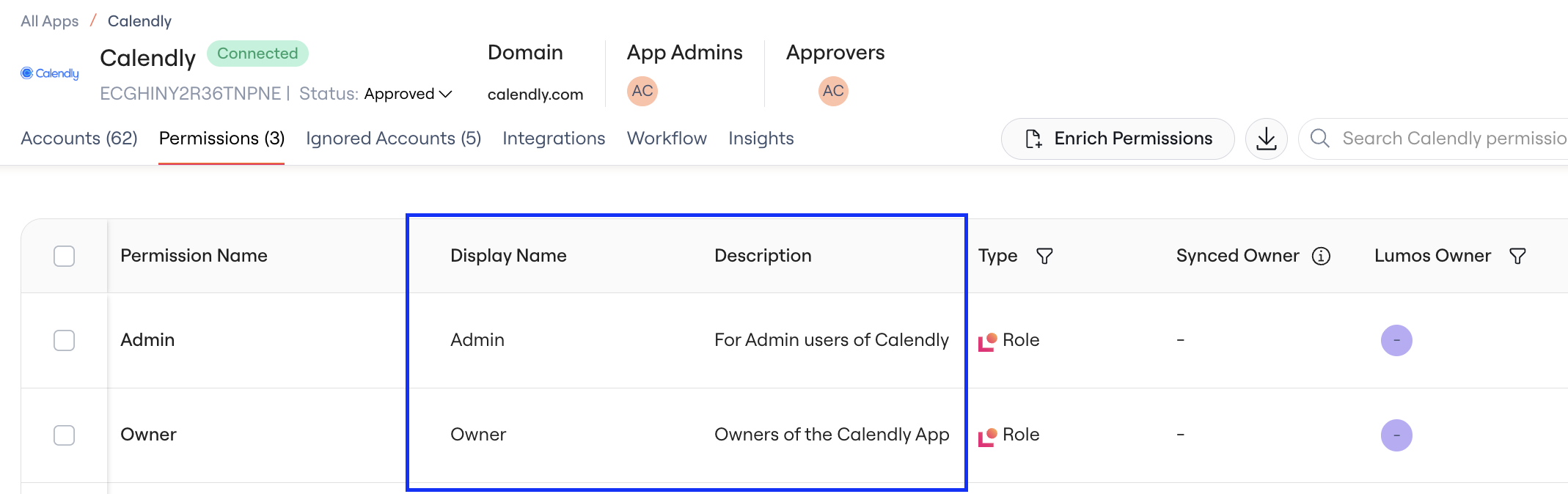
 ### 4. View updated values in the Permissions table
 ## Adding Display Names and Permission Descriptions Inline
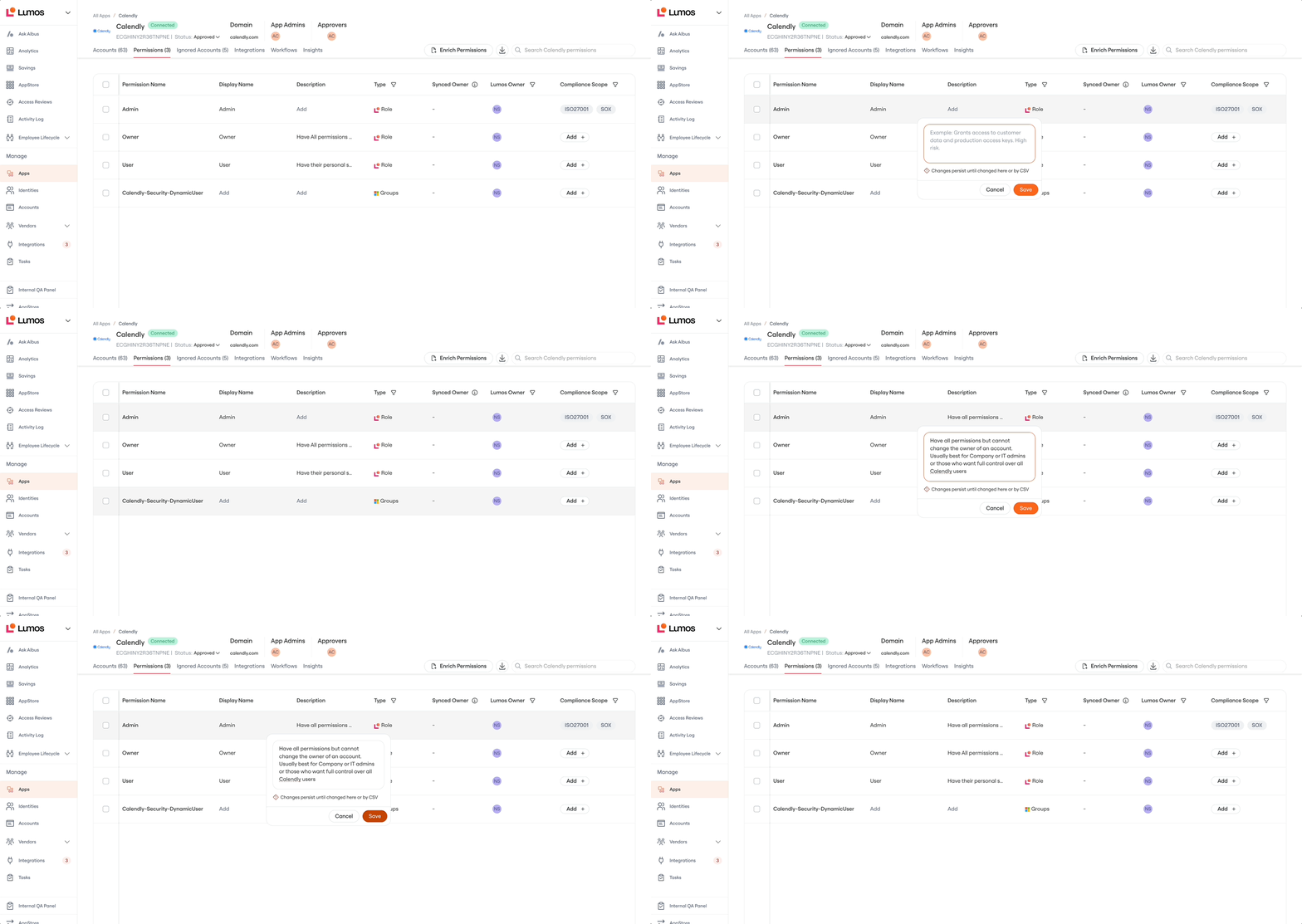
**Click** into the Display Name or Description field in the Permissions Table
**Add/Edit** text inline for Display Names and Descriptions
**Click** Save
**Hover** over truncated text to see the entirety of the content
Inline editing will overwrite any previous text permanently
## Adding Display Names and Permission Descriptions Inline
**Click** into the Display Name or Description field in the Permissions Table
**Add/Edit** text inline for Display Names and Descriptions
**Click** Save
**Hover** over truncated text to see the entirety of the content
Inline editing will overwrite any previous text permanently
 ## Viewing Display Names and Permissions in Access Reviews
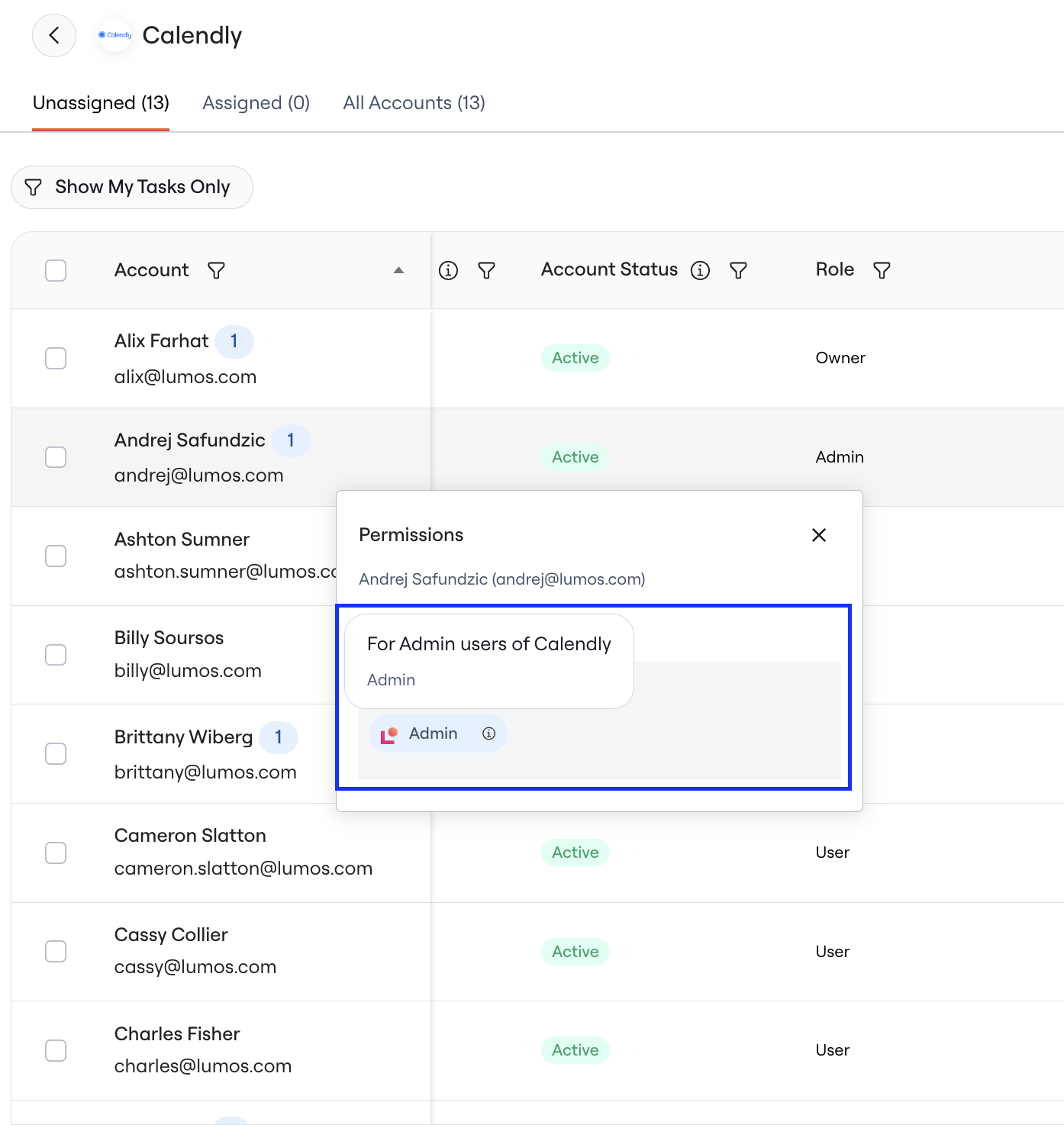
In an Accounts Access Review, **click** on the Permission
## Viewing Display Names and Permissions in Access Reviews
In an Accounts Access Review, **click** on the Permission
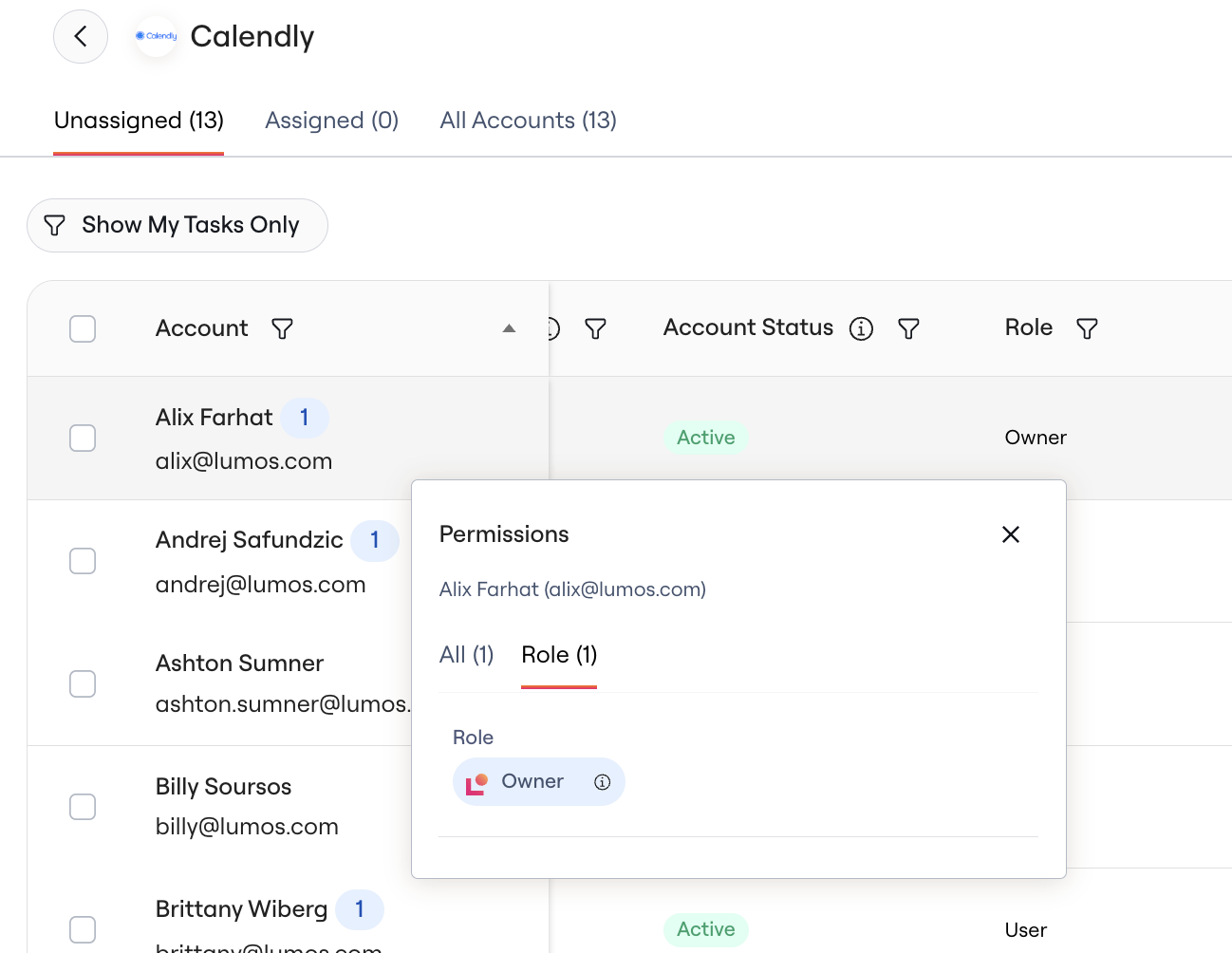 Hover over the info icon to view the added Display Name and Description
 In a Permissions Access Review, **hover** over the Permission name to view the added Display Name and Description
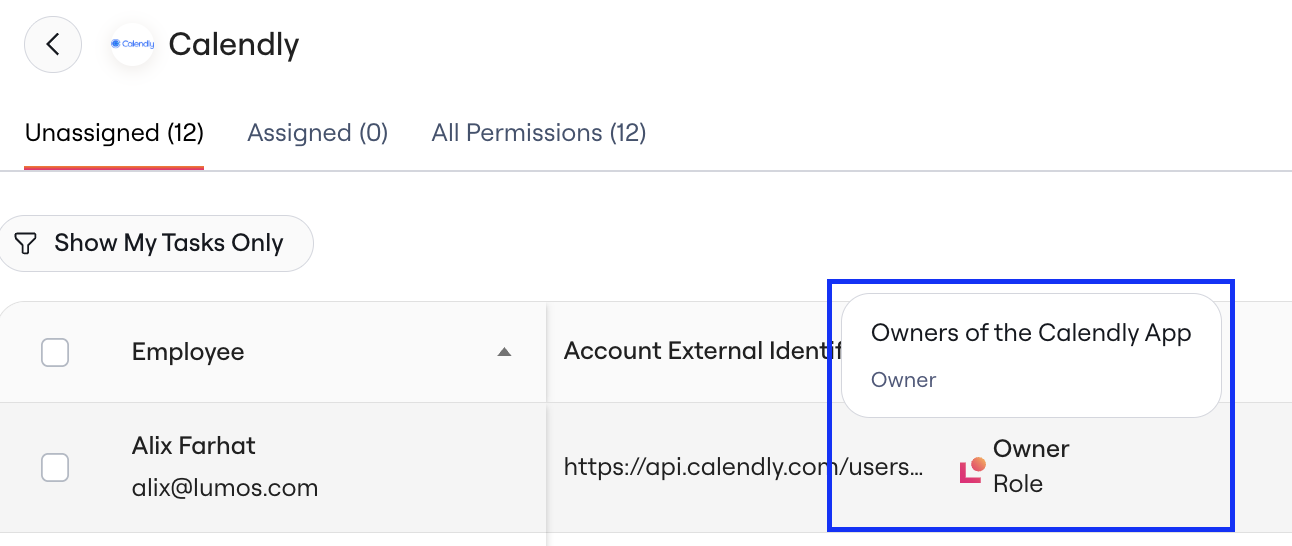 Only display names and descriptions added before the Access Review was synced will be visible in the Access Review
## Viewing Display Names and Permissions in the UAR Auditor Report
**View** added display names and permissions in the Auditor Report
Only display names and descriptions added before the Access Review was synced will be visible in the Access Review
## Viewing Display Names and Permissions in the UAR Auditor Report
**View** added display names and permissions in the Auditor Report