> ## Documentation Index
> Fetch the complete documentation index at: https://docs.lumos.com/llms.txt
> Use this file to discover all available pages before exploring further.
# Lifecycle Management Settings
Part of Lumos Launchpad: [Lifecycle Management](/launchpad/lifecycle-management), step 1.
Lifecycle Management settings control when onboardings and offboardings run. In the Lumos UI, you can set universal onboarding and offboarding timing, schedule onboardings one-off, and edit scheduled onboardings.
## Universal settings
All onboardings and offboardings can be set to run automatically at times relevant to your company's operations. Here's what to decide on ahead of setup:
* **Onboarding**, ask yourself:
* Do you want onboardings to be automatically triggered?
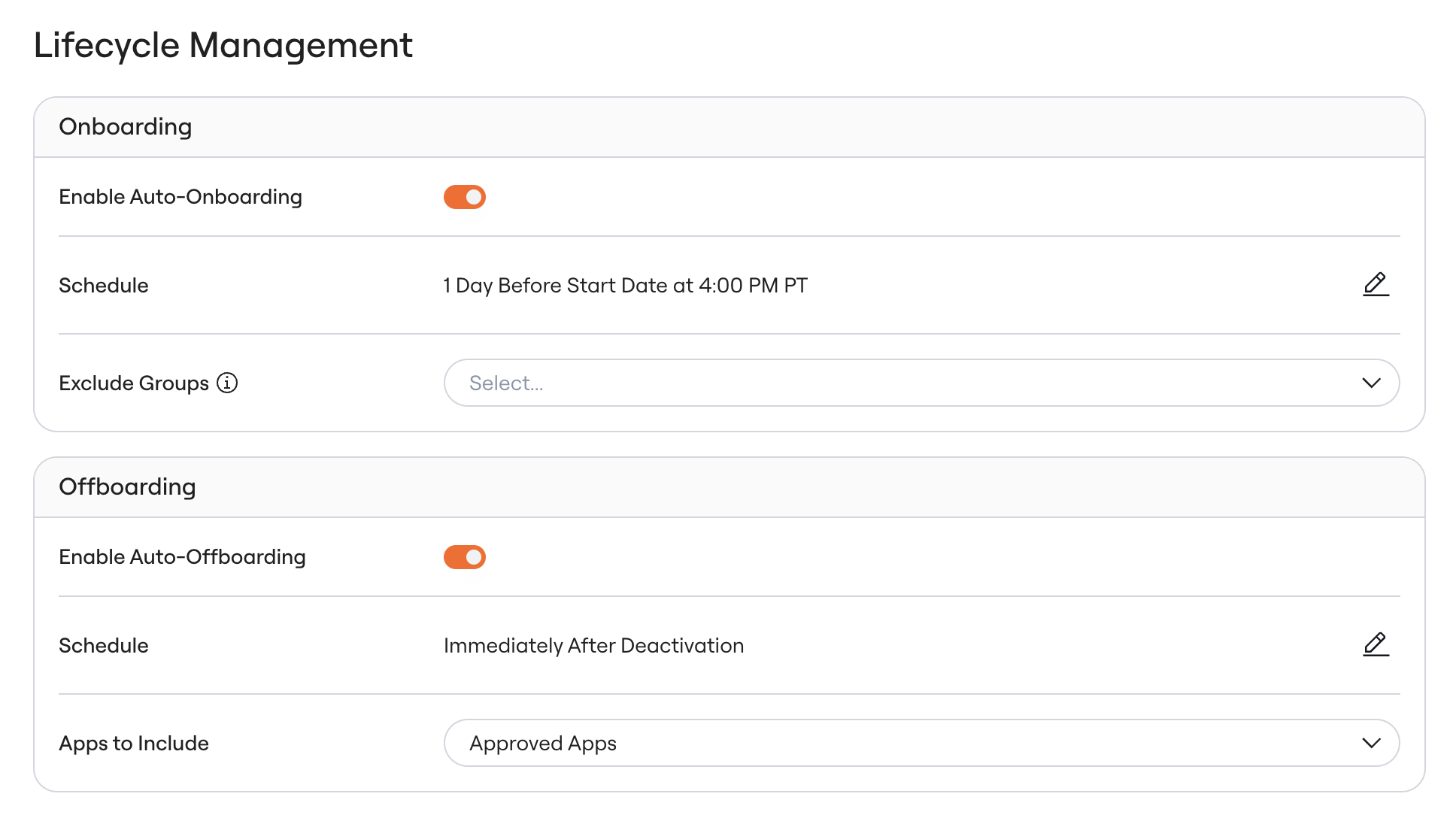
* If so, should onboardings trigger off the account creation date or the employee's start date? With the start date trigger, you also choose the time of day and how many days *before* the start date. With the account creation trigger, onboardings run a set number of days after the account is created, at the time it was created.
* Are there any groups of employees you'd like to exclude from this automatic onboarding trigger?
* **Offboarding**, ask yourself:
* Do you want offboardings to be automatically triggered?
* If so, do you want the offboarding to occur immediately after deactivation or after the employee's end date?
* What apps should *always* be included in these offboardings?
Once you determine the above, if you're interested in automating the onboarding and/or offboarding process, proceed with the following:
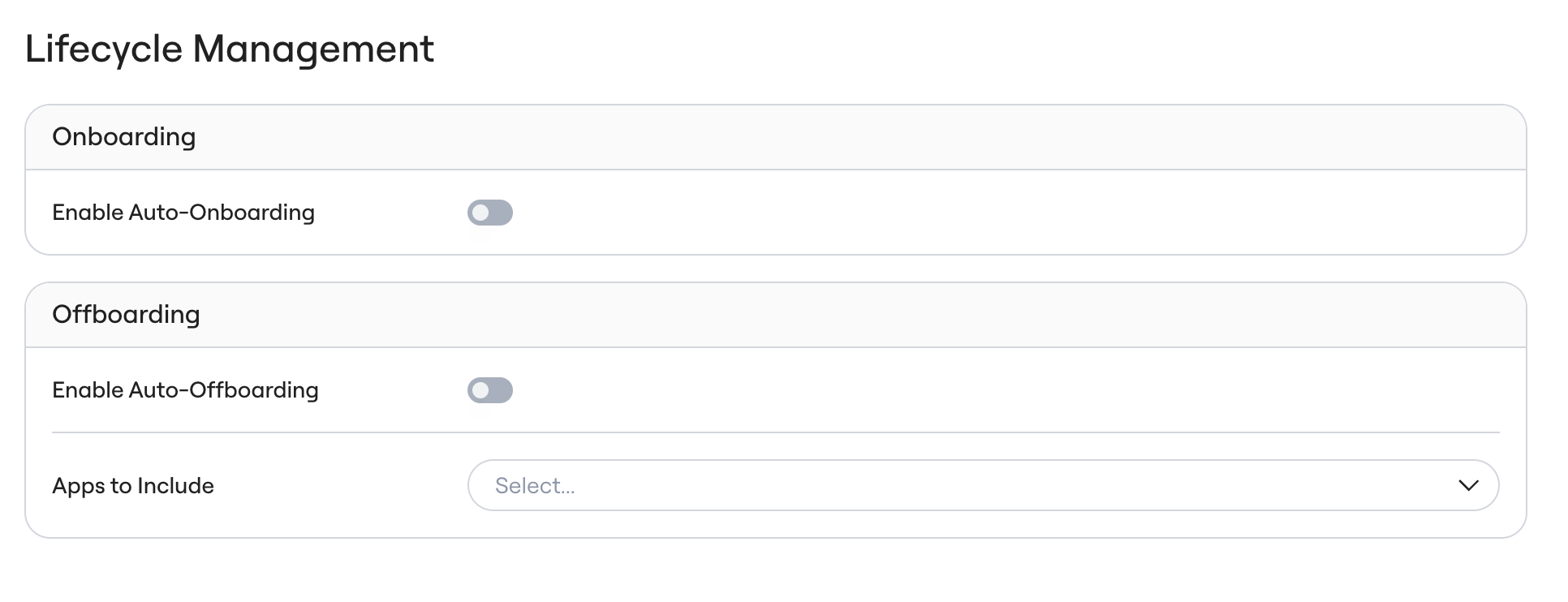
1. Go to the Lifecycle Management tab in your UI
2. Click on Onboarding or Offboarding depending on which workflow you're targeting
3. Toggle ***on*** Onboarding and/or Offboarding, depending on your team's preference.
 4. From there, input your preferences on timing for the onboarding and/or offboarding, and any other specifications surrounding group membership.
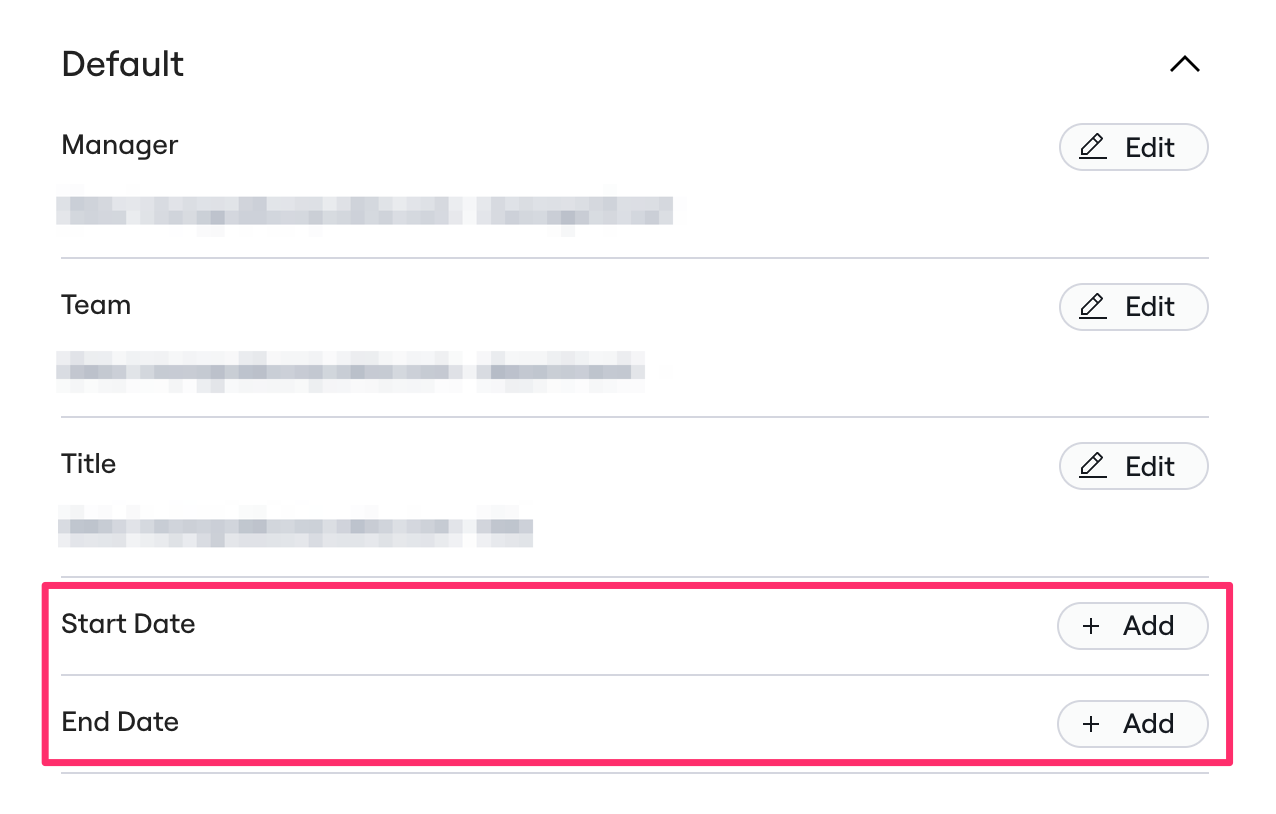
 Start Date and End Date can be mapped to attributes in your [Source of Truth settings page](https://app.lumosidentity.com/settings/source_of_truth):
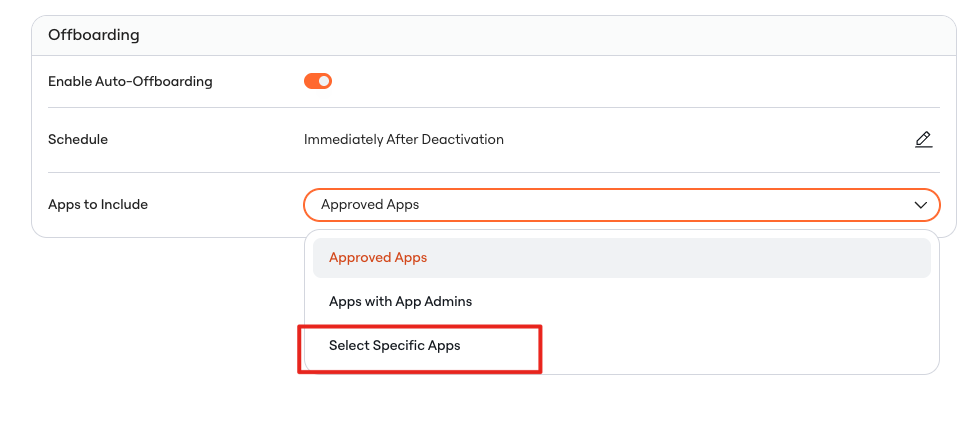
 For "Apps to Include," you'll see 3 options:
1. Approved Apps
2. Apps with App Admins
3. Select Specific Apps \< **this is best to utilize for testing, not long term offboarding management**
For "Apps to Include," you'll see 3 options:
1. Approved Apps
2. Apps with App Admins
3. Select Specific Apps \< **this is best to utilize for testing, not long term offboarding management**
 5. The settings save automatically and apply to your company's next onboarding or offboarding.
## Offboarding triggers
There are two available auto-offboarding triggers, **Immediately After Deactivation** and **After End Date**:
5. The settings save automatically and apply to your company's next onboarding or offboarding.
## Offboarding triggers
There are two available auto-offboarding triggers, **Immediately After Deactivation** and **After End Date**:
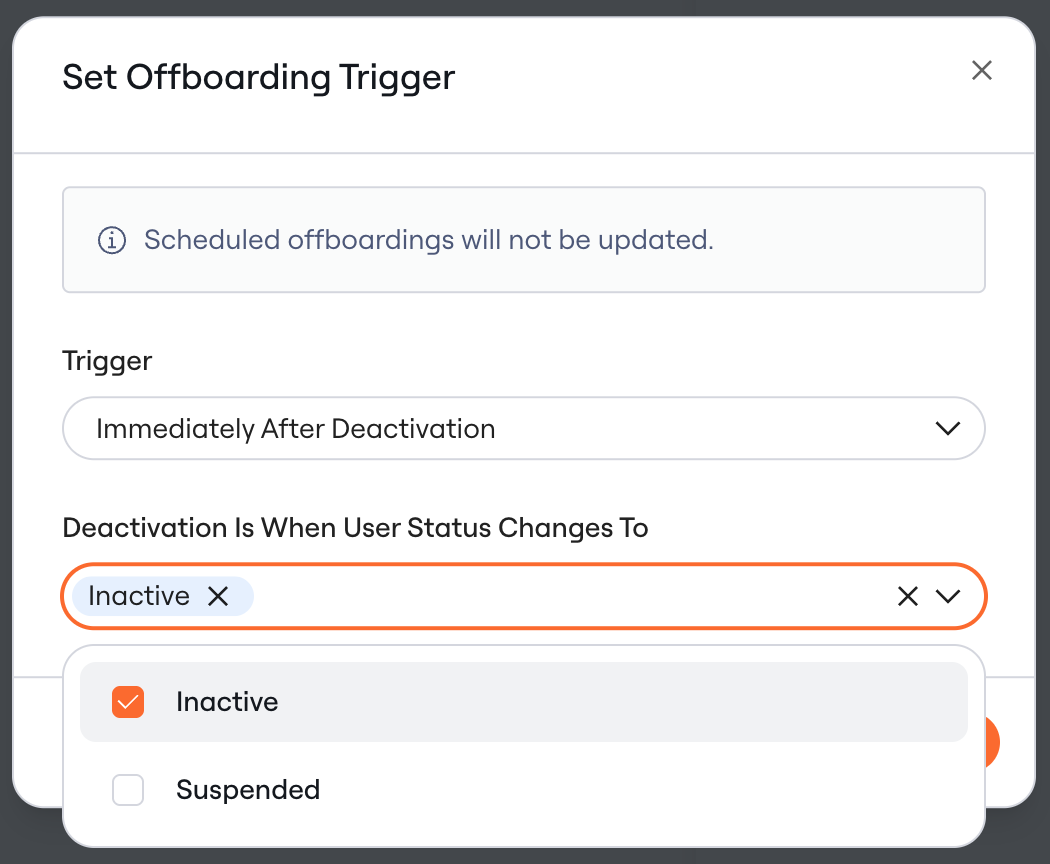
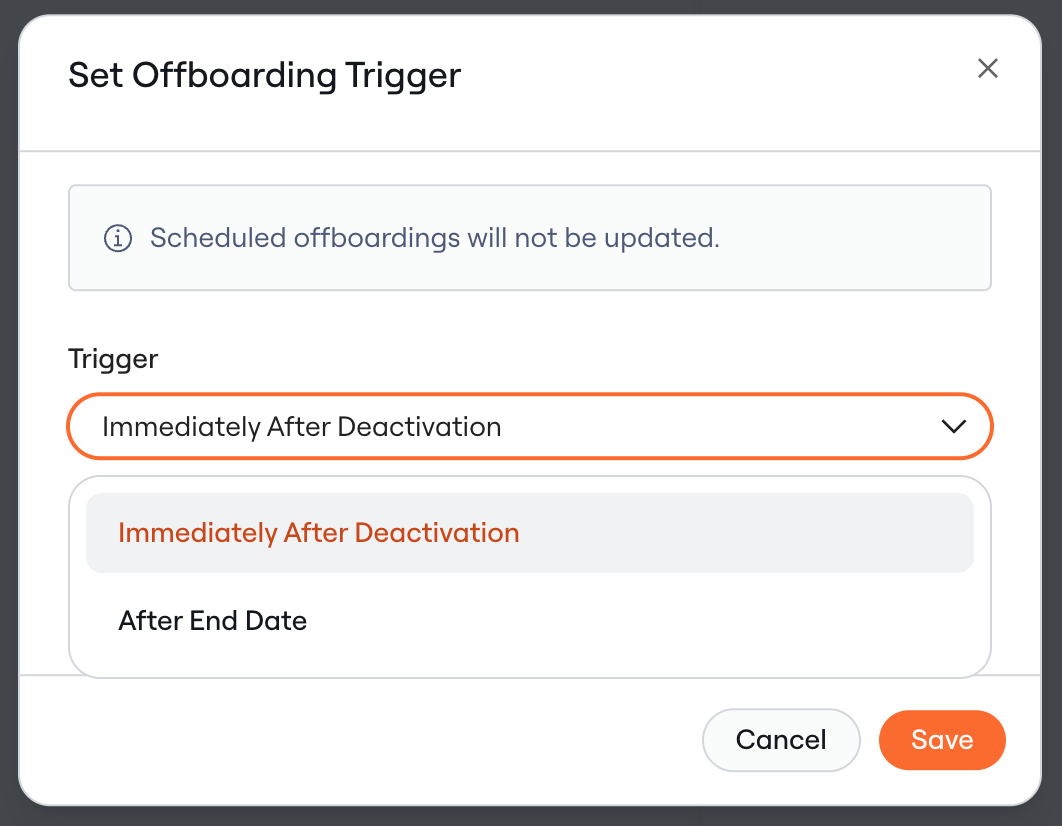 **Immediately after Deactivation** will trigger an offboarding when a user's Status (synced to a user from their [User Source](/kb/appstore/source-of-truth/importing-user-sources) app) is updated to "Inactive" and/or "Suspended" in Lumos, as shown below.
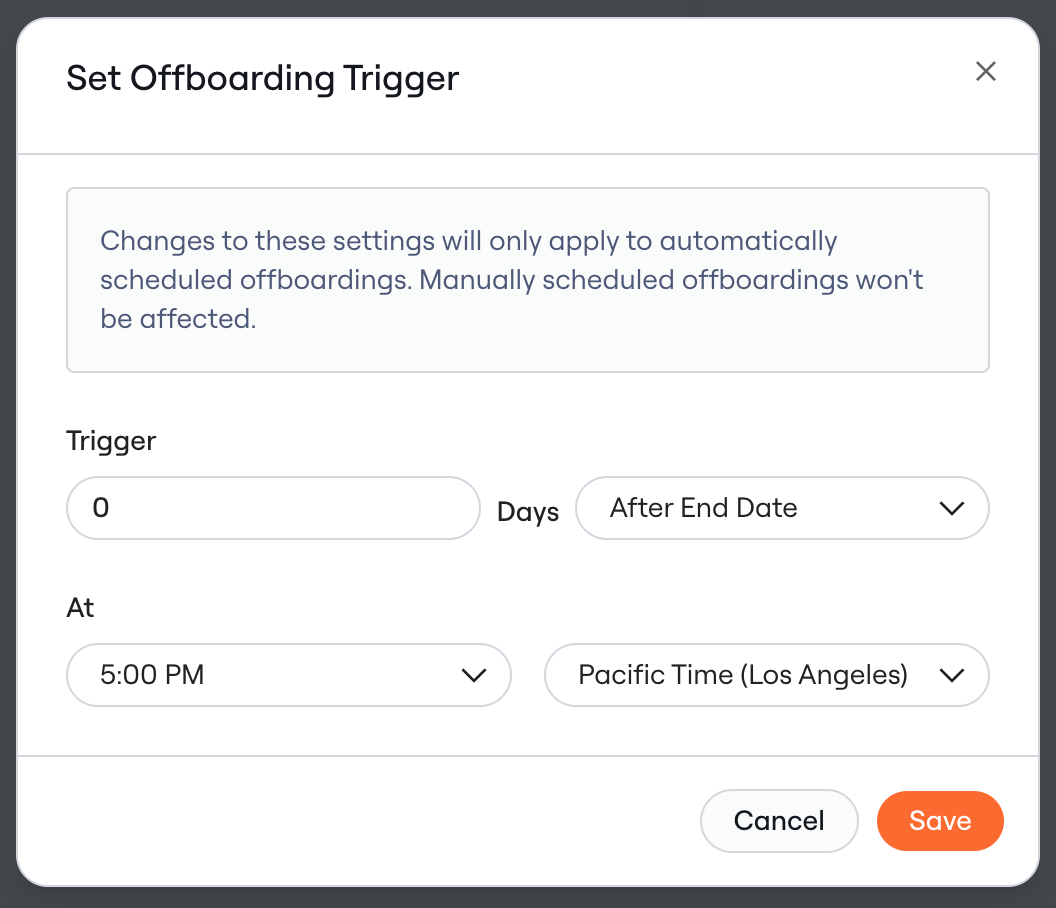
 **After End Date** will reference the user's End Date attribute (configured in the Default Attributes in the [Source of Truth](https://app.lumosidentity.com/settings/source_of_truth)) to trigger an offboarding, as shown below.
 ## Scheduling onboardings
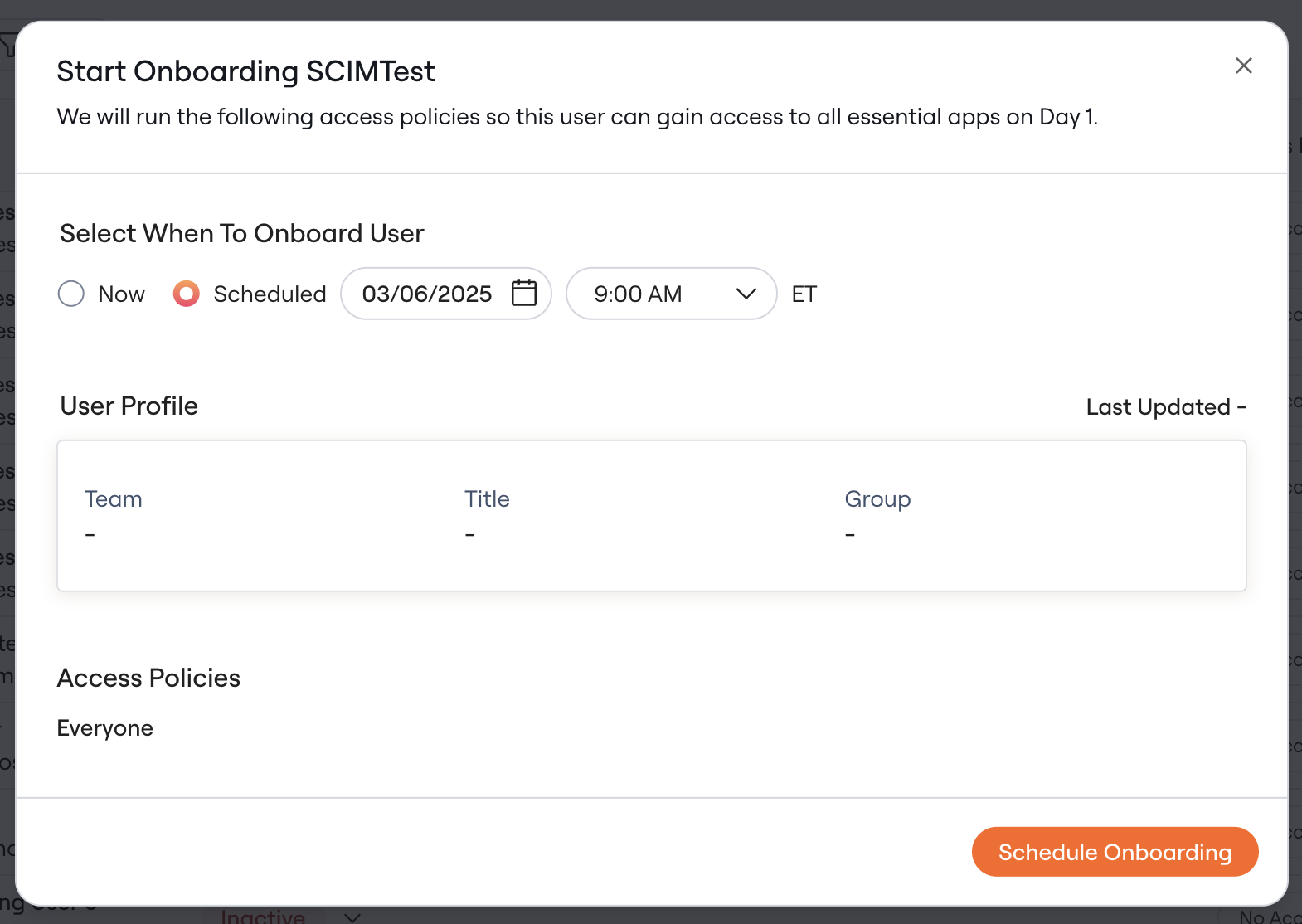
In addition to automatic onboardings, you can schedule user onboardings one-off.
1. Go to the Identities tab
2. Click **Onboard** on the user's row
3. You'll be able to specify a date and time in your (the Admin's) local timezone
## Scheduling onboardings
In addition to automatic onboardings, you can schedule user onboardings one-off.
1. Go to the Identities tab
2. Click **Onboard** on the user's row
3. You'll be able to specify a date and time in your (the Admin's) local timezone
 ## Editing scheduled onboardings
After you click **Schedule Onboarding**, you *can* still edit the timing. Follow these steps:
1. Navigate to the Employee Lifecycle > Onboarding tab
2. Click on [Scheduled](https://app.lumosidentity.com/user_onboardings?tab=SCHEDULED)
3. Click the 3 dots to the right and then click "Edit Onboarding"
4. From there, pick a new time and click **Reschedule Onboarding**, or click **Run Onboarding** to run it now.
## Editing scheduled onboardings
After you click **Schedule Onboarding**, you *can* still edit the timing. Follow these steps:
1. Navigate to the Employee Lifecycle > Onboarding tab
2. Click on [Scheduled](https://app.lumosidentity.com/user_onboardings?tab=SCHEDULED)
3. Click the 3 dots to the right and then click "Edit Onboarding"
4. From there, pick a new time and click **Reschedule Onboarding**, or click **Run Onboarding** to run it now.