> ## Documentation Index
> Fetch the complete documentation index at: https://docs.lumos.com/llms.txt
> Use this file to discover all available pages before exploring further.
# Troubleshooting Onboarding Workflows
## Background
When a new employee joins your organization, Lumos automatically kicks off an onboarding workflow that handles everything from generating their email address to provisioning access to the applications they need. However, a number of issues can cause these workflows to fail or get stuck.
This article covers the most common onboarding issues and provides step-by-step troubleshooting guidance to get new hires set up quickly and correctly.
## Common Onboarding Failure Scenarios
Onboarding workflows can fail at several different stages. The most common issues include:
* **Workflow never starts** - The onboarding process doesn't trigger when a new employee is added to your HRIS
* **Email generation errors** - Conflicts with existing email addresses or invalid characters in names
* **Provisioning failures and delays** - Issues creating accounts in systems like Okta, EntraID, OneLogin, or SaaS providers
## Troubleshooting Steps
### Onboarding Workflow Not Starting
If a new employee isn't automatically getting onboarded, start by verifying their data is flowing correctly into Lumos.
1. **Check if the identity exists in Lumos.** See [Troubleshooting Missing Identities](/kb/identities/troubleshooting-missing-identities-in-lumos) for more details on how to diagnose issues with missing Identities.
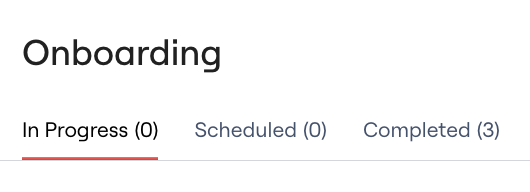
2. **Double check onboarding workflow records.** Sometimes onboardings can run very quickly. While you might expect to see them "In Progress", they can often be hidden under the "Completed" section.
1. Visit the [Onboarding](https://app.lumosidentity.com/user_onboardings?tab=IN_PROGRESS) page, and verify that the user does not exist any of the tabs (In Progress, Scheduled, Completed)
 3. **Review your Onboarding trigger settings.** These determine when an onboarding is kicked off.
1. If Onboarding Workflows should start based on **Start Date**, verify that the user has a Start Date configured in your HRIS system, and that this date has been synced into Lumos
2. If Onboarding Workflows should start based on **Identity Creation**, visit the [Mover Events](https://app.lumosidentity.com/user_movers?tab=events) tab and verify that the user's Identity was not modified to have an inactive status
If none of the above resolves your issue, reach out to Lumos Support for a deeper investigation.
### Email Generation Failures
If the onboarding workflow has started, but is stuck in an "In Progress" or "Error" state, it's likely that email generation is at the root cause.
If you're using the "Generate Email" step in your onboarding workflows, email conflicts and emails generated with invalid characters can cause a complete halt to onboarding processes.
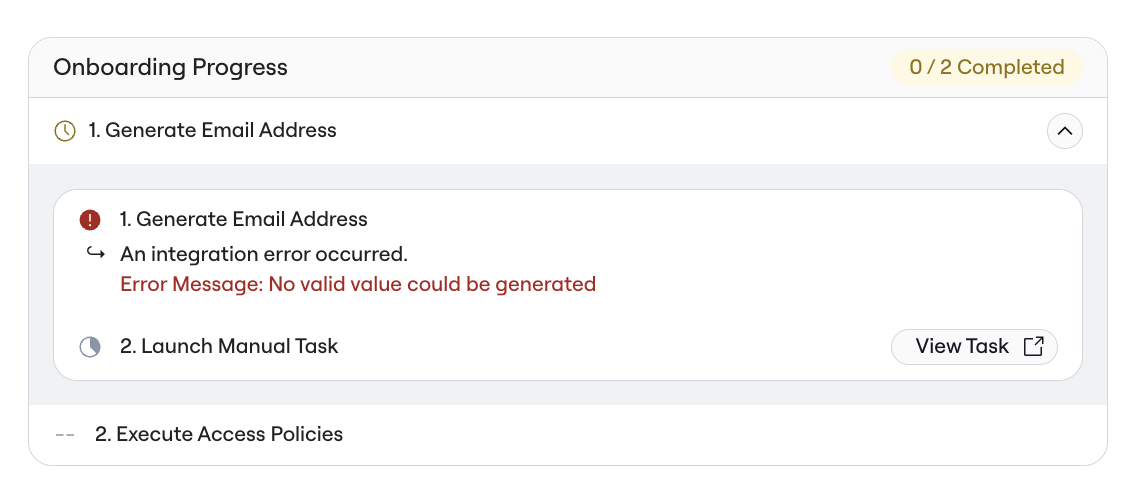
1. **Verify cause of the onboarding failure.** You can do this by clicking on the "Open" button for the affected user to see more details about the onboarding. If email generation is the reason for the stuck onboarding, you will see an error message in the "Generate Email" step
3. **Review your Onboarding trigger settings.** These determine when an onboarding is kicked off.
1. If Onboarding Workflows should start based on **Start Date**, verify that the user has a Start Date configured in your HRIS system, and that this date has been synced into Lumos
2. If Onboarding Workflows should start based on **Identity Creation**, visit the [Mover Events](https://app.lumosidentity.com/user_movers?tab=events) tab and verify that the user's Identity was not modified to have an inactive status
If none of the above resolves your issue, reach out to Lumos Support for a deeper investigation.
### Email Generation Failures
If the onboarding workflow has started, but is stuck in an "In Progress" or "Error" state, it's likely that email generation is at the root cause.
If you're using the "Generate Email" step in your onboarding workflows, email conflicts and emails generated with invalid characters can cause a complete halt to onboarding processes.
1. **Verify cause of the onboarding failure.** You can do this by clicking on the "Open" button for the affected user to see more details about the onboarding. If email generation is the reason for the stuck onboarding, you will see an error message in the "Generate Email" step
 2. **Investigate common causes of email errors.** Email generation can get fairly complex, so there is a dedicated troubleshooting guide available for diagnosing issues: [Troubleshooting Failed Email Generation](/kb/life_cycle_management/new-hire-onboarding/troubleshooting-failed-email-generation)
### Provisioning Failures and Delays
If an employee onboarding kicked off, but the employee doesn't have an account in a key system such as your Identity Provider (like OneLogin or Okta), follow these steps:
1. **Verify the Access Request was kicked off.** Lumos provisions all access to systems via an Access Request. You can verify whether this request was kicked off in two ways:
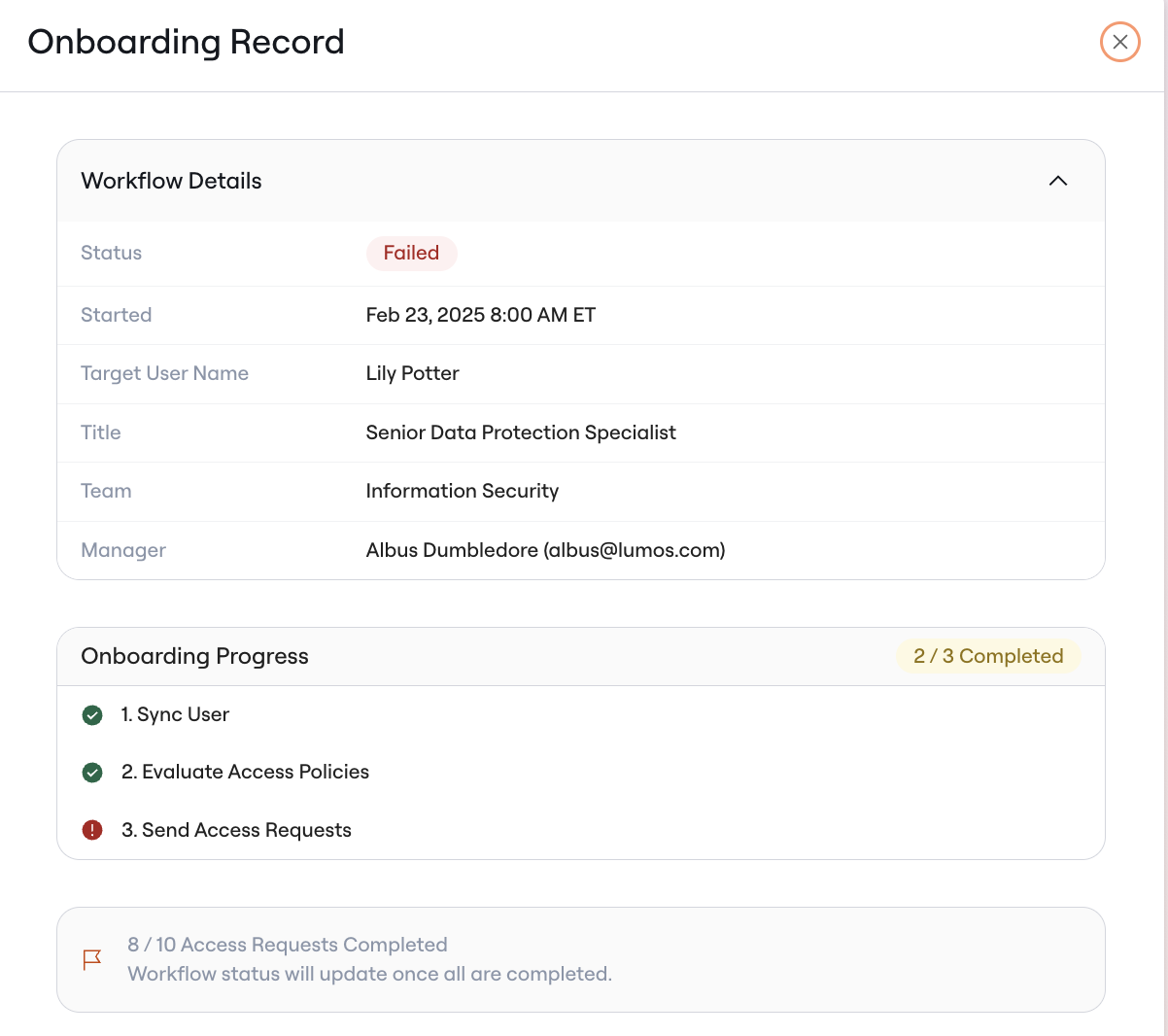
1. View the employee's Onboarding Workflow, and make sure that the "Send Access Requests" step completed successfully. If there was an issue during this step, it could have led to Lumos not creating the access request.
2. **Investigate common causes of email errors.** Email generation can get fairly complex, so there is a dedicated troubleshooting guide available for diagnosing issues: [Troubleshooting Failed Email Generation](/kb/life_cycle_management/new-hire-onboarding/troubleshooting-failed-email-generation)
### Provisioning Failures and Delays
If an employee onboarding kicked off, but the employee doesn't have an account in a key system such as your Identity Provider (like OneLogin or Okta), follow these steps:
1. **Verify the Access Request was kicked off.** Lumos provisions all access to systems via an Access Request. You can verify whether this request was kicked off in two ways:
1. View the employee's Onboarding Workflow, and make sure that the "Send Access Requests" step completed successfully. If there was an issue during this step, it could have led to Lumos not creating the access request.
 2. Visit the [ActivityLog](https://app.lumosidentity.com/activity_log?tab=ALL), and search for the employee and the application in question.
3. If the "Send Access Requests" step completed successfully, but the application you're investigating was not one of those requests, the issue likely has to do with how your access policies are defined. See [Troubleshooting Access Policies](/kb/life_cycle_management/troubleshooting-access-policies) for more details.
2. **Verify that Approvals were granted.** After a request is kicked off in onboarding, it may require an approval.
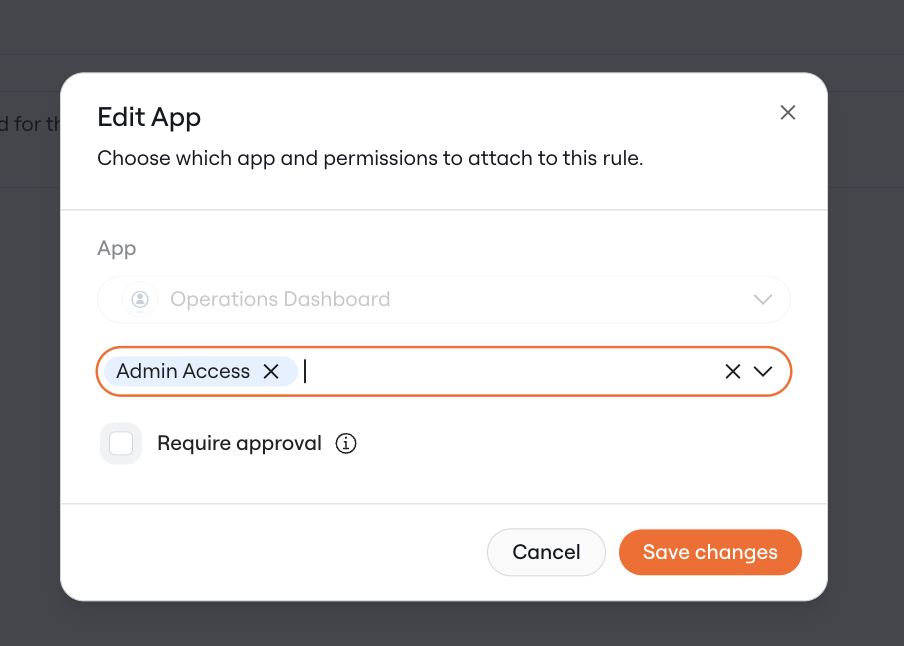
1. Check if an approval is required by reviewing the Access Policy. If the policy has "Require Approval" checked, then the user needs to have their request approved before provisioning completes.
2. Visit the [ActivityLog](https://app.lumosidentity.com/activity_log?tab=ALL), and search for the employee and the application in question.
3. If the "Send Access Requests" step completed successfully, but the application you're investigating was not one of those requests, the issue likely has to do with how your access policies are defined. See [Troubleshooting Access Policies](/kb/life_cycle_management/troubleshooting-access-policies) for more details.
2. **Verify that Approvals were granted.** After a request is kicked off in onboarding, it may require an approval.
1. Check if an approval is required by reviewing the Access Policy. If the policy has "Require Approval" checked, then the user needs to have their request approved before provisioning completes.
 2. Check if the approval is pending. Visit the [Task Center > All Tasks](https://app.lumosidentity.com/admin-tasks?tab=all_tasks) page and search for the user or application in question. Check to see if the request is pending approval, and mark the request as approved if so.
3. **Verify that Provisioning was successful.** After a request is approved, there may be manual work required to provision access.
1. Visit the [Task Center > All Tasks](https://app.lumosidentity.com/admin-tasks?tab=all_tasks) page and search all open tasks by the user or application in question.
2. If the application requires manual provisioning, you may see a provisioning task with instructions on how to provision access. If so, manually provision the user's access, and mark the task as complete.
3. If any of the automated provisioning steps encountered an error, you may also notice an Error Task in the Task Center. Review the error message carefully. When an Error Task is raised, you will need to manually fulfill the request in the application itself. After you've provisioned access manually, mark the Error Task as completed. This will continue the rest of the workflow.
***
### FAQs
**How long should onboarding workflows typically take to complete?**
Most onboarding workflows complete within 5-10 minutes. If a workflow has been running for more than 30 minutes without completion, check for error tasks or contact support.
**Can I re-run an onboarding workflow if it fails?**
Yes. Once you've resolved the underlying issue (fixed attribute mappings, resolved email conflicts, etc.), you can trigger a new onboarding workflow from the Identities page.
**What if a new hire needs access immediately but onboarding is stuck?**
You can always create manual access requests through the AppStore while troubleshooting the automated workflow. This ensures the employee can start work while you resolve the systemic issue.
**How do I prevent email collisions from happening again?**
Review your email generation rules to ensure they handle edge cases like preferred names with special characters, very long names, or common name combinations. Consider adding middle initials or numbers for disambiguation.
***
### Still Need Help?
If you've worked through these troubleshooting steps and are still experiencing issues, please contact Lumos support at [support@lumos.com](mailto:support@lumos.com).
When reaching out, please include:
* Screenshots of any error messages
* The affected employee's name and details
* Steps you've already tried from this guide
2. Check if the approval is pending. Visit the [Task Center > All Tasks](https://app.lumosidentity.com/admin-tasks?tab=all_tasks) page and search for the user or application in question. Check to see if the request is pending approval, and mark the request as approved if so.
3. **Verify that Provisioning was successful.** After a request is approved, there may be manual work required to provision access.
1. Visit the [Task Center > All Tasks](https://app.lumosidentity.com/admin-tasks?tab=all_tasks) page and search all open tasks by the user or application in question.
2. If the application requires manual provisioning, you may see a provisioning task with instructions on how to provision access. If so, manually provision the user's access, and mark the task as complete.
3. If any of the automated provisioning steps encountered an error, you may also notice an Error Task in the Task Center. Review the error message carefully. When an Error Task is raised, you will need to manually fulfill the request in the application itself. After you've provisioned access manually, mark the Error Task as completed. This will continue the rest of the workflow.
***
### FAQs
**How long should onboarding workflows typically take to complete?**
Most onboarding workflows complete within 5-10 minutes. If a workflow has been running for more than 30 minutes without completion, check for error tasks or contact support.
**Can I re-run an onboarding workflow if it fails?**
Yes. Once you've resolved the underlying issue (fixed attribute mappings, resolved email conflicts, etc.), you can trigger a new onboarding workflow from the Identities page.
**What if a new hire needs access immediately but onboarding is stuck?**
You can always create manual access requests through the AppStore while troubleshooting the automated workflow. This ensures the employee can start work while you resolve the systemic issue.
**How do I prevent email collisions from happening again?**
Review your email generation rules to ensure they handle edge cases like preferred names with special characters, very long names, or common name combinations. Consider adding middle initials or numbers for disambiguation.
***
### Still Need Help?
If you've worked through these troubleshooting steps and are still experiencing issues, please contact Lumos support at [support@lumos.com](mailto:support@lumos.com).
When reaching out, please include:
* Screenshots of any error messages
* The affected employee's name and details
* Steps you've already tried from this guide