> ## Documentation Index
> Fetch the complete documentation index at: https://docs.lumos.com/llms.txt
> Use this file to discover all available pages before exploring further.
# How-To: Create an Access Policy in Lumos
## Background
Access policies define who gets access to what, based on attributes you already maintain (team, title, department, group membership, and so on). Lumos uses them to grant access automatically during onboarding and mover workflows. All new policies start as **Drafts**, so you can review and iterate before a policy affects real users.
## Overview
Access policies in Lumos now follow a three-stage lifecycle:
* **Draft**: Newly created policies start here. Drafts are editable, deletable, and **not active**. They never apply to onboarding or mover workflows until you publish them.
* **Published + Inactive**: A draft policy is published but inactive. It won't apply to future onboardings or mover workflows.
* **Published + Active**: The policy is live and applies to future onboarding and mover workflows.
The full lifecycle is: **Draft → Publish → Active/Inactive**.
## Steps
### 1. Go to the [Access Policies Table](https://app.lumosidentity.com/onboarding_rules)
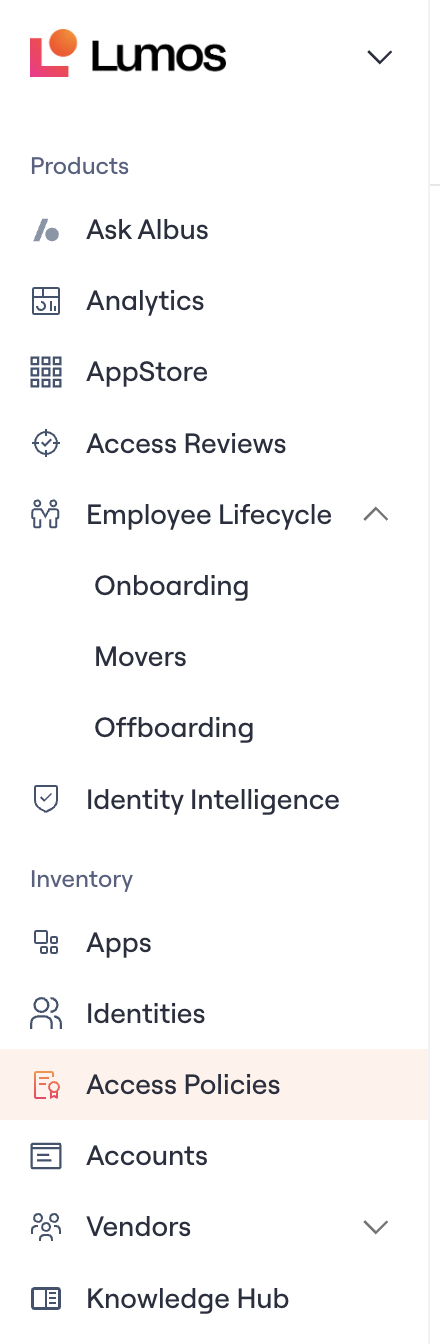
If you have access to Employee Lifecycle Lumos, you'll see the **Access Policies** table under **Inventory** in your nav bar as a Lumos admin. From here you can create, view, and edit all of your Access Policies.
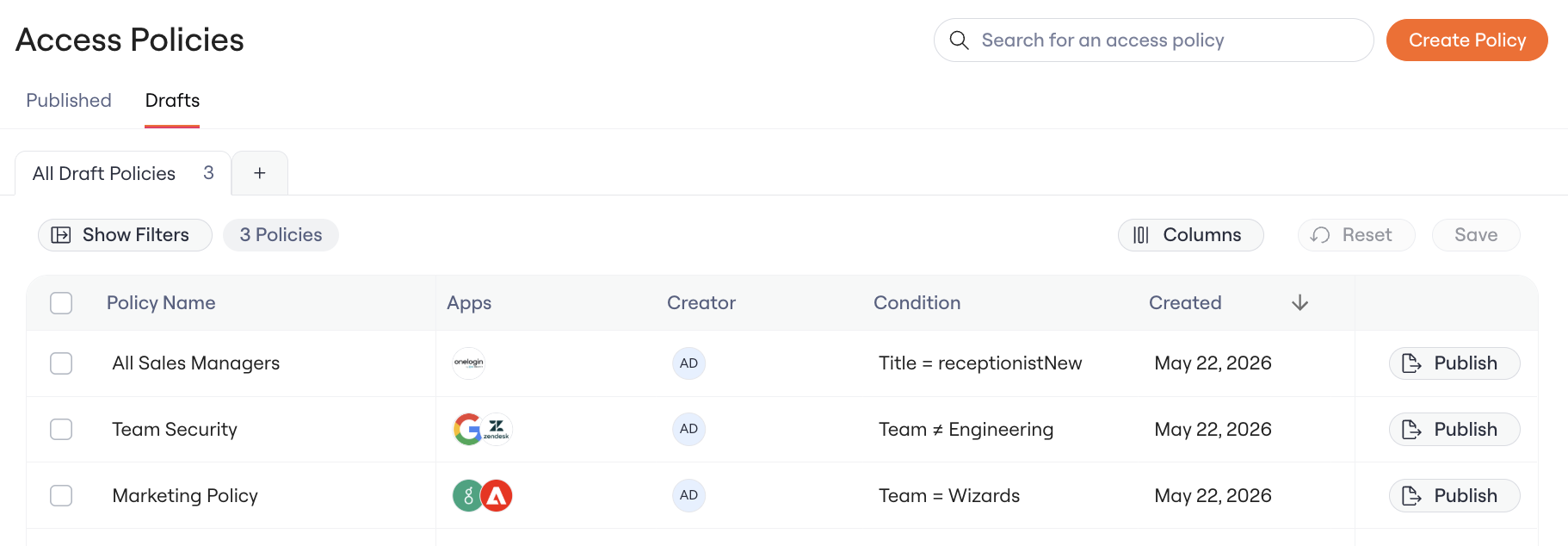
 The table has two tabs:
* **Drafts**: All draft policies you're still iterating on. New policies appear here by default.
* **Published**: Policies that have been published (whether currently Active or Inactive).
The table has two tabs:
* **Drafts**: All draft policies you're still iterating on. New policies appear here by default.
* **Published**: Policies that have been published (whether currently Active or Inactive).
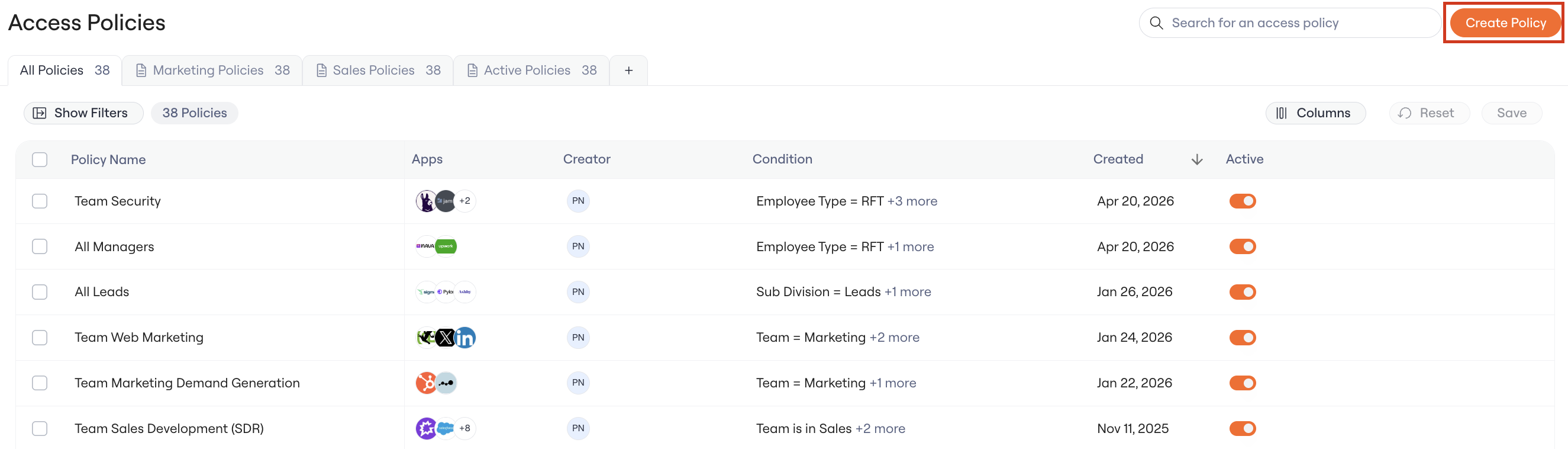
 ### 2. Click "Create Policy"
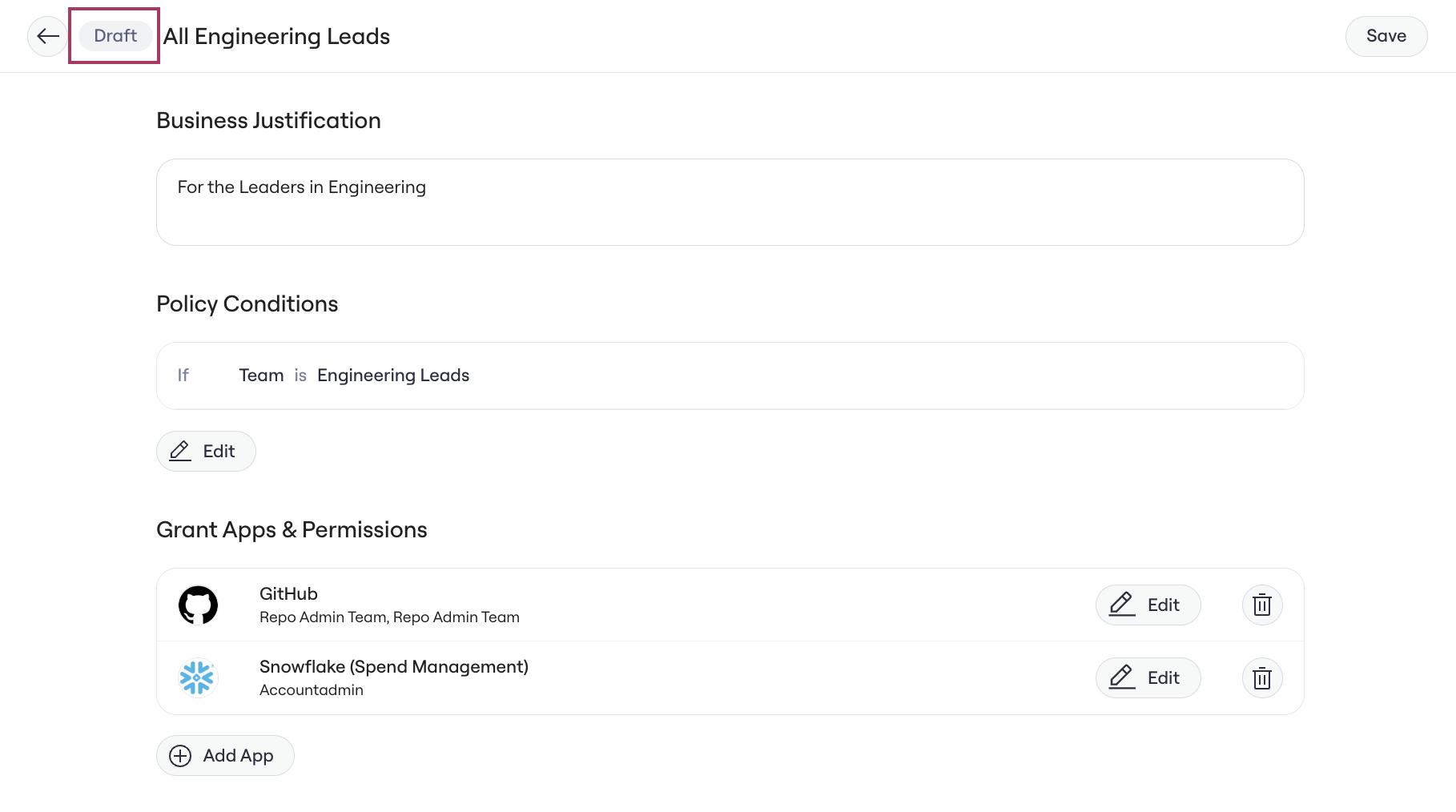
 The policy will open in the Drafts state. You'll see a **Draft** pill next to the policy name at the top of the page.
 ### 3. Configure your policy
You'll find that you can configure policies based on User based attributes (e.g. Team, Title, Groups, Everyone).
Team, Title, and other custom attributes will be sourced from your [Source of Truth settings](https://app.lumosidentity.com/settings/source_of_truth), and Groups refer to Okta, Google, or Microsoft Entra ID groups pulled in via direct integration.
Read more on your Lumos Source of Truth here [Source of Truth](/kb/appstore/source-of-truth/source-of-truth)
Note: If you select the "Everyone" rule, you will not be able to add any other attributes.
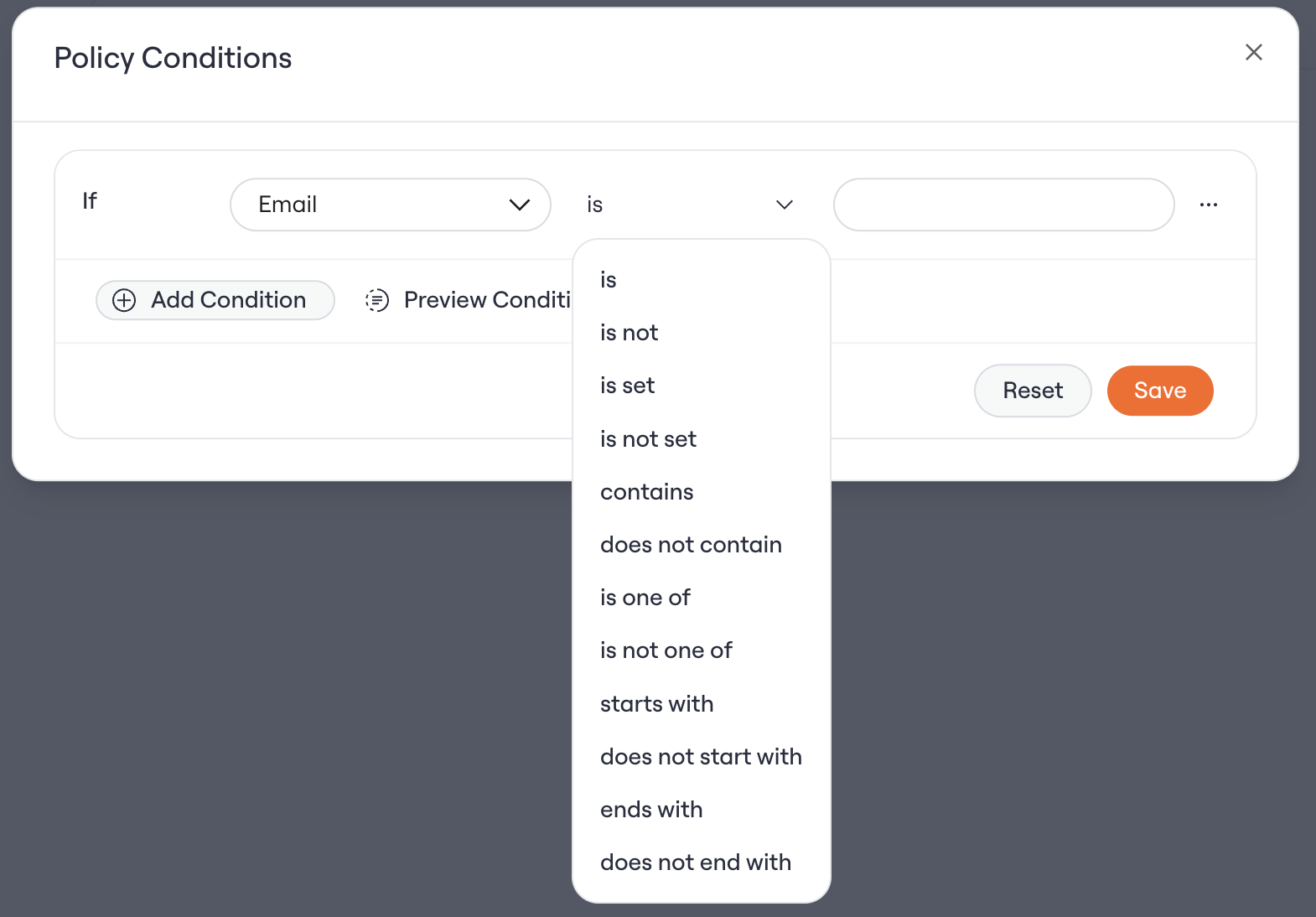
Rules support limited OR logic, so you'll be able to create a rule that applies to multiple titles, teams, custom attributes, or groups.
### 3. Configure your policy
You'll find that you can configure policies based on User based attributes (e.g. Team, Title, Groups, Everyone).
Team, Title, and other custom attributes will be sourced from your [Source of Truth settings](https://app.lumosidentity.com/settings/source_of_truth), and Groups refer to Okta, Google, or Microsoft Entra ID groups pulled in via direct integration.
Read more on your Lumos Source of Truth here [Source of Truth](/kb/appstore/source-of-truth/source-of-truth)
Note: If you select the "Everyone" rule, you will not be able to add any other attributes.
Rules support limited OR logic, so you'll be able to create a rule that applies to multiple titles, teams, custom attributes, or groups.
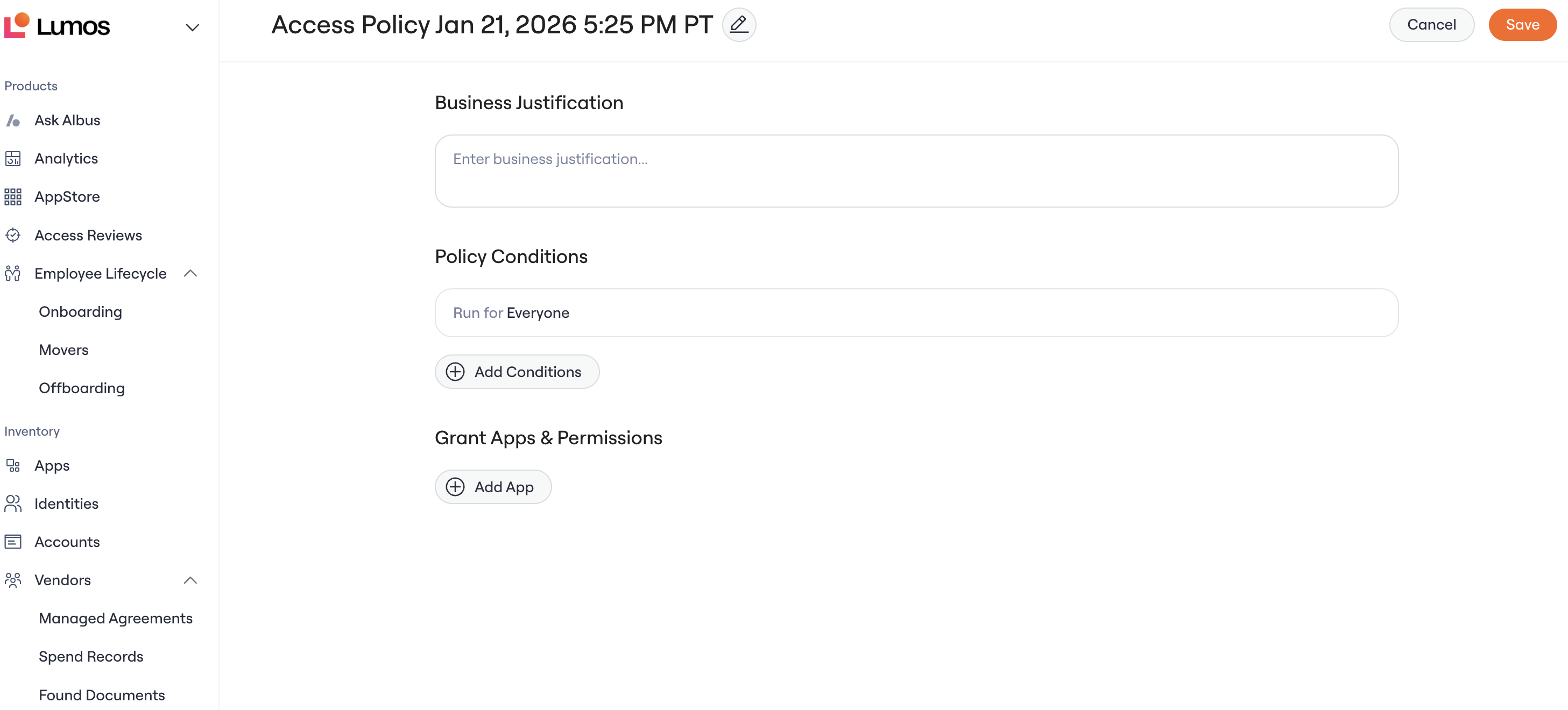 For example: A valid example is to create a policy and run it on anyone in the Engineering Team who also has the title of Solutions Engineer or Software Engineer.
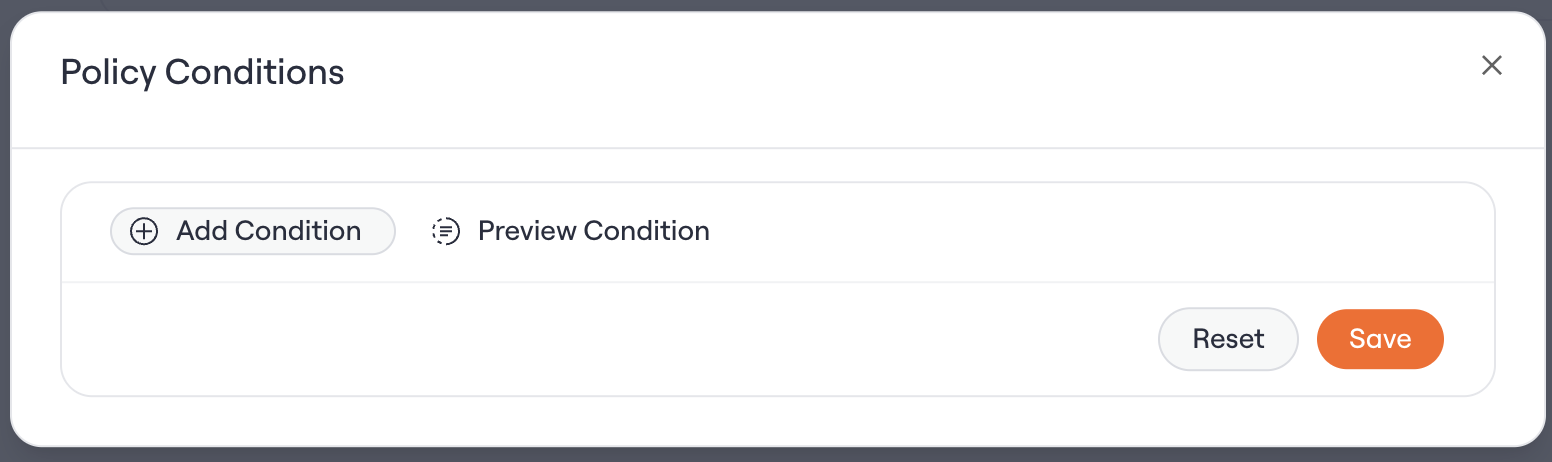
 Below that, you'll be able to select what access requests will be created - this will determine \_what\_access the new hire will get if they fulfill the conditions.
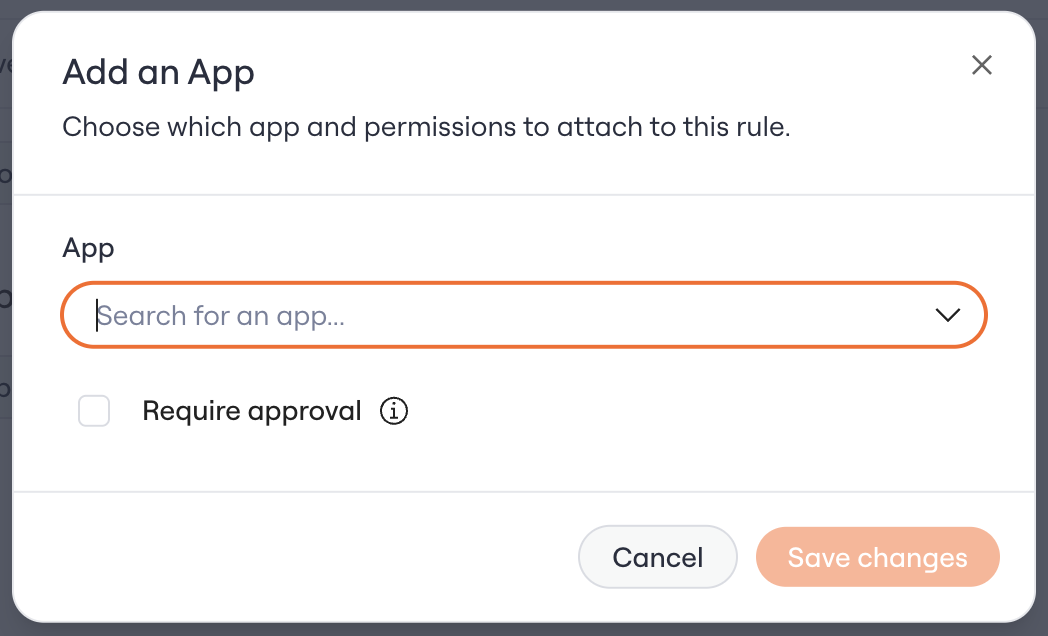 This will populate with apps in your AppStore. Select as many apps/permissions as you need. You can also populate time-based access options, but make sure to select "Unlimited" if you want to give them unlimited access to the application.
### 4. Hit "Save"
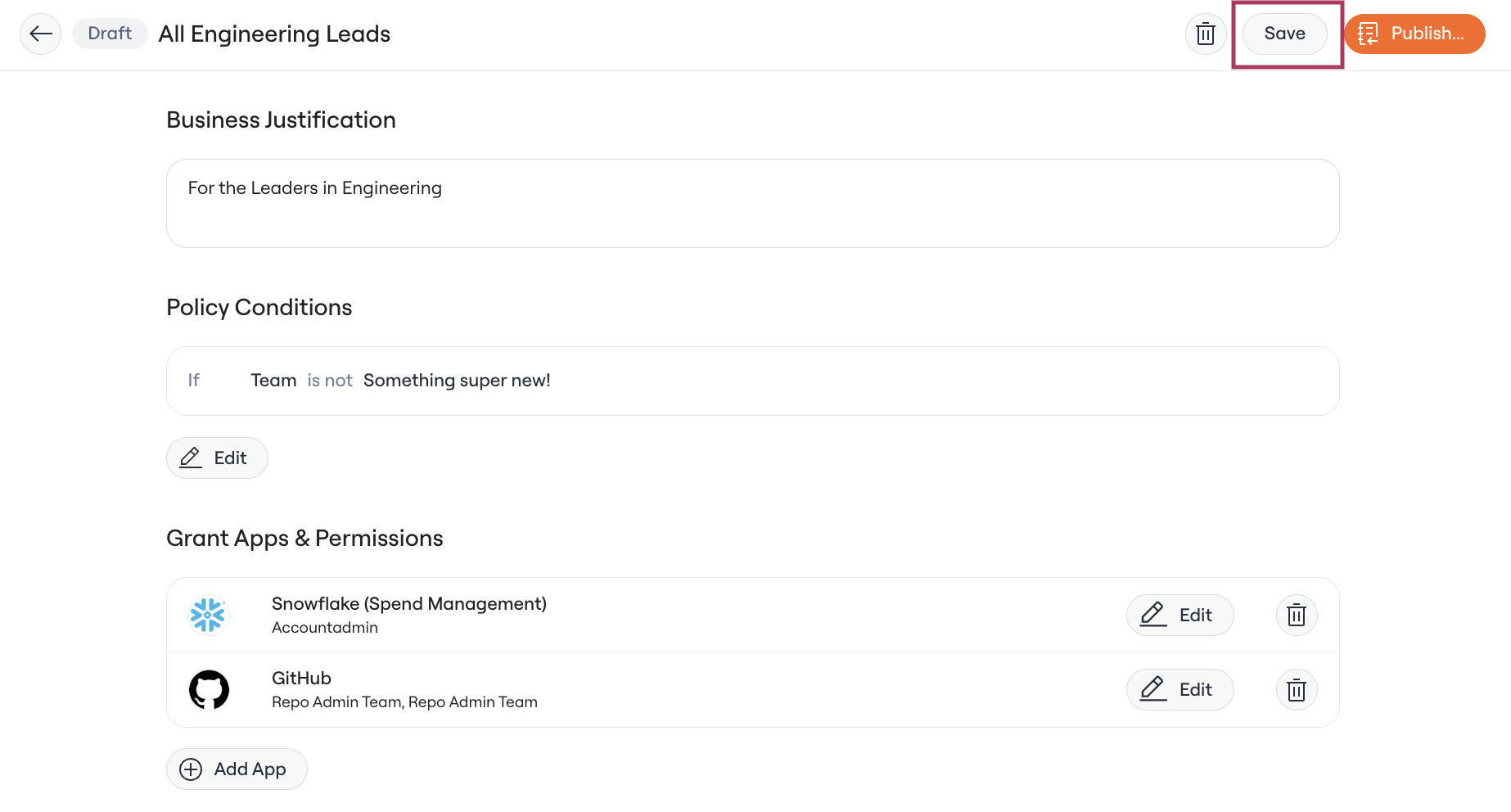
Save your draft. Saving keeps your policy in the Drafts tab so you can keep iterating. The policy is **not yet enforced** at this stage.
You can come back and edit or delete the draft at any time before publishing.
### 5. Find and Edit your Draft
**Go** to the Drafts tab of the Access Policies table
This will populate with apps in your AppStore. Select as many apps/permissions as you need. You can also populate time-based access options, but make sure to select "Unlimited" if you want to give them unlimited access to the application.
### 4. Hit "Save"
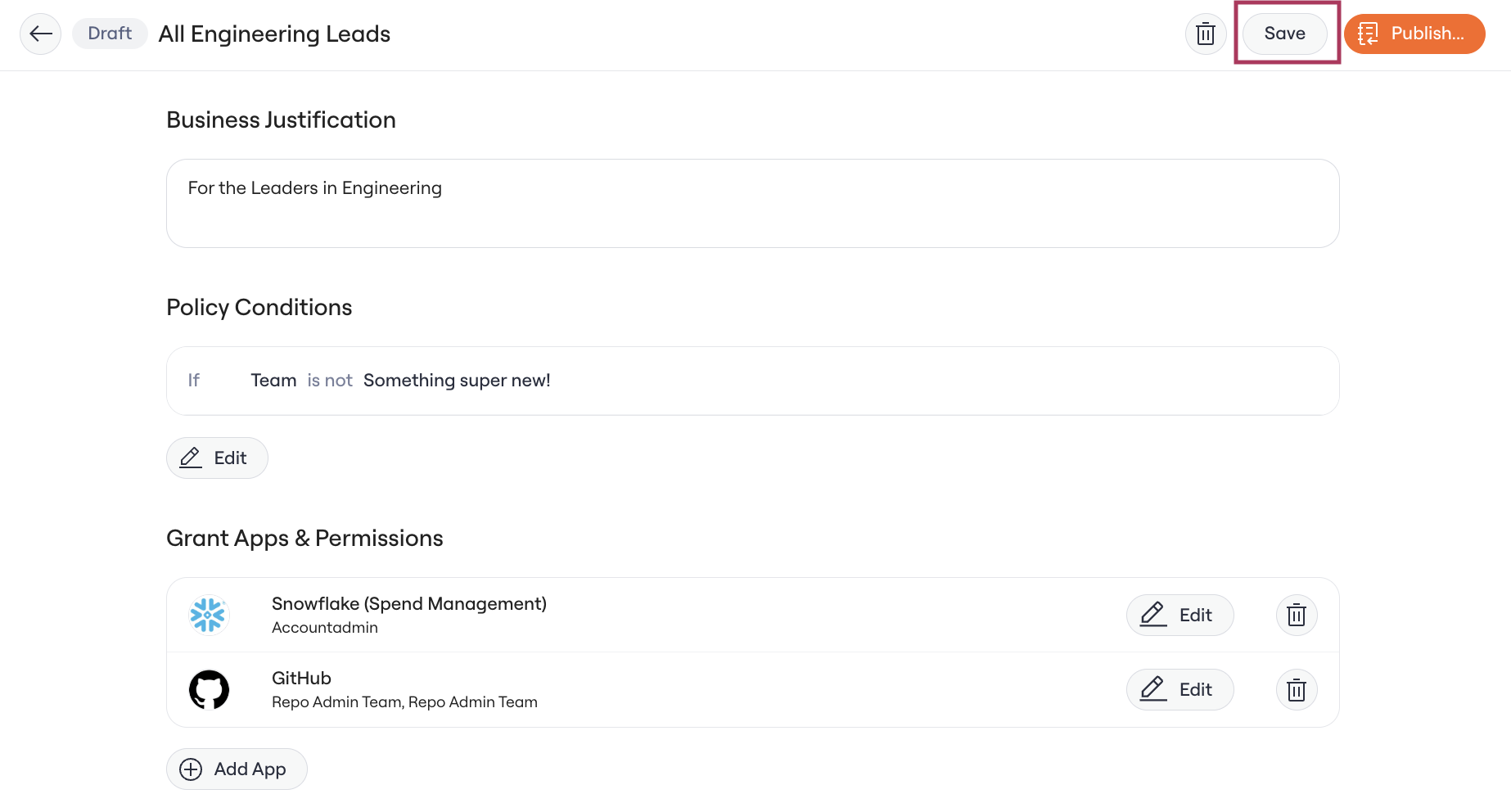
Save your draft. Saving keeps your policy in the Drafts tab so you can keep iterating. The policy is **not yet enforced** at this stage.
You can come back and edit or delete the draft at any time before publishing.
### 5. Find and Edit your Draft
**Go** to the Drafts tab of the Access Policies table
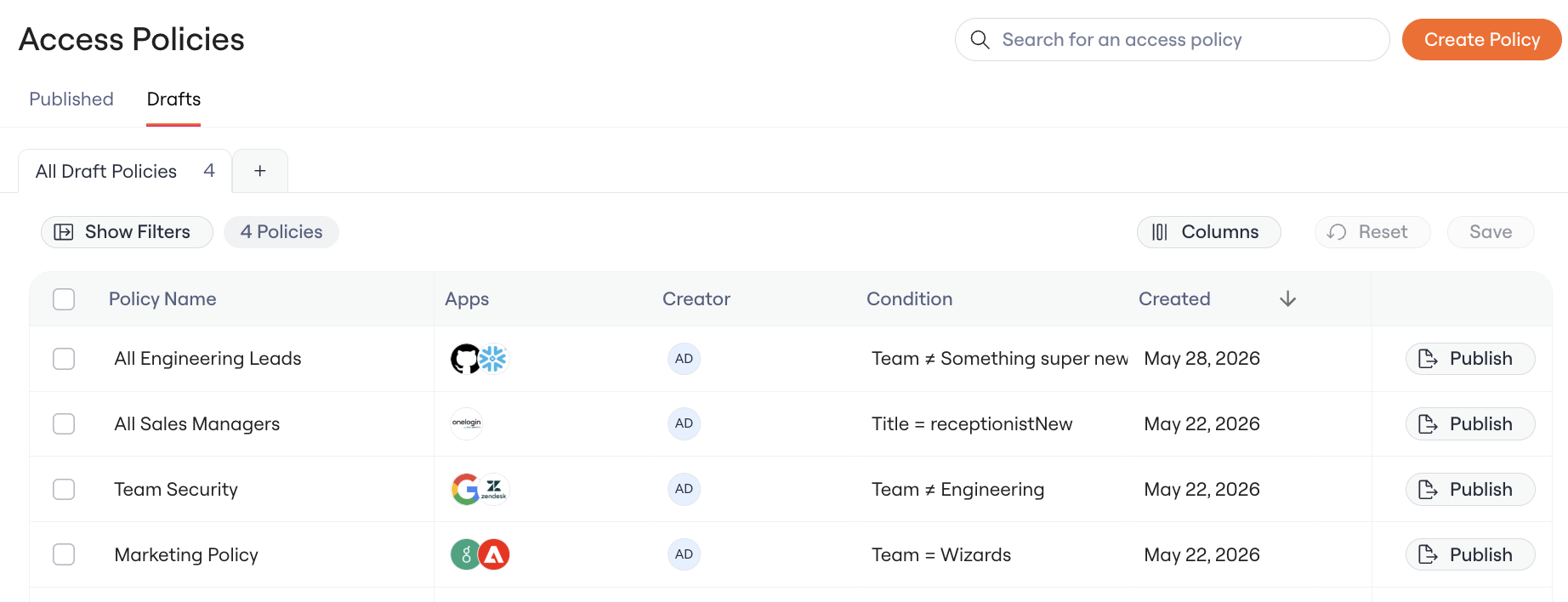 **Click** on the Draft you want view and/or edit
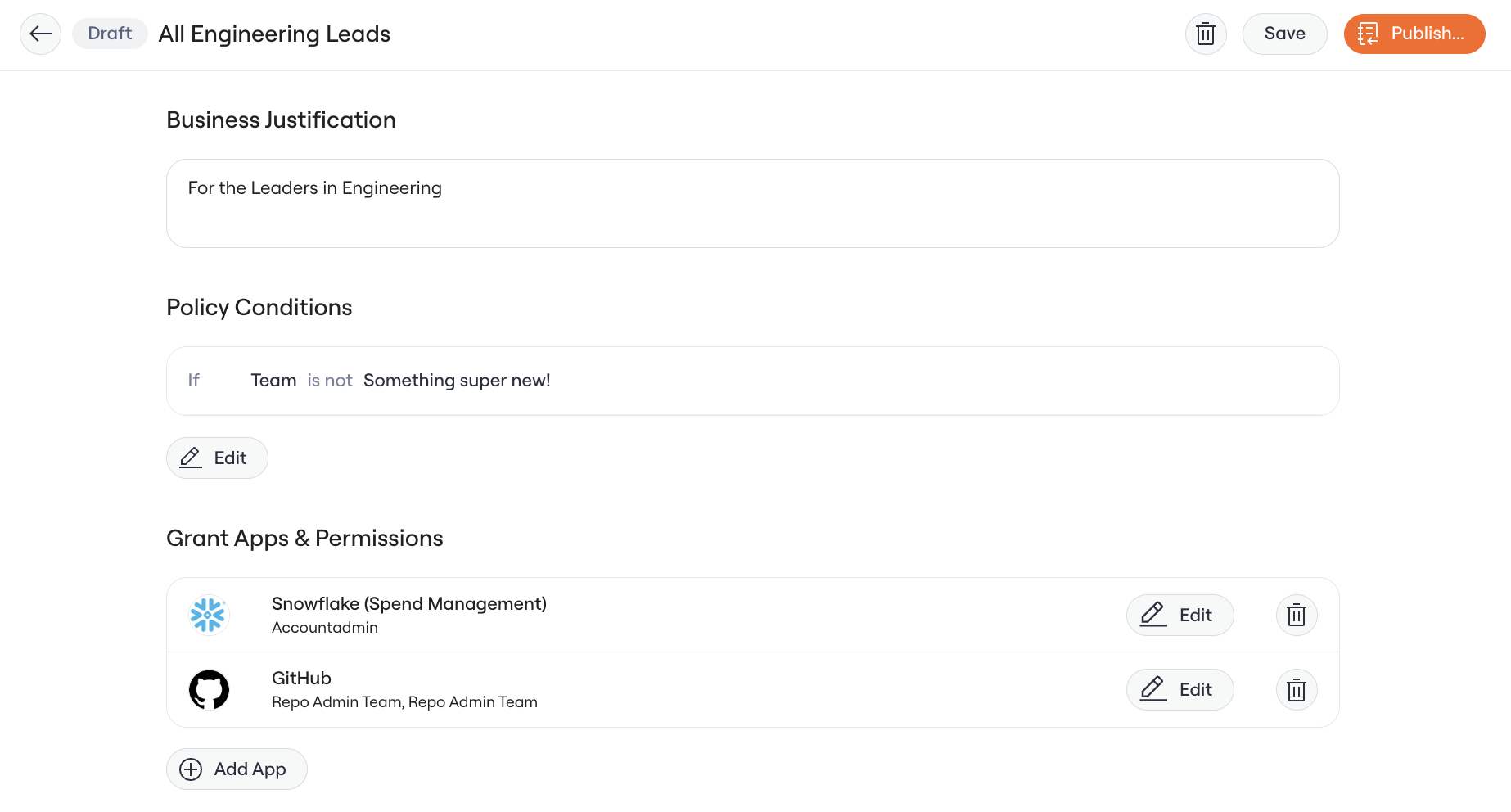 **Continue** editing your Draft as needed. Click Save when you're done.
 ### 6. Publish your Policy
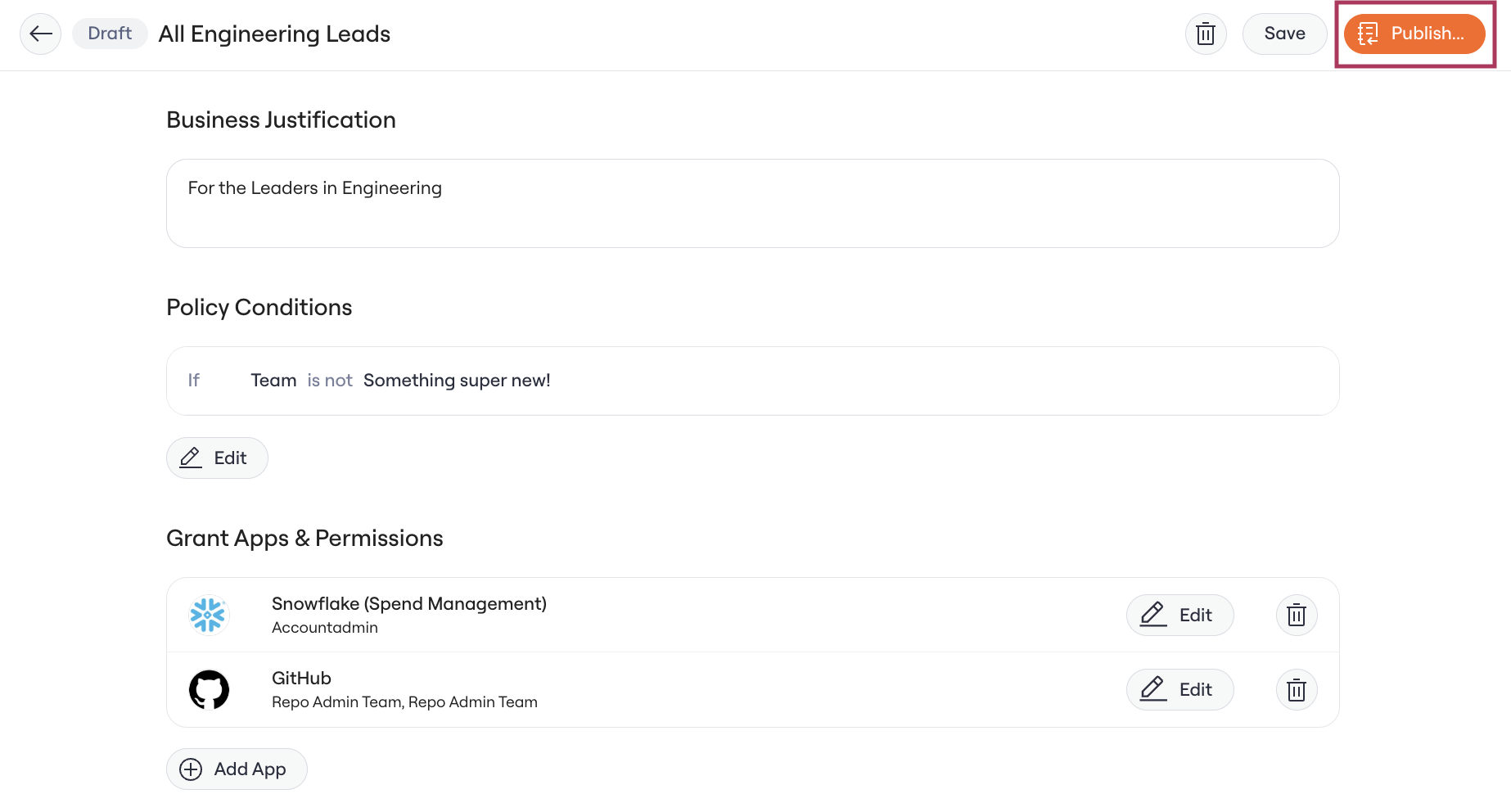
When the policy is ready to go live, click **Publish** in the policy detail page
### 6. Publish your Policy
When the policy is ready to go live, click **Publish** in the policy detail page
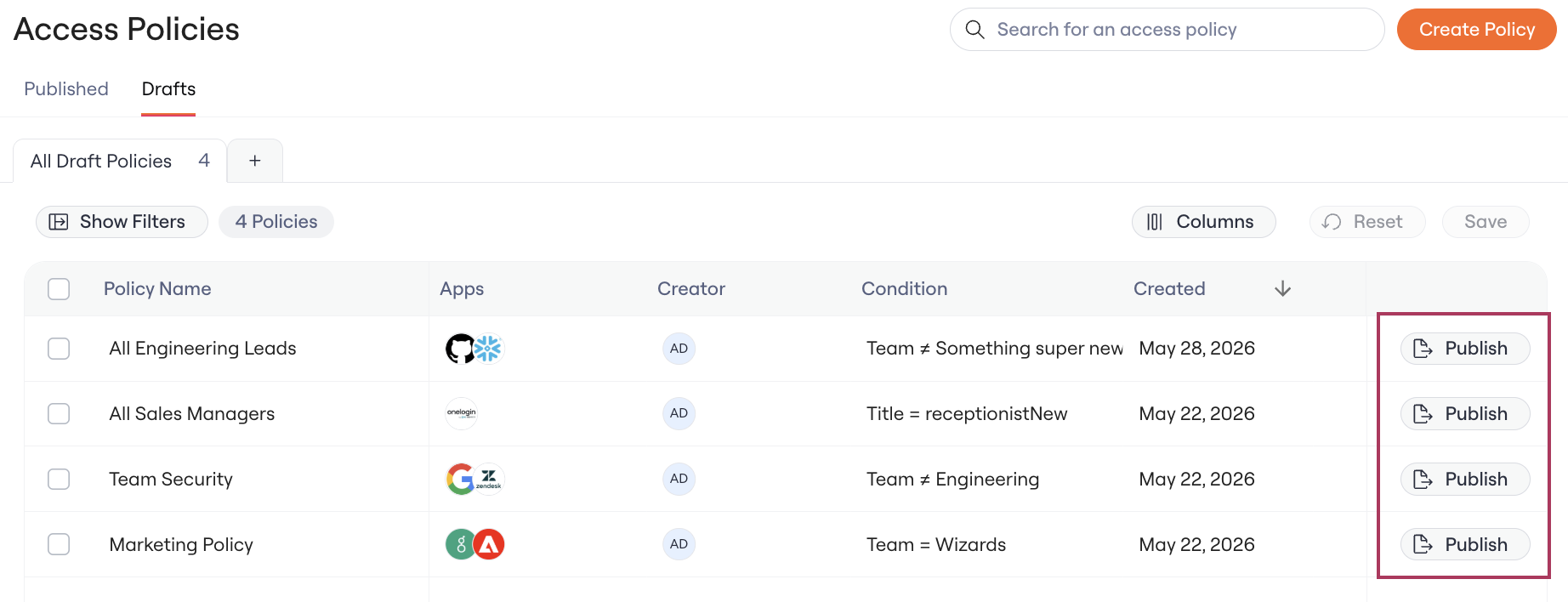
 You can also Publish policies in bulk from the Drafts tab of the Access Policies Table.
**Navigate** to the Drafts tab
**Click** Publish in the Publish column
You can also Publish policies in bulk from the Drafts tab of the Access Policies Table.
**Navigate** to the Drafts tab
**Click** Publish in the Publish column
 ### 7. Publish your Policies in Bulk
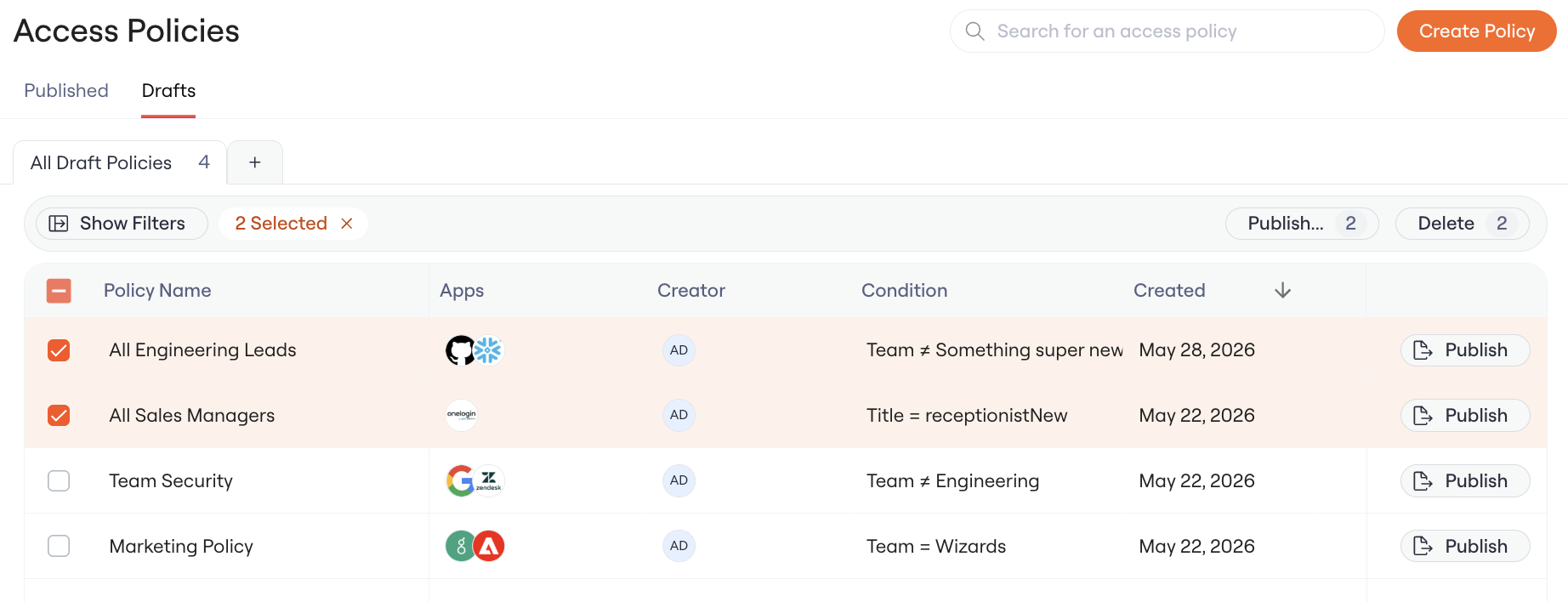
**Navigate** to the Drafts tab
**Select** the Policies you want to Publish
### 7. Publish your Policies in Bulk
**Navigate** to the Drafts tab
**Select** the Policies you want to Publish
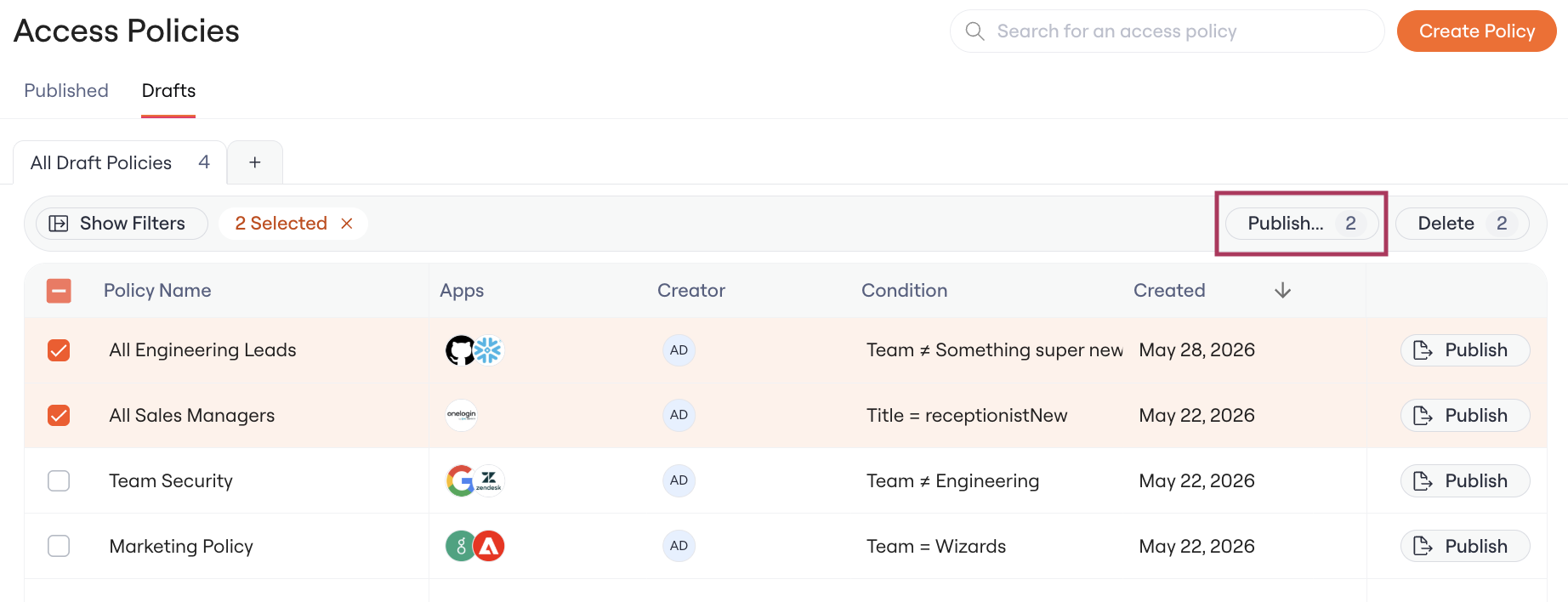
 **Click** Publish in the Table Action bar
 ### 8. View your Published Policies
**Find** your Published Policies in the Published Tab of the Access Policies Table
### 8. View your Published Policies
**Find** your Published Policies in the Published Tab of the Access Policies Table
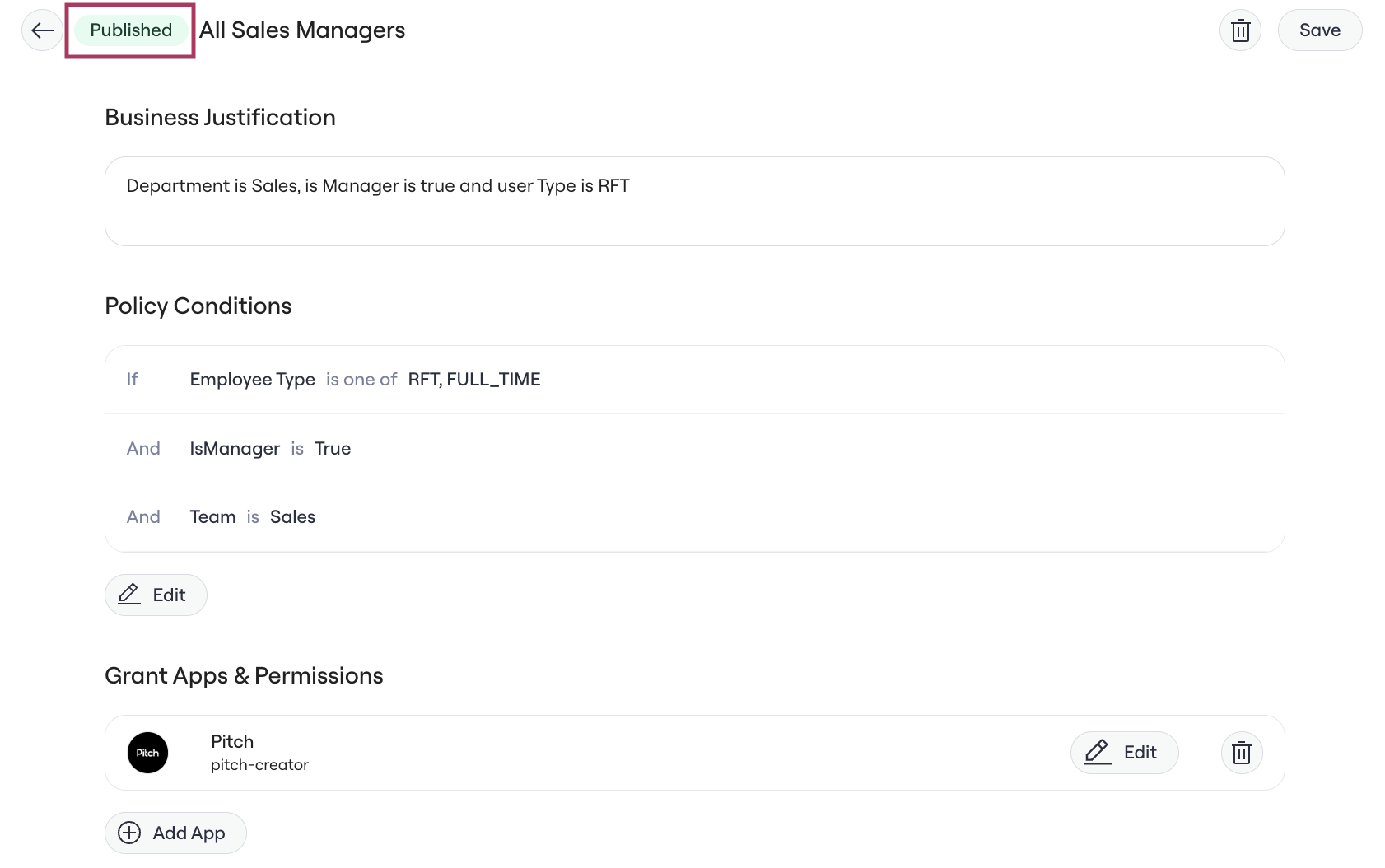
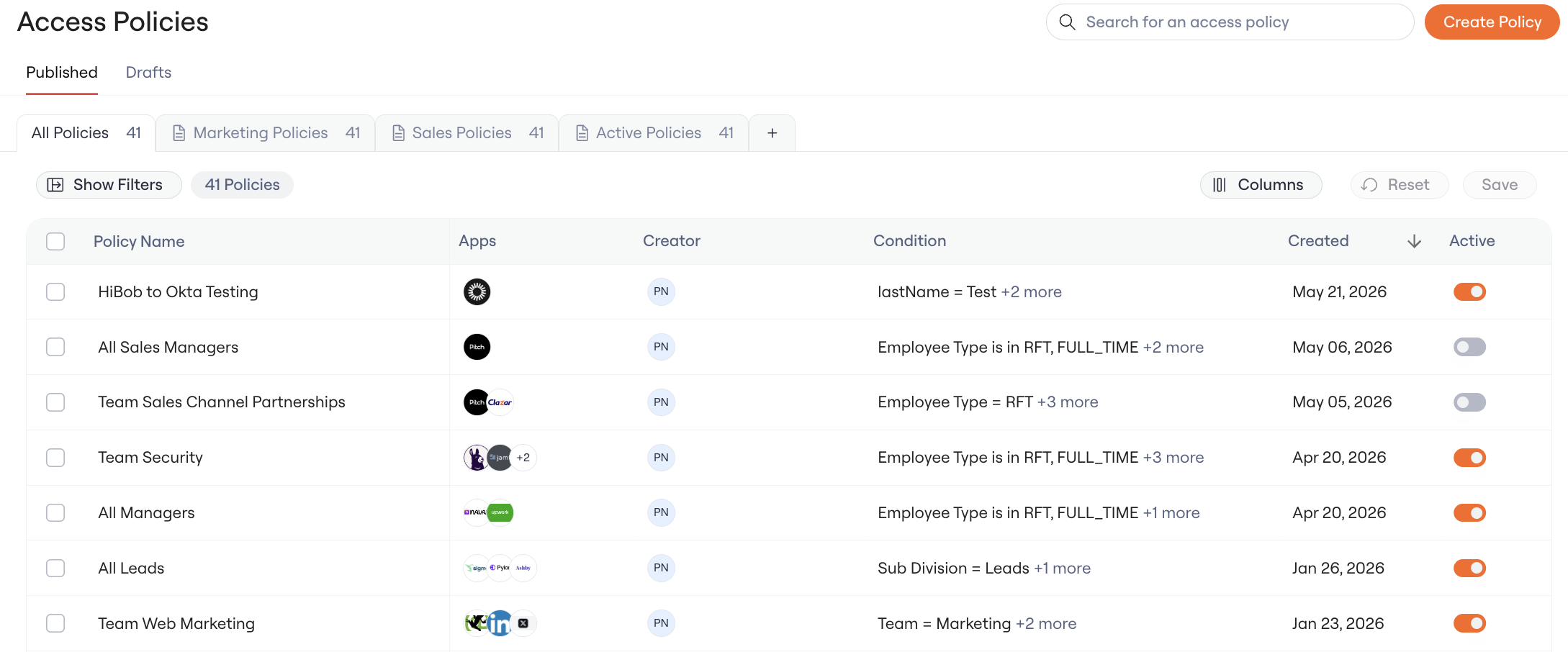 Published Policies will have a Published badge on the Policy detail page
 ### 9. Set your Policy to Active
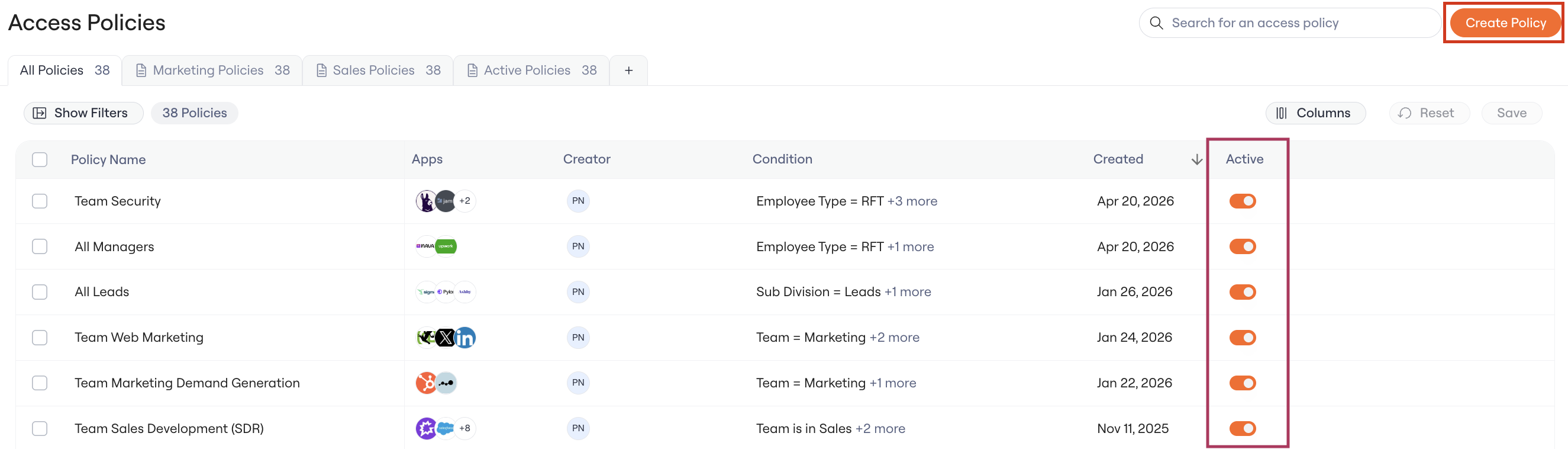
By default, any newly created Policies are set to `Inactive` . Set them to `Active` for them to be evaluated as part of your Onboarding Workflows
### 9. Set your Policy to Active
By default, any newly created Policies are set to `Inactive` . Set them to `Active` for them to be evaluated as part of your Onboarding Workflows
 ### 10. Setup complete
### Additional Configurations
### \[Optional] Set the policy to be pre-approved
You may have approvals configured for these apps but not want these onboarding requests to go through the regular approval requirements. If you select the checkbox "Make these birthright access", these requests bypass all approvals.
### 10. Setup complete
### Additional Configurations
### \[Optional] Set the policy to be pre-approved
You may have approvals configured for these apps but not want these onboarding requests to go through the regular approval requirements. If you select the checkbox "Make these birthright access", these requests bypass all approvals.
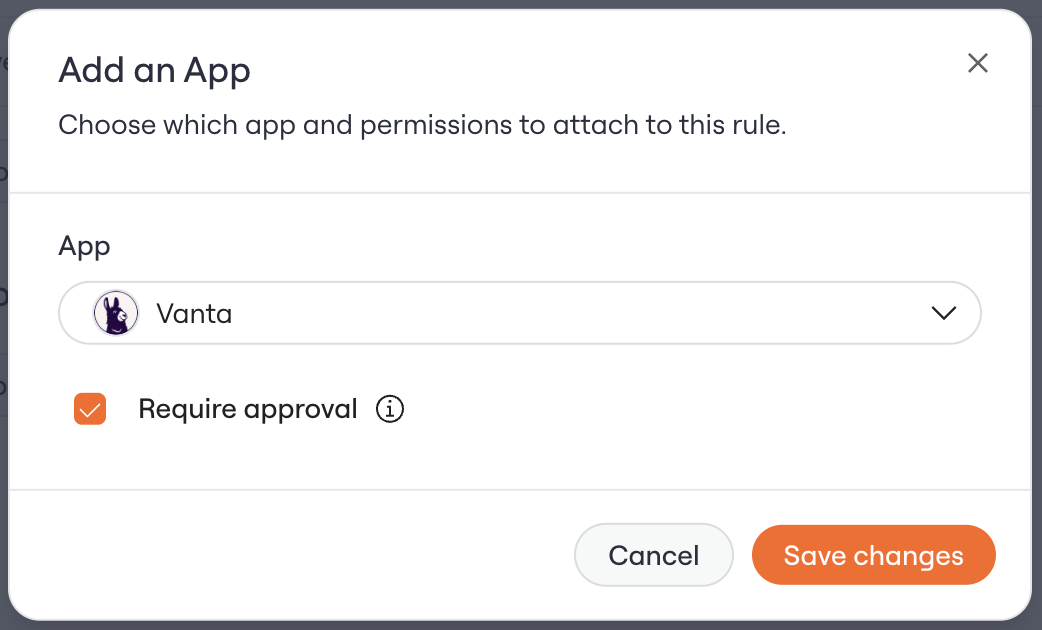 When you have this set, you will see a pill showing "All apps pre-approved" when viewing the policy,
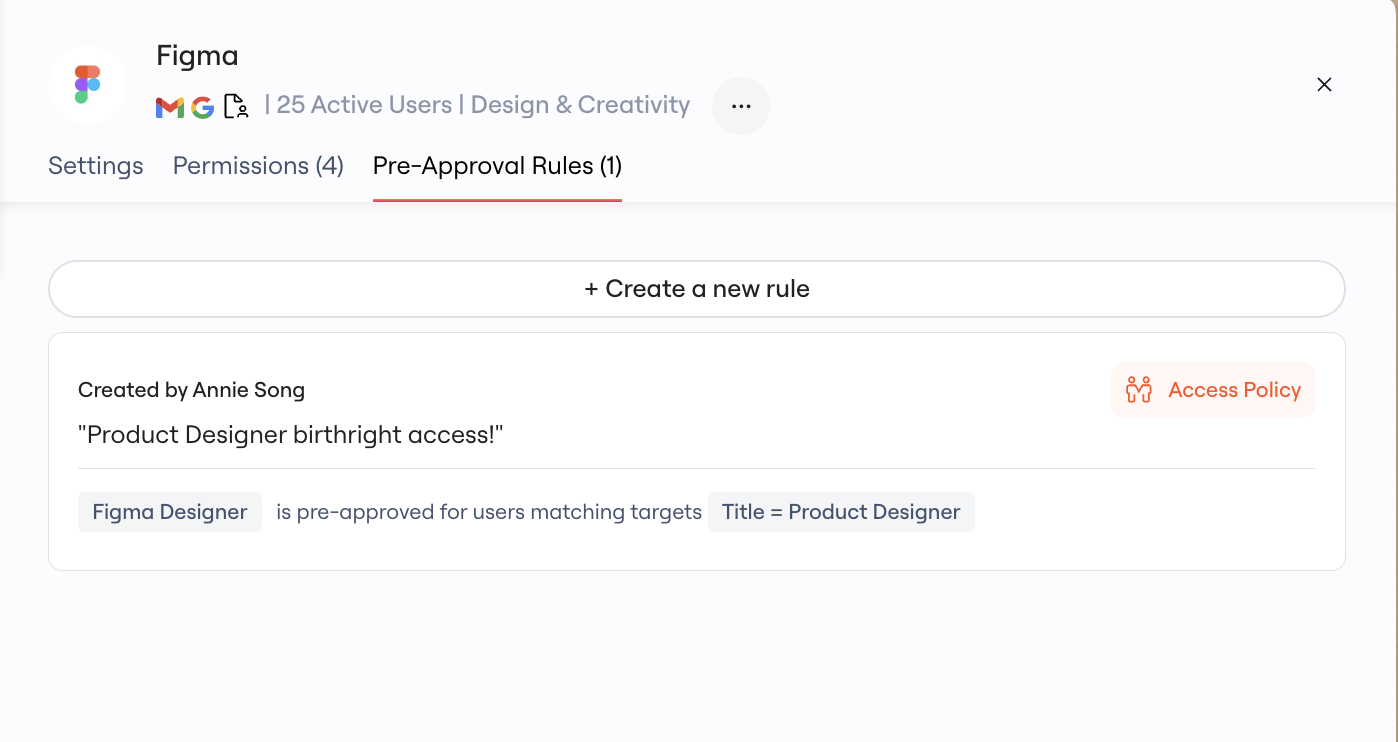
 and in the pre-approvals tab for each app configuration within the AppStore, you will see a read-only card denoting that there is an access policy granting pre-approval to this particular app/permission:
 You'll also note that you need to add a business justification for this policy - this is what will show up as the business justification on the access requests that fire when you trigger the rule.
### \[Optional] Rename your policy
By default, your Access Policies will be named with the current timestamp, but you can rename this by clicking on the policy to type in a new name.
You'll also note that you need to add a business justification for this policy - this is what will show up as the business justification on the access requests that fire when you trigger the rule.
### \[Optional] Rename your policy
By default, your Access Policies will be named with the current timestamp, but you can rename this by clicking on the policy to type in a new name.
 ## How do I edit a draft policy?
**Click** into a draft policy on the Access Policies table > Drafts tab
**Edit** and click "Save" up at the top right.
## How do I edit a draft policy?
**Click** into a draft policy on the Access Policies table > Drafts tab
**Edit** and click "Save" up at the top right.
 ## How do I delete a draft policy?
**Navigate** to a draft policy on the Access Policies table > Drafts tab
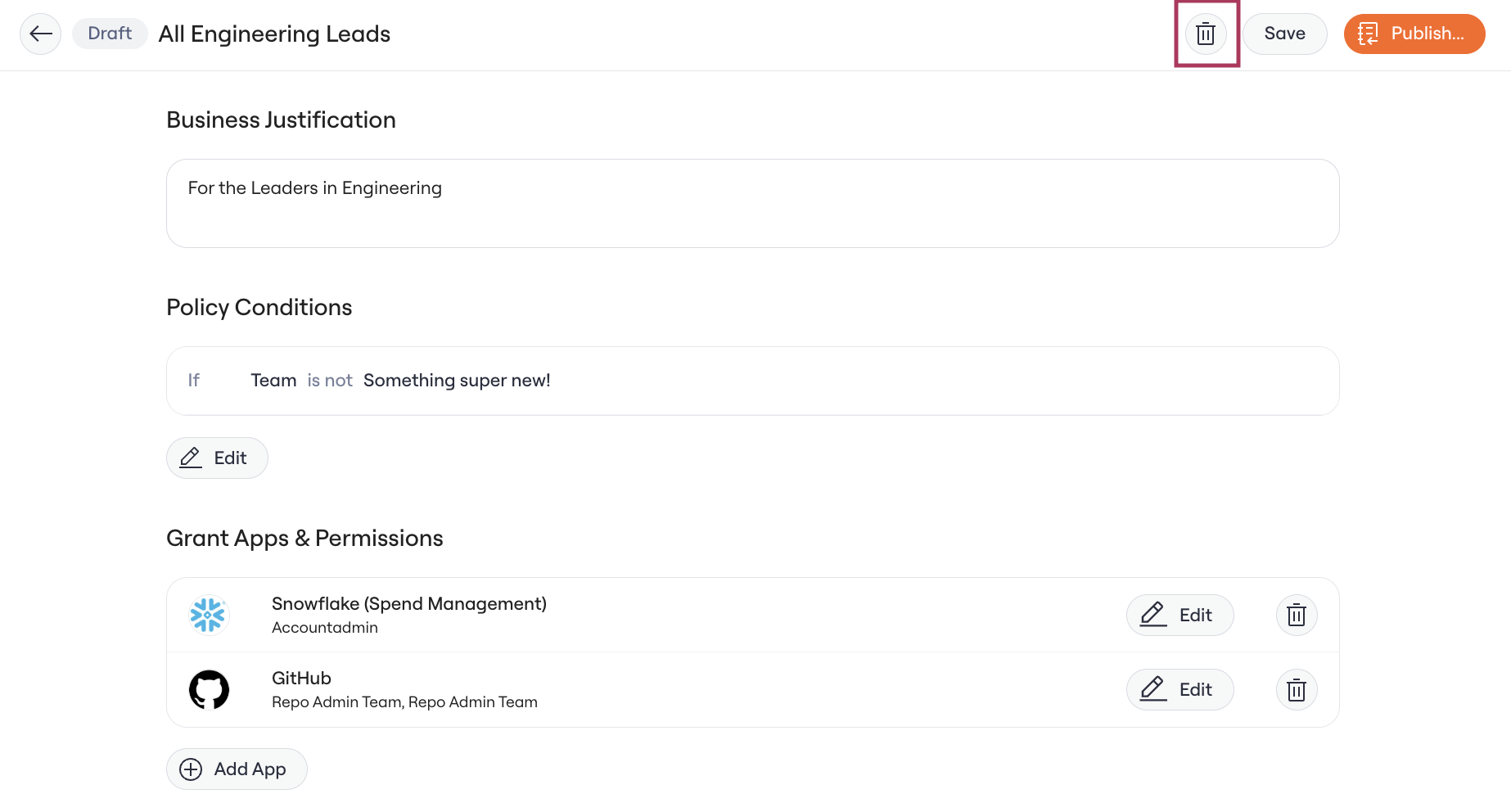
**Delete** via the Trash icon on the top right.
## How do I delete a draft policy?
**Navigate** to a draft policy on the Access Policies table > Drafts tab
**Delete** via the Trash icon on the top right.
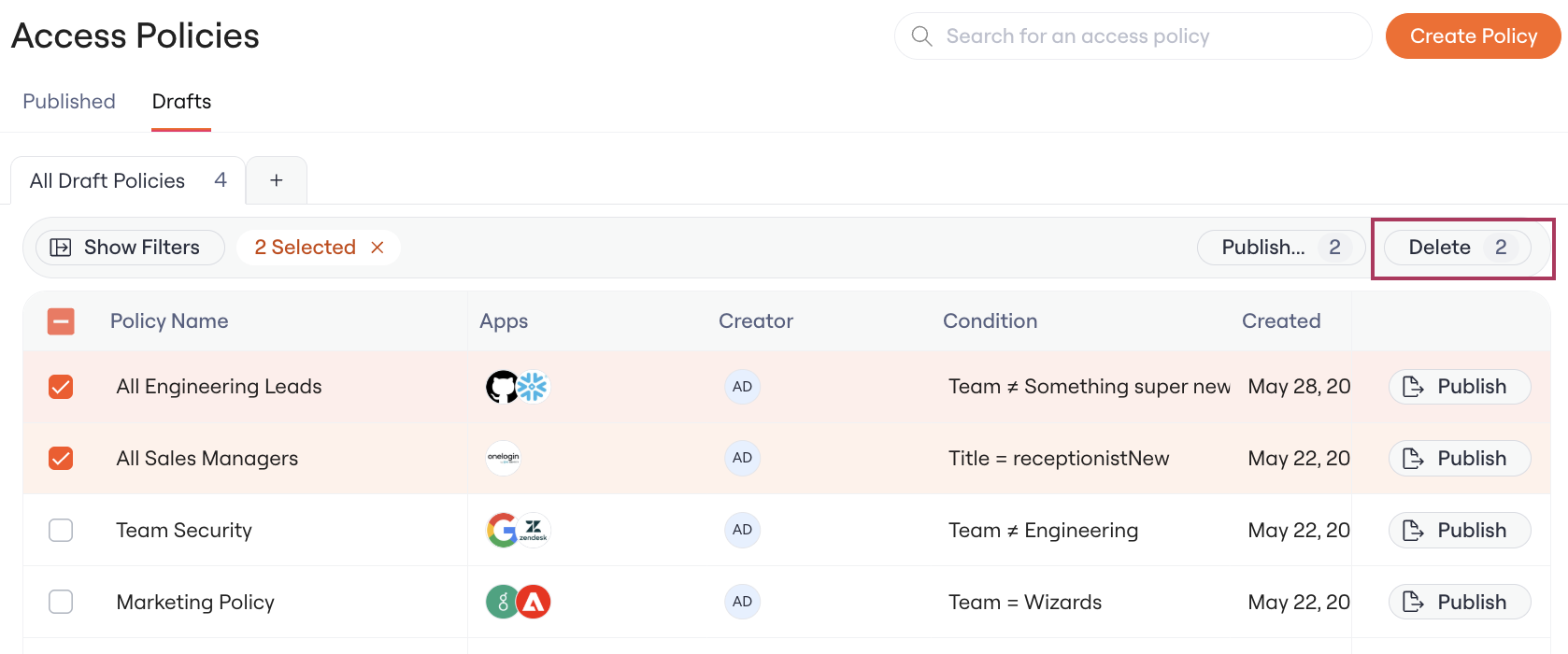
 **Delete in Bulk** via the Drafts table
 ## How do I edit a Published policy?
Create a draft from the published policy. The draft doesn't affect the published policy until you publish it. See [Editing Published Access Policies](/kb/life_cycle_management/new-hire-onboarding/editing-published-access-policies).
## How do I delete a policy?
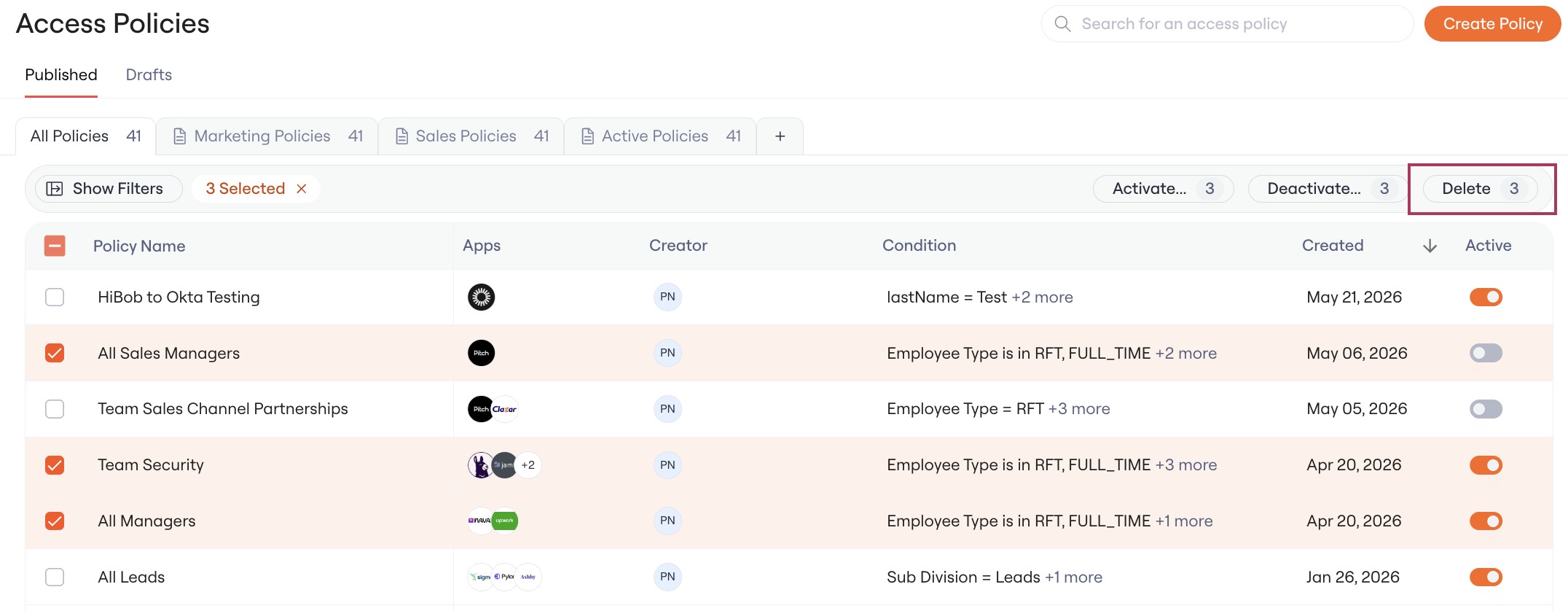
**Click** into a published policy on the Access Policies table > Published tab
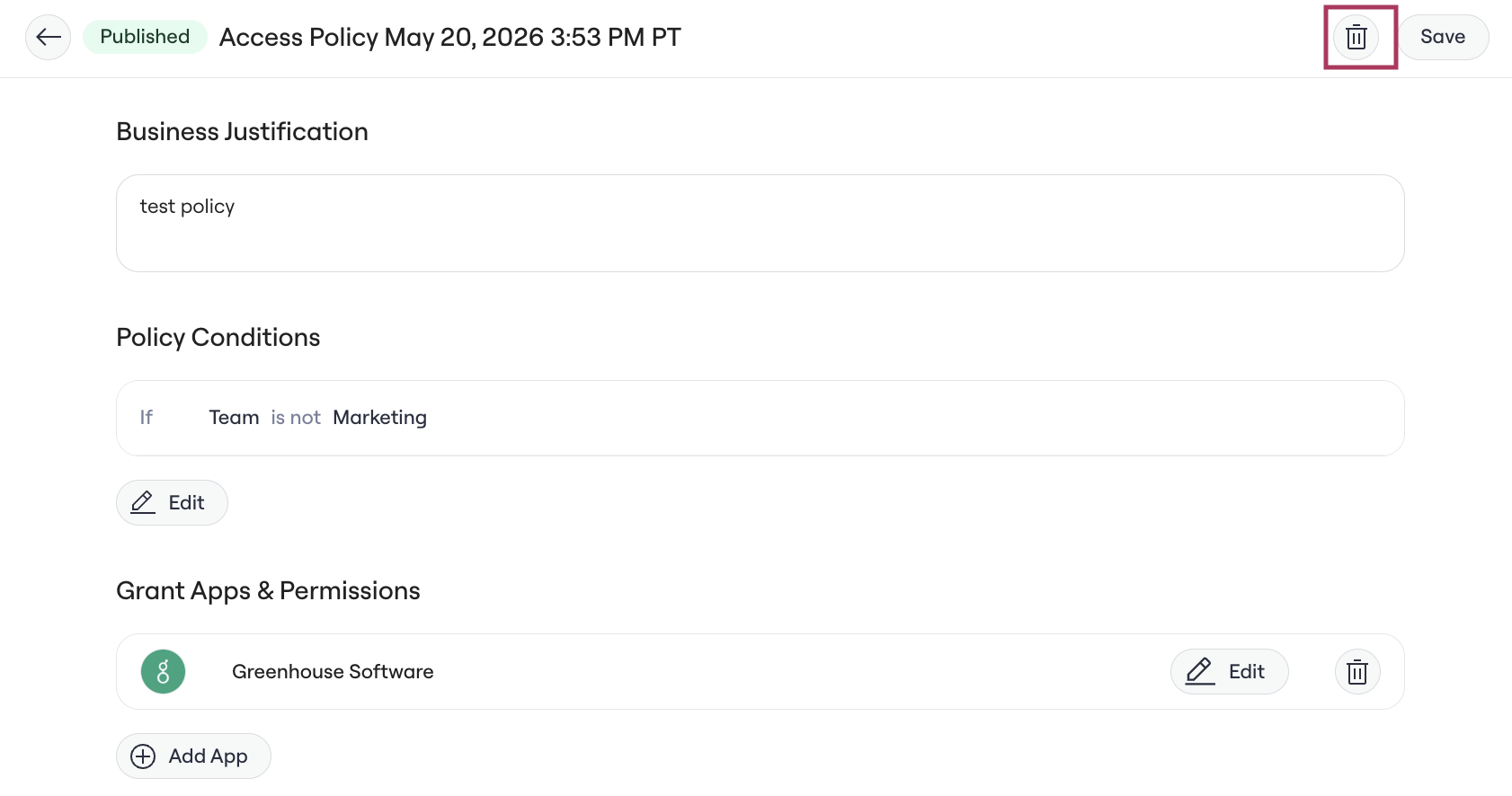
**Delete** via the Trash icon on the top right.
## How do I edit a Published policy?
Create a draft from the published policy. The draft doesn't affect the published policy until you publish it. See [Editing Published Access Policies](/kb/life_cycle_management/new-hire-onboarding/editing-published-access-policies).
## How do I delete a policy?
**Click** into a published policy on the Access Policies table > Published tab
**Delete** via the Trash icon on the top right.
 or **Delete in Bulk** via the Published tab.
 ## Albus and the API
* **Albus-generated policies always land as drafts.** Whether created through Albus chat or the Albus UI, the policy will appear in the Drafts tab so an admin can review it before publishing and activating.
* **The API creates drafts by default.** If you want the API to create a published policy directly, you can override this by setting the `status` parameter on the request.
## FAQs
#### I have 20+ policies, can I search or filter by these rules?
Yes. You can search on the Onboarding page by policy name, condition or app.
#### Is the activity around creating/editing/deleting rules tracked somewhere?
Yes, this will all be logged in the Activity Log today. Specifically, you can search for events titled: "Created Access Policy", "Deleted Access Policy", "Updated Access Policy".
#### I have a custom attribute that's not showing up on my policies page. What's happening?
Lumos only supports string, datetime, and user custom attributes today. Check that the attribute is type String. Otherwise, reach out to your CSM for troubleshooting.
### Do drafts affect any users or onboarding/mover workflows?
No. Drafts are completely non-enforced. They don't apply to current or future workflows until they are Published and made Active.
### Can Albus still create policies that go live immediately?
No. Albus-generated policies always land as drafts. Admins have to explicitly publish them and make them Active.
### Can I have two drafts with overlapping conditions?
Yes. Uniqueness is only enforced when you click **Publish**.
### Can I have a draft and a published policy with overlapping conditions?
Yes, while it's a draft. However, a draft that has an overlapping condition with an existing published policy cannot itself be published until the overlap is resolved.
### If I edit a published policy, does it become a draft?
You can't edit a published policy in place. Create a draft from it, edit the draft, and publish the draft to replace the published version. See [Editing Published Access Policies](/kb/life_cycle_management/new-hire-onboarding/editing-published-access-policies).
## Albus and the API
* **Albus-generated policies always land as drafts.** Whether created through Albus chat or the Albus UI, the policy will appear in the Drafts tab so an admin can review it before publishing and activating.
* **The API creates drafts by default.** If you want the API to create a published policy directly, you can override this by setting the `status` parameter on the request.
## FAQs
#### I have 20+ policies, can I search or filter by these rules?
Yes. You can search on the Onboarding page by policy name, condition or app.
#### Is the activity around creating/editing/deleting rules tracked somewhere?
Yes, this will all be logged in the Activity Log today. Specifically, you can search for events titled: "Created Access Policy", "Deleted Access Policy", "Updated Access Policy".
#### I have a custom attribute that's not showing up on my policies page. What's happening?
Lumos only supports string, datetime, and user custom attributes today. Check that the attribute is type String. Otherwise, reach out to your CSM for troubleshooting.
### Do drafts affect any users or onboarding/mover workflows?
No. Drafts are completely non-enforced. They don't apply to current or future workflows until they are Published and made Active.
### Can Albus still create policies that go live immediately?
No. Albus-generated policies always land as drafts. Admins have to explicitly publish them and make them Active.
### Can I have two drafts with overlapping conditions?
Yes. Uniqueness is only enforced when you click **Publish**.
### Can I have a draft and a published policy with overlapping conditions?
Yes, while it's a draft. However, a draft that has an overlapping condition with an existing published policy cannot itself be published until the overlap is resolved.
### If I edit a published policy, does it become a draft?
You can't edit a published policy in place. Create a draft from it, edit the draft, and publish the draft to replace the published version. See [Editing Published Access Policies](/kb/life_cycle_management/new-hire-onboarding/editing-published-access-policies).