> ## Documentation Index
> Fetch the complete documentation index at: https://docs.lumos.com/llms.txt
> Use this file to discover all available pages before exploring further.
# Viewing Offboarding Progress
When it comes to offboarding employees from your organization, it's critical to make sure that all access is removed from applications in a timely manner.
When you use Lumos to automate offboarding workflows, you can track the progress of each removal request directly in the platform, including any sub-tasks that need to be completed by different admins throughout the organization.
## Viewing all In-Progress Offboardings
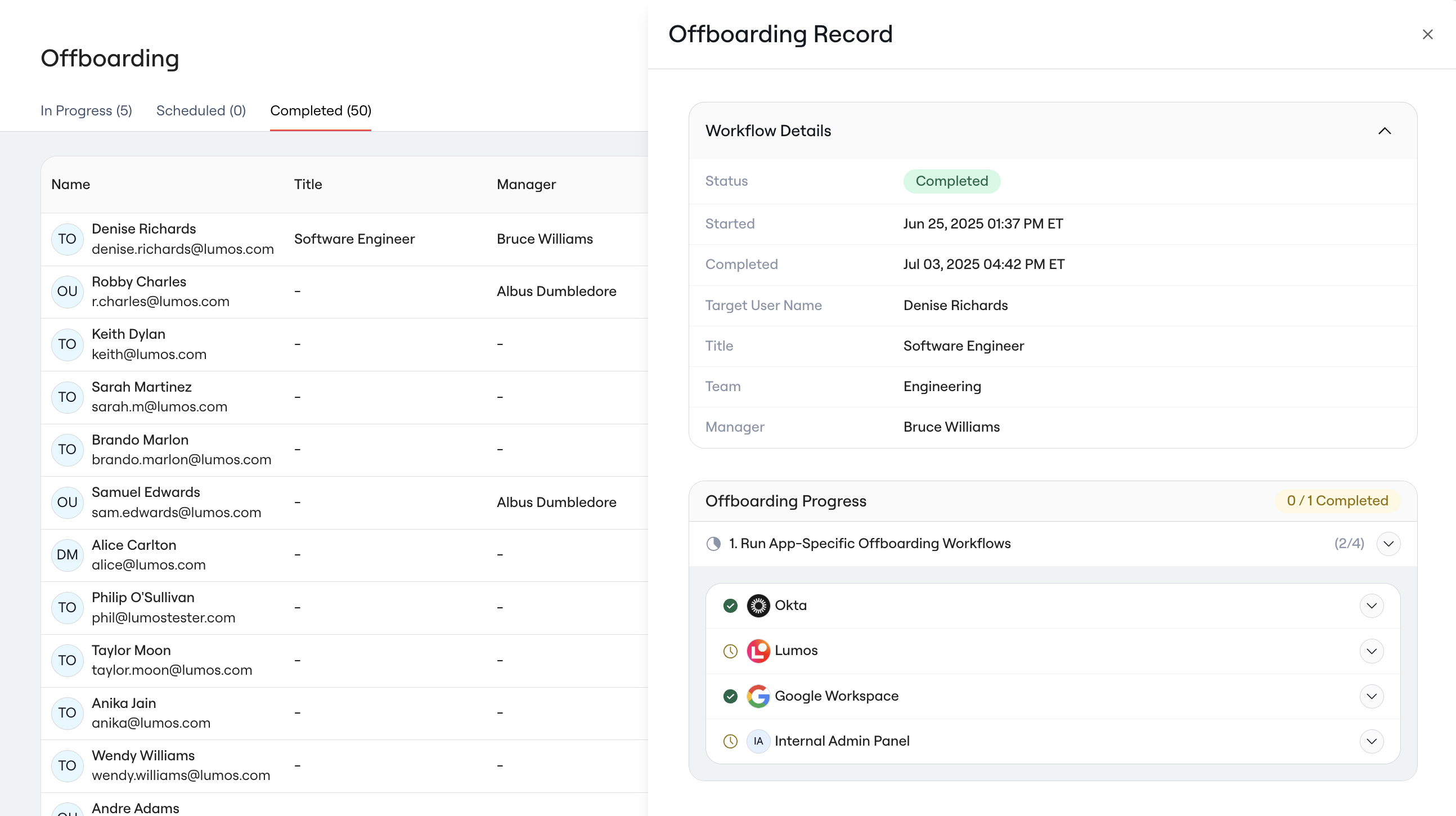
Any time an offboarding is scheduled or kicked off in Lumos, you can find a record of the offboarding by going to the **Employee Lifecycle > Offboarding** page.
 For each employee, you will find a record of their offboarding, including who initiated the offboarding, when it was started, and when it completed. To view more details about the progress of individual workflows, you can click the "open" button next the employee's name to to view a detailed breakdown of steps run in the workflow.
 ## Key Features
* **View Individual App Details**
## Key Features
* **View Individual App Details**
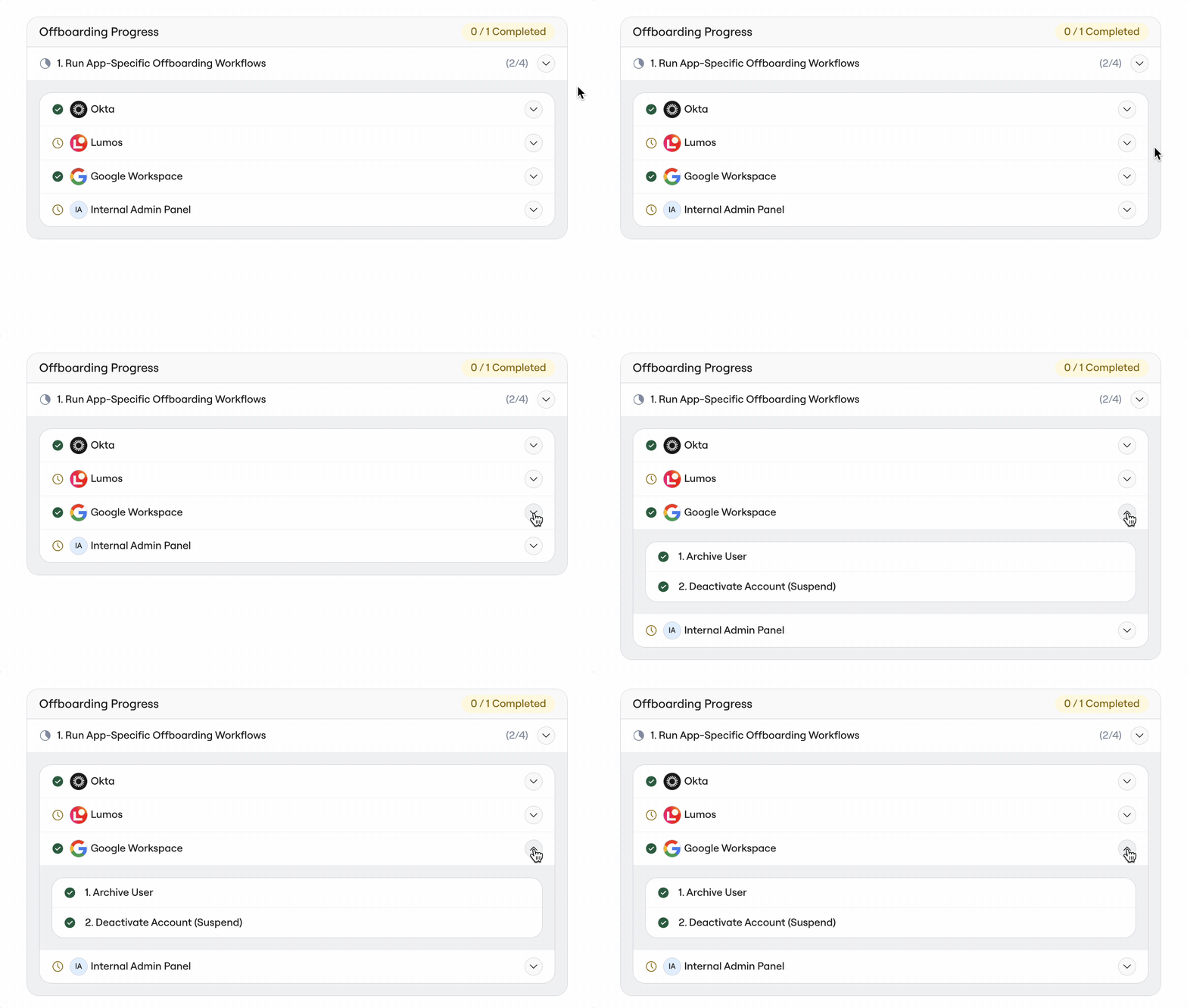
During each offboarding, Lumos kicks off individual removal workflows for each application that the user had access to. To view step-by-step progress for an individual app, you can toggle open the progress for any app.
 * **Track Manual Tasks**
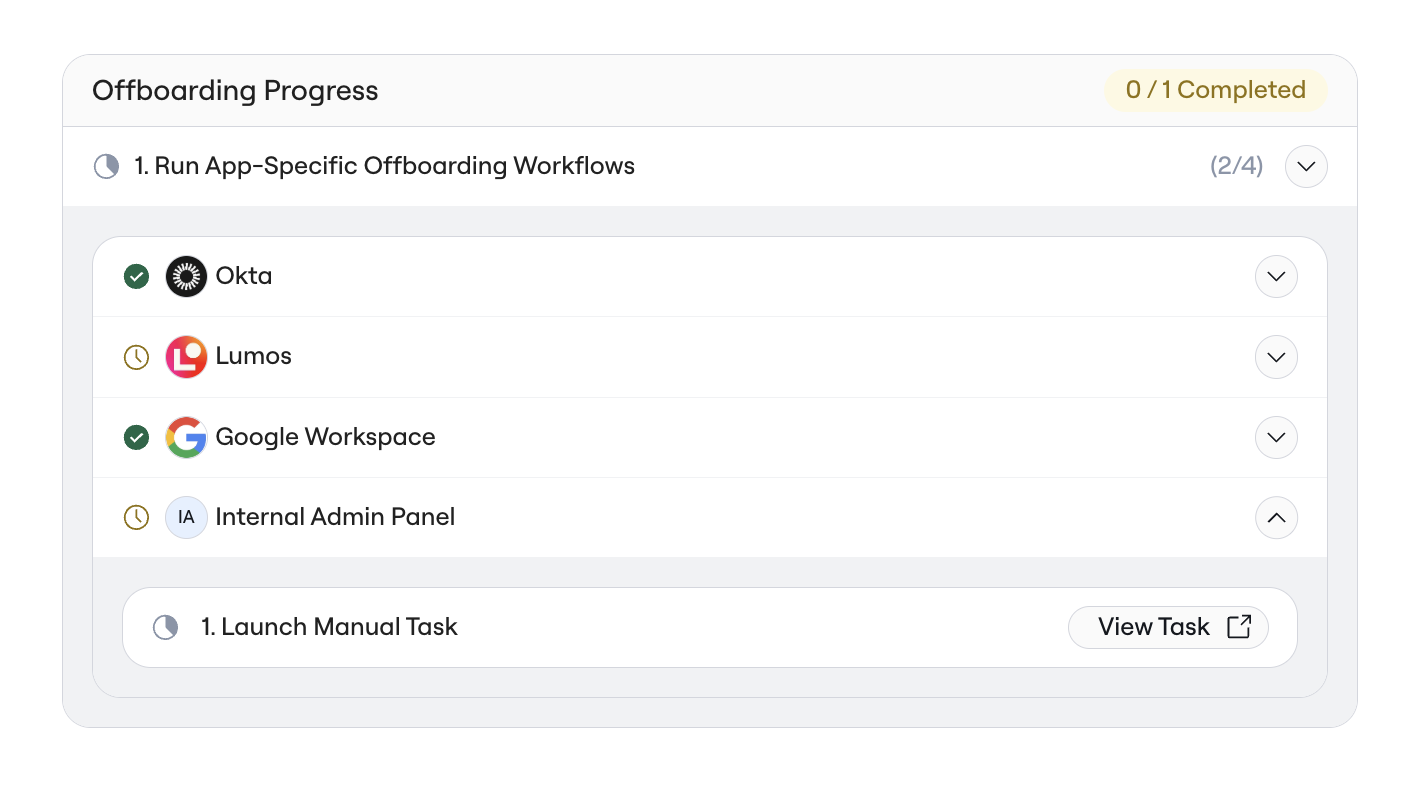
If any manual steps are required for an application, you can click **"View Task"** to navigate directly to the specific task associated with the user’s offboarding.
 * **App Status Insights**
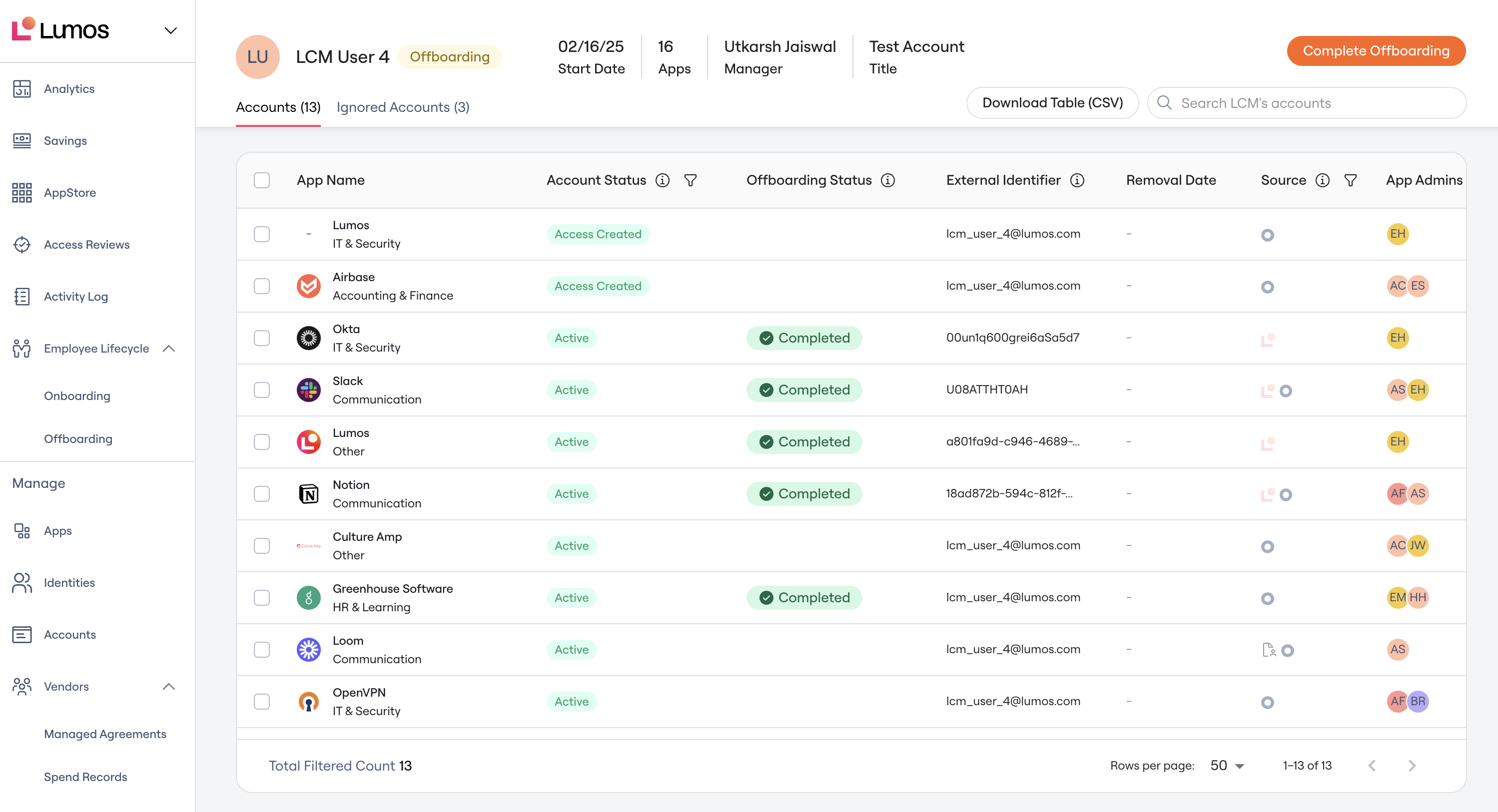
From a **Single User Account Page**, selecting a user and clicking on app's offboarding status pill will open a drawer displaying the app’s status. This allows you to quickly identify where an offboarding failure might have occurred.
 ## FAQ
### Why is my Offboarding Record empty?
An offboarding record may be empty for a number of reasons:
* If you do not have any steps included in your offboarding workflow, it will appear empty. You can modify your offboarding workflow by going to Employee Lifecycle > Offboarding > Settings and selecting the pencil icon under "Offboarding Workflow"
* If the offboarding you're viewing was initiated before Fall 2024, detailed tracking data may not be available. Newer offboardings will include more granular information for better visibility.
## FAQ
### Why is my Offboarding Record empty?
An offboarding record may be empty for a number of reasons:
* If you do not have any steps included in your offboarding workflow, it will appear empty. You can modify your offboarding workflow by going to Employee Lifecycle > Offboarding > Settings and selecting the pencil icon under "Offboarding Workflow"
* If the offboarding you're viewing was initiated before Fall 2024, detailed tracking data may not be available. Newer offboardings will include more granular information for better visibility.