> ## Documentation Index
> Fetch the complete documentation index at: https://docs.lumos.com/llms.txt
> Use this file to discover all available pages before exploring further.
# Configuring App Deprovisioning for Offboarding
## Background
Offboarding runs on the same standardized deprovisioning workflows used across Lumos. You configure deprovisioning workflows on each app's **Account Workflows** tab and use them in Offboarding. Newly connected apps get a default offboarding workflow automatically, and apps with an empty workflow are excluded from offboarding.
If you set up offboarding on the Integrations tab in the past, Lumos moved your workflows over automatically. See **Offboarding settings moved from the Integrations tab** at the end of this article.
References
[Standardized Account Workflows](/kb/quick_start_guide/standardized-account-workflows)
[Configuring ITSM Rules in Lumos](/kb/product-updates/configuring-itsm-rules-in-lumos-aug-2026)
## What you can do
* **Build one deprovisioning workflow and reuse it everywhere.** The same workflow can power Offboarding, AppStore removals, Movers, and Access Reviews, so access is removed the same way no matter what triggers it.
* **Run a different workflow for Offboarding than for AppStore.** Keep a stricter workflow (for example, one that releases licenses and resources) just for offboarding.
* **Skip setup for new apps.** Newly connected apps get a default offboarding workflow automatically. Previously you had to configure one manually before the app was included in offboarding.
## Configuring a Deprovisioning Workflow for Offboarding
**Before you start:** you need permission to manage workflows in Lumos. If you don't see the Account Workflows tab or can't edit workflows, ask your Lumos administrator for access.
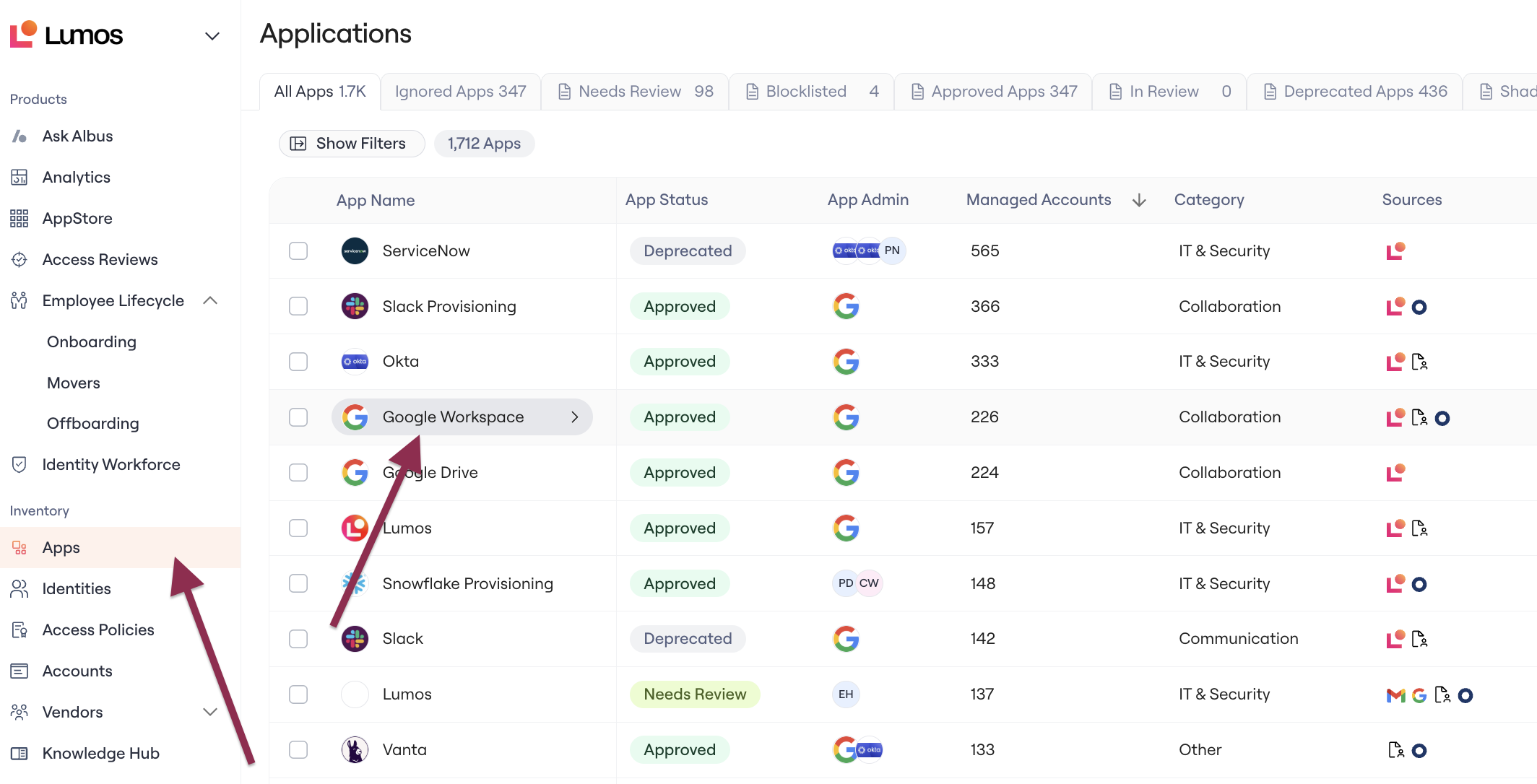
1. In the left nav, go to **Apps** > Select the **app** you want to configure to open its page.
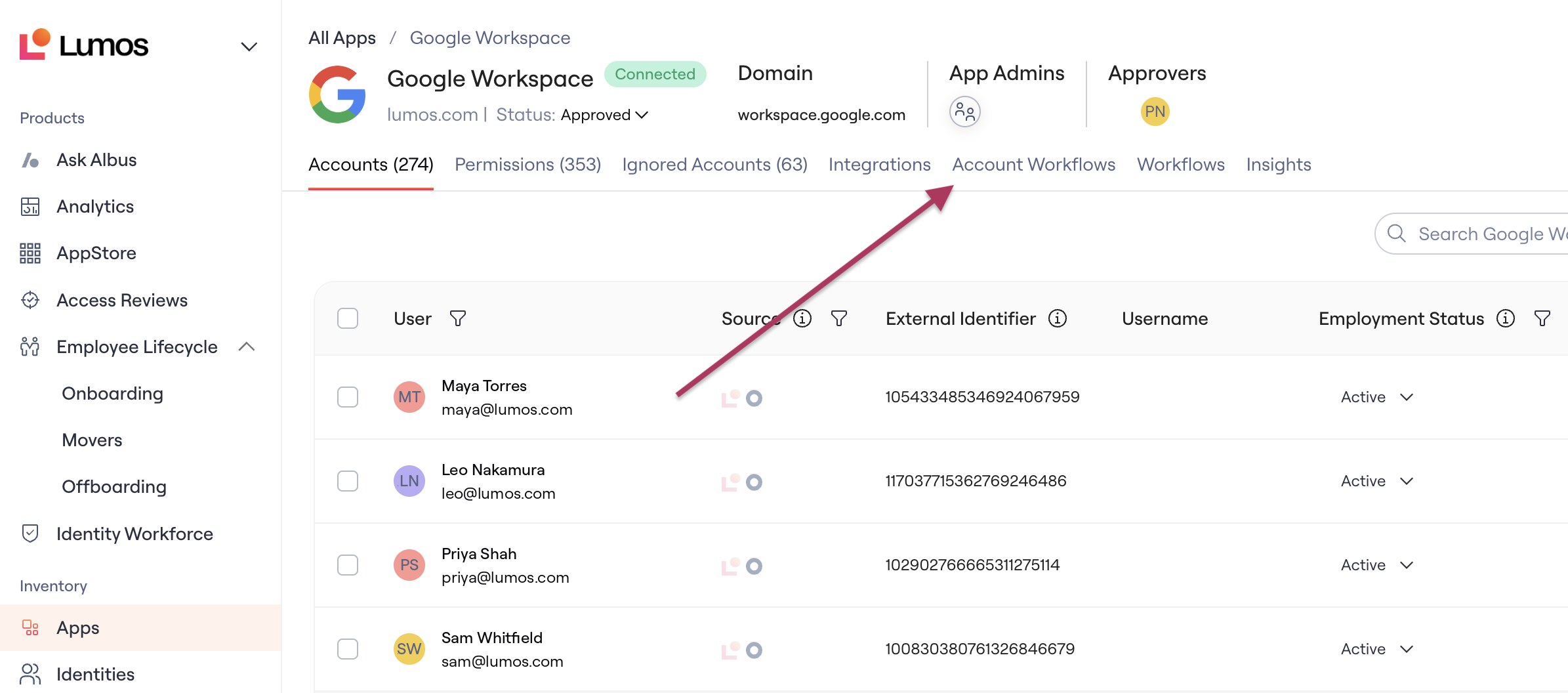
 2. Navigate to the **Account Workflows** tab.
 3. View existing workflows, or click **Create Workflow** to create a new one (details in [Standardized Account Workflows](/kb/quick_start_guide/standardized-account-workflows)).
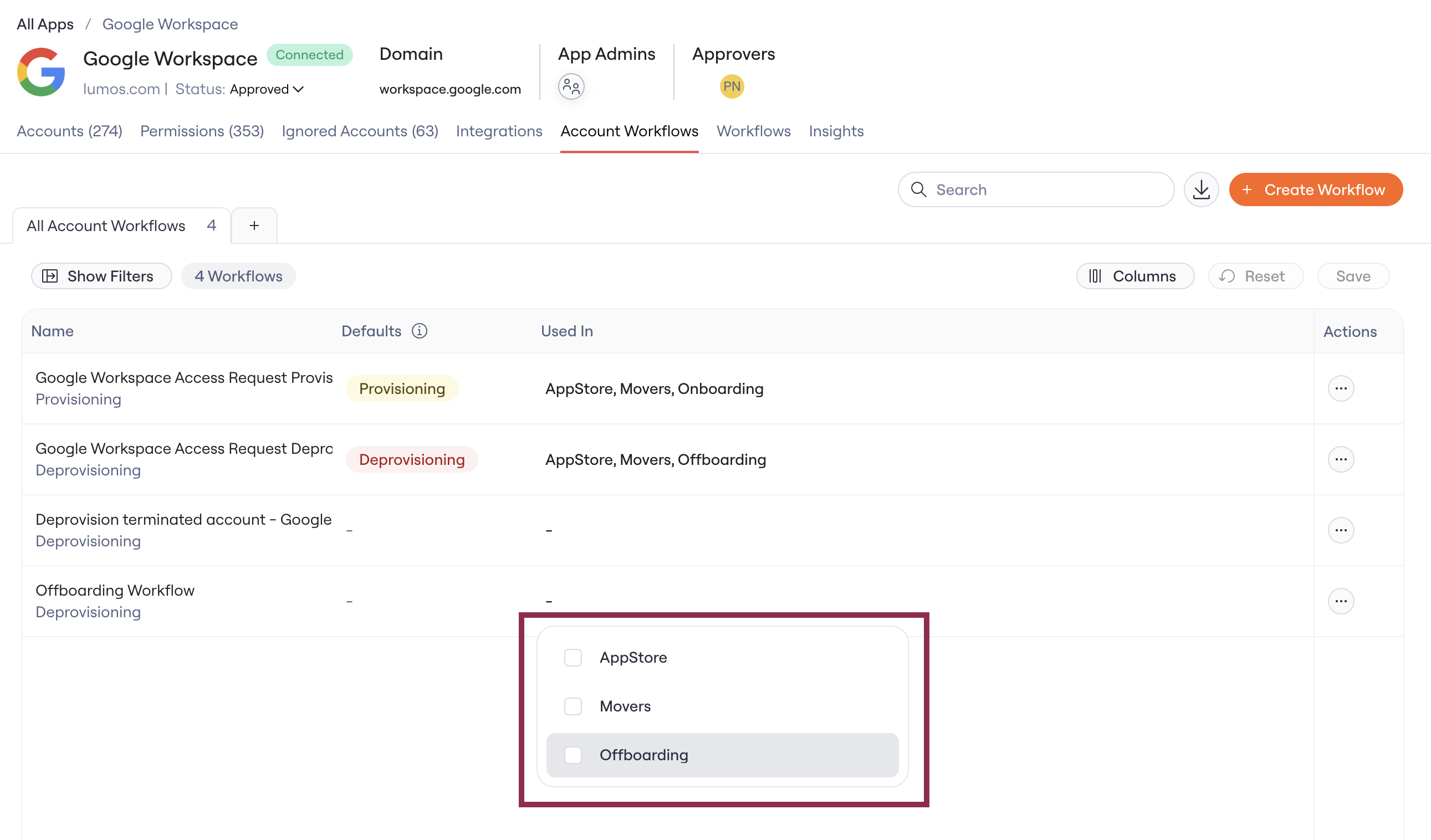
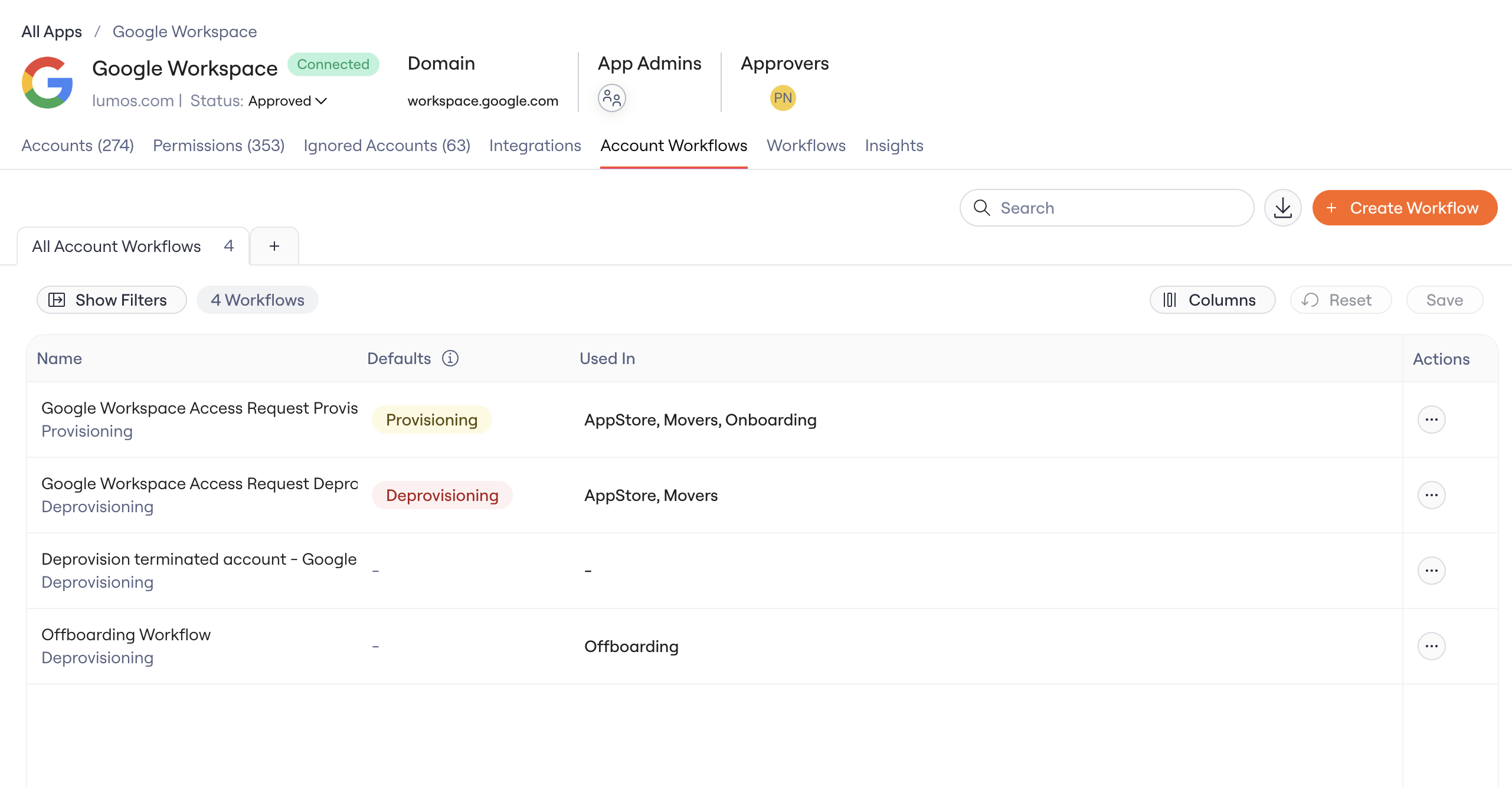 4. Select the deprovisioning workflow you want to use for Offboarding. Every workflow is assigned as either Provisioning or Deprovisioning. Offboarding removes access, so only deprovisioning workflows are available for it.
5. In the workflow's **Used in** setting, check **Offboarding**.
4. Select the deprovisioning workflow you want to use for Offboarding. Every workflow is assigned as either Provisioning or Deprovisioning. Offboarding removes access, so only deprovisioning workflows are available for it.
5. In the workflow's **Used in** setting, check **Offboarding**.
 ### **Editing a workflow that other products use?**
A workflow can be shared by more than one Lumos product. If you edit one that's also used elsewhere (for example, by AppStore or Access Reviews), your changes apply everywhere it's used. Lumos warns you before you save, shows you exactly which products would be affected, and offers to save your changes as a separate copy so the original stays as it is.
When an offboarding removes individual entitlements (like groups or roles), Lumos uses the default deprovisioning workflow configured for that entitlement on the app's **Permissions** tab.
## How offboardings run
**Automatic offboardings** use the deprovisioning workflow assigned to Offboarding for each app.
**Manual offboardings** also default to the same workflows, but you can review and adjust each app before triggering the offboarding:
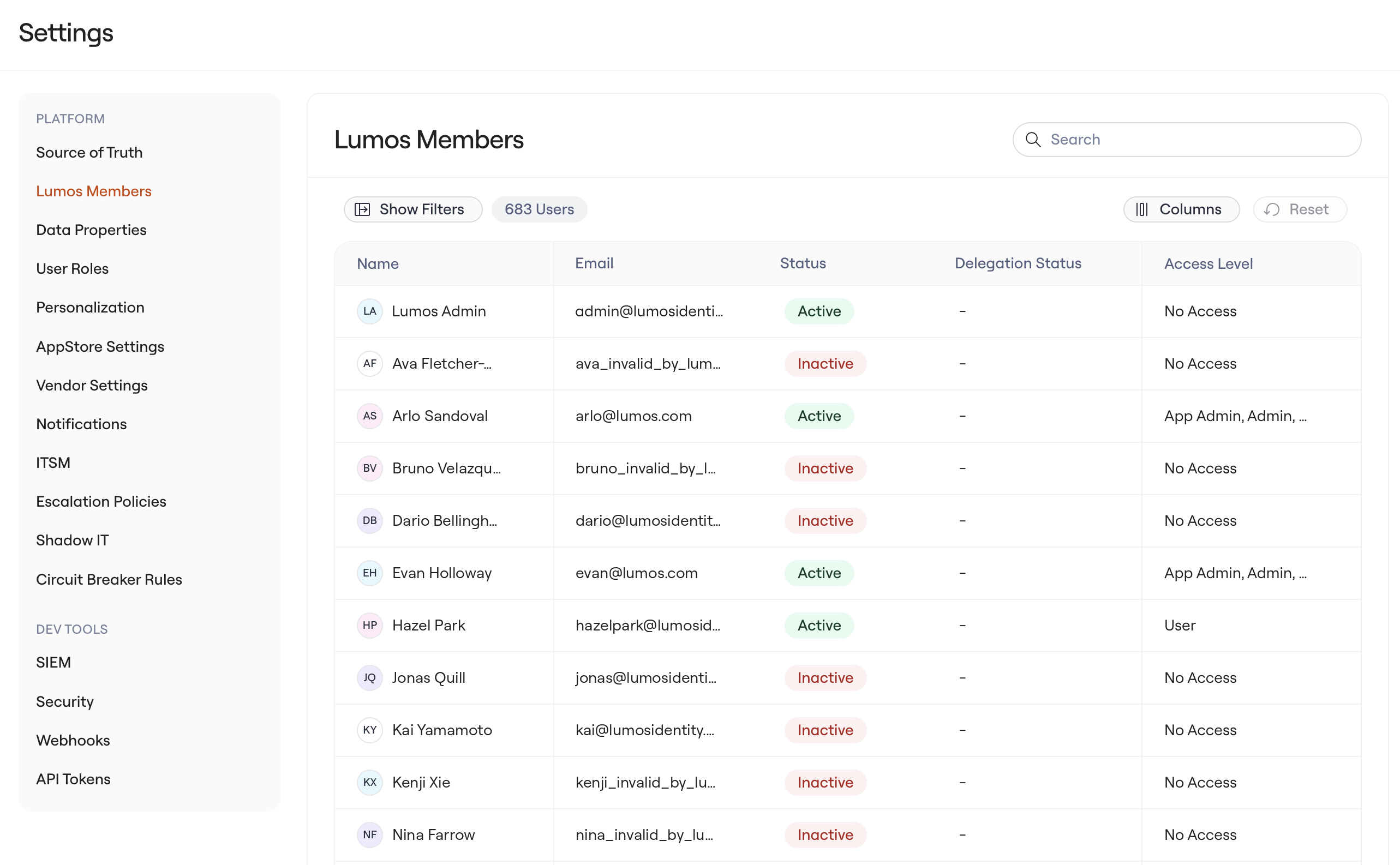
1. Go to **Settings** > **Lumos Members** and select the user.
### **Editing a workflow that other products use?**
A workflow can be shared by more than one Lumos product. If you edit one that's also used elsewhere (for example, by AppStore or Access Reviews), your changes apply everywhere it's used. Lumos warns you before you save, shows you exactly which products would be affected, and offers to save your changes as a separate copy so the original stays as it is.
When an offboarding removes individual entitlements (like groups or roles), Lumos uses the default deprovisioning workflow configured for that entitlement on the app's **Permissions** tab.
## How offboardings run
**Automatic offboardings** use the deprovisioning workflow assigned to Offboarding for each app.
**Manual offboardings** also default to the same workflows, but you can review and adjust each app before triggering the offboarding:
1. Go to **Settings** > **Lumos Members** and select the user.
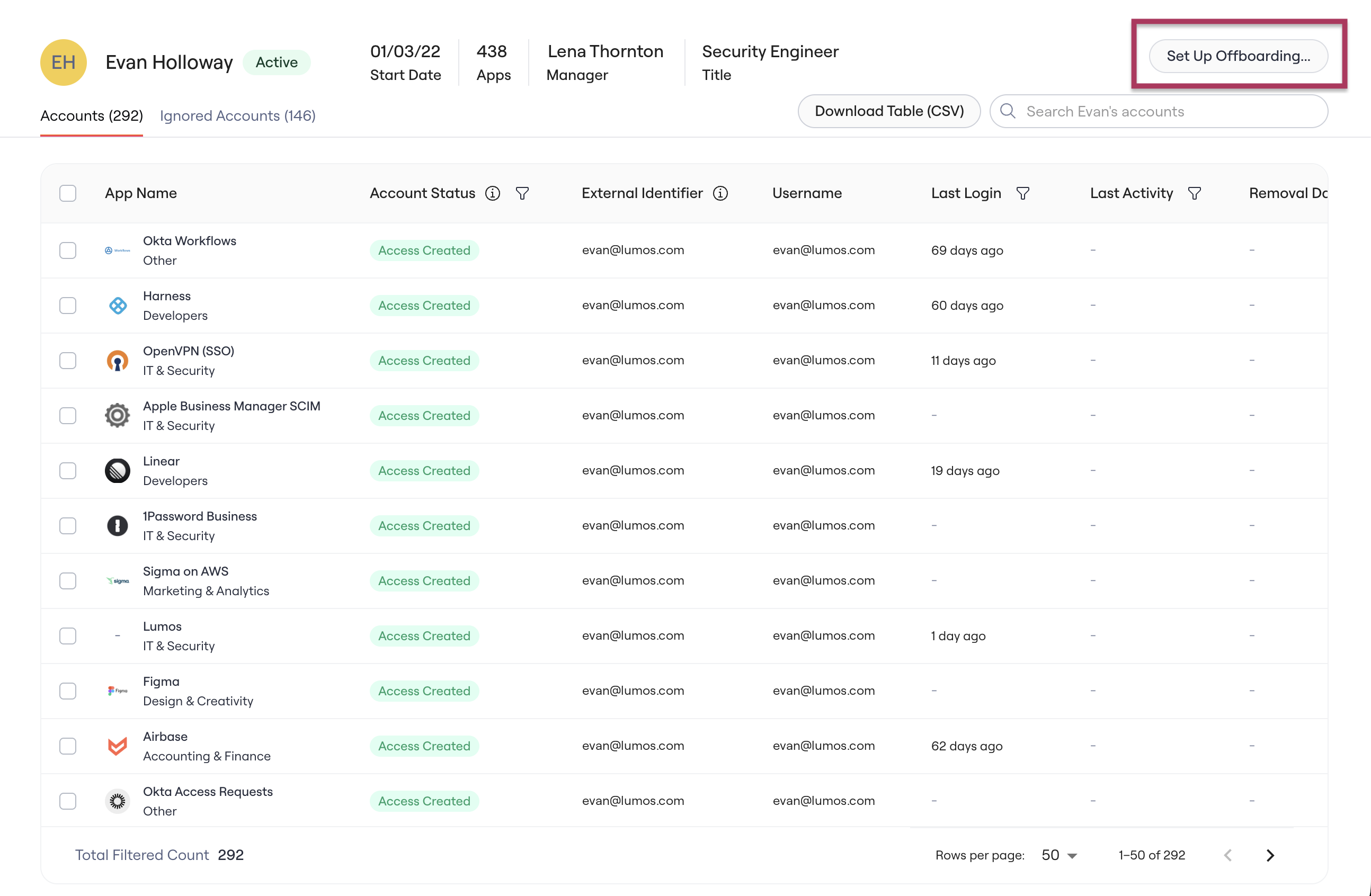
 2. Click **Set Up Offboarding**.
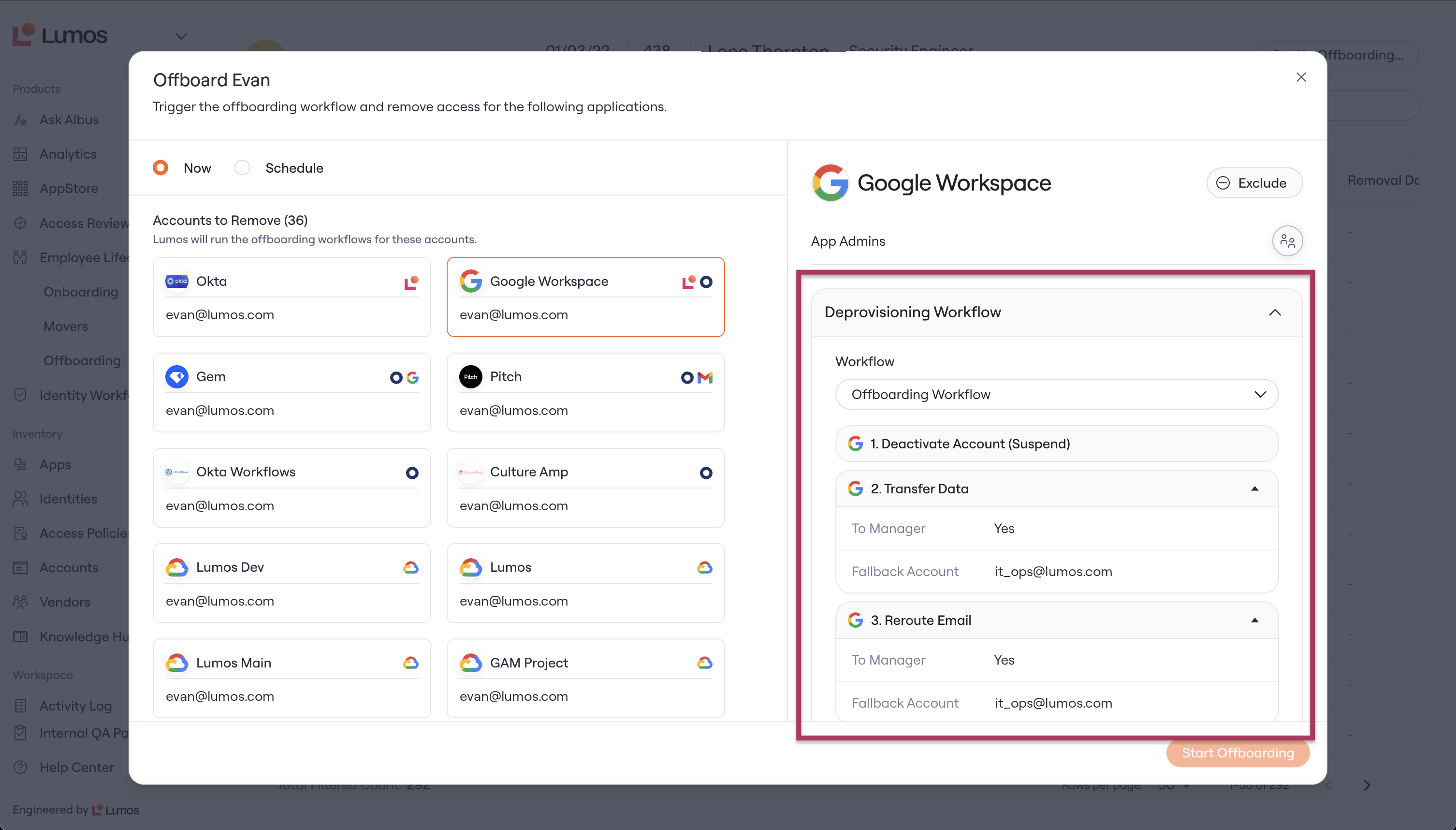
 3. In the **Offboard** dialog, choose **Now** to run the offboarding immediately, or **Schedule** to run it on a future date.
4. Lumos includes the apps selected in your Offboarding settings. Click **Exclude** on any you don't want to deprovision. See [Excluding Apps from Offboardings](/kb/life_cycle_management/employee-offboarding/excluding-apps-from-offboardings)
5. Select an app under **Accounts to Remove** to review it. The panel on the right shows the app's **Deprovisioning Workflow**, with every step listed in order. The workflow defaults to the one assigned to Offboarding for that app. Expand a step to see its settings, for example where a **Transfer Data** step sends the user's files.
3. In the **Offboard** dialog, choose **Now** to run the offboarding immediately, or **Schedule** to run it on a future date.
4. Lumos includes the apps selected in your Offboarding settings. Click **Exclude** on any you don't want to deprovision. See [Excluding Apps from Offboardings](/kb/life_cycle_management/employee-offboarding/excluding-apps-from-offboardings)
5. Select an app under **Accounts to Remove** to review it. The panel on the right shows the app's **Deprovisioning Workflow**, with every step listed in order. The workflow defaults to the one assigned to Offboarding for that app. Expand a step to see its settings, for example where a **Transfer Data** step sends the user's files.
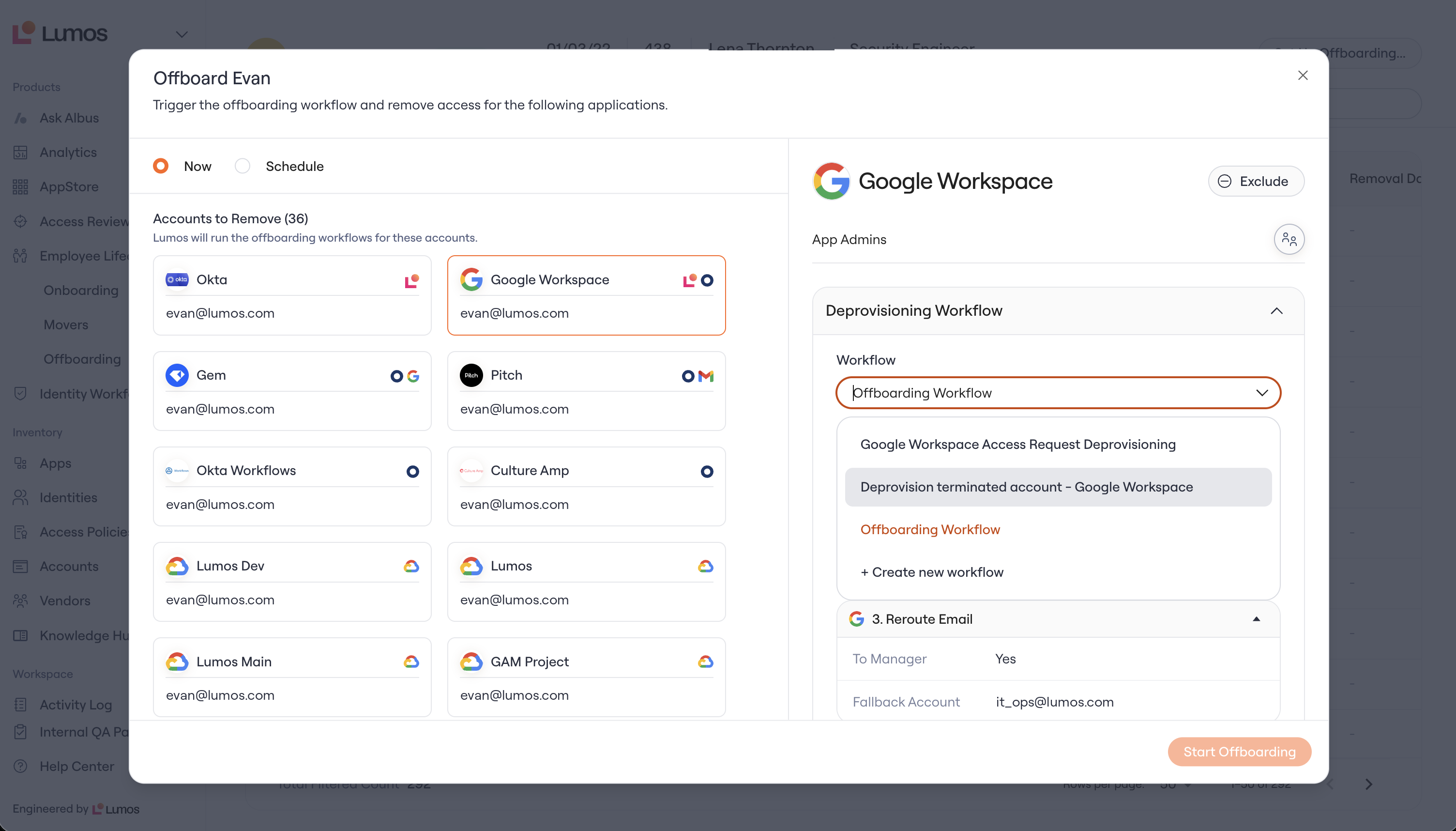
 6. To handle an app differently in this offboarding only, pick another deprovisioning workflow from the **Workflow** dropdown, or create a custom one. This deprovisioning workflow choice applies to this offboarding only; the app's saved workflow doesn't change.
 7. To skip an app entirely for this offboarding, click **Exclude** in the app's panel.
8. Click **Start Offboarding**.
9. View **Offboarding Progress**. See [Viewing Offboarding Progress](/kb/life_cycle_management/employee-offboarding/viewing-offboarding-progress)
## Notifications
* The person being offboarded is not notified. Normally, Lumos messages a user as their access requests move along (created, approved, expiring, removed). Offboarding removals skip these messages, so the person leaving is not emailed about every app they're losing access to. The same applies to access changes driven by Onboarding and Movers.
* Task assignees continue to receive digests. Task Summaries now cover deprovisioning manual tasks and error tasks. See [How-To: Enable Task Summaries for Employee Lifecycle](/kb/_uncategorized/how-to-enable-task-summaries-for-employee-lifecycle)
## ITSM tickets for offboarding
Offboarding removals generate ITSM tickets once you have ITSM v2 routing rules configured. Without routing rules, no tickets are created. See [Configuring ITSM Rules in Lumos](/kb/product-updates/configuring-itsm-rules-in-lumos-aug-2026)
## App Offboarding has moved from the Integrations tab
This section applies if you configured offboarding on an app's **Integrations** tab before offboarding moved to Account Workflows. Your offboarding behavior is unchanged, but where you configure it has moved:
* Lumos moved the App Offboarding workflows you configured on an app's **Integrations** tab into the app's **Account Workflows** table automatically, labeled for Offboarding. The Integrations tab no longer shows offboarding configuration.
* Apps that had **no** offboarding workflow configured received an **empty** offboarding workflow entry. An empty workflow means the app stays excluded from offboarding, exactly as before. Seeing these empty entries in the Account Workflows table is expected.
The one behavior change is for newly connected apps. They now get a default offboarding workflow automatically instead of requiring manual setup.
## FAQ
**Do I have to redo my offboarding workflows?**
No. Lumos moved the workflows you configured on the Integrations tab automatically into the Account Workflows table, labeled for Offboarding.
**Why do I see empty offboarding workflows in the Account Workflows table?**
When offboarding moved to Account Workflows, Lumos created an empty entry for apps that had no offboarding workflow. Empty means the app stays excluded from offboarding, same as before. This is expected.
**Will apps that were excluded from offboarding suddenly start running?**
No. Empty workflows keep those apps excluded. The only behavior change is for newly connected apps, which now get a default offboarding workflow automatically.
**Where did the offboarding workflow setting on the Integrations tab go?**
It moved to the app's **Account Workflows** tab.
**I use ITSM. What happens now?**
Offboarding removals generate ITSM tickets once you have ITSM v2 routing rules configured. Without routing rules, no tickets are created.
**Will offboarded users get spammed with notifications?**
No. Lumos does not message the person being offboarded about each access removal. The people assigned to removal tasks still receive digest emails through Task Summaries.
7. To skip an app entirely for this offboarding, click **Exclude** in the app's panel.
8. Click **Start Offboarding**.
9. View **Offboarding Progress**. See [Viewing Offboarding Progress](/kb/life_cycle_management/employee-offboarding/viewing-offboarding-progress)
## Notifications
* The person being offboarded is not notified. Normally, Lumos messages a user as their access requests move along (created, approved, expiring, removed). Offboarding removals skip these messages, so the person leaving is not emailed about every app they're losing access to. The same applies to access changes driven by Onboarding and Movers.
* Task assignees continue to receive digests. Task Summaries now cover deprovisioning manual tasks and error tasks. See [How-To: Enable Task Summaries for Employee Lifecycle](/kb/_uncategorized/how-to-enable-task-summaries-for-employee-lifecycle)
## ITSM tickets for offboarding
Offboarding removals generate ITSM tickets once you have ITSM v2 routing rules configured. Without routing rules, no tickets are created. See [Configuring ITSM Rules in Lumos](/kb/product-updates/configuring-itsm-rules-in-lumos-aug-2026)
## App Offboarding has moved from the Integrations tab
This section applies if you configured offboarding on an app's **Integrations** tab before offboarding moved to Account Workflows. Your offboarding behavior is unchanged, but where you configure it has moved:
* Lumos moved the App Offboarding workflows you configured on an app's **Integrations** tab into the app's **Account Workflows** table automatically, labeled for Offboarding. The Integrations tab no longer shows offboarding configuration.
* Apps that had **no** offboarding workflow configured received an **empty** offboarding workflow entry. An empty workflow means the app stays excluded from offboarding, exactly as before. Seeing these empty entries in the Account Workflows table is expected.
The one behavior change is for newly connected apps. They now get a default offboarding workflow automatically instead of requiring manual setup.
## FAQ
**Do I have to redo my offboarding workflows?**
No. Lumos moved the workflows you configured on the Integrations tab automatically into the Account Workflows table, labeled for Offboarding.
**Why do I see empty offboarding workflows in the Account Workflows table?**
When offboarding moved to Account Workflows, Lumos created an empty entry for apps that had no offboarding workflow. Empty means the app stays excluded from offboarding, same as before. This is expected.
**Will apps that were excluded from offboarding suddenly start running?**
No. Empty workflows keep those apps excluded. The only behavior change is for newly connected apps, which now get a default offboarding workflow automatically.
**Where did the offboarding workflow setting on the Integrations tab go?**
It moved to the app's **Account Workflows** tab.
**I use ITSM. What happens now?**
Offboarding removals generate ITSM tickets once you have ITSM v2 routing rules configured. Without routing rules, no tickets are created.
**Will offboarded users get spammed with notifications?**
No. Lumos does not message the person being offboarded about each access removal. The people assigned to removal tasks still receive digest emails through Task Summaries.