> ## Documentation Index
> Fetch the complete documentation index at: https://docs.lumos.com/llms.txt
> Use this file to discover all available pages before exploring further.
# SIEM Webhooks
## Background
Logging Lumos events to your SIEM lets you create alerts for critical access or app-related events in Lumos.
If Lumos doesn't have a native integration with your SIEM, you can create a *SIEM webhook* that pushes every **SIEM event** to an HTTP endpoint of your choosing. *See[How Lumos Logs to Your SIEM](/kb/integrations-3/reference-1/how-lumos-logs-to-your-siem)*
This article shows you how to add a SIEM webhook in Lumos and connect it to an arbitrary HTTP endpoint.
## What's sent in the webhook?
Lumos sends an HTTP POST with a JSON payload of log data when the webhook is triggered. The format of this payload is below.
```text theme={null}
{
"event": {
"actor": {
"actor_data": {
"email": "wile.e.coyote@acme.com",
"family_name": "Coyote",
"given_name": "Wile E."
},
"actor_type": "ActivityActorType.LUMOS_USER"
},
"event_began_at": "2024-02-16T14:06:19.705603",
"event_hash": "f9d5af2986701a4a9866b3bc4d5008eaae6602cf519664b28b4cc10ceef1763f99a915bf09468e114f2c893467d63806d62a5f5d7735ed381265654836101d8",
"event_metadata": {
"access_length": null,
"appstore_request_metadata": null,
"business_justification": null,
"deprovisioned_through_direct_integration": null,
"error_message": null,
"itsm_ticket_link": null,
"operation_trigger": null,
"permissions": null,
"reason_for_preapproval": null,
"success_message": null
},
"event_type": "ADMIN_UPDATED_APP_ADMINS",
"event_type_user_friendly": "Updated App Admins",
"outcome": "SUCCEEDED",
"targets": [
{
"target_data": {
"app_id": "trains.com",
"instance_id": "region/american-southwest",
"user_friendly_label": "Train Ticket"
},
"target_type": "ActivityTargetType.APP_INSTANCE"
},
{
"target_data": {
"external_id": "01op0j5njx6uqdw",
"name": "Coyotes"
},
"target_type": "ActivityTargetType.LUMOS_GROUP"
}
]
}
}
```
## How should my script or workflow respond?
A SIEM webhook will be considered successful if the Endpoint URL returns any HTTP 2XX response.
## How do I start sending webhooks to my SIEM?
1. Create a SIEM webhook. *See[Creating Webhooks](/kb/integrations-3/webhooks/creating-webhooks)*
2. Navigate to your [SIEM settings](https://app.lumosidentity.com/settings/siem), choose your webhook in the dropdown, then click the **Save** button.
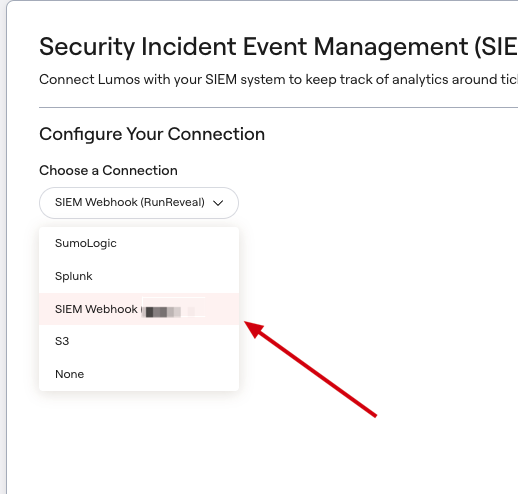 Your webhook will now begin broadcasting events to your desired endpoint every time a new Activity Log entry is created.