> ## Documentation Index
> Fetch the complete documentation index at: https://docs.lumos.com/llms.txt
> Use this file to discover all available pages before exploring further.
# How Lumos Syncs Your Integrations
Part of Lumos Launchpad: [Foundation](/launchpad/foundation), step 6.
## Background
Lumos continually syncs with your integrated apps to keep data about your users, apps, and accounts up to date. Lumos runs syncs automatically every day, and you can also trigger ad hoc syncs from several places in the platform. This article describes both.
## What is syncing in my environment?
Whatever is currently connected [here,](https://app.lumosidentity.com/integrations?tab=connected) in the Integrations tab. These connected integrations will sync on a daily basis *automatically*.
## Where can I trigger ad hoc syncs?
### If you want to trigger a sync for a particular app (e.g. direct Lumos integration)
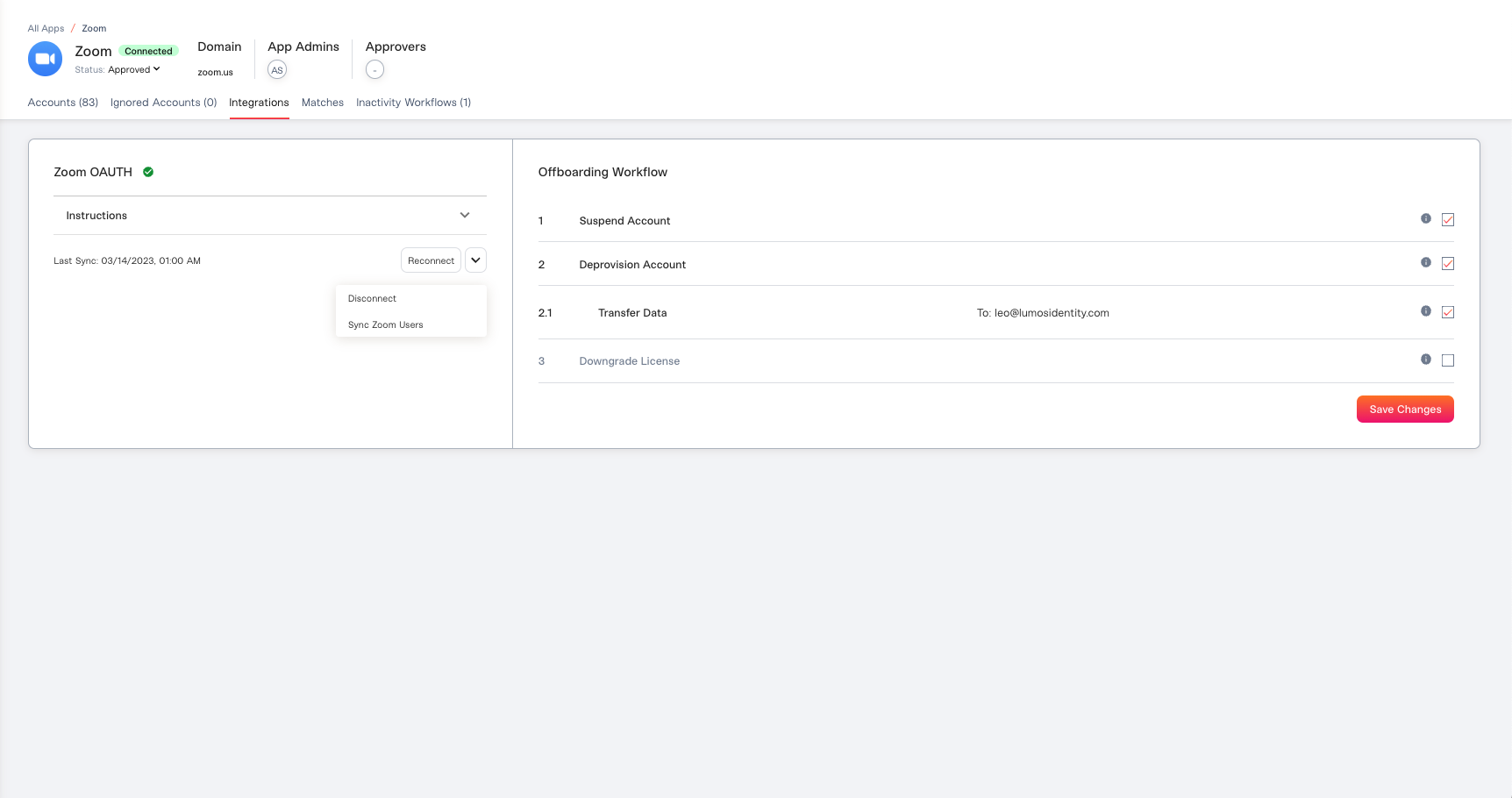
Click the connected integration. Next to the "Reconnect" button, you'll see the option to trigger a sync.
Typically, for most integrations, this will be "Sync `` Users".
The "Sync Users" scan runs automatically once per day for all of your integrations.
 ### If you want to trigger a sync for your IdP (or delegated integration)
Say you want to make sure your manager/team/title information is reflecting properly. Or, you want to make sure the apps from your delegated integration have populated.
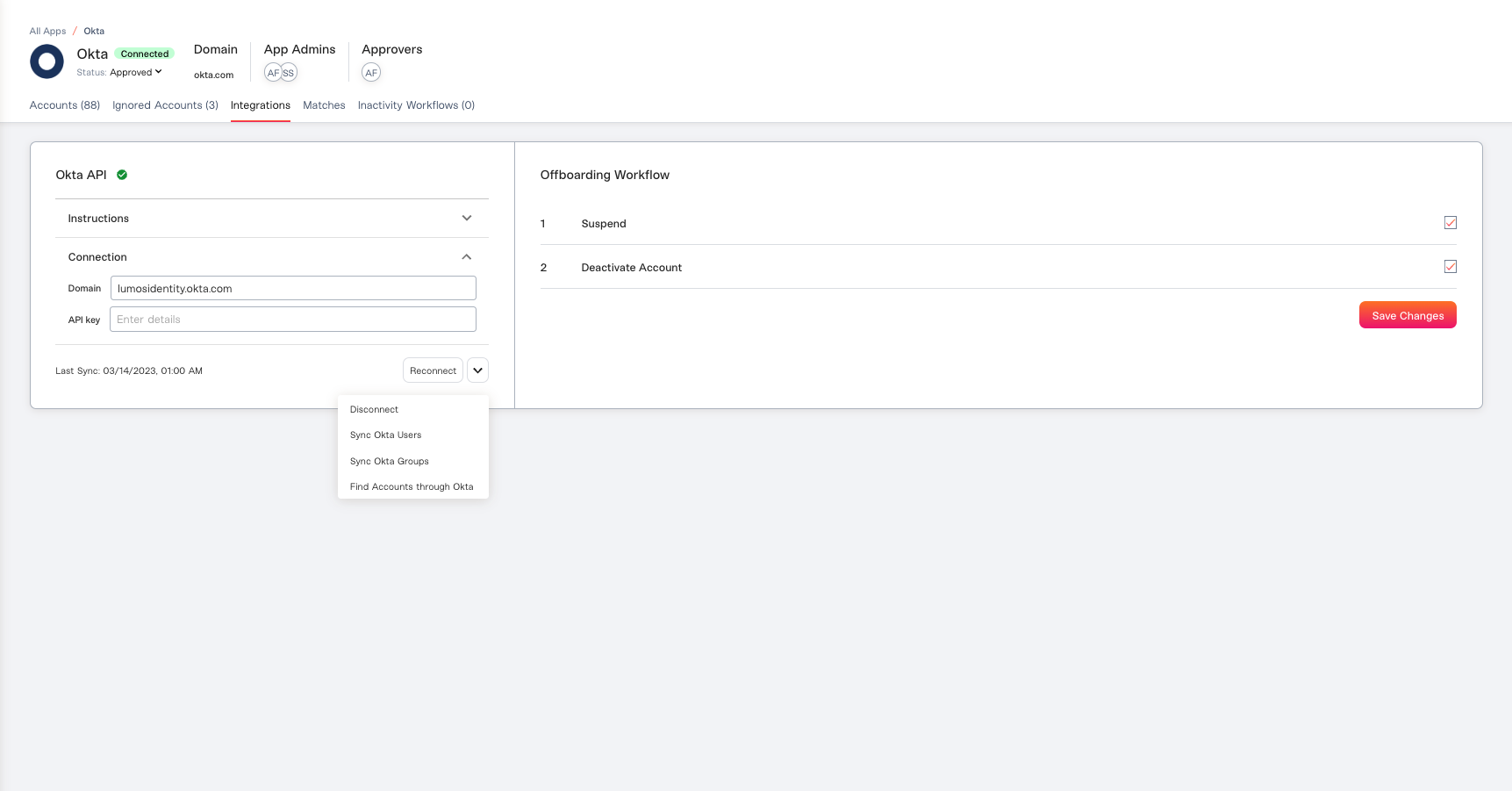
Click that app in the [Integrations tab](https://app.lumosidentity.com/integrations?tab=connected), and select the app you want to sync (Okta, OneLogin, O365, Atlassian, Google Cloud, Google Workspace).
Beyond the option to "Sync `` Users", you should see a few more options.
"Sync `` Groups" will do a pull of all the groups from your IdP.
The "Sync Groups" scan runs automatically once per day.
"Find Accounts through ``" will find all the apps from that integration to populate/update the All Apps table.
The "Find Accounts" scan runs automatically once every four days.
### If you want to trigger a sync for your IdP (or delegated integration)
Say you want to make sure your manager/team/title information is reflecting properly. Or, you want to make sure the apps from your delegated integration have populated.
Click that app in the [Integrations tab](https://app.lumosidentity.com/integrations?tab=connected), and select the app you want to sync (Okta, OneLogin, O365, Atlassian, Google Cloud, Google Workspace).
Beyond the option to "Sync `` Users", you should see a few more options.
"Sync `` Groups" will do a pull of all the groups from your IdP.
The "Sync Groups" scan runs automatically once per day.
"Find Accounts through ``" will find all the apps from that integration to populate/update the All Apps table.
The "Find Accounts" scan runs automatically once every four days.
 ### If you want to trigger Shadow IT discovery (O365, Google Workspace)
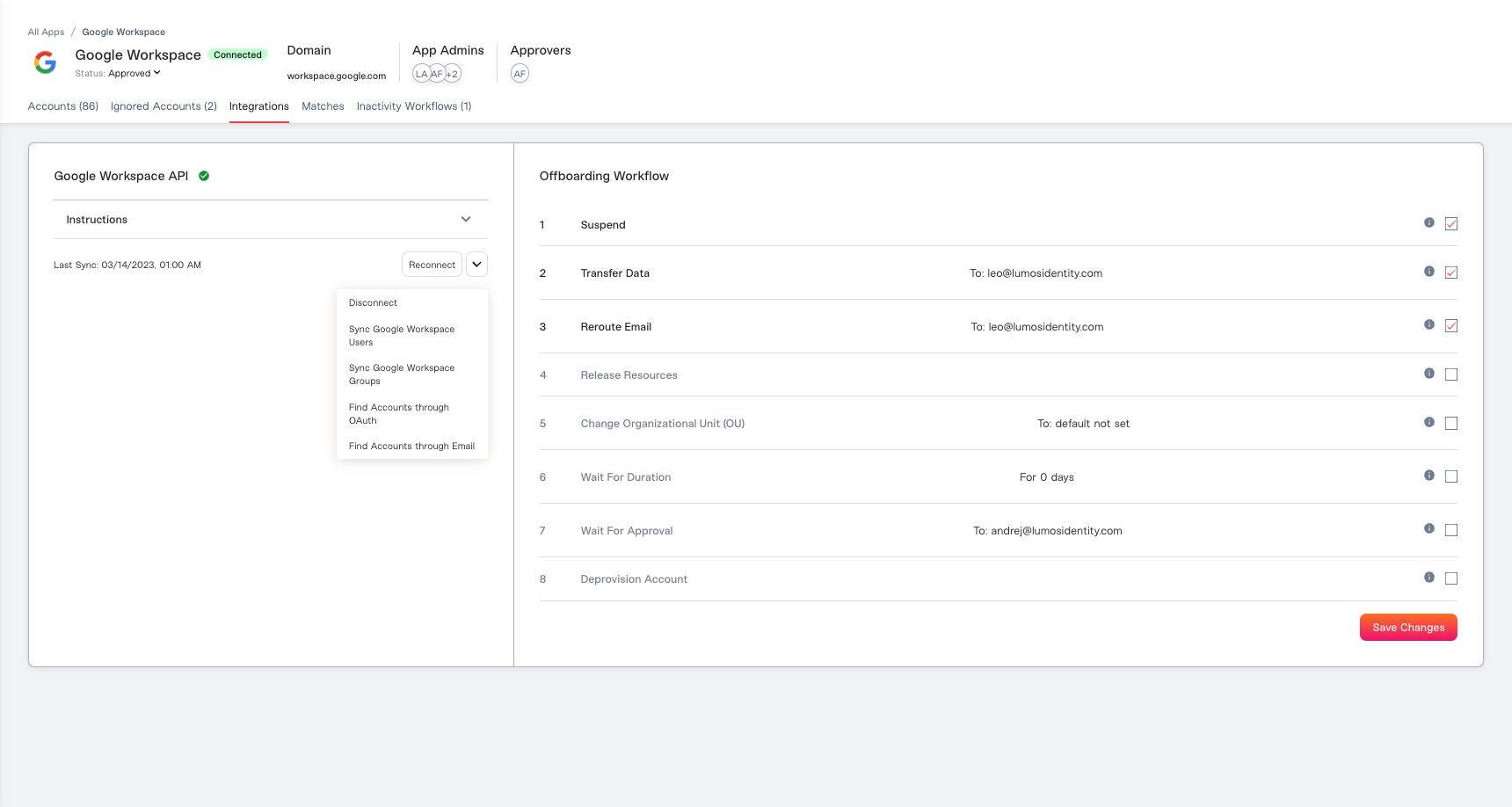
Navigate to the app in the [Integrations tab](https://app.lumosidentity.com/integrations?tab=connected), and trigger
"Find Accounts through OAuth", which will look for all apps access via OAuth token
The "Find Accounts through OAuth" scan runs automatically once per day when your email provider scan syncs users.
"Find Accounts through Email", which will look at just the email subject headers (not email bodies) of all the emails your employees' inboxes to discover Shadow IT
The "Find Accounts through Email" scan does not run automatically, and must be kicked off manually.
### If you want to trigger Shadow IT discovery (O365, Google Workspace)
Navigate to the app in the [Integrations tab](https://app.lumosidentity.com/integrations?tab=connected), and trigger
"Find Accounts through OAuth", which will look for all apps access via OAuth token
The "Find Accounts through OAuth" scan runs automatically once per day when your email provider scan syncs users.
"Find Accounts through Email", which will look at just the email subject headers (not email bodies) of all the emails your employees' inboxes to discover Shadow IT
The "Find Accounts through Email" scan does not run automatically, and must be kicked off manually.
 ## AppStore Specific Syncs
There are a number of syncs that you can trigger while configuring your AppStore.
### If you want to sync apps with your IdP
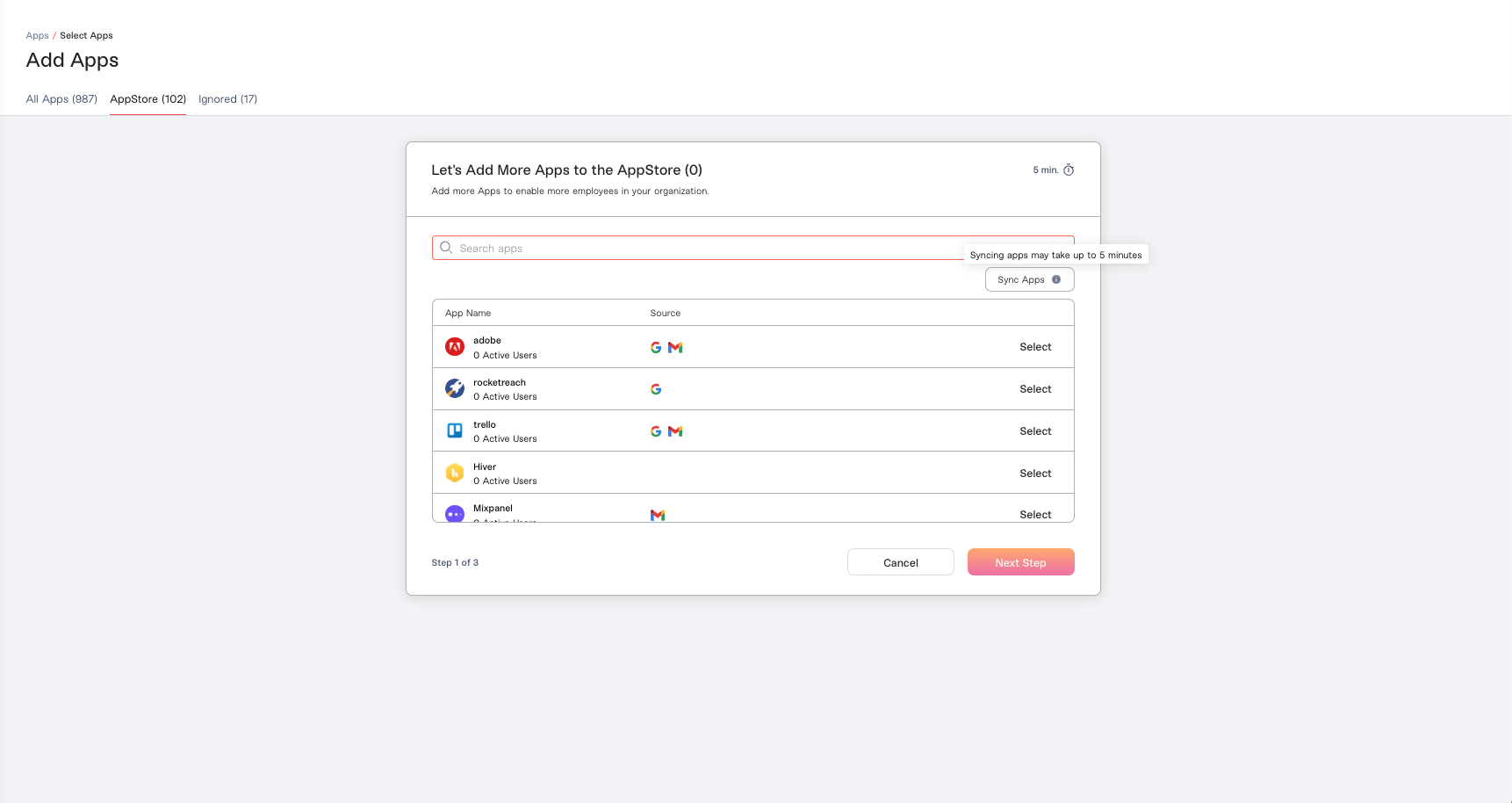
When you go to [add apps to your AppStore](https://app.lumosidentity.com/apps/add_to_app_store?tab=app_store), you'll see the option to click "Sync Apps", which syncs against O365, OneLogin, or Okta to pull in the newest apps that exist in your IdP.
The "Sync Apps" scan runs automatically once every four days.
## AppStore Specific Syncs
There are a number of syncs that you can trigger while configuring your AppStore.
### If you want to sync apps with your IdP
When you go to [add apps to your AppStore](https://app.lumosidentity.com/apps/add_to_app_store?tab=app_store), you'll see the option to click "Sync Apps", which syncs against O365, OneLogin, or Okta to pull in the newest apps that exist in your IdP.
The "Sync Apps" scan runs automatically once every four days.
 ### If you want to sync a single app against your IdP
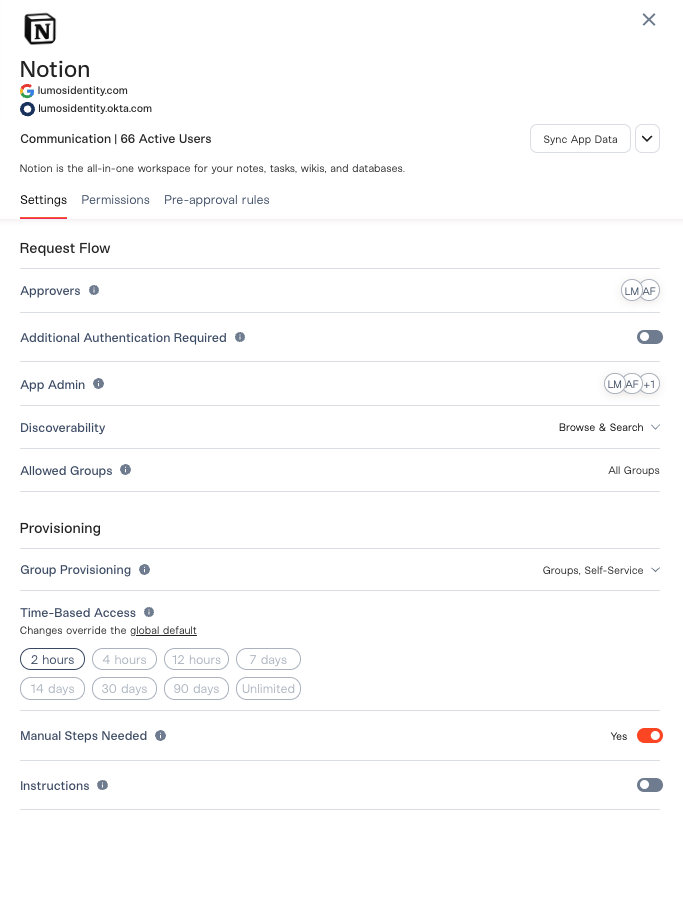
When you want to make sure you have the correct provisioning settings and assignment groups, click "Sync App Data" within the Advanced Settings of your AppStore. This syncs against O365, OneLogin, or Okta to ensure you have the right groups associated and the right provisioning configurations.
Make sure you refresh the page in your browser after clicking **Sync App Data** to see the new groups.
The "Sync App Data" scan runs automatically for every app once per day.
### If you want to sync a single app against your IdP
When you want to make sure you have the correct provisioning settings and assignment groups, click "Sync App Data" within the Advanced Settings of your AppStore. This syncs against O365, OneLogin, or Okta to ensure you have the right groups associated and the right provisioning configurations.
Make sure you refresh the page in your browser after clicking **Sync App Data** to see the new groups.
The "Sync App Data" scan runs automatically for every app once per day.
 ## Summary: What syncs and when
### Lumos Automatic Syncs
The following table lists the Lumos automatic syncs, when they occur, and their purpose.
| **Cadence of Sync** | **What Syncs** | **Purpose** | **Expected Sync Time** |
| - | - | - | - |
| **Nightly 7:30 UTC** | IdP: Users, Groups, Group Memberships, App Metadata | Brings in all new users, groups, and provisioning settings for your apps that you've added through your IdP (Okta for example) | \~2 Hours |
| **Daily 16:00 UTC** | Sync Apps from your IdP | Runs automatically for every App once per day which syncs against your IdP to pull in the newest apps. Purpose: Syncing data from existing Apps sourced from your IdP | \~5-10 minutes |
| **Nightly 7:30 UTC** | Sync Integration Users | Syncs over any new users and data from each App daily | Depends on the app, varies from 10 minutes (Jira) to 2 hours (Okta) |
| **Once automatically; On Demand** | Find Accounts through OAuth | Scans daily when your email provider scan syncs users and it will pick up any new Apps where a user has used email OAuth to log-in | Dependent upon amount of data but expect a timeframe of 1 hour |
| **Every 4 Days, 7:00 UTC** | Find Accounts through Okta | This sync will find any new Apps from Okta to populate/update the All Apps table. This will also sync those apps to users within Lumos. | \~4 hours |
| **Once automatically; On Demand** | Find Accounts Through Email | This only runs automatically the first time you set-up Lumos, where Lumos will scan the email subject headers in your email inbox to discover apps. | |
### Triggering Manual Lumos Syncs
The following table describes how to trigger manual Lumos syncs, what they sync, and how long they take.
| **What You’re Trying to Accomplish** | **Trigger Sync** | **What Syncs** | **Expected Sync Time** |
| - | - | - | - |
| You’ve created a new Group in your IdP and you want to use that Group in Lumos (ex: Add as Approvers, Add as an Allowed Group in AppStore) | Go to your IdP on the Integrations page Click on the three dots next to "Reconnect" Click “Sync (IdP) Okta Groups” | IdP: Users, Groups | Up to 2 hours depending on how many Groups you have updated |
| You’ve added a new App in your IdP and want to sync it over to Lumos | Go to AppStore Click on "Add App to AppStore" In the pop-up window, Click "Sync Apps" | Sync Apps from your IdP | \~5 Minutes |
| You’ve added a new App to your IdP along with group membership to the App and you want to add the App and the associated groups in the AppStore | First: Follow the same steps as above Second: Go to the Advanced Settings for the added App Click “Sync App Data” at the top | Sync App Data included App Metadata (provisioning options) and specific groups associated with that App | \~10 - 20 Minutes |
| You have changed some configuration settings within an IdP App having to do with provisioning | Go to the AppStore Click on the Advanced Settings for an App you want to run this for Click "Sync App Data" at the top | App Data including App Metadata (provisioning options) and specific IdP assignment groups associated with that App | \~5 Minutes |
| You have added new Accounts in a directly integrated App and want to push the Accounts through immediately | Go to the Integrations page Find the App in question Click on the three dots beside “Reconnect” Select "Sync Slack Users" (Slack as the example) | Sync Integration Users. Syncs over any new users and data from each App daily | Varies from 10 minutes (Jira) to 2 hours (Okta) |
| You want to scan for potential Email OAuth sign-ins | Go to your email provider within the Integrations page Click on the three dots beside Reconnect Select “Find Accounts through OAuth” | Find Accounts through OAuth | |
| You want to scan for potential Shadow-IT | Go to your email provider within the Integrations page Click on the three dots beside Reconnect Select “Find Accounts through Email” | Combs email subject headers for possible sign-ups/log-ins | |
## FAQs
**I synced apps from my IdP, but I don't see the app in my Lumos tenant?**
For an app to appear in Lumos, at least one user will need to be associated with the app in your IdP.
**I synced groups from my IdP, but I don't a group in the "Permissions" tab of the corresponding app in Lumos?**
Groups will only appear in an app's Permissions tab if at least one user is assigned to the app via that group membership. Note, these empty groups will still be available in the AppStore for assignment and use in Access Requests.
## Summary: What syncs and when
### Lumos Automatic Syncs
The following table lists the Lumos automatic syncs, when they occur, and their purpose.
| **Cadence of Sync** | **What Syncs** | **Purpose** | **Expected Sync Time** |
| - | - | - | - |
| **Nightly 7:30 UTC** | IdP: Users, Groups, Group Memberships, App Metadata | Brings in all new users, groups, and provisioning settings for your apps that you've added through your IdP (Okta for example) | \~2 Hours |
| **Daily 16:00 UTC** | Sync Apps from your IdP | Runs automatically for every App once per day which syncs against your IdP to pull in the newest apps. Purpose: Syncing data from existing Apps sourced from your IdP | \~5-10 minutes |
| **Nightly 7:30 UTC** | Sync Integration Users | Syncs over any new users and data from each App daily | Depends on the app, varies from 10 minutes (Jira) to 2 hours (Okta) |
| **Once automatically; On Demand** | Find Accounts through OAuth | Scans daily when your email provider scan syncs users and it will pick up any new Apps where a user has used email OAuth to log-in | Dependent upon amount of data but expect a timeframe of 1 hour |
| **Every 4 Days, 7:00 UTC** | Find Accounts through Okta | This sync will find any new Apps from Okta to populate/update the All Apps table. This will also sync those apps to users within Lumos. | \~4 hours |
| **Once automatically; On Demand** | Find Accounts Through Email | This only runs automatically the first time you set-up Lumos, where Lumos will scan the email subject headers in your email inbox to discover apps. | |
### Triggering Manual Lumos Syncs
The following table describes how to trigger manual Lumos syncs, what they sync, and how long they take.
| **What You’re Trying to Accomplish** | **Trigger Sync** | **What Syncs** | **Expected Sync Time** |
| - | - | - | - |
| You’ve created a new Group in your IdP and you want to use that Group in Lumos (ex: Add as Approvers, Add as an Allowed Group in AppStore) | Go to your IdP on the Integrations page Click on the three dots next to "Reconnect" Click “Sync (IdP) Okta Groups” | IdP: Users, Groups | Up to 2 hours depending on how many Groups you have updated |
| You’ve added a new App in your IdP and want to sync it over to Lumos | Go to AppStore Click on "Add App to AppStore" In the pop-up window, Click "Sync Apps" | Sync Apps from your IdP | \~5 Minutes |
| You’ve added a new App to your IdP along with group membership to the App and you want to add the App and the associated groups in the AppStore | First: Follow the same steps as above Second: Go to the Advanced Settings for the added App Click “Sync App Data” at the top | Sync App Data included App Metadata (provisioning options) and specific groups associated with that App | \~10 - 20 Minutes |
| You have changed some configuration settings within an IdP App having to do with provisioning | Go to the AppStore Click on the Advanced Settings for an App you want to run this for Click "Sync App Data" at the top | App Data including App Metadata (provisioning options) and specific IdP assignment groups associated with that App | \~5 Minutes |
| You have added new Accounts in a directly integrated App and want to push the Accounts through immediately | Go to the Integrations page Find the App in question Click on the three dots beside “Reconnect” Select "Sync Slack Users" (Slack as the example) | Sync Integration Users. Syncs over any new users and data from each App daily | Varies from 10 minutes (Jira) to 2 hours (Okta) |
| You want to scan for potential Email OAuth sign-ins | Go to your email provider within the Integrations page Click on the three dots beside Reconnect Select “Find Accounts through OAuth” | Find Accounts through OAuth | |
| You want to scan for potential Shadow-IT | Go to your email provider within the Integrations page Click on the three dots beside Reconnect Select “Find Accounts through Email” | Combs email subject headers for possible sign-ups/log-ins | |
## FAQs
**I synced apps from my IdP, but I don't see the app in my Lumos tenant?**
For an app to appear in Lumos, at least one user will need to be associated with the app in your IdP.
**I synced groups from my IdP, but I don't a group in the "Permissions" tab of the corresponding app in Lumos?**
Groups will only appear in an app's Permissions tab if at least one user is assigned to the app via that group membership. Note, these empty groups will still be available in the AppStore for assignment and use in Access Requests.