> ## Documentation Index
> Fetch the complete documentation index at: https://docs.lumos.com/llms.txt
> Use this file to discover all available pages before exploring further.
# Managing Lumos Roles Through the AppStore
Lumos allows you to make internal roles, such as **Auditor** or **Read Only Admin**, requestable via the AppStore. You can configure these roles with time-based or unlimited access using standard provisioning workflows.
## Setup Instructions
1. **Open the Admin Panel** and navigate to the **AppStore**.
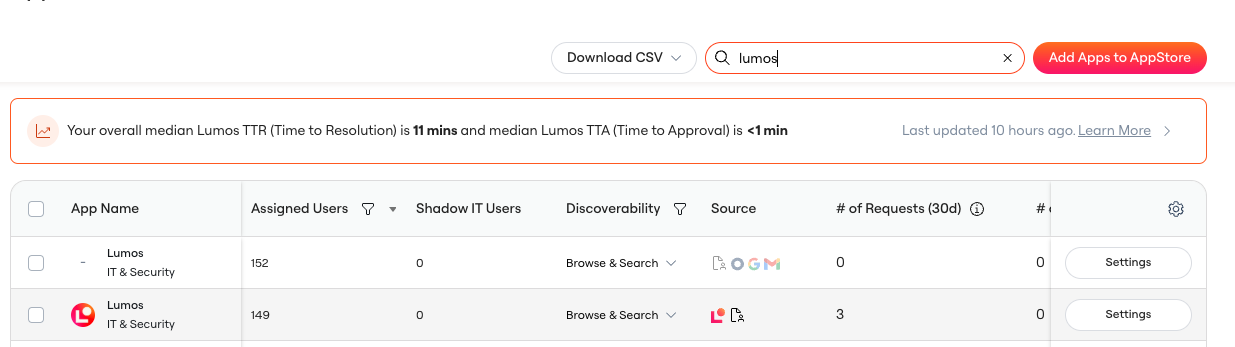
2. Search for the **Lumos** application.
3. In the search results, find the row where **Source = Lumos** and click **Settings**.
 4. Select the **Permissions** tab.
5. Verify that the necessary permissions (e.g. `Auditor`, `Read Only Admin`) are listed.
4. Select the **Permissions** tab.
5. Verify that the necessary permissions (e.g. `Auditor`, `Read Only Admin`) are listed.
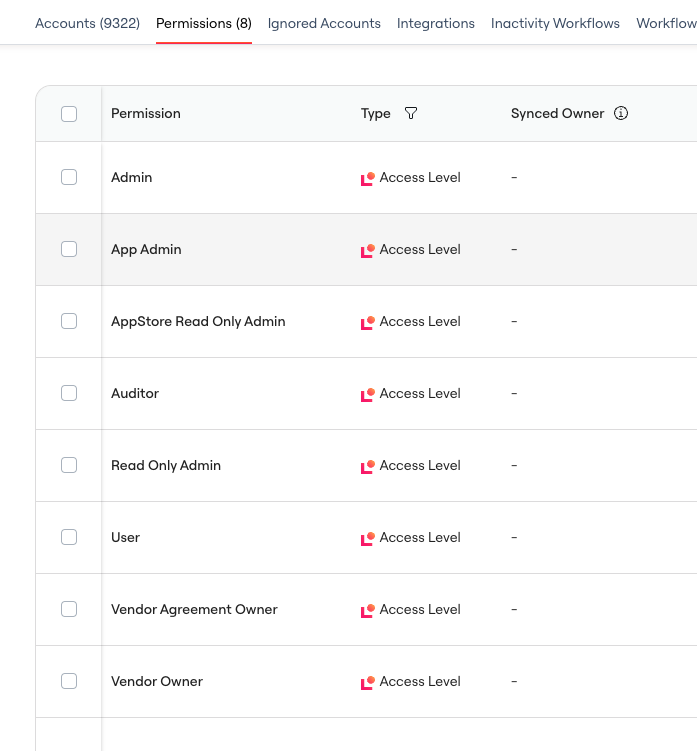 If the Lumos Roles are not displaying under the AppStore Permissions, you likely need to connect the [updated version of the Lumos App](https://app.lumosidentity.com/integrations?tab=can_integrate) found in your Integrations tab.
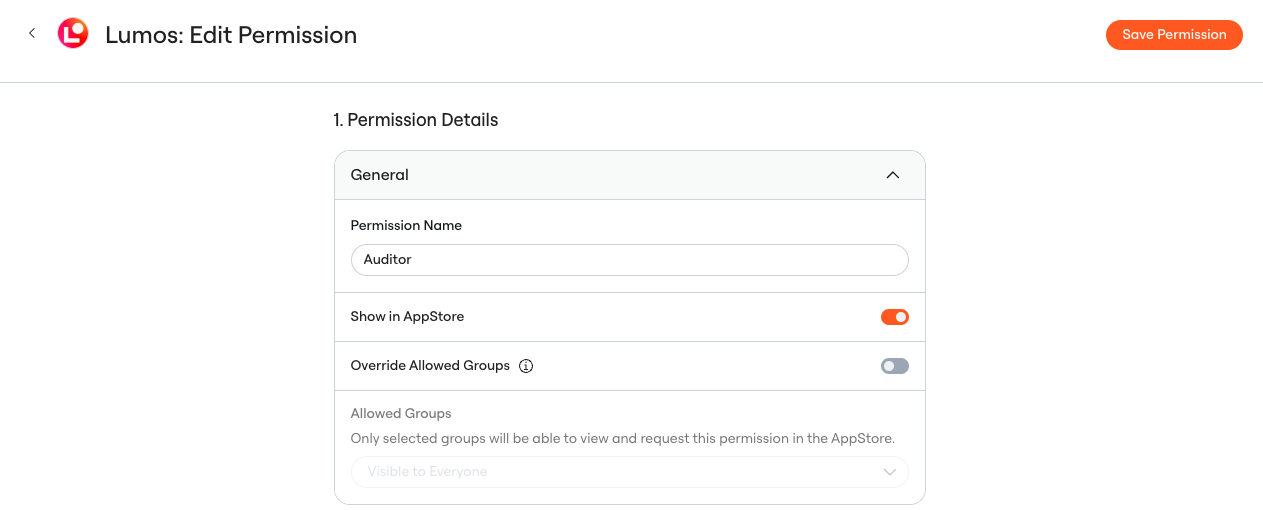
5. For each permission you want to make requestable:
* Click into the permission.
* Enable **Show in AppStore**.
Note: By default, [Synced Permissions](/kb/appstore/configuring-your-appstore/automatically-syncing-appstore-permissions) are hidden from end users.
If the Lumos Roles are not displaying under the AppStore Permissions, you likely need to connect the [updated version of the Lumos App](https://app.lumosidentity.com/integrations?tab=can_integrate) found in your Integrations tab.
5. For each permission you want to make requestable:
* Click into the permission.
* Enable **Show in AppStore**.
Note: By default, [Synced Permissions](/kb/appstore/configuring-your-appstore/automatically-syncing-appstore-permissions) are hidden from end users.
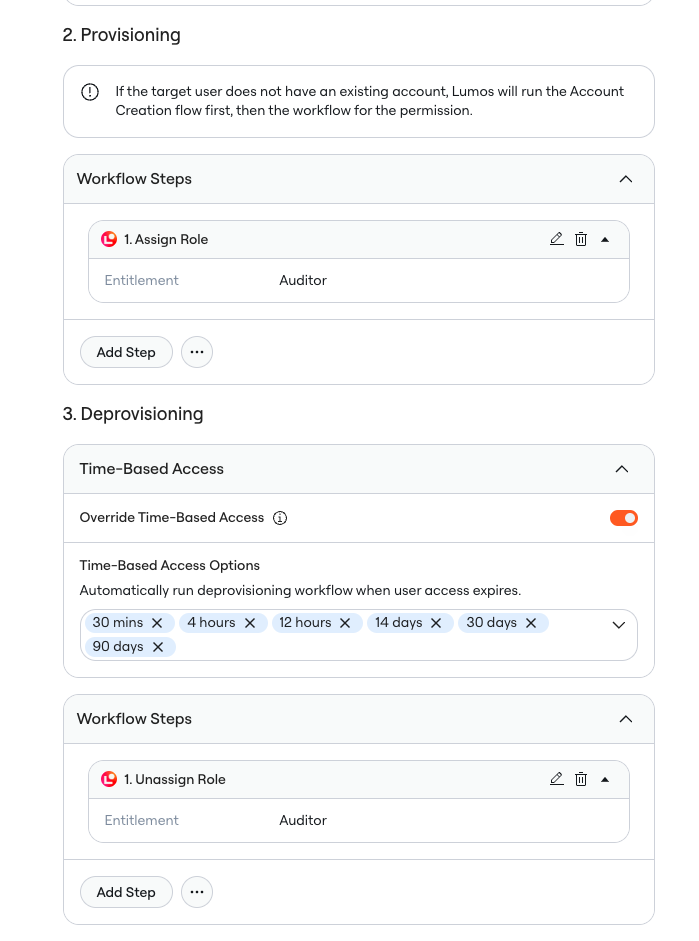
 In the **Provisioning** and **Deprovisioning** sections, ensure the correct workflow steps are configured:
* **Assign Role** in Provisioning
* **Unassign Role** in Deprovisioning
In the **Provisioning** and **Deprovisioning** sections, ensure the correct workflow steps are configured:
* **Assign Role** in Provisioning
* **Unassign Role** in Deprovisioning
 ## End User Experience
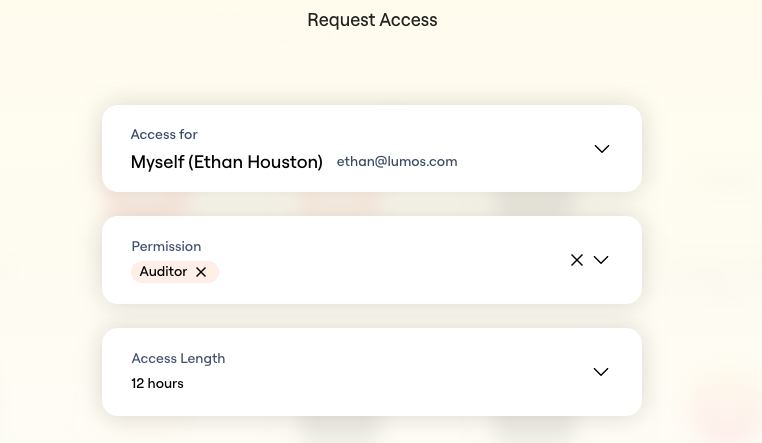
Once configured, employees will be able to request access to these roles directly from the AppStore, following the access policies you’ve defined.
## End User Experience
Once configured, employees will be able to request access to these roles directly from the AppStore, following the access policies you’ve defined.