> ## Documentation Index
> Fetch the complete documentation index at: https://docs.lumos.com/llms.txt
> Use this file to discover all available pages before exploring further.
# Managing Lumos Members (Users)
## Background
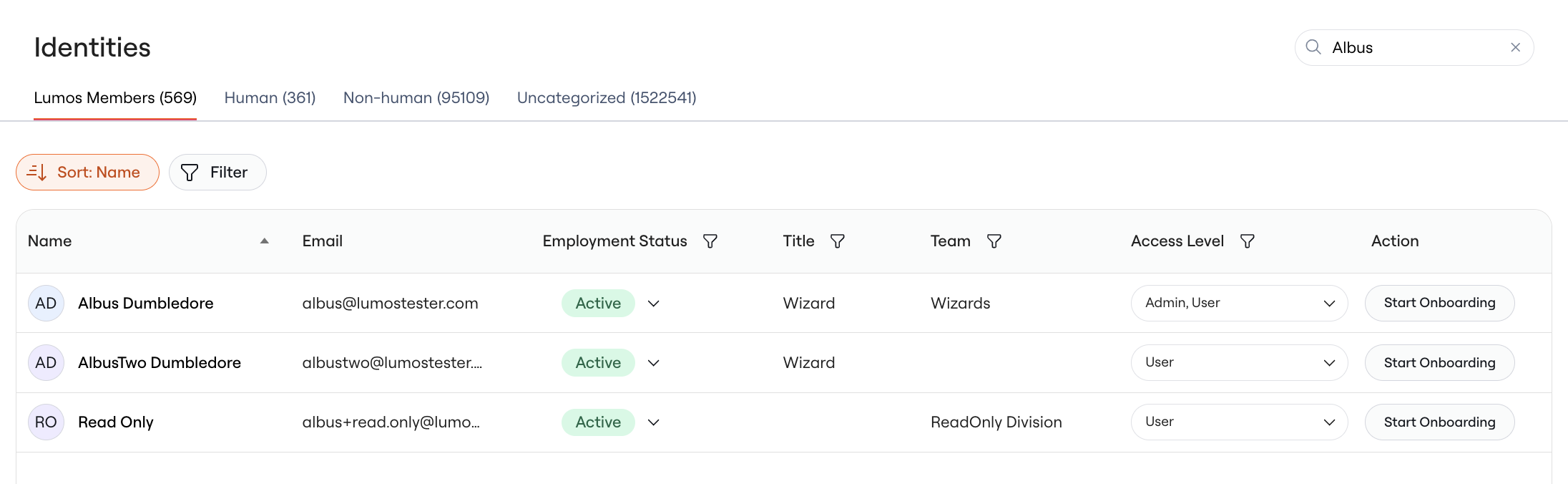
The Lumos Members page serves as your central hub for managing all users who have access to the Lumos platform. This view can be used to track all Identities from authoritative sources, key details about those identities (name, email, status), along with those users' access levels in Lumos. You can also use this page to manually trigger user onboardings.
## Viewing Lumos Member Profiles
In order to manage the members that have access to the Lumos platform, navigate to [**Identities > Lumos Members**](https://app.lumosidentity.com/identities?tab=Lumos+Members).
This view displays all platform users with the following details:
* **Name**: The user's full name
* **Email**: The user's email address
* **Status** - Current Identity status (active, inactive, etc.)
* **Access Levels** - The user's current access level within Lumos
Name, email, and status values are synced from the external sources configured via your [User Sources](/kb/appstore/source-of-truth/importing-user-sources). This data will be kept up-to-date based on regular syncs of that user data.
 ## Managing Emails
Lumos member emails are particularly important. In order for a user to sign into the Lumos platform, there must be an active Lumos member entry which an email that matches the email address they use to sign into the platform.
**Email Sources**
Emails for Lumos members can come from one of three sources:
* **Automated sync**: by default, all emails are synced from your configured User Sources (e.g. HRIS, IdP)
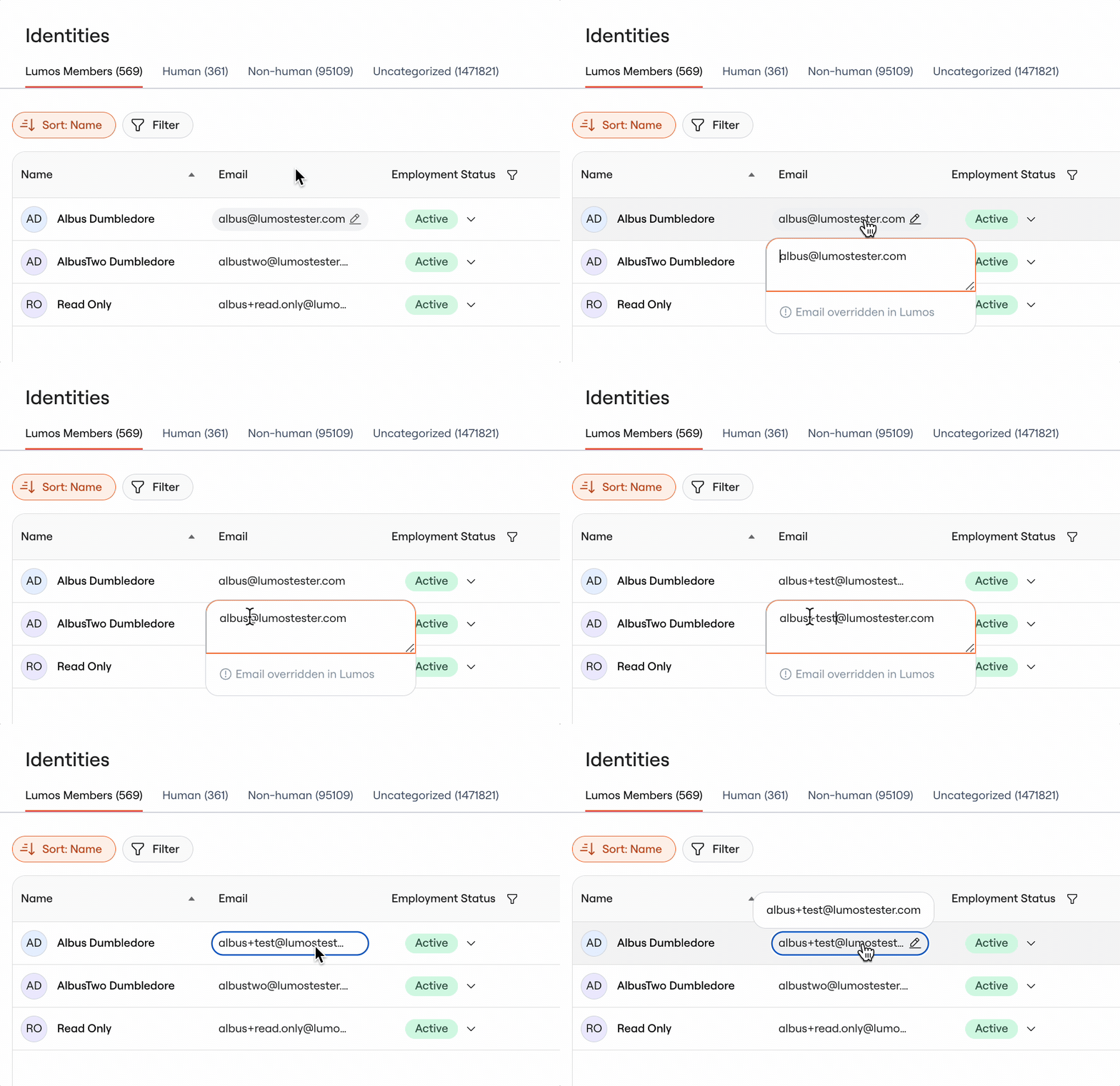
* **Manual override**: if you ever need to change an email address directly in Lumos, you can manually override the value by clicking the edit icon next to an email
* **Workflow generation**:New hire emails can optionally be created in Lumos using the "Generate Email" step in onboarding workflows
## Managing Emails
Lumos member emails are particularly important. In order for a user to sign into the Lumos platform, there must be an active Lumos member entry which an email that matches the email address they use to sign into the platform.
**Email Sources**
Emails for Lumos members can come from one of three sources:
* **Automated sync**: by default, all emails are synced from your configured User Sources (e.g. HRIS, IdP)
* **Manual override**: if you ever need to change an email address directly in Lumos, you can manually override the value by clicking the edit icon next to an email
* **Workflow generation**:New hire emails can optionally be created in Lumos using the "Generate Email" step in onboarding workflows
 **When to Override Emails**
Manual email overrides are useful when:
* Automated email generation fails to generate a unique value
* Upstream data issues lead to an invalid email that you need to correct (e.g. employee-submitted preferred name violates policy)
* Quick corrections are needed independently of source systems
**Manual Override Behavior**
When you manually edit a Lumos Member's email address, it will no longer be synced from the original User Source. The manual override takes precedence and won't be overwritten by future synchronization.
## Managing Access Levels
Access Levels determine which actions and areas of Lumos each user can access. Lumos Admins can modify these levels to grant users more privileged access. See [Lumos Roles](/kb/identities/lumos_roles/lumos-roles) for more details.
## Triggering Onboardings
See [How-To: Trigger an Onboarding in Lumos](/kb/quick_start_guide/lifecycle_management/new-hire-onboarding-in-lumos) for more details.
**When to Override Emails**
Manual email overrides are useful when:
* Automated email generation fails to generate a unique value
* Upstream data issues lead to an invalid email that you need to correct (e.g. employee-submitted preferred name violates policy)
* Quick corrections are needed independently of source systems
**Manual Override Behavior**
When you manually edit a Lumos Member's email address, it will no longer be synced from the original User Source. The manual override takes precedence and won't be overwritten by future synchronization.
## Managing Access Levels
Access Levels determine which actions and areas of Lumos each user can access. Lumos Admins can modify these levels to grant users more privileged access. See [Lumos Roles](/kb/identities/lumos_roles/lumos-roles) for more details.
## Triggering Onboardings
See [How-To: Trigger an Onboarding in Lumos](/kb/quick_start_guide/lifecycle_management/new-hire-onboarding-in-lumos) for more details.