> ## Documentation Index
> Fetch the complete documentation index at: https://docs.lumos.com/llms.txt
> Use this file to discover all available pages before exploring further.
# Importing User Sources
## Background
This article breaks down User Sources in your[Source of Truth](/kb/appstore/source-of-truth/source-of-truth), including how and why you set them, the impact of making changes to them, and common questions or issues.
## Purpose and function
User Sources impacts many critical workflows and data points in Lumos.
### Creating and updating Lumos Users
For every user account in your User Sources, Lumos creates a [**Lumos User**](https://app.lumosidentity.com/users?tab=users). This happens when you first set the user sources and when Lumos automatically syncs it. *See*[How Lumos Syncs Your Integrations](/kb/integrations-3/how-lumos-syncs-your-integrations)
If that user's name or email is updated in your User Sources, it will be updated on the employee's [Lumos User](https://app.lumosidentity.com/users?tab=users) record the next time the integration is synced.
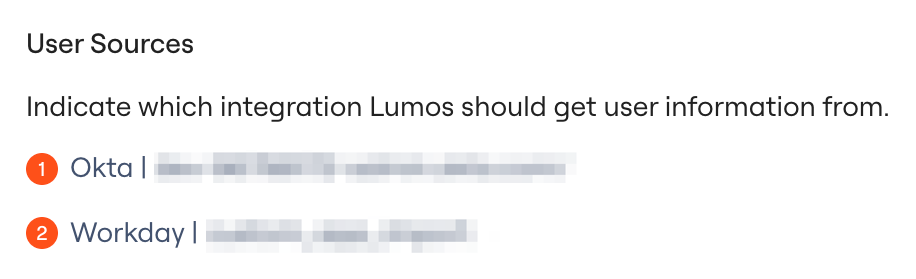
If you have more than one user source and an account is present in more than one, the user source listed first will take priority and update on the employee's [Lumos User](https://app.lumosidentity.com/users?tab=users), as shown below.
 ### Employee Status
Lumos uses the status of an employee's account in your User Sources (Active, Suspended, etc.) to set the value of the *Employee Status* for that User.
This shows up anywhere you see an *Employee Status* column in Lumos (Access Reviews, terminated accounts, etc.).
*Inactive* or *Suspended* Lumos Users will not be able to log into Lumos.
## Editing your User Sources
You can find and edit your User Sources if you're a Lumos Admin. *See*[Lumos Roles](/kb/identities/lumos_roles/lumos-roles)
### 1. Go to your [Source of Truth settings](https://app.lumosidentity.com/settings/source_of_truth).
### 2. Find the *User Sources* section.
### Employee Status
Lumos uses the status of an employee's account in your User Sources (Active, Suspended, etc.) to set the value of the *Employee Status* for that User.
This shows up anywhere you see an *Employee Status* column in Lumos (Access Reviews, terminated accounts, etc.).
*Inactive* or *Suspended* Lumos Users will not be able to log into Lumos.
## Editing your User Sources
You can find and edit your User Sources if you're a Lumos Admin. *See*[Lumos Roles](/kb/identities/lumos_roles/lumos-roles)
### 1. Go to your [Source of Truth settings](https://app.lumosidentity.com/settings/source_of_truth).
### 2. Find the *User Sources* section.
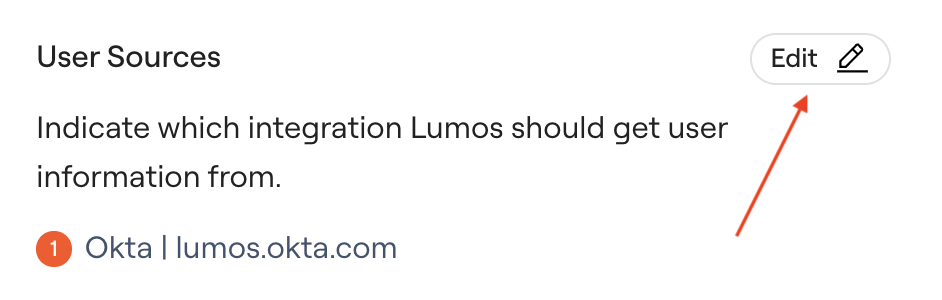 ### 3. Choose the app from the dropdown, or click "add source" to add a new source, then click "save"
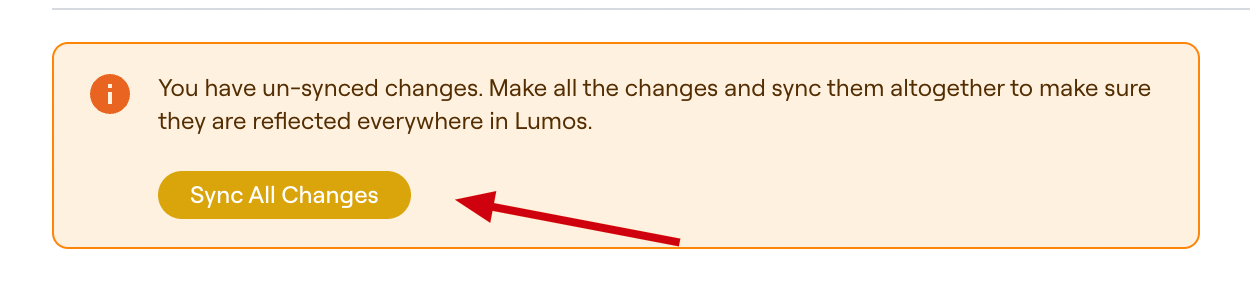
 ### 4. If the pop-up appears to "Sync All Changes", click on it.
 ## FAQs
### Can I trigger a refresh of my User Sources?
Yes. Follow the steps in this article to refresh the user data for your User Source apps:[How Lumos Syncs Your Integrations](/kb/integrations-3/how-lumos-syncs-your-integrations)
### Why are there Lumos Users that aren't in my User Sources?
When you change your User Sources, Lumos doesn't delete the Lumos Users that were created from the previous User Source.
### My User Source doesn't show up in the dropdown -- what should I do?
Double-check that the app isn't available to connect in your [integrations](https://app.lumosidentity.com/integrations?tab=can_integrate). The app needs to be integrated for it to be available as a source of truth. *See*[How-To: Connect an Integration](/integrations/getting-started/connecting-an-integration)
If the app isn't available to connect and you expect this to create major challenges for your company, [contact Lumos support](mailto:support@lumos.com).
## FAQs
### Can I trigger a refresh of my User Sources?
Yes. Follow the steps in this article to refresh the user data for your User Source apps:[How Lumos Syncs Your Integrations](/kb/integrations-3/how-lumos-syncs-your-integrations)
### Why are there Lumos Users that aren't in my User Sources?
When you change your User Sources, Lumos doesn't delete the Lumos Users that were created from the previous User Source.
### My User Source doesn't show up in the dropdown -- what should I do?
Double-check that the app isn't available to connect in your [integrations](https://app.lumosidentity.com/integrations?tab=can_integrate). The app needs to be integrated for it to be available as a source of truth. *See*[How-To: Connect an Integration](/integrations/getting-started/connecting-an-integration)
If the app isn't available to connect and you expect this to create major challenges for your company, [contact Lumos support](mailto:support@lumos.com).