> ## Documentation Index
> Fetch the complete documentation index at: https://docs.lumos.com/llms.txt
> Use this file to discover all available pages before exploring further.
# Importing Manager Data
## Background
This article breaks down the Manager field in your[Source of Truth](/kb/appstore/source-of-truth/source-of-truth)including how and why you set it, the impact of making changes to it, and common questions or issues.
## Purpose and function
Manager information drives a lot of **important**automation across Lumos.
For example, Lumos uses an employee's manager to automate the following workflows:
* Manager-based approvals in the AppStore. *see*[Approving Access Requests](/kb/quick_start_guide/appstore-1/appstore_explainers_for_new_employees_new_to_appstore/approving-access-requests)
* Manager-delegated Access Reviews. *see*[Assigning Reviewers and Launching Your Access Review](/kb/access-reviews/preparing-and-completing-an-access-review/assigning-reviewers-and-launching-your-access-review)
* Transferring account data to a manager during an Inactivity Workflow. *see*[Creating An Inactivity Workflow](/kb/saas-management/inactivity-workflows/creating-an-inactivity-workflow)
## Editing Manager settings
### 1. Go to your [Source of Truth settings](https://app.lumosidentity.com/settings/source_of_truth).
### 2. Find the *Manager* section and click "Edit".
 ### 3. Choose the *Source App* that holds the most accurate user data.
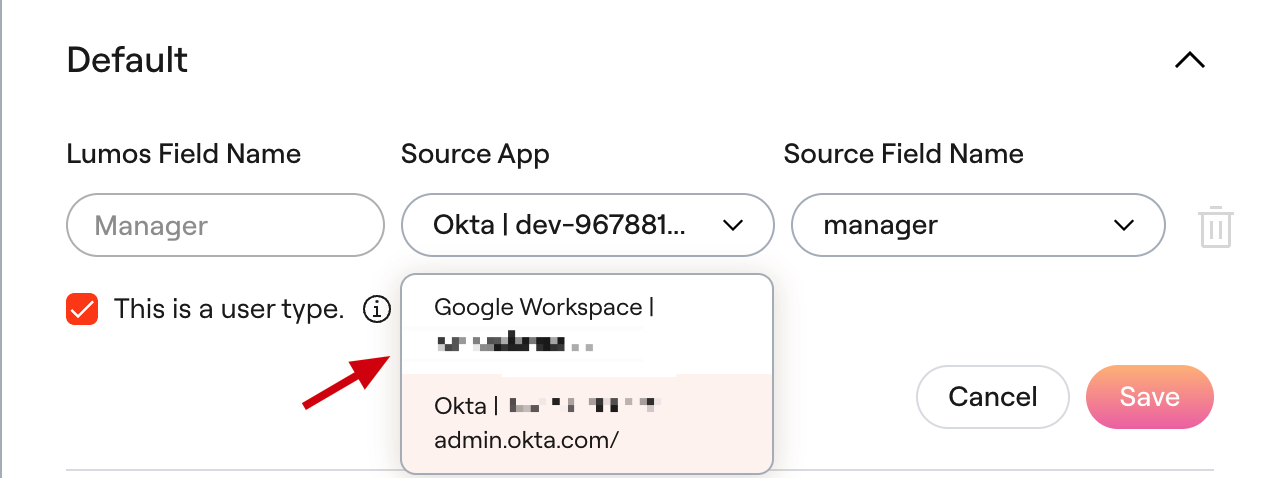 Make sure you select the "This is a user type." checkbox.
If the app you choose here isn't in your User Sources, [contact Lumos support](mailto:support@lumos.com) to avoid issues. *See*[Importing User Sources](/kb/appstore/source-of-truth/importing-user-sources)
### 4. In the *Source Field Name*, choose the name of the field that holds the manager data and click "Save".
Below you can find more context around which fields are supported, and how Lumos parses the data. **Make sure you choose a supported field.** *See*[Importing Manager Data](/kb/appstore/source-of-truth/importing-manager-data)
## FAQs
### From which apps and fields can Lumos source manager data?
The mapping of fields from which Lumos can source manager data is below.
| **Field** | **Source** | **Notes** |
| - | - | - |
| Google Workspace Manager | [User.relations\[\].type = 'manager'](https://developers.google.com/admin-sdk/directory/reference/rest/v1/users) | |
| Okta | Any profile field can be used to import manager data, provided it can be parsed using this [logic](#how-does-lumos-parse-and-match-my-manager-data). | |
| OneLogin | Any profile field can be used to import manager data, provided it can be parsed using this [logic](#how-does-lumos-parse-and-match-my-manager-data). | |
| BambooHR Supervisor ID | [Employee.supervisorEId](https://documentation.bamboohr.com/docs/list-of-field-names) | Matches based on the exact BambooHR user ID. |
| BambooHR Supervisor Email | [Employee.supervisorEmail](https://documentation.bamboohr.com/docs/list-of-field-names) | Matches based on the supervisor's email address. |
| BambooHR Supervisor | [Employee.supervisor](https://documentation.bamboohr.com/docs/list-of-field-names) | Matches based on text name of the supervisor. Supported format: "John Smith", "Smith, John", "John-Smith", "John.Smith" |
| Microsoft Entra ID Email | [user.manager.userPrincipalName](https://learn.microsoft.com/en-us/graph/api/resources/user?view=graph-rest-1.0#relationships) | The UserPrincipalName for a user in Microsoft should correlate back to their email address. |
| Workday Manager | `Worker_Data -> Employment_Data -> Worker_Job_Data -> Primary_Job -> Position_Data -> Manager_as_of_last_detected_manager_change_Reference -> ID -> _value_1` | Lumos **cannot** get this data if a worker does not have a `Primary_Job` set. If there are multiple managers here, Lumos uses the *first* one in the list. |
### How does Lumos parse and match my manager data?
Lumos uses the algorithm below to first detect and parse the *format* of the data stored in your manager **Source Field** **Name**.
If the *format* returns a match at any stage, but Lumos can't find a matching Lumos User after doing a lookup, Lumos will not find a manager for that User.
* First, Lumos checks whether the data is stored as an **email address**. If so, Lumos checks if there's a Lumos User associated with that email address.
* Next, Lumos checks whether the data is stored in **Last Name, First Name** format. If so, Lumos looks up the Lumos User associated with that name.
* Next, Lumos checks whether the data is stored in **First Name-Last Name** format. If so, Lumos looks up the Lumos User associated with that name.
* Next, Lumos checks whether the data is stored in **First Name.Last Name** format.
* Next, Lumos converts the data to lowercase, appends your company's email domain to the end of that data, and checks if there is a user with a matching **email address**.
* **Example**: If the data coming from your app was `PeterParker` and your company's email domain was `cyberdyne.com`, Lumos checks if `peterparker@cyberdyne.com` was tied to a Lumos User.
* Finally, Lumos checks whether the data is stored in **First Name Last Name** (**ex**: "Peter Parker") format. If so, Lumos looks up the Lumos User associated with that name.
### My manager information is stored in a format Lumos can't parse.
[Contact Lumos support](mailto:support@lumos.com) to discuss potential options.
### Can I manually override the manager field for individual users?
No, Lumos does not currently provide an in-app way to manually override the manager field on individual users. The Manager field is always derived from your synced user sources, and there is no per‑user override capability outside of the source sync process.
For edge cases where you need to set a manager that differs from what's in your source systems, you would need to update the manager attribute in the source system itself.
### The manager changed in my source system, but Lumos still shows the old manager. Why?
When the manager attribute on a user changes in the source system, Lumos only re‑links it to the new user if that user's account is active. If the new manager's account is disabled, Lumos will not update the manager link, and the previously‑resolved manager will remain in place.
This is expected behavior. The manager field will update on the next sync once the manager's account is either re‑activated or the manager is changed to an active user in the source system.
### I have an employee with no manager in Lumos, but they have one in my User Sources.
There are several possible reasons this could happen.
1. **The "This is a user type." checkbox is unchecked.** - If you don't check this box when **setting the field** (\*\*"\*\*Editing Manager settings" section in this article), Lumos will not parse the data correctly.
2. **Lumos couldn't find a match** - The matching logic above failed to find a matching Lumos User ("How does Lumos parse and match my manager data?" section in this article)
3. **The manager was updated within the last 24 hours**- Lumos syncs users from your User Sources once a day. If the information was updated since then, it would not be reflected in Lumos. You can trigger a refresh of your User Sources by following these instructions:[How Lumos Syncs Your Integrations](/kb/integrations-3/how-lumos-syncs-your-integrations)
4. **The manager from the User Sources is mapped to multiple Lumos users** - This usually happens when your User Source stores manager information in a "First Name Last Name", rather than email, format. If you have multiple managers with the same first and last name, Lumos will leave the manager unset, since it can't tell which manager to choose. If this creates challenges for you, [contact Lumos support](mailto:support@lumos.com).
Make sure you select the "This is a user type." checkbox.
If the app you choose here isn't in your User Sources, [contact Lumos support](mailto:support@lumos.com) to avoid issues. *See*[Importing User Sources](/kb/appstore/source-of-truth/importing-user-sources)
### 4. In the *Source Field Name*, choose the name of the field that holds the manager data and click "Save".
Below you can find more context around which fields are supported, and how Lumos parses the data. **Make sure you choose a supported field.** *See*[Importing Manager Data](/kb/appstore/source-of-truth/importing-manager-data)
## FAQs
### From which apps and fields can Lumos source manager data?
The mapping of fields from which Lumos can source manager data is below.
| **Field** | **Source** | **Notes** |
| - | - | - |
| Google Workspace Manager | [User.relations\[\].type = 'manager'](https://developers.google.com/admin-sdk/directory/reference/rest/v1/users) | |
| Okta | Any profile field can be used to import manager data, provided it can be parsed using this [logic](#how-does-lumos-parse-and-match-my-manager-data). | |
| OneLogin | Any profile field can be used to import manager data, provided it can be parsed using this [logic](#how-does-lumos-parse-and-match-my-manager-data). | |
| BambooHR Supervisor ID | [Employee.supervisorEId](https://documentation.bamboohr.com/docs/list-of-field-names) | Matches based on the exact BambooHR user ID. |
| BambooHR Supervisor Email | [Employee.supervisorEmail](https://documentation.bamboohr.com/docs/list-of-field-names) | Matches based on the supervisor's email address. |
| BambooHR Supervisor | [Employee.supervisor](https://documentation.bamboohr.com/docs/list-of-field-names) | Matches based on text name of the supervisor. Supported format: "John Smith", "Smith, John", "John-Smith", "John.Smith" |
| Microsoft Entra ID Email | [user.manager.userPrincipalName](https://learn.microsoft.com/en-us/graph/api/resources/user?view=graph-rest-1.0#relationships) | The UserPrincipalName for a user in Microsoft should correlate back to their email address. |
| Workday Manager | `Worker_Data -> Employment_Data -> Worker_Job_Data -> Primary_Job -> Position_Data -> Manager_as_of_last_detected_manager_change_Reference -> ID -> _value_1` | Lumos **cannot** get this data if a worker does not have a `Primary_Job` set. If there are multiple managers here, Lumos uses the *first* one in the list. |
### How does Lumos parse and match my manager data?
Lumos uses the algorithm below to first detect and parse the *format* of the data stored in your manager **Source Field** **Name**.
If the *format* returns a match at any stage, but Lumos can't find a matching Lumos User after doing a lookup, Lumos will not find a manager for that User.
* First, Lumos checks whether the data is stored as an **email address**. If so, Lumos checks if there's a Lumos User associated with that email address.
* Next, Lumos checks whether the data is stored in **Last Name, First Name** format. If so, Lumos looks up the Lumos User associated with that name.
* Next, Lumos checks whether the data is stored in **First Name-Last Name** format. If so, Lumos looks up the Lumos User associated with that name.
* Next, Lumos checks whether the data is stored in **First Name.Last Name** format.
* Next, Lumos converts the data to lowercase, appends your company's email domain to the end of that data, and checks if there is a user with a matching **email address**.
* **Example**: If the data coming from your app was `PeterParker` and your company's email domain was `cyberdyne.com`, Lumos checks if `peterparker@cyberdyne.com` was tied to a Lumos User.
* Finally, Lumos checks whether the data is stored in **First Name Last Name** (**ex**: "Peter Parker") format. If so, Lumos looks up the Lumos User associated with that name.
### My manager information is stored in a format Lumos can't parse.
[Contact Lumos support](mailto:support@lumos.com) to discuss potential options.
### Can I manually override the manager field for individual users?
No, Lumos does not currently provide an in-app way to manually override the manager field on individual users. The Manager field is always derived from your synced user sources, and there is no per‑user override capability outside of the source sync process.
For edge cases where you need to set a manager that differs from what's in your source systems, you would need to update the manager attribute in the source system itself.
### The manager changed in my source system, but Lumos still shows the old manager. Why?
When the manager attribute on a user changes in the source system, Lumos only re‑links it to the new user if that user's account is active. If the new manager's account is disabled, Lumos will not update the manager link, and the previously‑resolved manager will remain in place.
This is expected behavior. The manager field will update on the next sync once the manager's account is either re‑activated or the manager is changed to an active user in the source system.
### I have an employee with no manager in Lumos, but they have one in my User Sources.
There are several possible reasons this could happen.
1. **The "This is a user type." checkbox is unchecked.** - If you don't check this box when **setting the field** (\*\*"\*\*Editing Manager settings" section in this article), Lumos will not parse the data correctly.
2. **Lumos couldn't find a match** - The matching logic above failed to find a matching Lumos User ("How does Lumos parse and match my manager data?" section in this article)
3. **The manager was updated within the last 24 hours**- Lumos syncs users from your User Sources once a day. If the information was updated since then, it would not be reflected in Lumos. You can trigger a refresh of your User Sources by following these instructions:[How Lumos Syncs Your Integrations](/kb/integrations-3/how-lumos-syncs-your-integrations)
4. **The manager from the User Sources is mapped to multiple Lumos users** - This usually happens when your User Source stores manager information in a "First Name Last Name", rather than email, format. If you have multiple managers with the same first and last name, Lumos will leave the manager unset, since it can't tell which manager to choose. If this creates challenges for you, [contact Lumos support](mailto:support@lumos.com).