> ## Documentation Index
> Fetch the complete documentation index at: https://docs.lumos.com/llms.txt
> Use this file to discover all available pages before exploring further.
# AppStore Configuration Settings
## Background
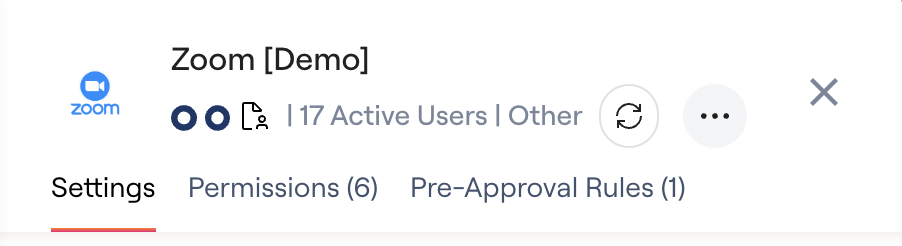
There are a number of advanced settings available **once you add an app to your AppStore** that save time and improve the security of your access request process. *See* [Adding Apps To Your AppStore](/kb/appstore/configuring-your-appstore/adding-apps-to-your-appstore)
This article serves as a central hub for all of the content related to the various AppStore configuration settings from the app's *Settings* tab.
The settings below carry the **exact same meaning** if you choose to set them at the Permission level instead of at the App level, unless specified otherwise.
 ## Approvers
The app-level setting can be overridden for a permission.
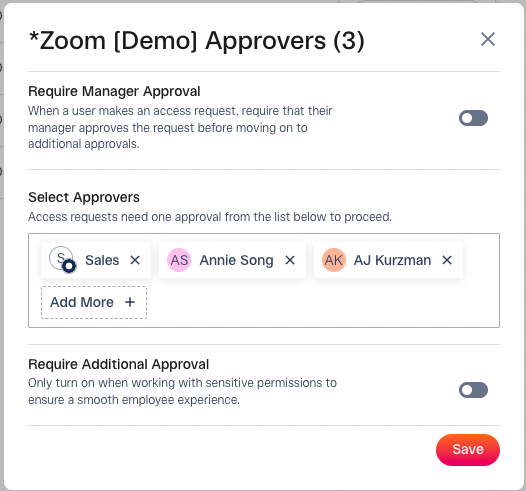
The approval process you define here will be followed for any access request for this app **unless** you override it for a specific permission ([Setting Up Permission-Based Approvals](/kb/appstore/configuring-your-appstore/setting-up-permission-based-approvals)), or the request is **pre-approved** ([Setting Up Pre-Approvals](/kb/appstore/configuring-your-appstore/setting-up-pre-approvals)).
A few notes on approvals:
* The approval process moves in sequential order.
* If an approval stage is disabled or there are no approvers configured for it, it's skipped.
* Any app request without approvers is auto-approved.
## Approvers
The app-level setting can be overridden for a permission.
The approval process you define here will be followed for any access request for this app **unless** you override it for a specific permission ([Setting Up Permission-Based Approvals](/kb/appstore/configuring-your-appstore/setting-up-permission-based-approvals)), or the request is **pre-approved** ([Setting Up Pre-Approvals](/kb/appstore/configuring-your-appstore/setting-up-pre-approvals)).
A few notes on approvals:
* The approval process moves in sequential order.
* If an approval stage is disabled or there are no approvers configured for it, it's skipped.
* Any app request without approvers is auto-approved.
 **Note,** if a user requests access to an app or permission that has "Require Manager Approval" enabled, but the user **does not** have a Manager in Lumos:
1. A Manager Approval Task will be created in the Task Center
2. Lumos will send a notification to any existing App Admins that Manager Approval is required for this Access Request, but the target user doesn't have a Manager assigned, and they need to override or deny the Manager Approval Task for the request in the Task Center
## App Admin
The app-level setting cannot be overridden for a permission.
The App Admins will receive **tasks** ([Confirming Provisioning For Access Requests](/kb/quick_start_guide/appstore-1/appstore_explainers_for_new_employees_new_to_appstore/confirming-provisioning-for-access-requests)) if any **manual steps are needed** ([AppStore Configuration Settings](/kb/appstore/configuring-your-appstore/appstore-configuration-settings))for provisioning access to the app after approval, or if automated provisioning steps fail.
Every app needs at least one App Admin, and Lumos recommends having multiple App Admins (use an email/IdP group) so that tasks don't get bottlenecked.
## Discoverability
The app-level setting cannot be overridden for a permission. If you want to restrict visibility of a permission, you're looking for **Show in AppStore**. *See*[AppStore Configuration Settings](/kb/appstore/configuring-your-appstore/appstore-configuration-settings)
This setting controls how people can find your app in the AppStore.
* Browse & Search
This is the default setting and allows anyone with **access to view the app** to see it right when they open and scroll through the AppStore -- no searching required.
* Search Only
Apps following this setting will only appear if someone searches for it in the search bar.
Most of the time, you should be using **Allowed Groups** to restrict visibility to apps instead of *Search Only*.
* Hidden
Completely hides the app in the AppStore. Use this if you want to temporarily hide an app while you're configuring it, or if you're no longer accepting requests for it.
## Who Can Request
In the Lumos AppStore, the "Who Can Request" feature allows you to control who can request access to specific apps. This app-level setting can be customized for individual permissions.
Please note that visibility = request-ability, meaning that everyone who can see an app has the ability to request the app. Configuring the two individually is not supported.
#### **Restricting Access by Groups**
When you add groups to the "Who Can Request" setting, only members of those groups can see and request access to the app. This means:
* Only people in the specified groups can request access.
* They can only request access for themselves and not for others outside their groups.
Please note that requesting access on behalf of individuals outside the specified groups is not supported.
#### **Allowing Access for All Groups**
If you set the "Who Can Request" option to "All Groups," anyone with access to Lumos can view and request access to the app in the AppStore.
By using these settings, you can ensure that access requests are properly managed and restricted according to your organization's needs.
## Custom Approval Message
If you configure a message here, it will be sent to the requester after the approval under the *Additional Information:* header in Slack. The screenshot below includes an example of a custom message.
Markdown and hyperlinks are supported here.
**Note,** if a user requests access to an app or permission that has "Require Manager Approval" enabled, but the user **does not** have a Manager in Lumos:
1. A Manager Approval Task will be created in the Task Center
2. Lumos will send a notification to any existing App Admins that Manager Approval is required for this Access Request, but the target user doesn't have a Manager assigned, and they need to override or deny the Manager Approval Task for the request in the Task Center
## App Admin
The app-level setting cannot be overridden for a permission.
The App Admins will receive **tasks** ([Confirming Provisioning For Access Requests](/kb/quick_start_guide/appstore-1/appstore_explainers_for_new_employees_new_to_appstore/confirming-provisioning-for-access-requests)) if any **manual steps are needed** ([AppStore Configuration Settings](/kb/appstore/configuring-your-appstore/appstore-configuration-settings))for provisioning access to the app after approval, or if automated provisioning steps fail.
Every app needs at least one App Admin, and Lumos recommends having multiple App Admins (use an email/IdP group) so that tasks don't get bottlenecked.
## Discoverability
The app-level setting cannot be overridden for a permission. If you want to restrict visibility of a permission, you're looking for **Show in AppStore**. *See*[AppStore Configuration Settings](/kb/appstore/configuring-your-appstore/appstore-configuration-settings)
This setting controls how people can find your app in the AppStore.
* Browse & Search
This is the default setting and allows anyone with **access to view the app** to see it right when they open and scroll through the AppStore -- no searching required.
* Search Only
Apps following this setting will only appear if someone searches for it in the search bar.
Most of the time, you should be using **Allowed Groups** to restrict visibility to apps instead of *Search Only*.
* Hidden
Completely hides the app in the AppStore. Use this if you want to temporarily hide an app while you're configuring it, or if you're no longer accepting requests for it.
## Who Can Request
In the Lumos AppStore, the "Who Can Request" feature allows you to control who can request access to specific apps. This app-level setting can be customized for individual permissions.
Please note that visibility = request-ability, meaning that everyone who can see an app has the ability to request the app. Configuring the two individually is not supported.
#### **Restricting Access by Groups**
When you add groups to the "Who Can Request" setting, only members of those groups can see and request access to the app. This means:
* Only people in the specified groups can request access.
* They can only request access for themselves and not for others outside their groups.
Please note that requesting access on behalf of individuals outside the specified groups is not supported.
#### **Allowing Access for All Groups**
If you set the "Who Can Request" option to "All Groups," anyone with access to Lumos can view and request access to the app in the AppStore.
By using these settings, you can ensure that access requests are properly managed and restricted according to your organization's needs.
## Custom Approval Message
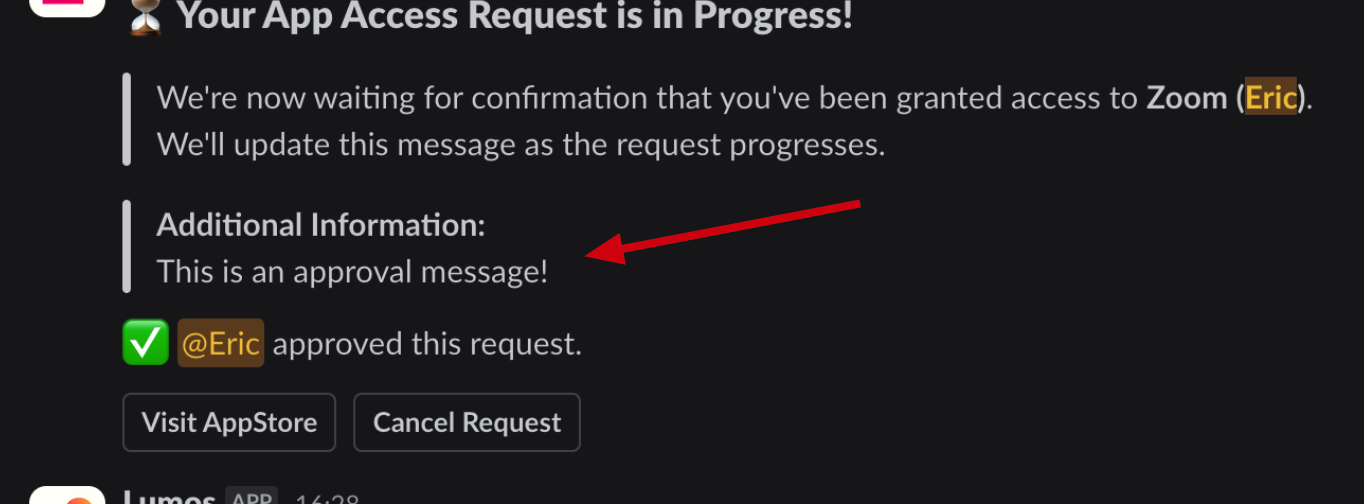
If you configure a message here, it will be sent to the requester after the approval under the *Additional Information:* header in Slack. The screenshot below includes an example of a custom message.
Markdown and hyperlinks are supported here.
 ## Default Permission
More info on this capability can be found here:[Setting Default AppStore Permissions](/kb/appstore/configuring-your-appstore/setting-default-appstore-permissions)
## Allow Request for Multiple Permissions
This app-level toggle allows you to control whether users can select or multiple permissions when requesting access.
More info on this capability can be found here:[Configuring Permissions for Single Select](/kb/appstore/configuring-your-appstore/configuring-permissions-for-single-select)
## Provisioning Method
The provisioning method determines how a user gets assigned access to the app after approval.
* **Assign Directly To App**
The requester doesn't see permissions when they request the app, they just get to request the app.
This applies when requesters are added manually to the app by an App Admin, assigned to the app directly in your IdP (not via groups), or provisioned via a **provisioning webhook** configured on the **app**. *See*[Configuring Permissions for Single Select](/kb/appstore/configuring-your-appstore/configuring-permissions-for-single-select)
* **Assign to App Permission, Defaulted**
The requester is not able to choose a permission in the AppStore, they just request the app and the permission is chosen for them.
After approval, they'll be approved for your **default permission** ([Setting Default AppStore Permissions](/kb/appstore/configuring-your-appstore/setting-default-appstore-permissions)) if no changes were made during the approval process. This automatically assigns the user to the IdP group linked to that permission and/or runs the **provisioning webhook** ([Provisioning Webhooks](/kb/integrations-3/webhooks/provisioning-webhooks)) tied to that permission.
* **Assign to App Permission, Requester-selected**
The requester is allowed to choose from one to many permissions they're allowed to view when requesting the app.
After approval, they're assigned to the permissions for which they were approved via IdP group assignment or **provisioning webhooks** ([Provisioning Webhooks](/kb/integrations-3/webhooks/provisioning-webhooks))
## Time-Based Access
The app-level setting can be overridden for a permission.
You can choose the time-based access options that make sense for your use case in this section. At the end of the requested timeframe, Lumos will unassign the user
A few notes on time-based access.
* Time-based access is only available if Lumos can assign the user to the app in your IdP (direct or group assignment) or if a deprovisioning webhook ([Deprovisioning Webhooks](/kb/integrations-3/webhooks/deprovisioning-webhooks)) is assigned to the app or permission.
* The time-based settings for an App inherit from your [global defaults](https://app.lumosidentity.com/settings/time_based_access).
* The time-based settings for a Permission inherit from your app defaults.
* The user who requested time-based access will receive an email and/or a Slack message confirming their access expiration once 70% of the time has elapsed.
* A scheduled check removes time-based access every 15 minutes (on the hour, and at :15, :30, and :45). Lumos removes access at the first check after the requested timeframe ends, so a user can keep access for up to about 15 minutes beyond the requested length.
Time-based access can still be set where Lumos automatically provisions but Manual Steps Needed is true. The timer on the access begins once the App Admin marks that the manual steps have been completed. When time-based access runs out, the employee will be removed automatically from the group they were added to but a task will not be created to notify the admin to reverse the manual steps.
## Default Time Length
More info on this setting can be found here:[Setting A Default Time Length For Time-Based Access](/kb/appstore/configuring-your-appstore/setting-a-default-time-length-for-time-based-access)
## Manual Action Required
The app-level setting can be overridden for a specific permission. However, permissions don't inherit app-level settings.
If manual action is needed to finish provisioning the requester to the app after approval, you can enable this. This will send a follow-up task ([Confirming Provisioning For Access Requests](/kb/quick_start_guide/appstore-1/appstore_explainers_for_new_employees_new_to_appstore/confirming-provisioning-for-access-requests)) to the App Admins and ask them to confirm that they've finished provisioning the requester to the app.
Lumos is generally "smart" about when manual action is needed and usually decides this for you, but if you're confident that manual steps are **not** needed, feel free to disable it. You can't disable manual action for an app or permission if neither a provisioning webhook ([Provisioning Webhooks](/kb/integrations-3/webhooks/provisioning-webhooks)) or an IdP app assignment (group or direct) is linked to the request.
## Instruction / Provisioning Instructions
The app-level setting can be overridden for a permission.
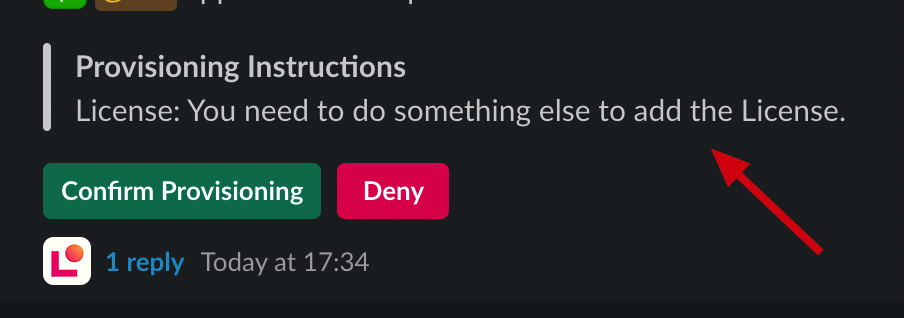
This can be used to give the **App Admin** more info regarding what they need to do to finish provisioning the requested access if **Manual Steps Needed** is enabled for the app/permission.
## Default Permission
More info on this capability can be found here:[Setting Default AppStore Permissions](/kb/appstore/configuring-your-appstore/setting-default-appstore-permissions)
## Allow Request for Multiple Permissions
This app-level toggle allows you to control whether users can select or multiple permissions when requesting access.
More info on this capability can be found here:[Configuring Permissions for Single Select](/kb/appstore/configuring-your-appstore/configuring-permissions-for-single-select)
## Provisioning Method
The provisioning method determines how a user gets assigned access to the app after approval.
* **Assign Directly To App**
The requester doesn't see permissions when they request the app, they just get to request the app.
This applies when requesters are added manually to the app by an App Admin, assigned to the app directly in your IdP (not via groups), or provisioned via a **provisioning webhook** configured on the **app**. *See*[Configuring Permissions for Single Select](/kb/appstore/configuring-your-appstore/configuring-permissions-for-single-select)
* **Assign to App Permission, Defaulted**
The requester is not able to choose a permission in the AppStore, they just request the app and the permission is chosen for them.
After approval, they'll be approved for your **default permission** ([Setting Default AppStore Permissions](/kb/appstore/configuring-your-appstore/setting-default-appstore-permissions)) if no changes were made during the approval process. This automatically assigns the user to the IdP group linked to that permission and/or runs the **provisioning webhook** ([Provisioning Webhooks](/kb/integrations-3/webhooks/provisioning-webhooks)) tied to that permission.
* **Assign to App Permission, Requester-selected**
The requester is allowed to choose from one to many permissions they're allowed to view when requesting the app.
After approval, they're assigned to the permissions for which they were approved via IdP group assignment or **provisioning webhooks** ([Provisioning Webhooks](/kb/integrations-3/webhooks/provisioning-webhooks))
## Time-Based Access
The app-level setting can be overridden for a permission.
You can choose the time-based access options that make sense for your use case in this section. At the end of the requested timeframe, Lumos will unassign the user
A few notes on time-based access.
* Time-based access is only available if Lumos can assign the user to the app in your IdP (direct or group assignment) or if a deprovisioning webhook ([Deprovisioning Webhooks](/kb/integrations-3/webhooks/deprovisioning-webhooks)) is assigned to the app or permission.
* The time-based settings for an App inherit from your [global defaults](https://app.lumosidentity.com/settings/time_based_access).
* The time-based settings for a Permission inherit from your app defaults.
* The user who requested time-based access will receive an email and/or a Slack message confirming their access expiration once 70% of the time has elapsed.
* A scheduled check removes time-based access every 15 minutes (on the hour, and at :15, :30, and :45). Lumos removes access at the first check after the requested timeframe ends, so a user can keep access for up to about 15 minutes beyond the requested length.
Time-based access can still be set where Lumos automatically provisions but Manual Steps Needed is true. The timer on the access begins once the App Admin marks that the manual steps have been completed. When time-based access runs out, the employee will be removed automatically from the group they were added to but a task will not be created to notify the admin to reverse the manual steps.
## Default Time Length
More info on this setting can be found here:[Setting A Default Time Length For Time-Based Access](/kb/appstore/configuring-your-appstore/setting-a-default-time-length-for-time-based-access)
## Manual Action Required
The app-level setting can be overridden for a specific permission. However, permissions don't inherit app-level settings.
If manual action is needed to finish provisioning the requester to the app after approval, you can enable this. This will send a follow-up task ([Confirming Provisioning For Access Requests](/kb/quick_start_guide/appstore-1/appstore_explainers_for_new_employees_new_to_appstore/confirming-provisioning-for-access-requests)) to the App Admins and ask them to confirm that they've finished provisioning the requester to the app.
Lumos is generally "smart" about when manual action is needed and usually decides this for you, but if you're confident that manual steps are **not** needed, feel free to disable it. You can't disable manual action for an app or permission if neither a provisioning webhook ([Provisioning Webhooks](/kb/integrations-3/webhooks/provisioning-webhooks)) or an IdP app assignment (group or direct) is linked to the request.
## Instruction / Provisioning Instructions
The app-level setting can be overridden for a permission.
This can be used to give the **App Admin** more info regarding what they need to do to finish provisioning the requested access if **Manual Steps Needed** is enabled for the app/permission.
 Markdown and hyperlinks are supported here.
## Inline Webhooks
Info about configuring webhooks can be found here:[Creating Webhooks](/kb/integrations-3/webhooks/creating-webhooks)
## Permission Label
This setting is only available for Permissions.
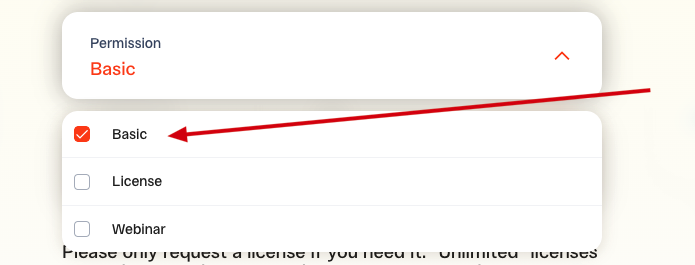
This determines what a requester sees when they're choosing a permission from the dropdown while requesting an app. Use this to make the name more user-friendly so that people know what they're requesting.
Markdown and hyperlinks are supported here.
## Inline Webhooks
Info about configuring webhooks can be found here:[Creating Webhooks](/kb/integrations-3/webhooks/creating-webhooks)
## Permission Label
This setting is only available for Permissions.
This determines what a requester sees when they're choosing a permission from the dropdown while requesting an app. Use this to make the name more user-friendly so that people know what they're requesting.
 ## Show in AppStore
This setting is only available for Permissions. The App equivalent to this setting is **Discoverability.**
This determines whether a permission will be visible to requesters in the AppStore. Use this to hide permissions that people shouldn't be able to request at all. If you want to restrict who can request a permission, consider using **Allowed Groups** instead.
## Website URL
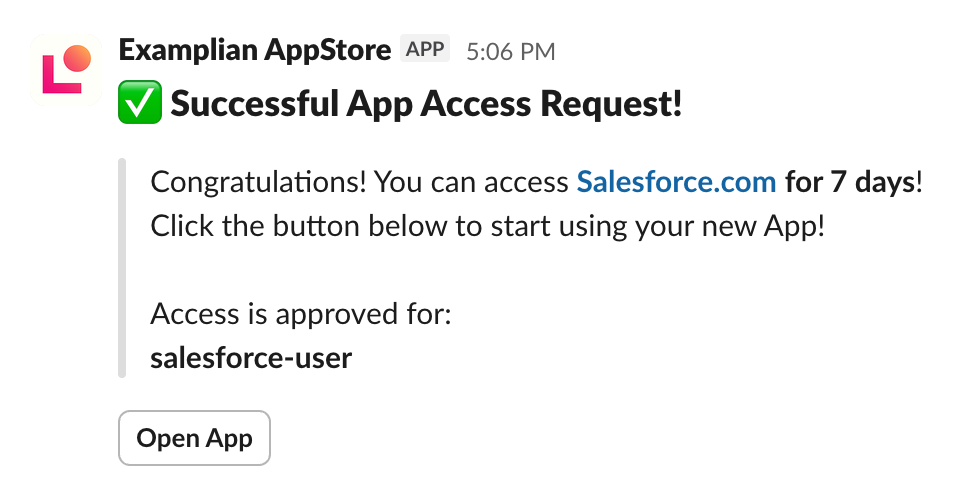
URL used in the "Open App" button in the in email / Slack notification sent to the user when access is approved. Lumos will use the SSO URL (if applicable) or app website (e.g. salesforce.com) if Website URL is blank or invalid.
## Show in AppStore
This setting is only available for Permissions. The App equivalent to this setting is **Discoverability.**
This determines whether a permission will be visible to requesters in the AppStore. Use this to hide permissions that people shouldn't be able to request at all. If you want to restrict who can request a permission, consider using **Allowed Groups** instead.
## Website URL
URL used in the "Open App" button in the in email / Slack notification sent to the user when access is approved. Lumos will use the SSO URL (if applicable) or app website (e.g. salesforce.com) if Website URL is blank or invalid.