> ## Documentation Index
> Fetch the complete documentation index at: https://docs.lumos.com/llms.txt
> Use this file to discover all available pages before exploring further.
# Adding Custom Permissions
## Situation
You added an app to the AppStore and want people to be able to request a permission that doesn't already appear in the *Permissions* tab.
If the group/role is assigned to your app in your IdP and you're just not seeing it in the *Permissions* tab in Lumos, click on the sync button and refresh the page once the sync completes.
## Solution
Create a custom permission. In Lumos, you can create and attach permissions for an app that don't exist in the downstream app or IdP.
This can be *really* helpful when you don't want to create more groups or resources in your IdP or downstream application, but you still want people to be able to specify what they need in Lumos when they request access to an app.
### Steps
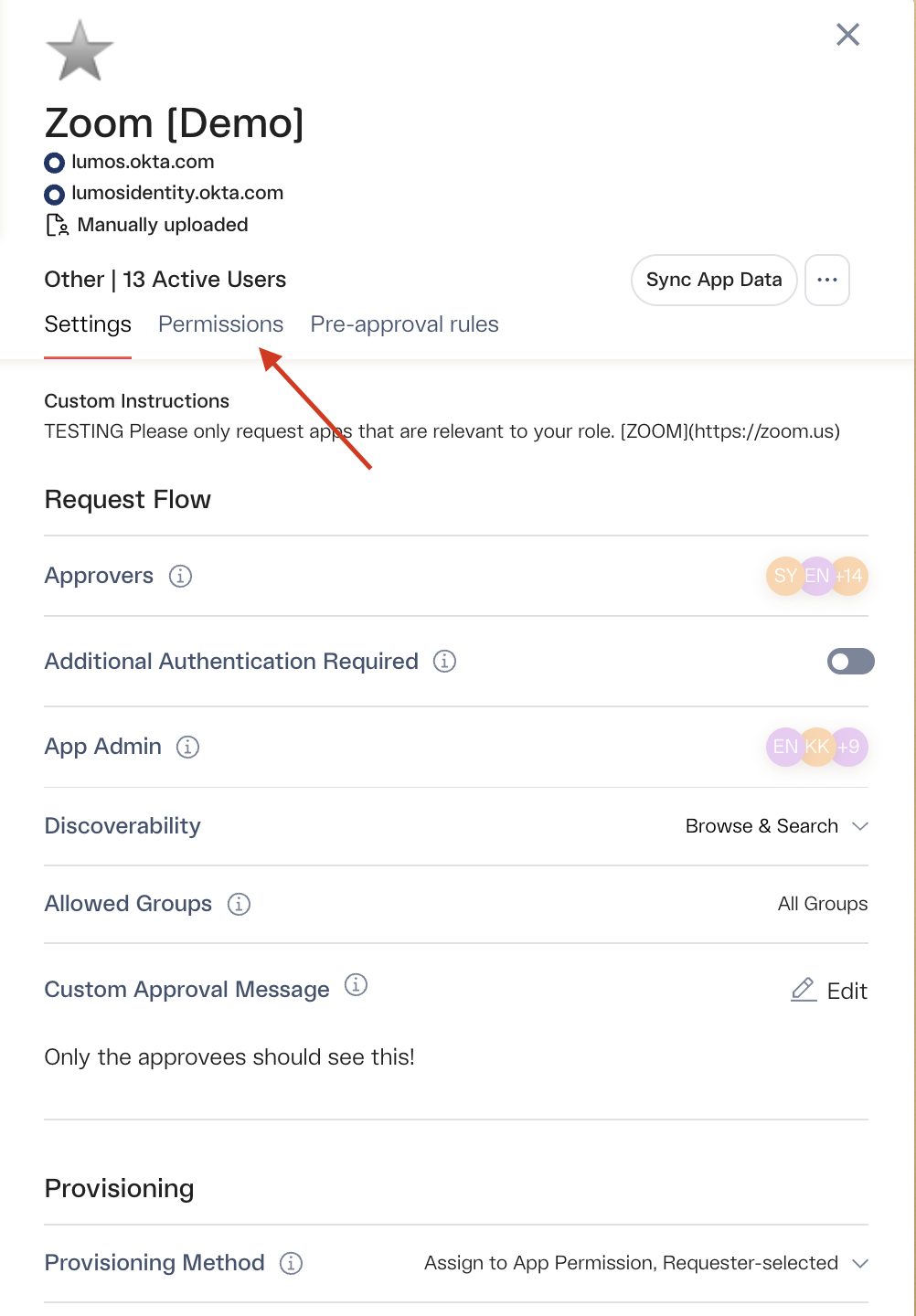
#### 1. Navigate to the AppStore settings for the app and click the \_Permissions\_tab.
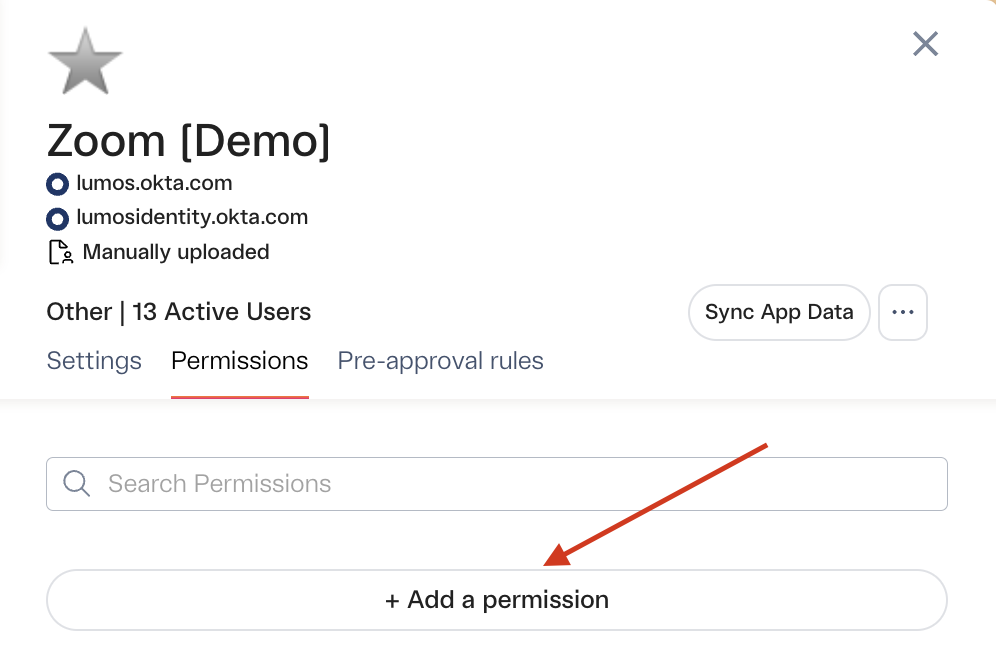
 #### 2. Click the "**+Add a permission"** button
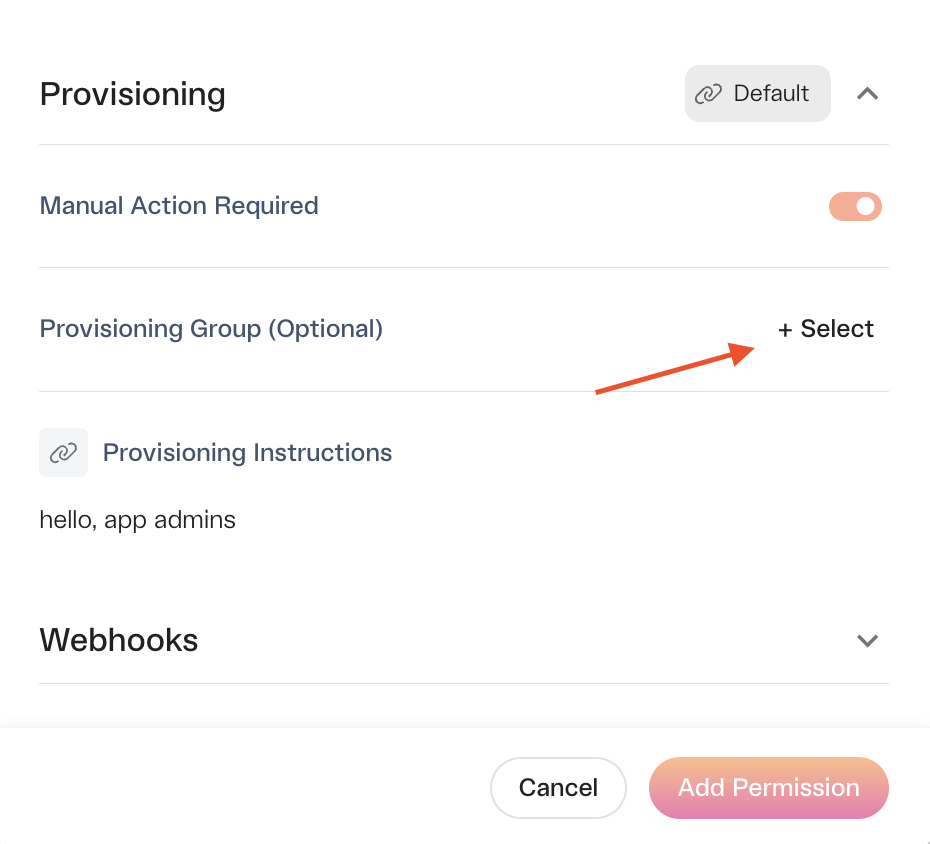
 #### 3. Give the permission a name and configure the settings
If you want to automatically add people to an IdP/email provider group after approval, set the *Provisioning Group* value.
#### 3. Give the permission a name and configure the settings
If you want to automatically add people to an IdP/email provider group after approval, set the *Provisioning Group* value.
 #### 4. Click **Add permission**.
#### 5. Your new permission is ready to use
More information on setting up approval workflows for the permission can be found here:[Setting Up Permission-Based Approvals](/kb/appstore/configuring-your-appstore/setting-up-permission-based-approvals)
#### 4. Click **Add permission**.
#### 5. Your new permission is ready to use
More information on setting up approval workflows for the permission can be found here:[Setting Up Permission-Based Approvals](/kb/appstore/configuring-your-appstore/setting-up-permission-based-approvals)
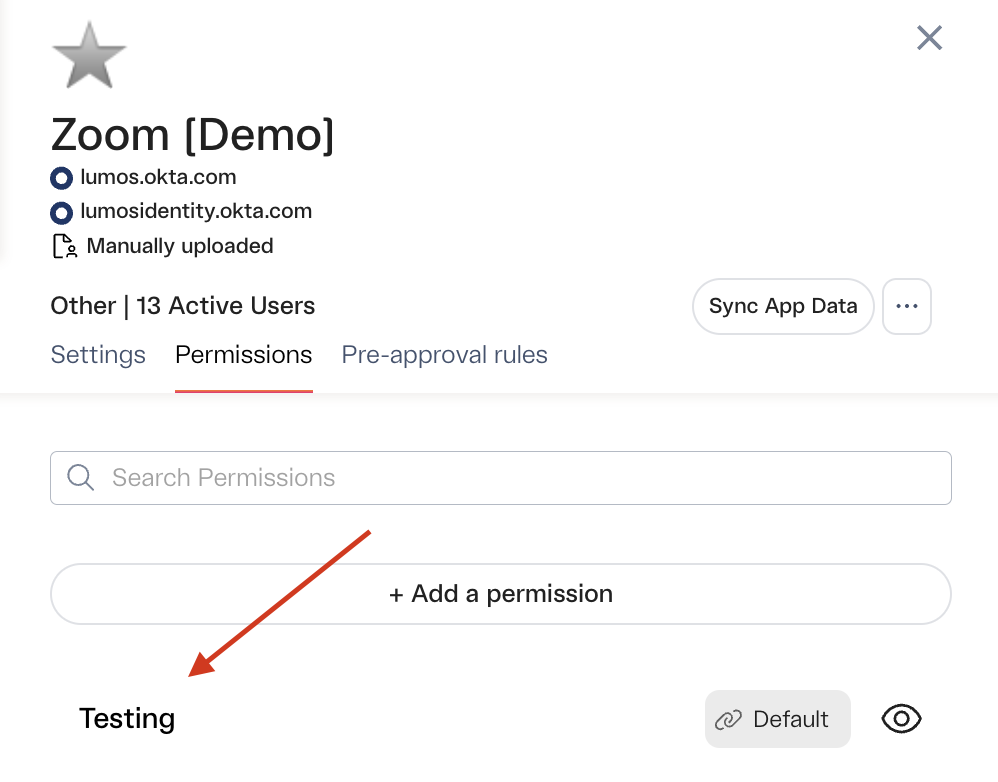 Your ***Provisioning Method*** settings in the AppStore need to be adjusted for people to be able to select the permission. See [AppStore Configuration Settings](/kb/appstore/configuring-your-appstore/appstore-configuration-settings)