> ## Documentation Index
> Fetch the complete documentation index at: https://docs.lumos.com/llms.txt
> Use this file to discover all available pages before exploring further.
# Setting Reviewable Permissions
## Background
Reviewable Permissions only come into play for an **Account-First Review**.
Why is this?
This is because in a Permission-First Review, every permission is reviewable; you'll scope your review down to contain the set of permissions you're reviewing.
For Account-First Reviews, you have the ability to Modify Account, which allows you to accept or reject specific permissions (that are \*ahem ahem\* *reviewable*).
Permissions can refer to licenses and/or roles if pulled directly from the app (e.g. via a Lumos integration), or can also be the Okta group(s) that are giving the user access to that app. You may not wish to make all of these reviewable by way of an access review.
This is why you can configure Reviewable Permissions, which will actually narrow down permissions that can be reviewed for your audit.
## Instructions
### 1. Go to the Access Review that you wish to scope.
### 2. Click "App Review Settings" > "Reviewable Permissions"
### 3. Select the permissions that you want to make reviewable
Based on your app, you'll see a list of possible attributes to scope down by.
This may include:
* Data from direct Lumos integrations (I.e. Role)
* Data from your IdP (I.e. Groups in Okta)
* Manually enriched columns
You'll see the Logo indicate where the permission is sourced from (for example, the Lumos logo for a direct integration, Okta logo for Okta group, etc.)
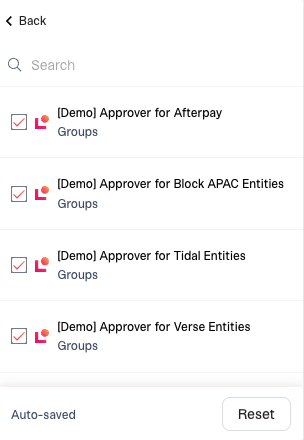 Your changes save automatically.
### 4. Proceed with business as usual
Your changes save automatically.
### 4. Proceed with business as usual