> ## Documentation Index
> Fetch the complete documentation index at: https://docs.lumos.com/llms.txt
> Use this file to discover all available pages before exploring further.
# Reviewing User Entitlements In Lumos
This article shows you how to complete an Access Review of user entitlements that you've been assigned for your company's apps. Your company uses [Lumos](https://www.lumos.com) to manage employee access to the software they need.
## 1. Go to your [Access Reviews](https://app.lumosidentity.com/access_reviews) in Lumos
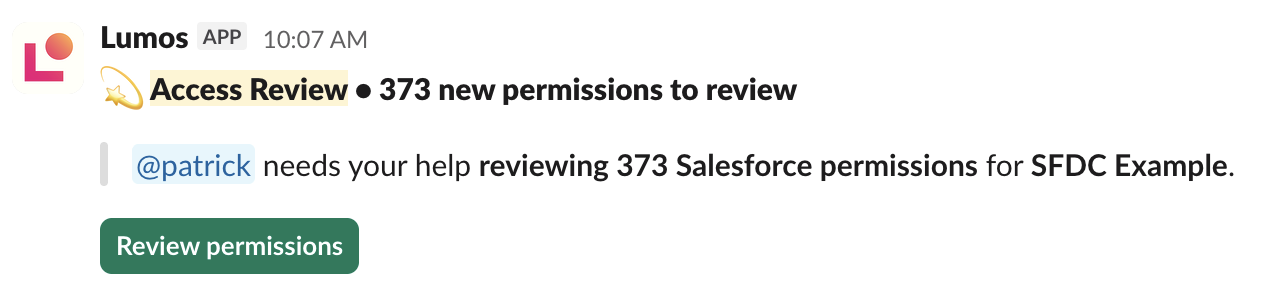
If you got a notification, click the button there to start your review.
If you need to log in, use your Single Sign On (SSO) login ID or email.
 If you are being asked to review Accounts instead of Permissions, see [Reviewing Account Access in Lumos](/kb/access-reviews/preparing-and-completing-an-access-review/reviewing-user-access-in-lumos)
## 2. Click "**Continue Review"** for an app to start a review
You'll see all the apps assigned to you on the **Access Reviews** page. Click **Continue Review** on the app you want to start with.
If you are being asked to review Accounts instead of Permissions, see [Reviewing Account Access in Lumos](/kb/access-reviews/preparing-and-completing-an-access-review/reviewing-user-access-in-lumos)
## 2. Click "**Continue Review"** for an app to start a review
You'll see all the apps assigned to you on the **Access Reviews** page. Click **Continue Review** on the app you want to start with.
 ## 3. Configure your view
The Entitlements table surfaces the columns you need to make a decision by default — **Identity**, **AI Review Insights**, **Permission**, **Permission Type**, **Title**, **Employment Status**, **Manager**, and **Suggestion**. You can customize the table to match how you like to work, and your changes stick around the next time you come back.
Your view is personal. Customizations only apply to you other reviewers and admins won't be affected
### Show/hide columns
**Click** Columns to choose which fields are visible.
## 3. Configure your view
The Entitlements table surfaces the columns you need to make a decision by default — **Identity**, **AI Review Insights**, **Permission**, **Permission Type**, **Title**, **Employment Status**, **Manager**, and **Suggestion**. You can customize the table to match how you like to work, and your changes stick around the next time you come back.
Your view is personal. Customizations only apply to you other reviewers and admins won't be affected
### Show/hide columns
**Click** Columns to choose which fields are visible.
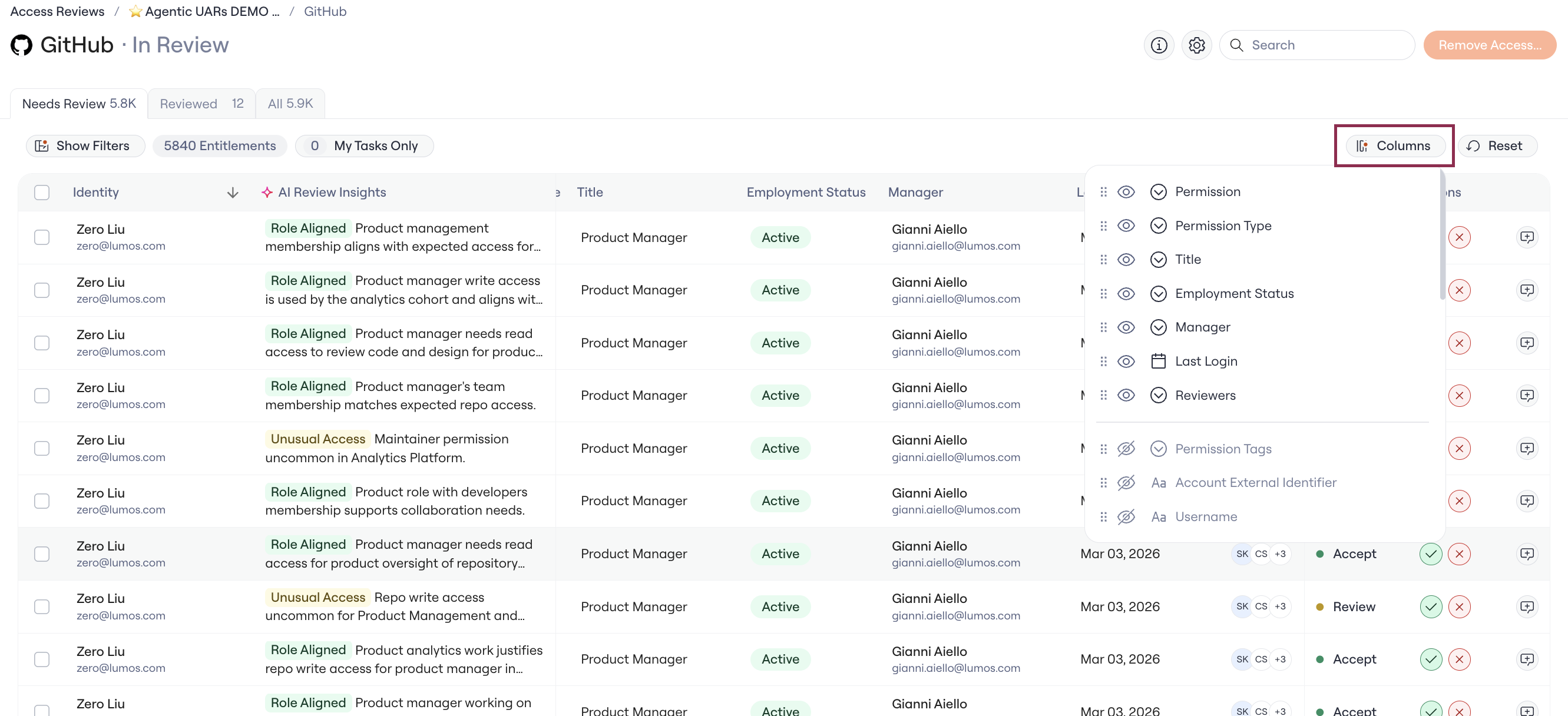 **Show/Hide** columns to see data that's most relevant to your Review decision and hide everything else.
 #### Reorder columns
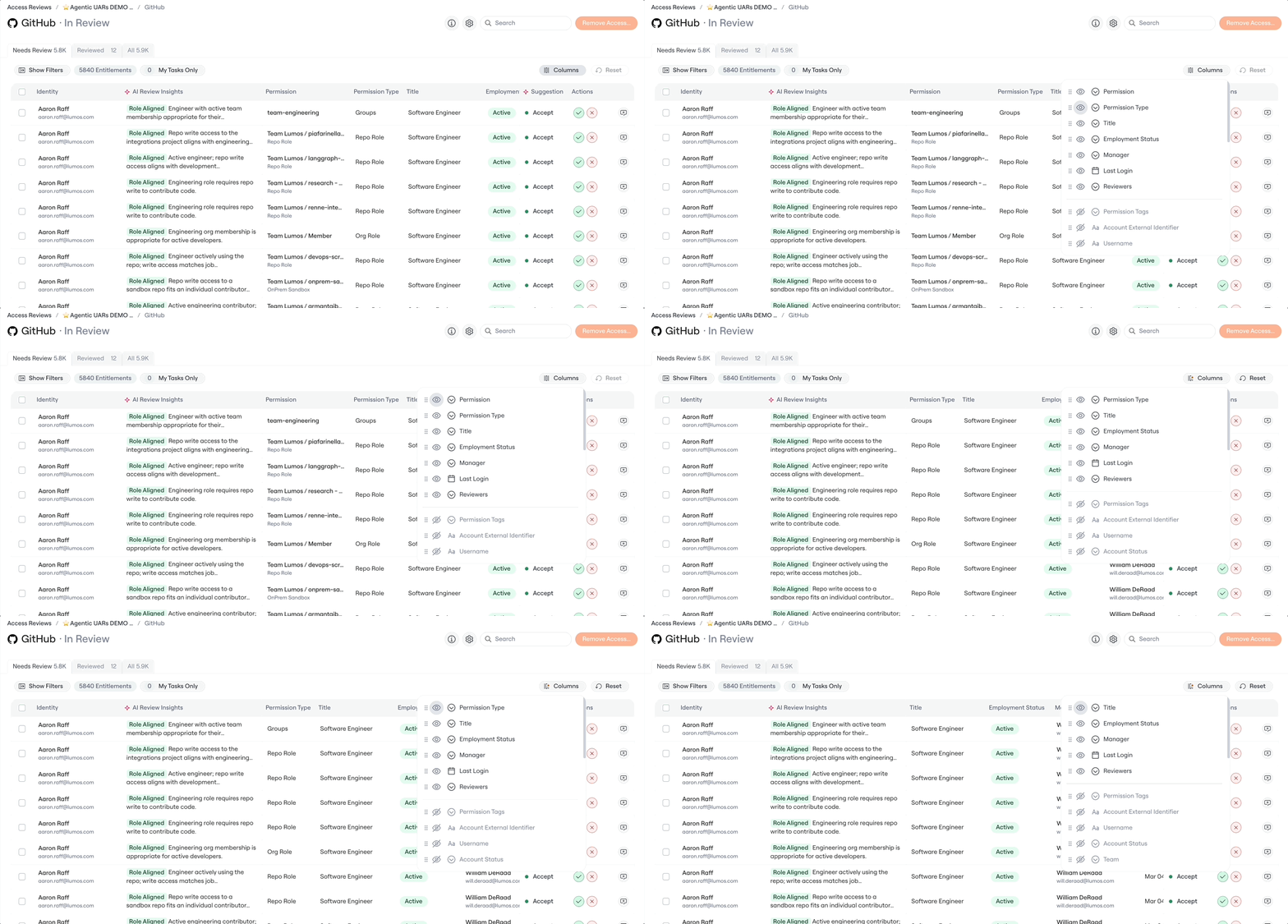
Drag columns up or down in the **Columns** list to put the most important data where you want to scan first.
#### Reorder columns
Drag columns up or down in the **Columns** list to put the most important data where you want to scan first.
 #### Resize columns
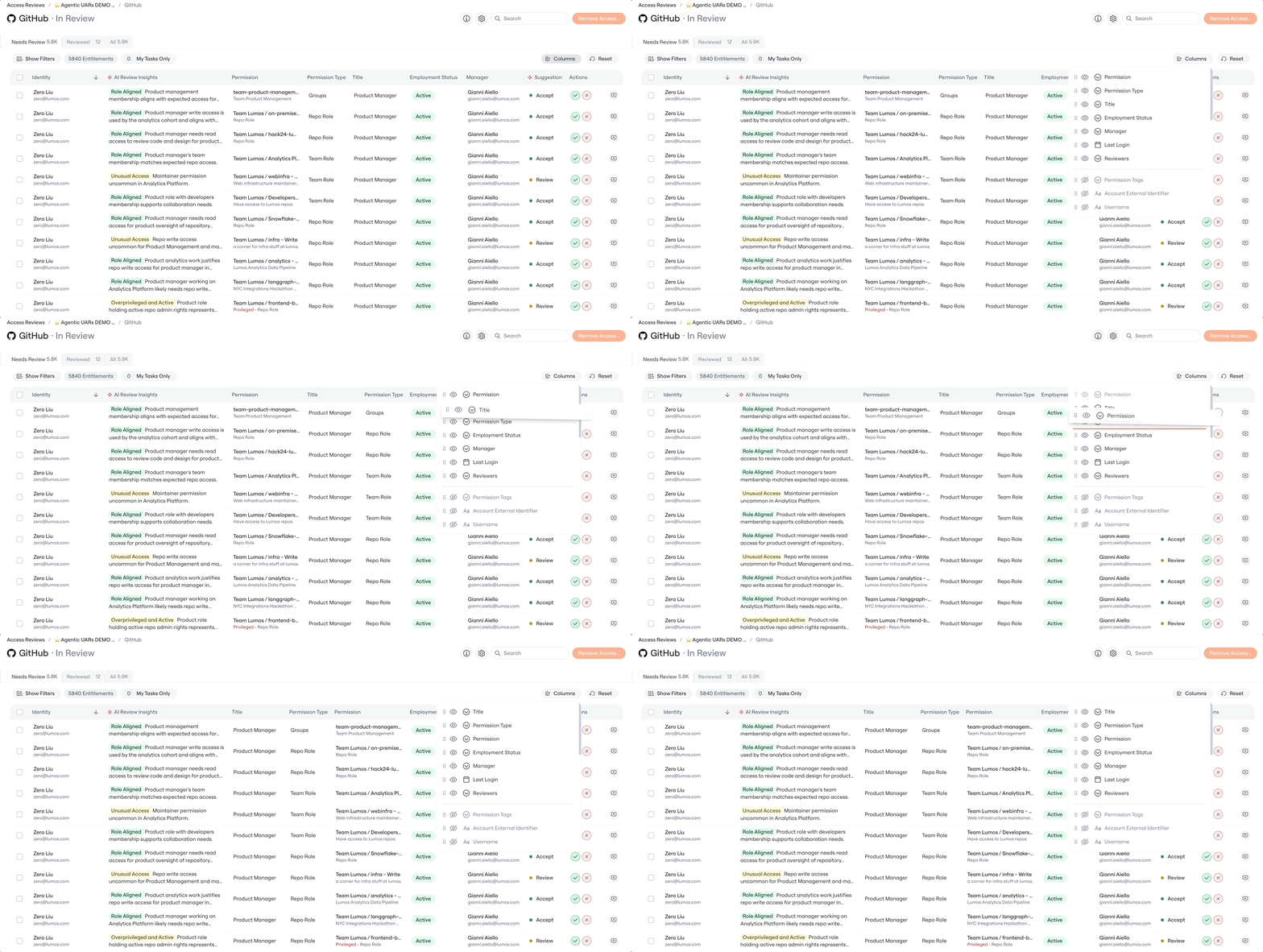
Drag the column edges in the table to widen or narrow them so you can see what you need at a glance.
#### Resize columns
Drag the column edges in the table to widen or narrow them so you can see what you need at a glance.
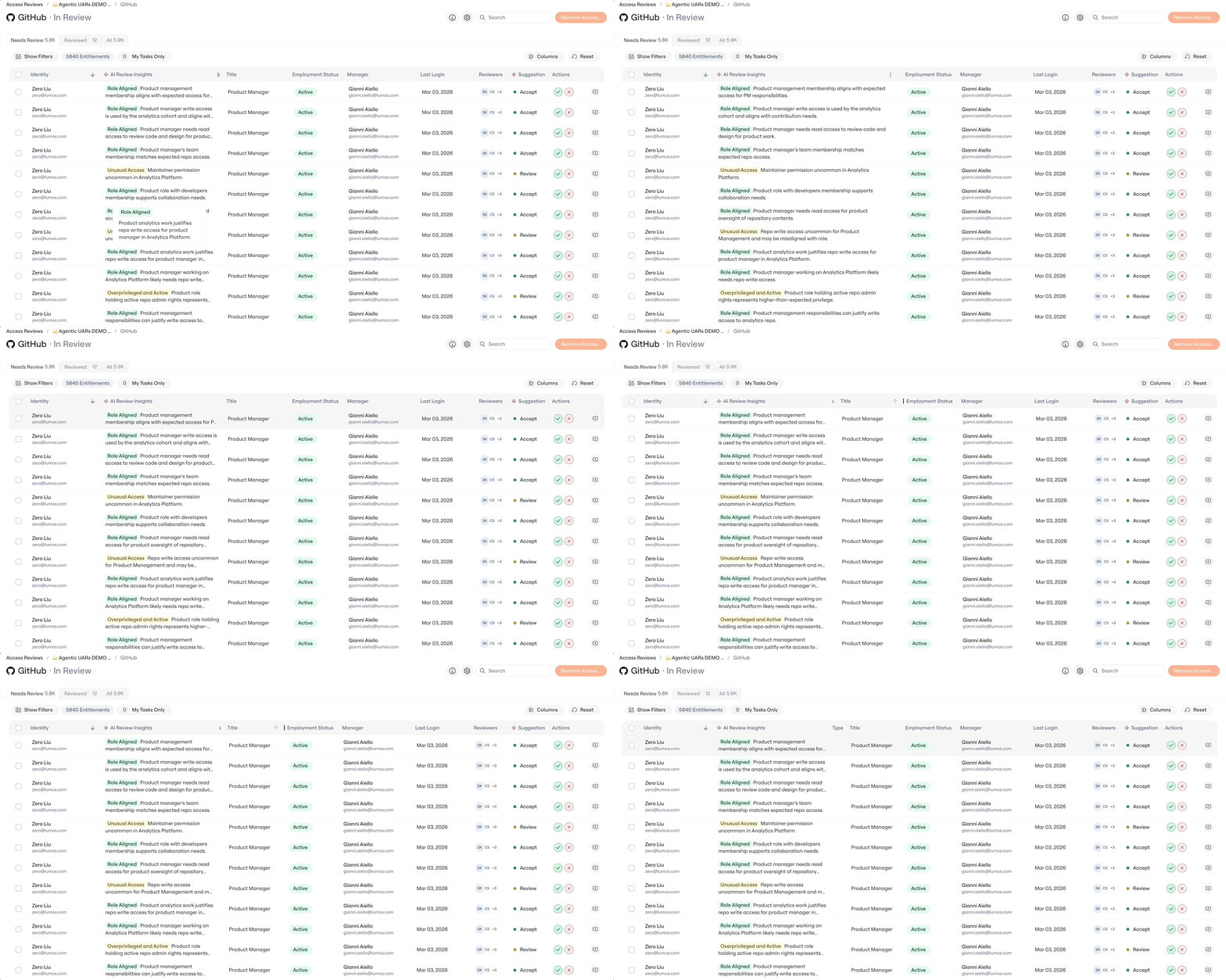 #### Sort columns
Click a column header to sort the table by that field. Sort by **Title** to group everyone with the same role together, or by **Employment Status** to surface inactive users first — whichever lets you decide faster.
#### Sort columns
Click a column header to sort the table by that field. Sort by **Title** to group everyone with the same role together, or by **Employment Status** to surface inactive users first — whichever lets you decide faster.
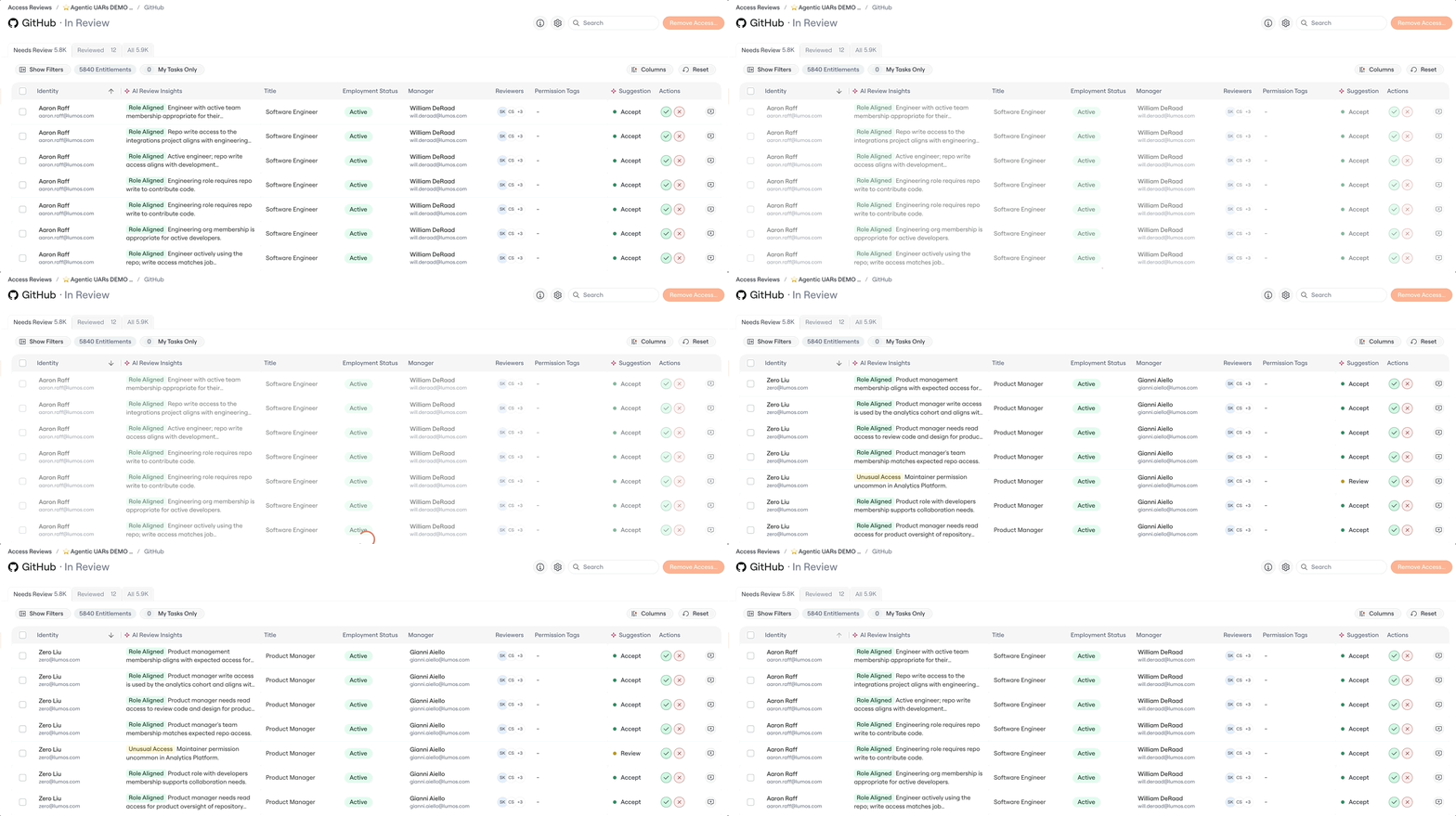 #### Filter
Click **Show Filters** at the top of the table
#### Filter
Click **Show Filters** at the top of the table
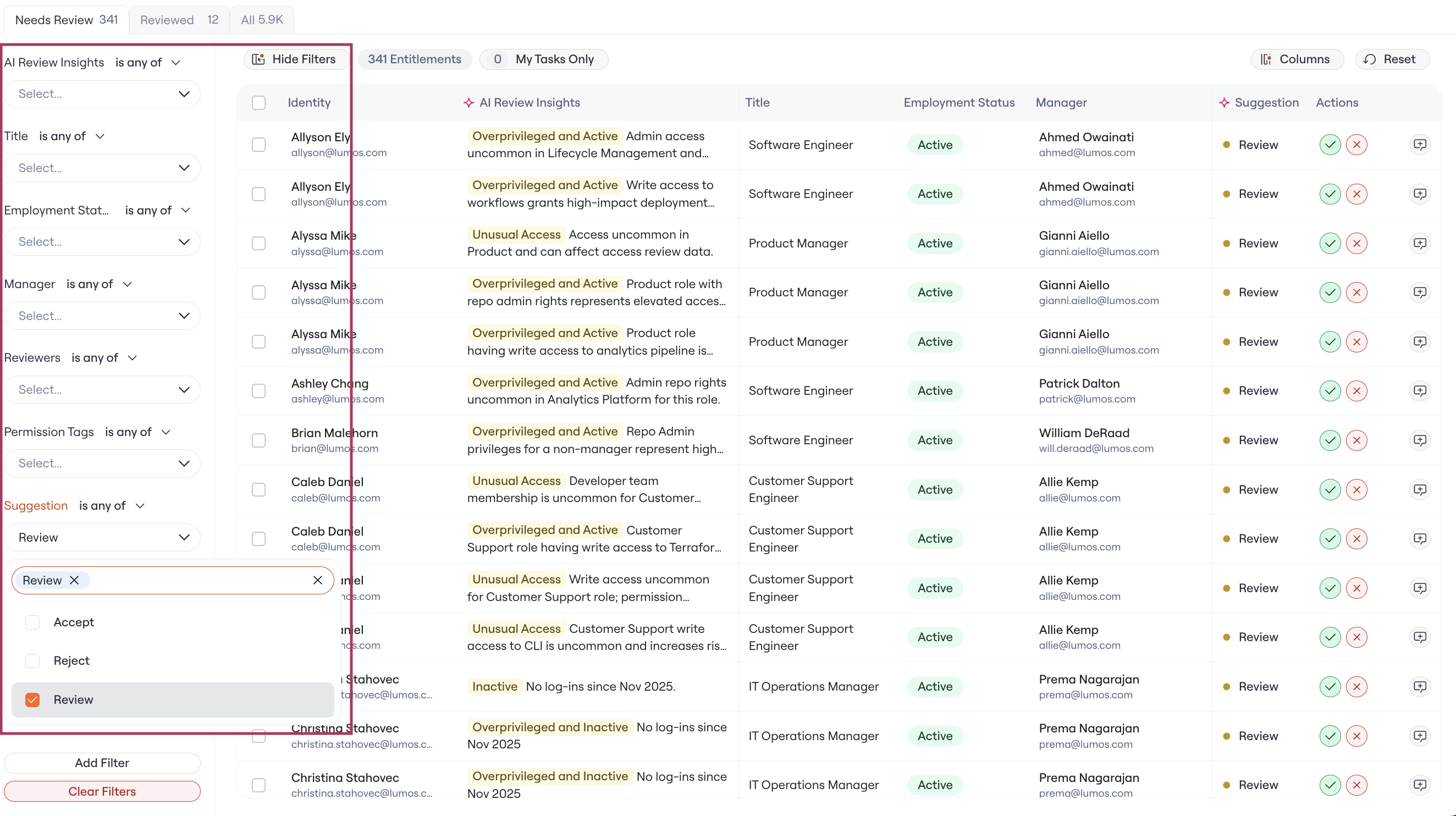
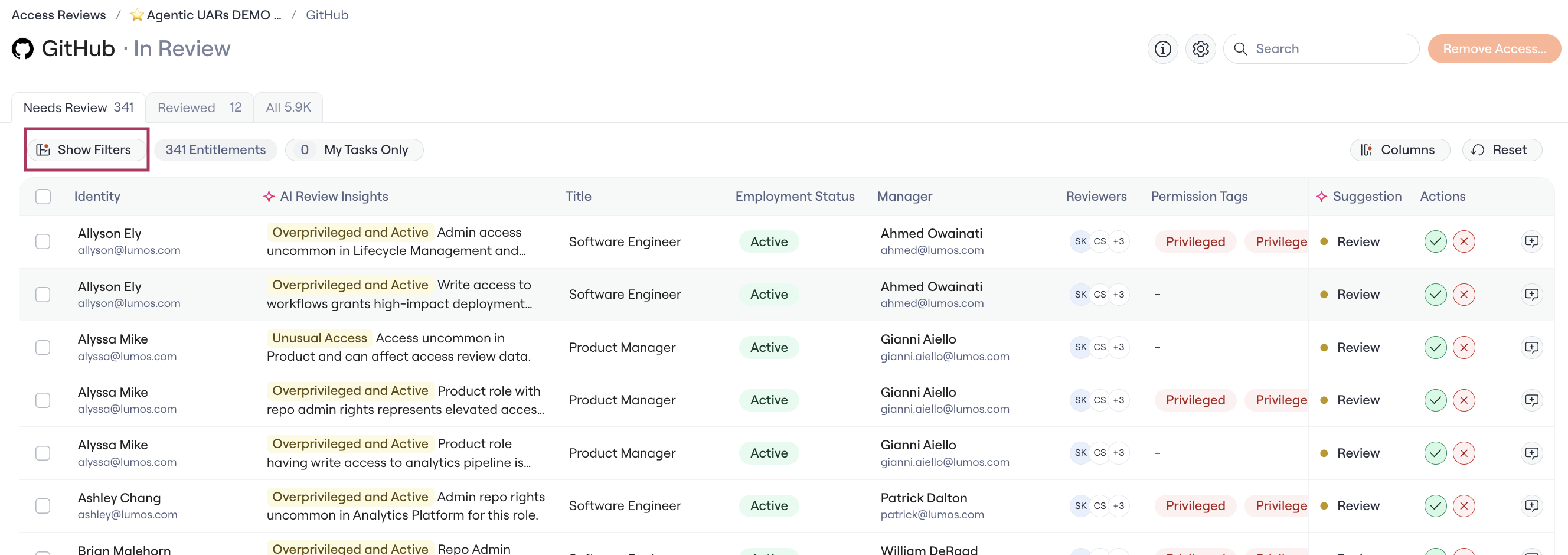 Narrow rows by select columns — for example, only show entitlements for Active employees, or only show entitlements where the **Suggestion** is Reject. Filtering hides rows that don't match without changing the underlying data.
 ### 4. Make your review decision
For each entitlement, decide whether to:
* **Accept** — keep the access as-is.
* **Reject** — remove the access entirely.
* **Modify** — adjust the access (don't fully remove it). *Only available if your admin has enabled the Modify option for this review.*
Two columns are designed to help you decide:
* **AI Review Insights** — Plain-language context on why a user likely does or doesn't need this permission. Look for tags like `Role Aligned`, `Unusual Access`, `Overprivileged and Active`, or `Terminated`.
* **Suggestion** — The Lumos recommended decision for that entitlement (Accept, Reject, or Review).
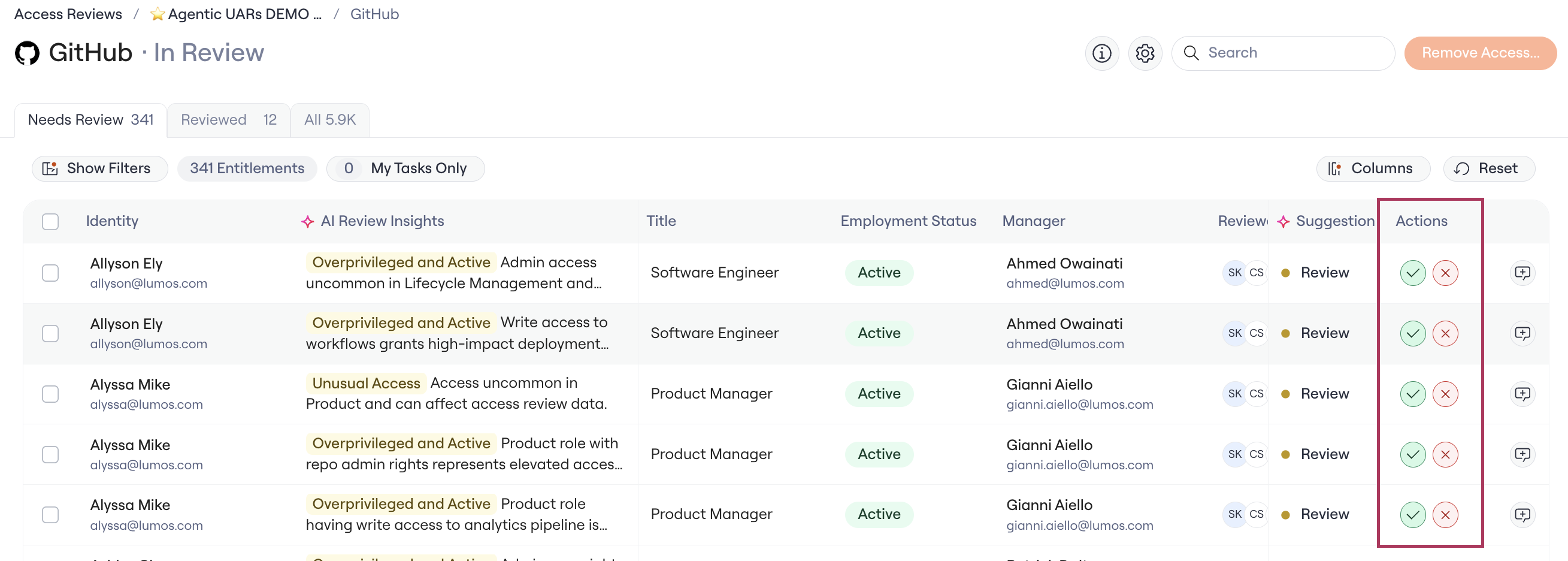
To act on a single row, click the approve (checkmark) icon to Accept or the reject (X) icon to Reject in the **Actions** column.
### 4. Make your review decision
For each entitlement, decide whether to:
* **Accept** — keep the access as-is.
* **Reject** — remove the access entirely.
* **Modify** — adjust the access (don't fully remove it). *Only available if your admin has enabled the Modify option for this review.*
Two columns are designed to help you decide:
* **AI Review Insights** — Plain-language context on why a user likely does or doesn't need this permission. Look for tags like `Role Aligned`, `Unusual Access`, `Overprivileged and Active`, or `Terminated`.
* **Suggestion** — The Lumos recommended decision for that entitlement (Accept, Reject, or Review).
To act on a single row, click the approve (checkmark) icon to Accept or the reject (X) icon to Reject in the **Actions** column.
 ### 5. Use bulk actions to move faster
If you have a lot of entitlements to get through, you can decision them in batches:
1. Click the checkbox on each row you want to act on, or use the header checkbox to select all visible rows.
### 5. Use bulk actions to move faster
If you have a lot of entitlements to get through, you can decision them in batches:
1. Click the checkbox on each row you want to act on, or use the header checkbox to select all visible rows.
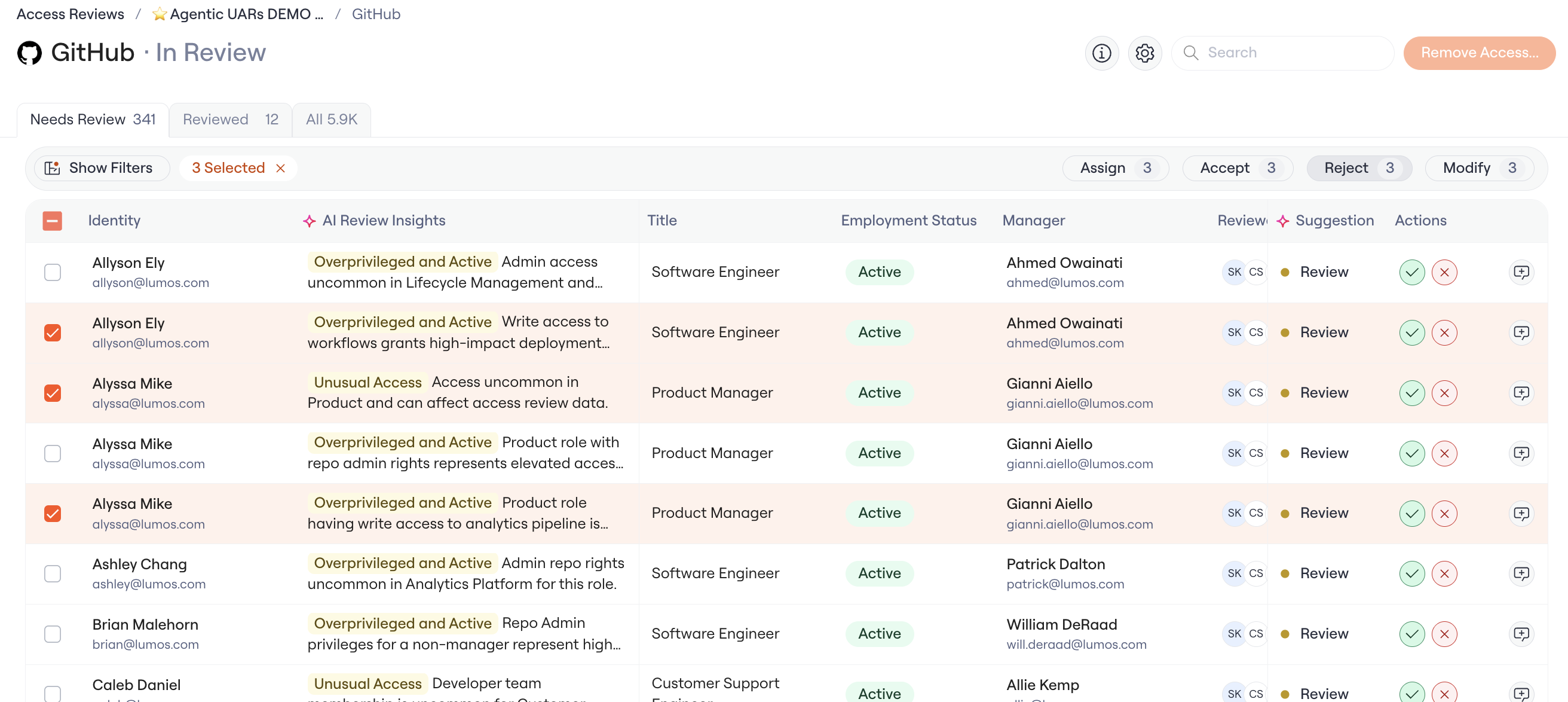 2. Once rows are selected, the bulk action bar appears at the top of the table.
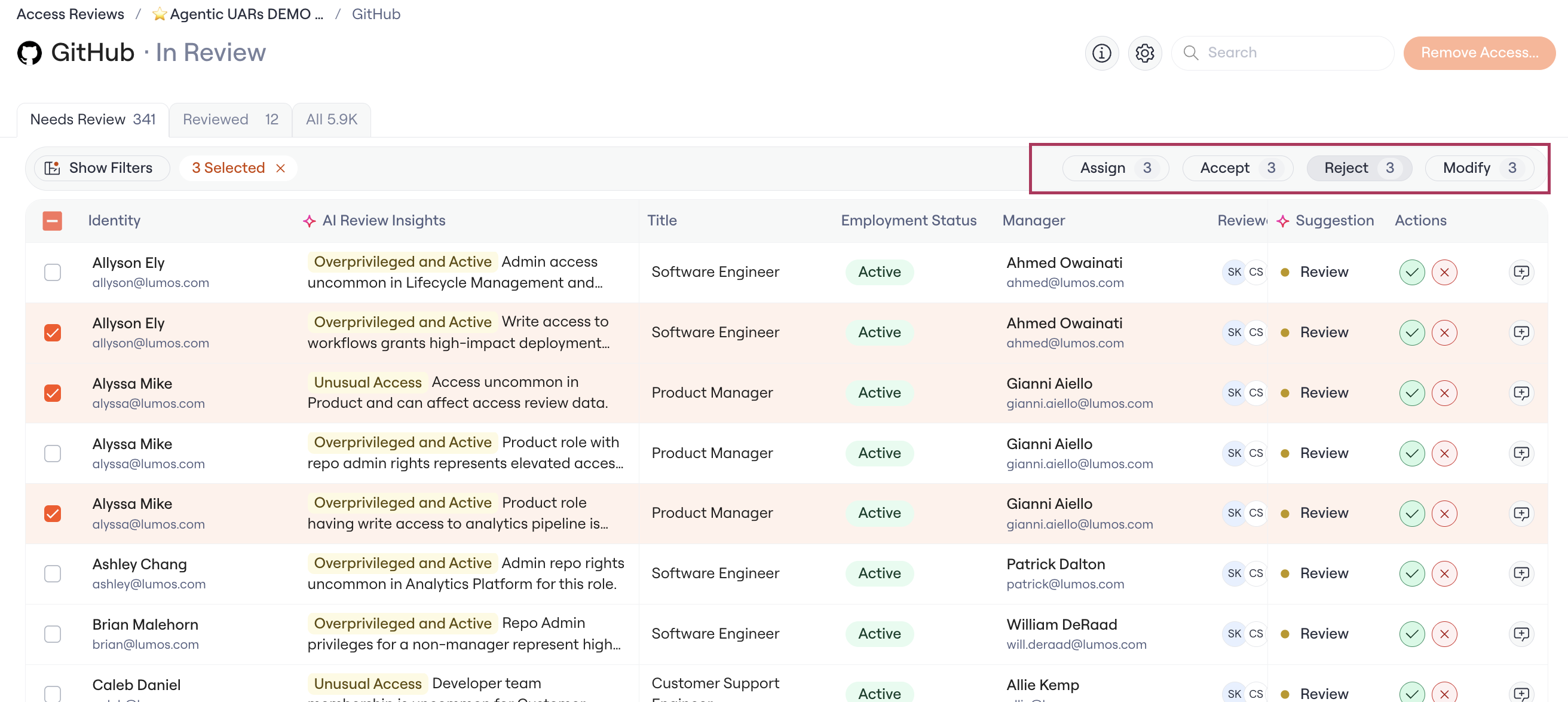 3. Click **Accept** or **Reject** to apply the decision to all selected rows.
Pair filtering with bulk actions to move through reviews faster. For example, filter to all `Role Aligned` entitlements with a Suggestion of `Accept`, bulk-accept them, then move on to the rows that need closer attention.
### 6. Repeat for all your assigned apps
When you finish all your assigned apps, your part of the review is complete.
## Common scenarios
#### I want to reassign a review to someone else
If your admin has enabled re-assignment, you can delegate one or more reviews to someone else directly from Lumos. If re-assignment isn't available, contact the team or person mentioned in your initial notification — they can update the assignment for you.
#### I can't see all the columns I need
Click **Columns** at the top right of the table and toggle on the columns you want. You can also drag column edges to widen them, or scroll horizontally to reveal columns that don't fit on screen.
#### I want to leave context on a decision for auditors
If your admin has enabled notes, you can add one to any individual line item — useful for explaining edge-case decisions (for example, "Keeping access through end of project handoff on May 15").
## FAQs
#### Will my column setup save for next time?
Yes. Your column visibility, order, width, sort, and filters persist across sessions, so if you step away and come back to that review, the table will look the way you left it.
#### Will my admin or other reviewers see my view customizations?
No. View configurations are personal — your changes apply only to your reviews and don't affect what anyone else sees.
#### What's the difference between AI Review Insights and Suggestion?
**AI Review Insights** is the *reasoning* — a tag plus a short explanation of why an entitlement looks aligned, unusual, or risky. **Suggestion** is the *recommendation* — the action Lumos suggests you take based on that reasoning. You'll typically read the Insight first, then use the Suggestion to act.
3. Click **Accept** or **Reject** to apply the decision to all selected rows.
Pair filtering with bulk actions to move through reviews faster. For example, filter to all `Role Aligned` entitlements with a Suggestion of `Accept`, bulk-accept them, then move on to the rows that need closer attention.
### 6. Repeat for all your assigned apps
When you finish all your assigned apps, your part of the review is complete.
## Common scenarios
#### I want to reassign a review to someone else
If your admin has enabled re-assignment, you can delegate one or more reviews to someone else directly from Lumos. If re-assignment isn't available, contact the team or person mentioned in your initial notification — they can update the assignment for you.
#### I can't see all the columns I need
Click **Columns** at the top right of the table and toggle on the columns you want. You can also drag column edges to widen them, or scroll horizontally to reveal columns that don't fit on screen.
#### I want to leave context on a decision for auditors
If your admin has enabled notes, you can add one to any individual line item — useful for explaining edge-case decisions (for example, "Keeping access through end of project handoff on May 15").
## FAQs
#### Will my column setup save for next time?
Yes. Your column visibility, order, width, sort, and filters persist across sessions, so if you step away and come back to that review, the table will look the way you left it.
#### Will my admin or other reviewers see my view customizations?
No. View configurations are personal — your changes apply only to your reviews and don't affect what anyone else sees.
#### What's the difference between AI Review Insights and Suggestion?
**AI Review Insights** is the *reasoning* — a tag plus a short explanation of why an entitlement looks aligned, unusual, or risky. **Suggestion** is the *recommendation* — the action Lumos suggests you take based on that reasoning. You'll typically read the Insight first, then use the Suggestion to act.