> ## Documentation Index
> Fetch the complete documentation index at: https://docs.lumos.com/llms.txt
> Use this file to discover all available pages before exploring further.
# Reviewing User Account Access In Lumos
This article shows you how to complete a user Access Review that you've been assigned for your company's apps. Your company uses [Lumos](https://www.lumos.com) to manage employee access to the software they need.
## 1. Go to your [access reviews](https://app.lumosidentity.com/access_reviews) in Lumos
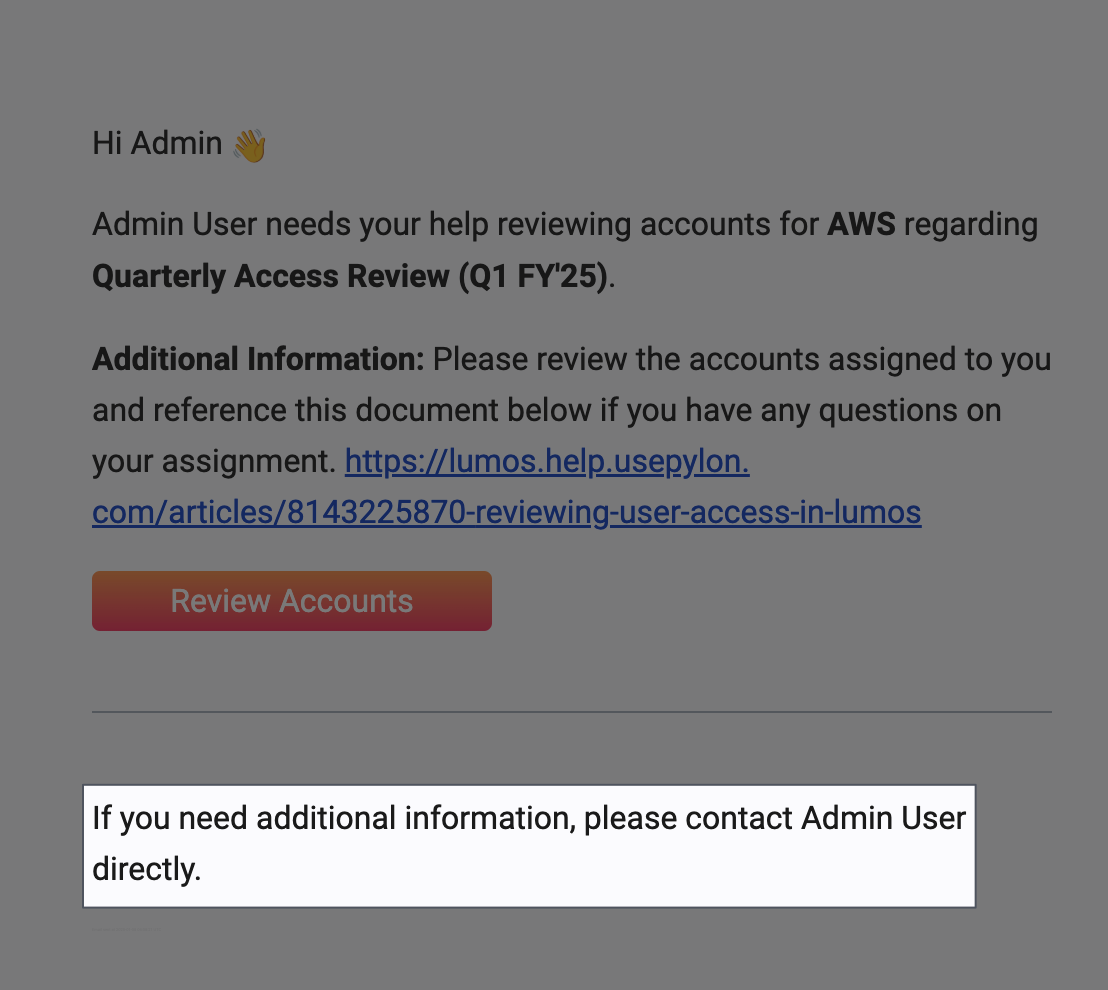
If you got a notification, click the button in it to start your review.
If you need to log in, use your Single Sign On (SSO) login ID or email.
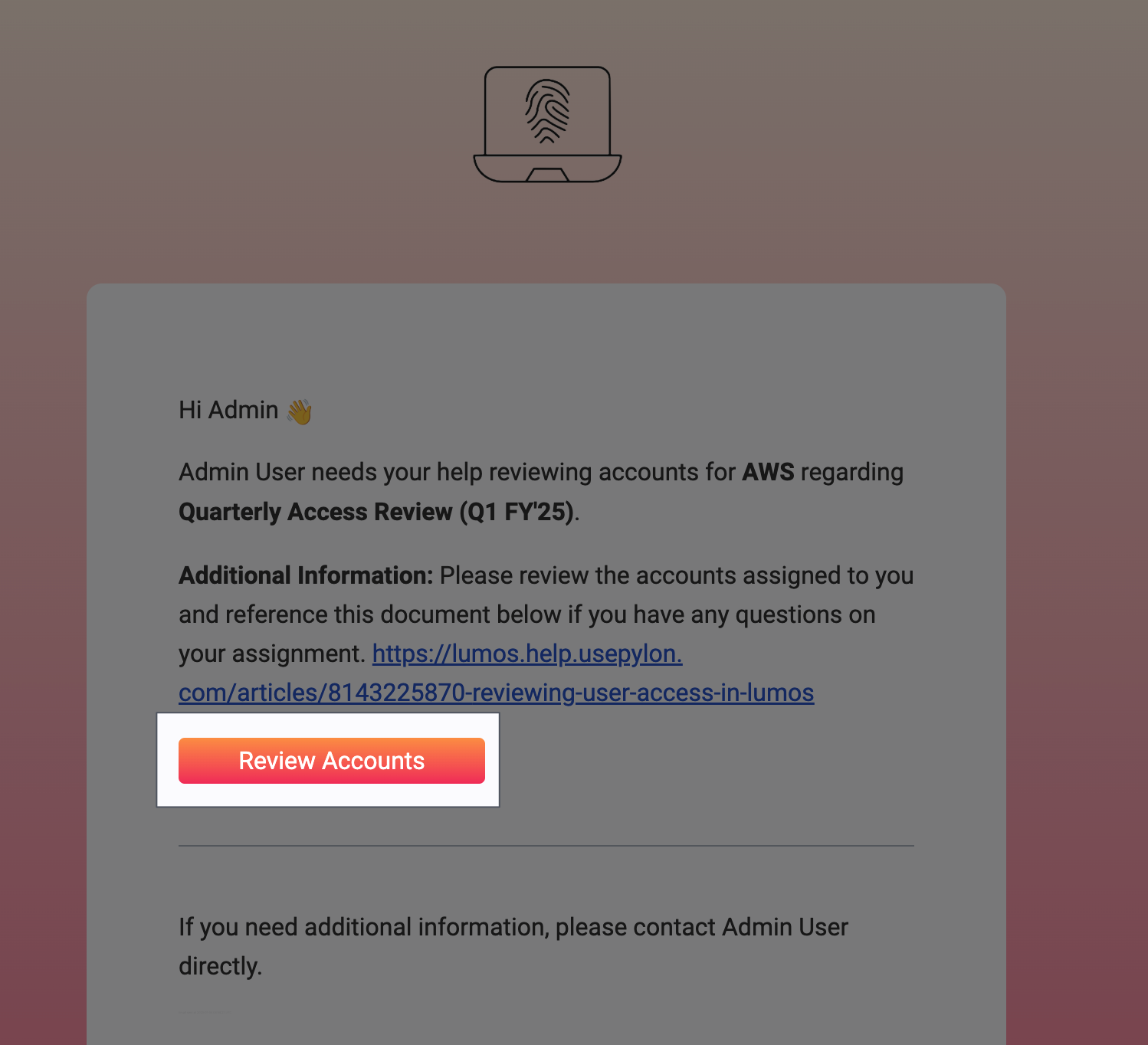 ## 2. Click "**Continue Review" for** an app to start a review
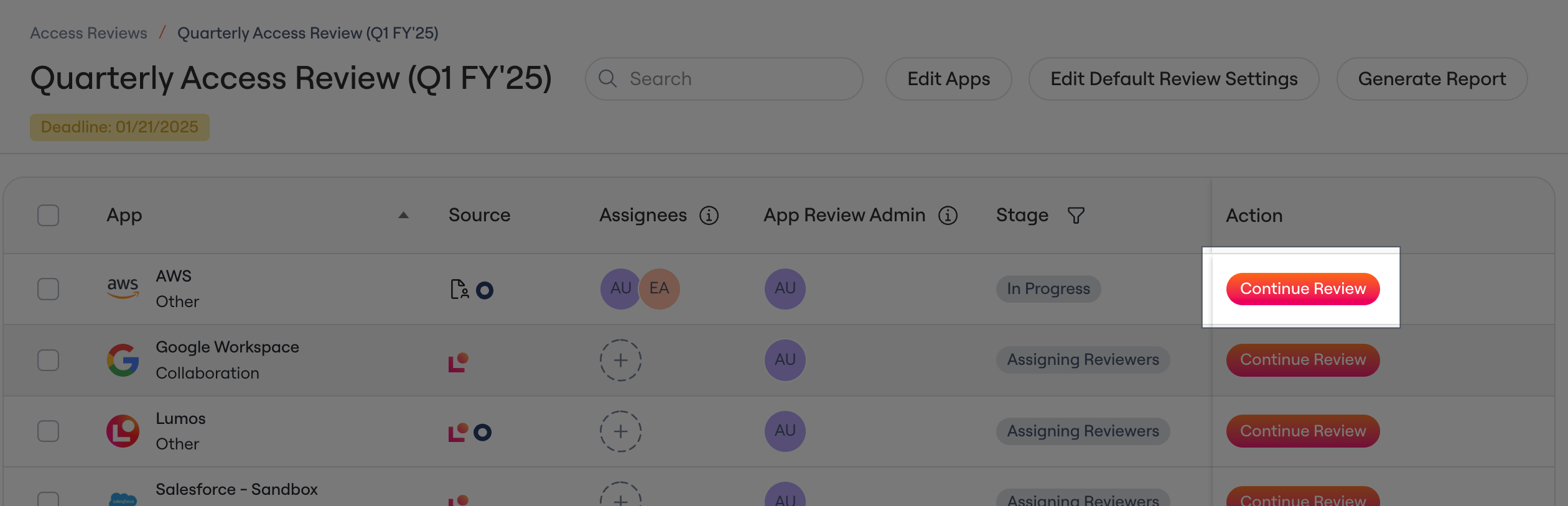 ## 3. Review the line items assigned to you
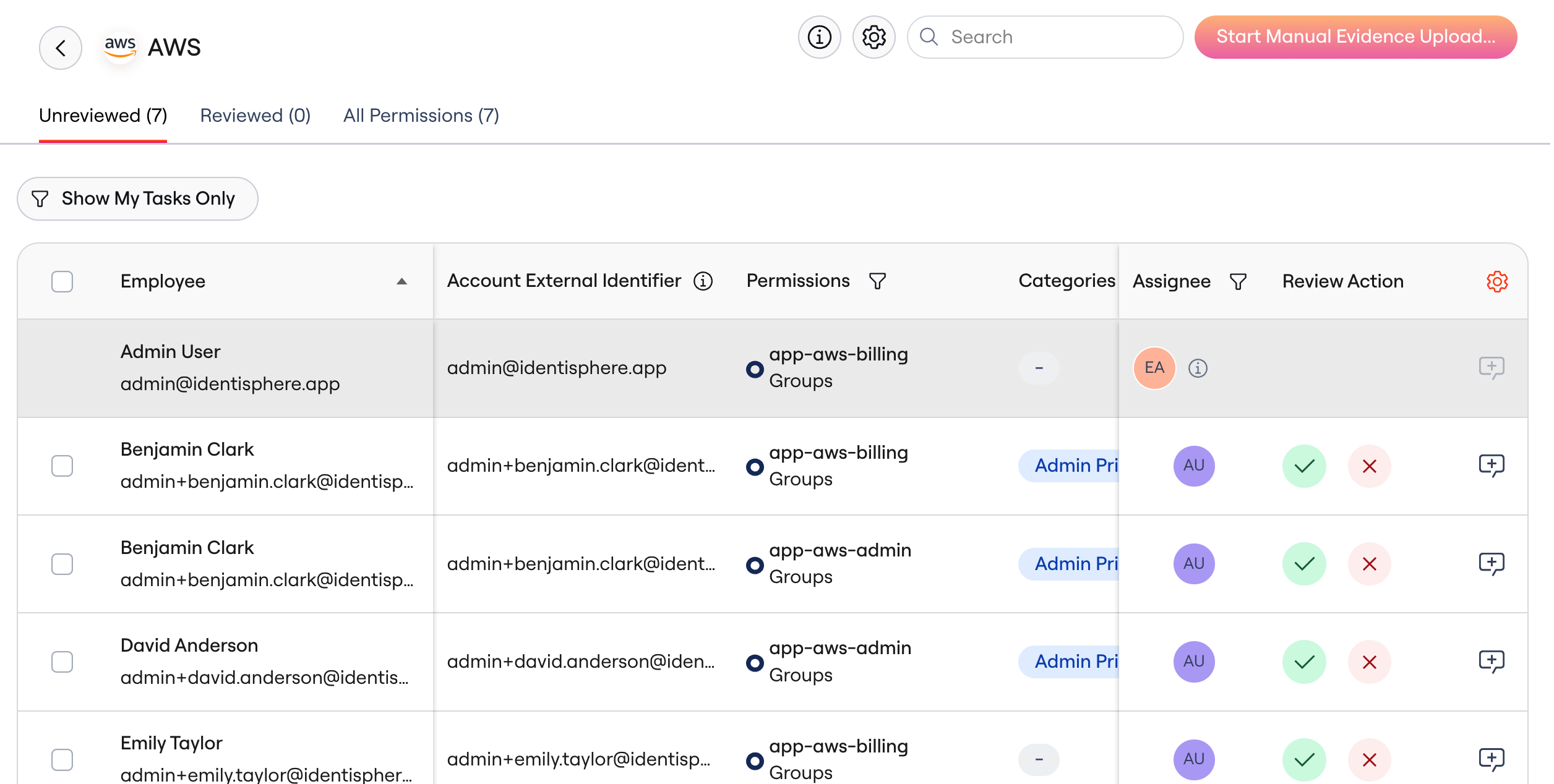 Below are some FAQs you might have about the review process.
How do I see all of the columns in the table?
Scroll to the right to display them.
What am I supposed to be reviewing?
1. **Permissions**: If you see a **Permissions** column in the table, each row represents a specific role or app group to which the employee is assigned. You'll decide whether they should still have it.
Below are some FAQs you might have about the review process.
How do I see all of the columns in the table?
Scroll to the right to display them.
What am I supposed to be reviewing?
1. **Permissions**: If you see a **Permissions** column in the table, each row represents a specific role or app group to which the employee is assigned. You'll decide whether they should still have it.
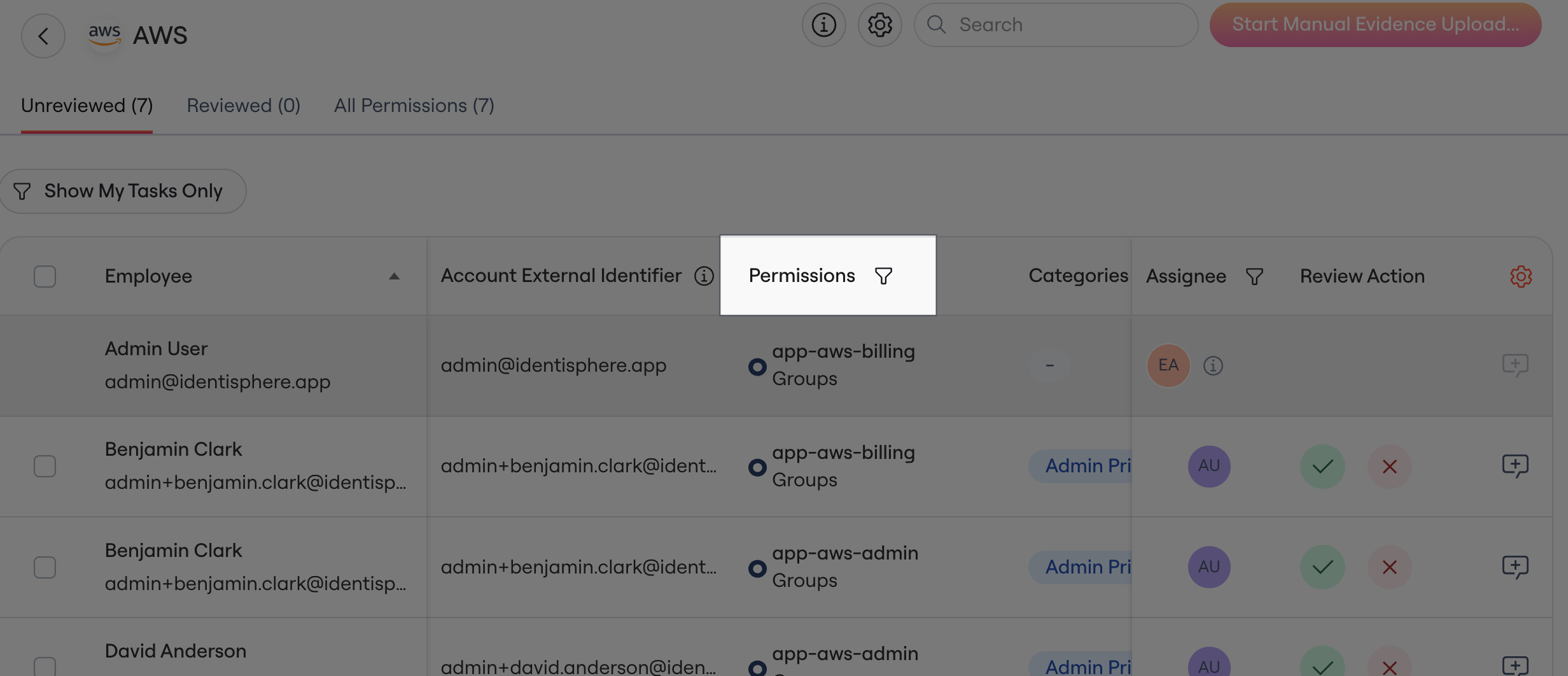 A **Permissions** review is where you're reviewing specific access.
2. **Accounts:** In this case, you're reviewing the employee's access to an app as a whole.
What does each column mean?
The data for each access review can differ by app, but there are some columns that are useful in all reviews.
* **Employment Status**: If the user is still actively working at your company.
* **Last Login**: The last time the employee logged into the app.
* **Groups**: App-specific groups assigned to the user, revealing more insight into their access level and needs.
* **Categories**: More info on the **Categories** column can be found in the FAQ below.
What do the values in the **Categories** column mean?
* **Admin Privileges** - This means the user likely has some kind of "admin" access to the app. Review carefully.
* **Terminated** - The employee is no longer with your company.
* **Service Account** - Lumos detected that the account is a system/service account in the app.
* **Unmatched** - The account isn't linked to an employee. Usually these are guest accounts, system/service accounts, or contractor accounts. Review them carefully.
See [Understanding Categories in the Access Review](/kb/access-reviews/preparing-and-completing-an-access-review/understanding-categories-in-the-access-review) for more details.
What if something shouldn't have been assigned to me?
**Contact the team or employees mentioned in your initial notification.**
A **Permissions** review is where you're reviewing specific access.
2. **Accounts:** In this case, you're reviewing the employee's access to an app as a whole.
What does each column mean?
The data for each access review can differ by app, but there are some columns that are useful in all reviews.
* **Employment Status**: If the user is still actively working at your company.
* **Last Login**: The last time the employee logged into the app.
* **Groups**: App-specific groups assigned to the user, revealing more insight into their access level and needs.
* **Categories**: More info on the **Categories** column can be found in the FAQ below.
What do the values in the **Categories** column mean?
* **Admin Privileges** - This means the user likely has some kind of "admin" access to the app. Review carefully.
* **Terminated** - The employee is no longer with your company.
* **Service Account** - Lumos detected that the account is a system/service account in the app.
* **Unmatched** - The account isn't linked to an employee. Usually these are guest accounts, system/service accounts, or contractor accounts. Review them carefully.
See [Understanding Categories in the Access Review](/kb/access-reviews/preparing-and-completing-an-access-review/understanding-categories-in-the-access-review) for more details.
What if something shouldn't have been assigned to me?
**Contact the team or employees mentioned in your initial notification.**
 ## 4. Approve or reject the accounts assigned to you.
You can approve or reject multiple lines at once. As you review your tasks, use the following workflow:
1. Scan over ***all*** your assigned accounts and click the reject (X) icon in the **Review Action** column if any access should **not** be kept. Don't approve anything yet.
1. Choose **Reject** if their access should be removed completely.
2. Choose **Modify** if the access should be adjusted, not fully-removed.
2. After rejecting any access, select the checkbox in the table's top-left corner, click ***Select All*** for the remaining line items, then click the approve (checkmark) icon in the pop-up to approve the remaining items.
## 4. Approve or reject the accounts assigned to you.
You can approve or reject multiple lines at once. As you review your tasks, use the following workflow:
1. Scan over ***all*** your assigned accounts and click the reject (X) icon in the **Review Action** column if any access should **not** be kept. Don't approve anything yet.
1. Choose **Reject** if their access should be removed completely.
2. Choose **Modify** if the access should be adjusted, not fully-removed.
2. After rejecting any access, select the checkbox in the table's top-left corner, click ***Select All*** for the remaining line items, then click the approve (checkmark) icon in the pop-up to approve the remaining items.
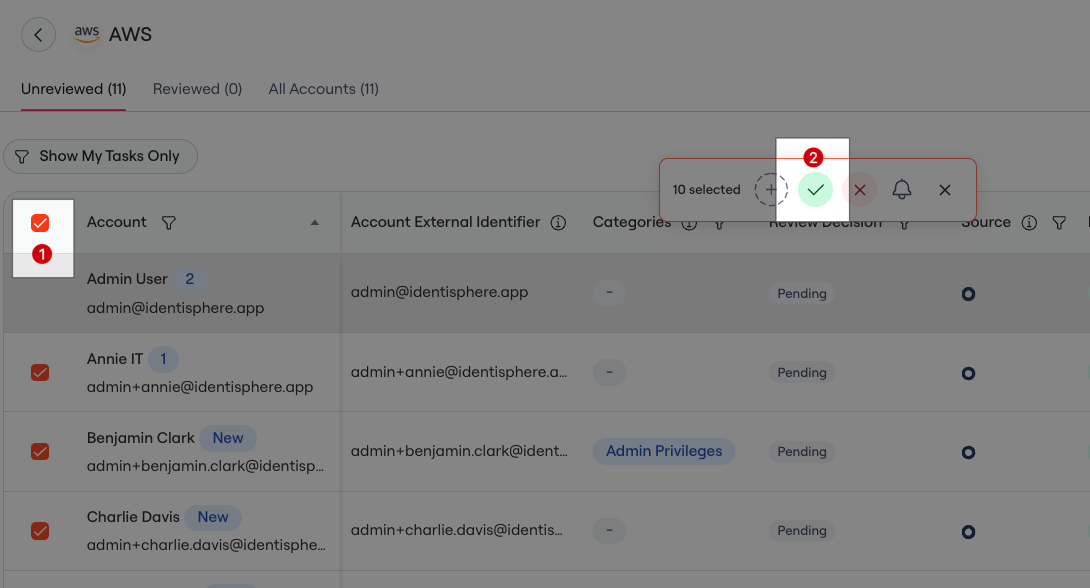 Bulk approve to save yourself time after finishing your rejections
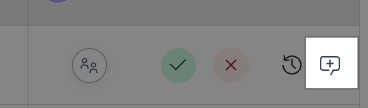
You can also add a note for any line item to add context for auditors.
Bulk approve to save yourself time after finishing your rejections
You can also add a note for any line item to add context for auditors.
 ## 5. Repeat for all your assigned apps
When you finish all your assigned apps, your part of the review is complete.
## 5. Repeat for all your assigned apps
When you finish all your assigned apps, your part of the review is complete.