> ## Documentation Index
> Fetch the complete documentation index at: https://docs.lumos.com/llms.txt
> Use this file to discover all available pages before exploring further.
# Reassigning Reviews as a Review Assignee
## Background
As an admin, you’ve set up your Access Review and assigned reviewers to each account. But sometimes the designated reviewer may be out of office or was assigned by mistake. To ensure flexibility, you want assignees to be able to reassign their reviews - whether to their manager, another appropriate teammate, or the review admins.
## Steps
### 1. Enable Assignees to re-assign their Reviews
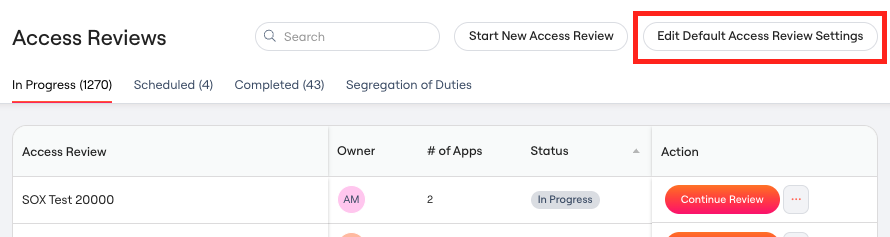
Navigate to the main Access Reviews page to Edit Default Access Review Settings
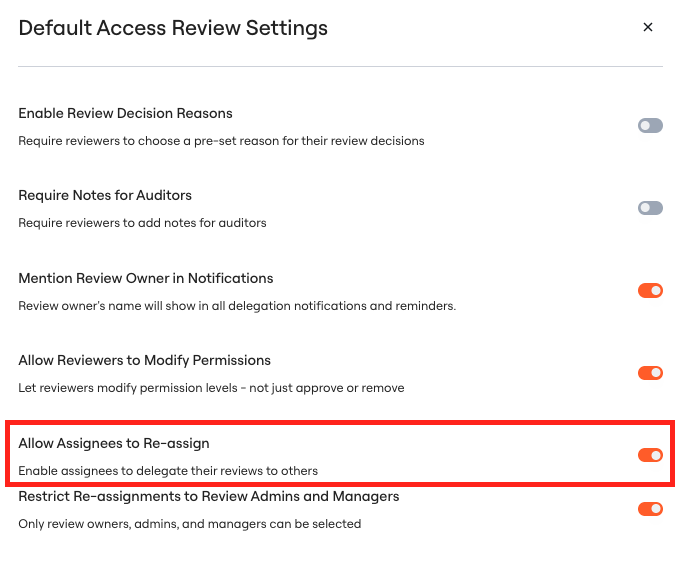
 Toggle the setting to Allow Assignees to Re-assign their Reviews
 ### 2. Restrict re-assignments to Admins and Managers
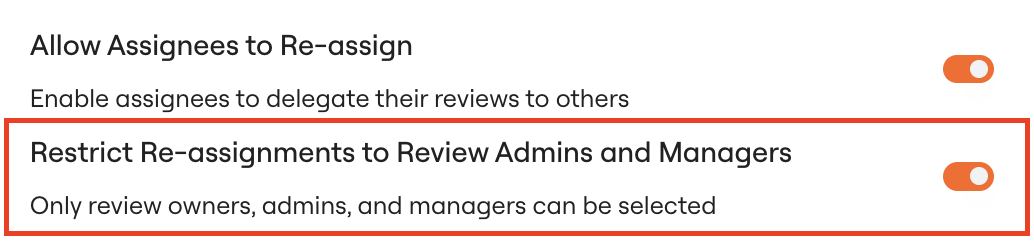
You may want the reviewer to only re-assign the review to the individuals or groups of people who have the context to make the right decisions around access. By enabling this sub-setting, you will limit re-assignments to the following:
* Access Reviews Admin(s): Owner(s) of the Access Review overall
* App Review Admin(s): Review Access Admin(s) of that specific App being reviewed
* Reviewer's Manager(s): Manager of the current assignee
### 2. Restrict re-assignments to Admins and Managers
You may want the reviewer to only re-assign the review to the individuals or groups of people who have the context to make the right decisions around access. By enabling this sub-setting, you will limit re-assignments to the following:
* Access Reviews Admin(s): Owner(s) of the Access Review overall
* App Review Admin(s): Review Access Admin(s) of that specific App being reviewed
* Reviewer's Manager(s): Manager of the current assignee
 Finish [Choosing Access Review Apps](/kb/access-reviews/preparing-and-completing-an-access-review/choosing-access-review-apps), [Choosing Account or Permission Access Reviews](/kb/access-reviews/preparing-and-completing-an-access-review/choosing-account-or-permission-access-reviews), [Assigning Reviewers and Launching Your Access Review](/kb/access-reviews/preparing-and-completing-an-access-review/assigning-reviewers-and-launching-your-access-review)
### 3. Re-assigning Reviews
Within each App, the Assignee can view their Review assignments
For each Account/Permission Review, Assignee can **click** on their name to see their re-assignment options
Finish [Choosing Access Review Apps](/kb/access-reviews/preparing-and-completing-an-access-review/choosing-access-review-apps), [Choosing Account or Permission Access Reviews](/kb/access-reviews/preparing-and-completing-an-access-review/choosing-account-or-permission-access-reviews), [Assigning Reviewers and Launching Your Access Review](/kb/access-reviews/preparing-and-completing-an-access-review/assigning-reviewers-and-launching-your-access-review)
### 3. Re-assigning Reviews
Within each App, the Assignee can view their Review assignments
For each Account/Permission Review, Assignee can **click** on their name to see their re-assignment options
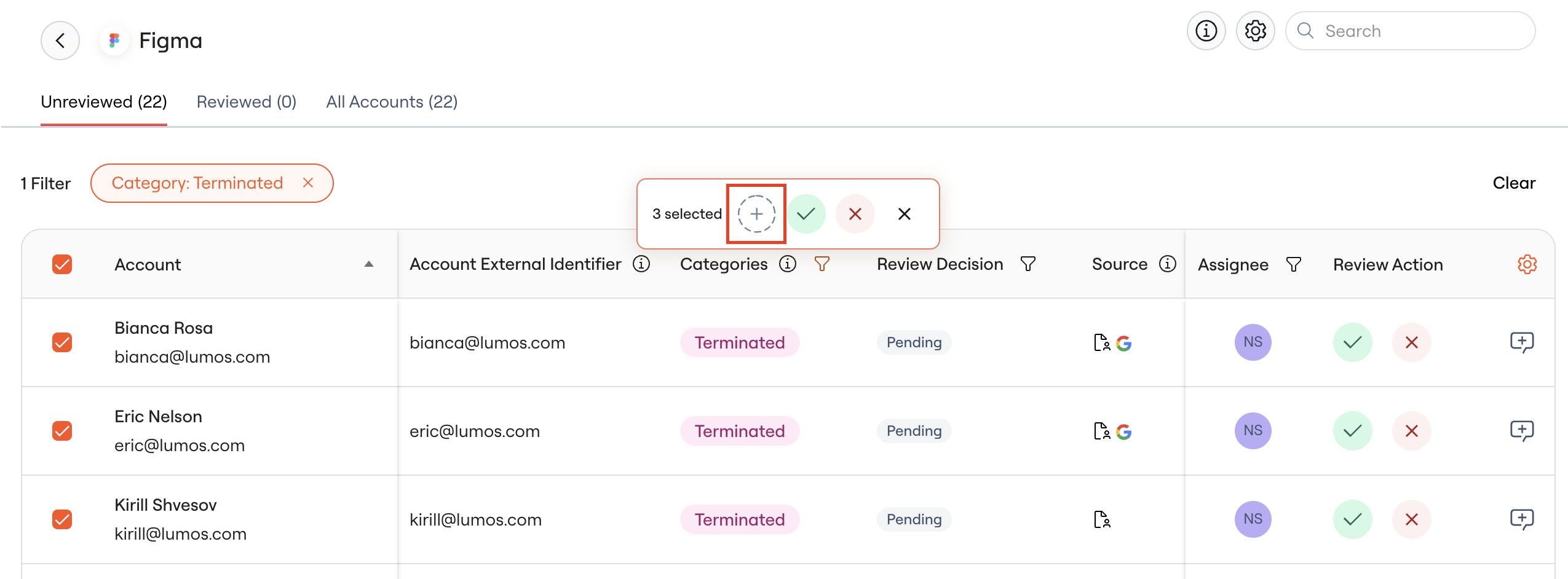
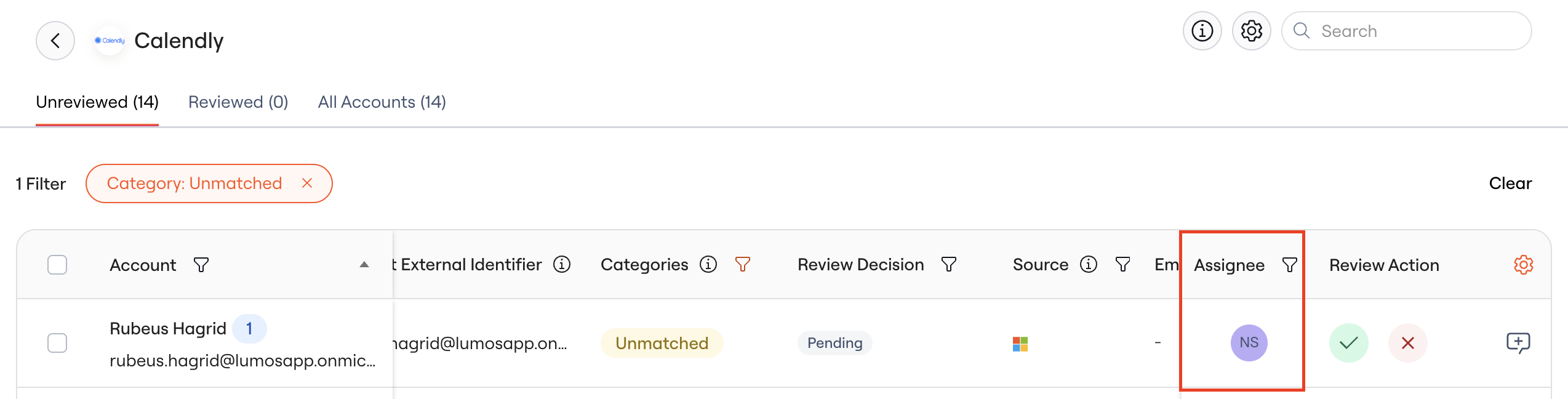 Assignees can also re-assign in bulk. They can select the Accounts/Permissions they want to re-assign, and **click on +** to re-assign them in bulk.
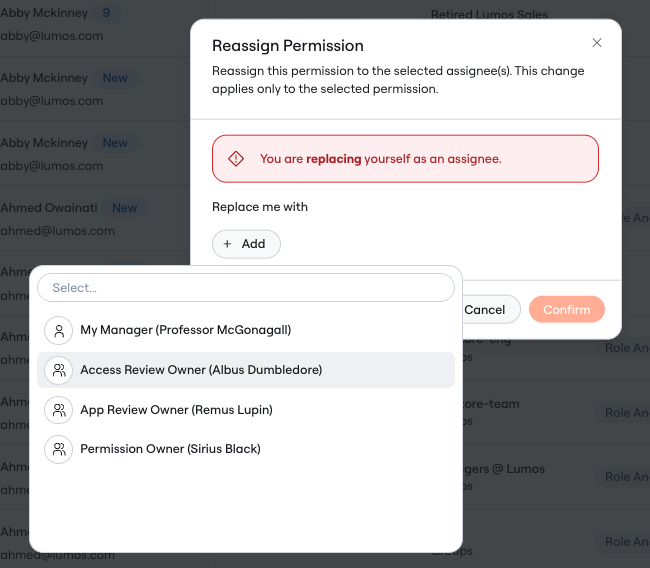
 Assignee can click **Add** to look for one or more replacement(s). Assignee can re-assign to an individual, many individuals, and/or a defined group.
* If "Assignees can only re-assigns to Admins and Managers" is enabled, the list will only include them as Assignee options
Assignee can click **Add** to look for one or more replacement(s). Assignee can re-assign to an individual, many individuals, and/or a defined group.
* If "Assignees can only re-assigns to Admins and Managers" is enabled, the list will only include them as Assignee options
 Assignees can **confirm** their selections.
* Once confirmed, assignees will no longer see or be able to review the accounts/permissions that they re-assigned. The new assignee(s) will be able to view and review those accounts/permissions.
* New assignees will be notified of their review assignments via your configured channels [Access Review Notifications](/kb/access-reviews/preparing-and-completing-an-access-review/access-review-notifications)
### 4. View Re-assignments in the Activity Log
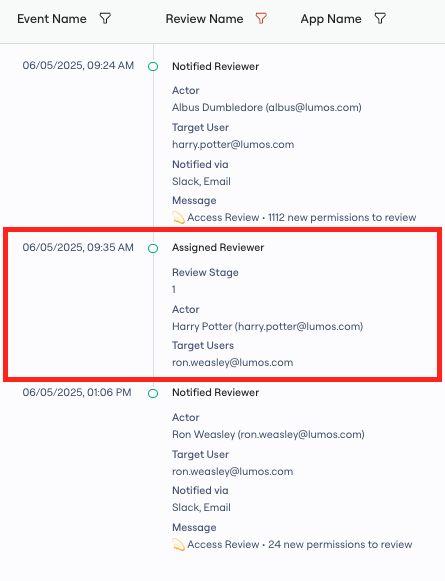
**Navigate** to your Access Review in the Activity Log. Here you can see the Harry Potter (the original assignee) re-assigned their review to Ron Weasley.
Assignees can **confirm** their selections.
* Once confirmed, assignees will no longer see or be able to review the accounts/permissions that they re-assigned. The new assignee(s) will be able to view and review those accounts/permissions.
* New assignees will be notified of their review assignments via your configured channels [Access Review Notifications](/kb/access-reviews/preparing-and-completing-an-access-review/access-review-notifications)
### 4. View Re-assignments in the Activity Log
**Navigate** to your Access Review in the Activity Log. Here you can see the Harry Potter (the original assignee) re-assigned their review to Ron Weasley.
 ### 5. Complete your Access Reviews
See [Completing an Access Review](/kb/quick_start_guide/access_reviews/access_reviews_for_new_to_access_reviews_employees/completing-an-access-review), once all reviews are done.
### 5. Complete your Access Reviews
See [Completing an Access Review](/kb/quick_start_guide/access_reviews/access_reviews_for_new_to_access_reviews_employees/completing-an-access-review), once all reviews are done.