> ## Documentation Index
> Fetch the complete documentation index at: https://docs.lumos.com/llms.txt
> Use this file to discover all available pages before exploring further.
# Editing Access Review App Settings
## Background
You've added apps to your access review (*see[Choosing Access Review Apps](/kb/access-reviews/preparing-and-completing-an-access-review/choosing-access-review-apps)*). This article shows you how to review and configure the settings for each app.
When you're done, assign the Reviewers. *See[Assigning Reviewers and Launching Your Access Review](/kb/access-reviews/preparing-and-completing-an-access-review/assigning-reviewers-and-launching-your-access-review)*
If you want to edit the access review as a whole, not just a specific app, see [Editing Access Review App Settings](/kb/access-reviews/preparing-and-completing-an-access-review/editing-access-review-app-settings)
## App Review Admin
If you need to edit the App Review Admin for an app, follow the steps below.
**1. Click "Edit Apps".**
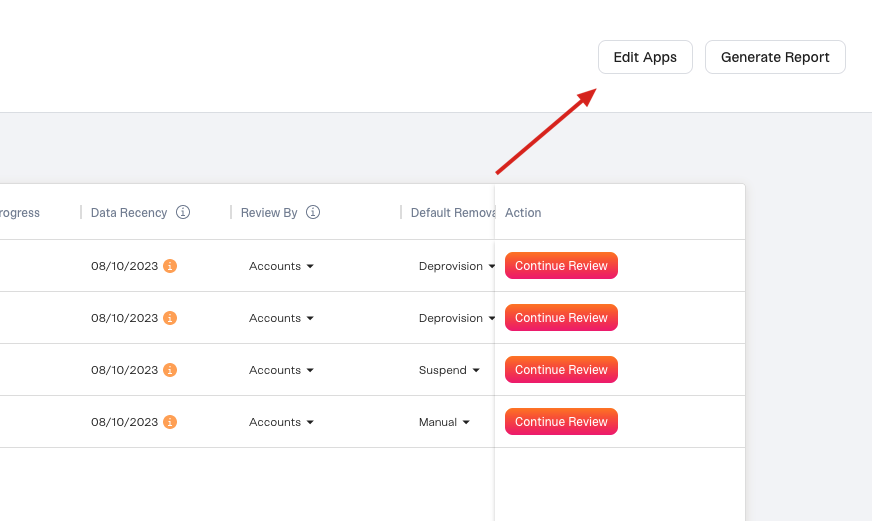 **2. Click the initial in the "Reviewer" column and change the employee.**
**3. Click "Save Changes".**
## Review By
**2. Click the initial in the "Reviewer" column and change the employee.**
**3. Click "Save Changes".**
## Review By
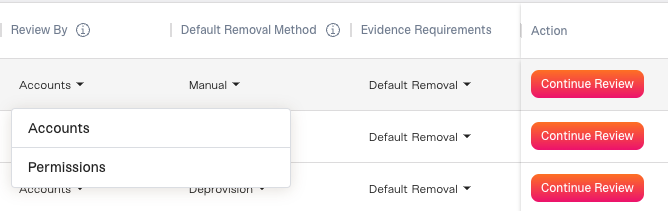 You have two options here, **Accounts** or **Permissions**. You can find in-depth guidance on which one to choose here:[Choosing Account or Permission Access Reviews](/kb/access-reviews/preparing-and-completing-an-access-review/choosing-account-or-permission-access-reviews)
## Default Removal Method
You have two options here, **Accounts** or **Permissions**. You can find in-depth guidance on which one to choose here:[Choosing Account or Permission Access Reviews](/kb/access-reviews/preparing-and-completing-an-access-review/choosing-account-or-permission-access-reviews)
## Default Removal Method
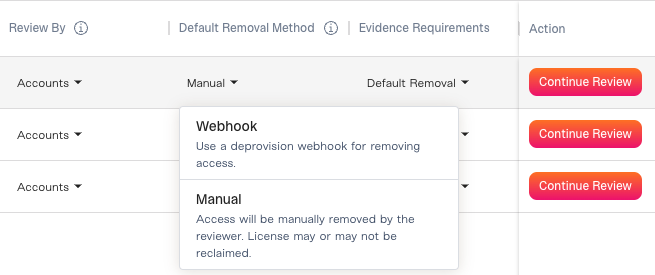 For each app in your review, you can set a default removal method.
This will determine the type of automated removal that runs on your rejected accounts, if any. A description of the options are below.
* **Suspend:** Suspends rejected accounts. Only available for supported integrations.
* **Deprovision:** The action taken here is dependent on the integration. Only available for supported integrations.
* **Webhook:** You can run a webhook for each rejected account, which can automatically remove access. *See [Extending Lumos With Webhooks](/kb/integrations-3/webhooks/extending-lumos-with-webhooks)*
* **Manual:** This presumes that someone will manually remove rejected access outside of Lumos and upload evidence of removal into Lumos after completion.
Depending on the source(s) of your app, you may not see all the options. At minimum, you'll always see **Manual** and **Webhook**.
## Evidence Requirements
For each app in your review, you can set a default removal method.
This will determine the type of automated removal that runs on your rejected accounts, if any. A description of the options are below.
* **Suspend:** Suspends rejected accounts. Only available for supported integrations.
* **Deprovision:** The action taken here is dependent on the integration. Only available for supported integrations.
* **Webhook:** You can run a webhook for each rejected account, which can automatically remove access. *See [Extending Lumos With Webhooks](/kb/integrations-3/webhooks/extending-lumos-with-webhooks)*
* **Manual:** This presumes that someone will manually remove rejected access outside of Lumos and upload evidence of removal into Lumos after completion.
Depending on the source(s) of your app, you may not see all the options. At minimum, you'll always see **Manual** and **Webhook**.
## Evidence Requirements
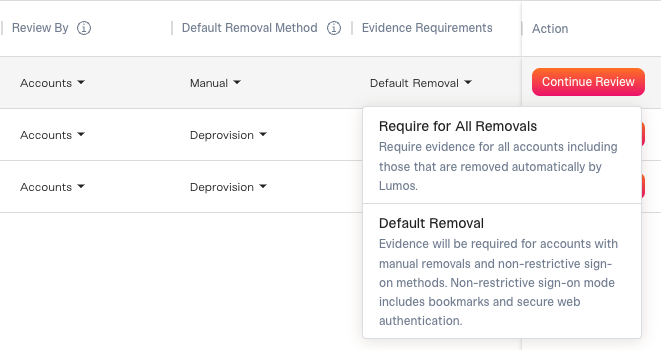 Depending on how you run access reviews at your company, you may want to require evidence to be uploaded even after Lumos has automatically removed the access (via **Suspend**, **Deprovision**, or **Webhook** options). If this is the case, choose **Require for All Removals**.
If you choose **Default Removal**, it's assumed that Lumos removing access post-review and including this evidence in the audit report is sufficient for your auditors.
Depending on how you run access reviews at your company, you may want to require evidence to be uploaded even after Lumos has automatically removed the access (via **Suspend**, **Deprovision**, or **Webhook** options). If this is the case, choose **Require for All Removals**.
If you choose **Default Removal**, it's assumed that Lumos removing access post-review and including this evidence in the audit report is sufficient for your auditors.