> ## Documentation Index
> Fetch the complete documentation index at: https://docs.lumos.com/llms.txt
> Use this file to discover all available pages before exploring further.
# Creating a New Access Review
## Background
This article shows you how to create a new Access Review. It's the first in a series that covers launching your first Access Review.
## Creating a new review from scratch
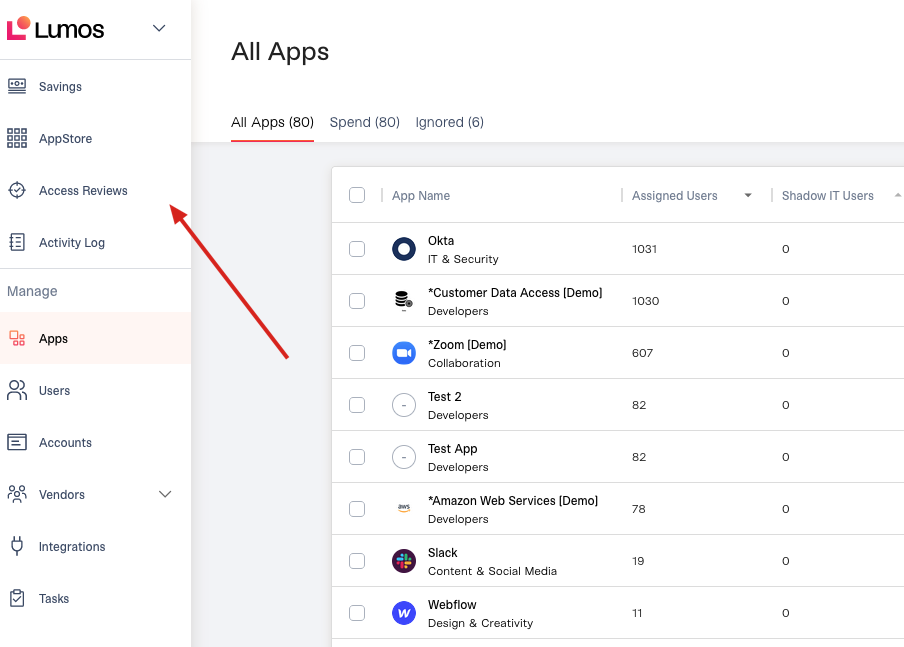
**1. Click on the** [***Access Reviews* tab**](https://app.lumosidentity.com/access_reviews) **from the Lumos admin panel.**
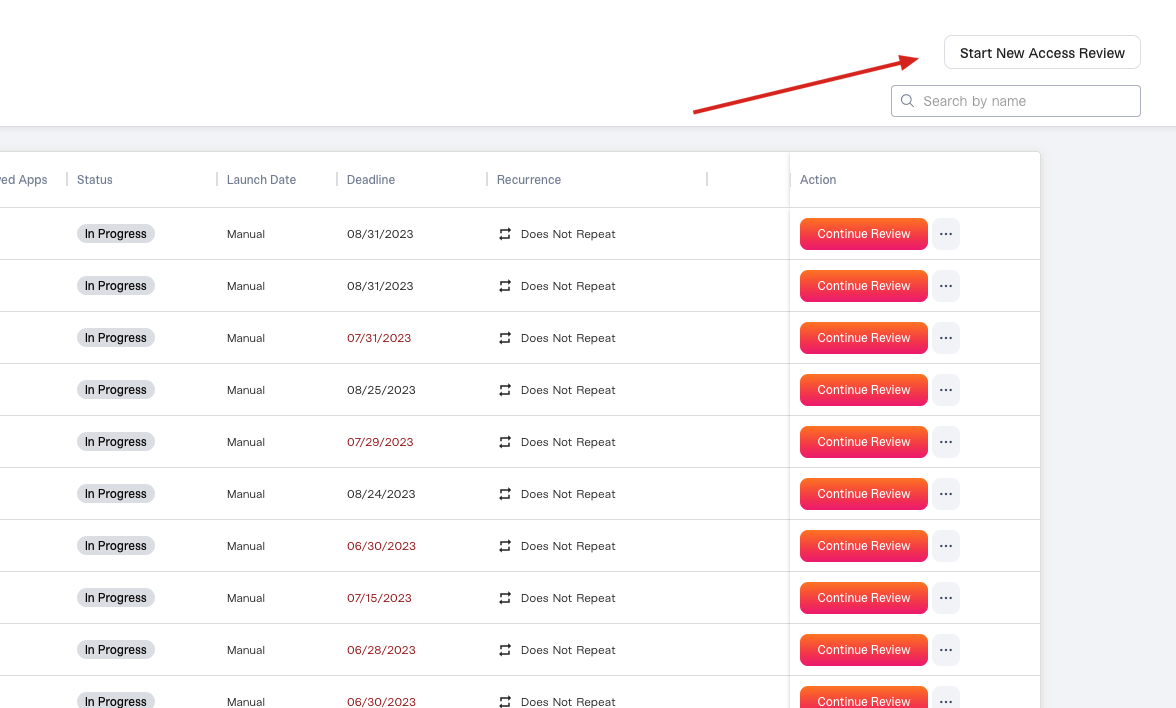
 **2. Click the "Start New Access Review" button.**
 **3. Specify the review details.**
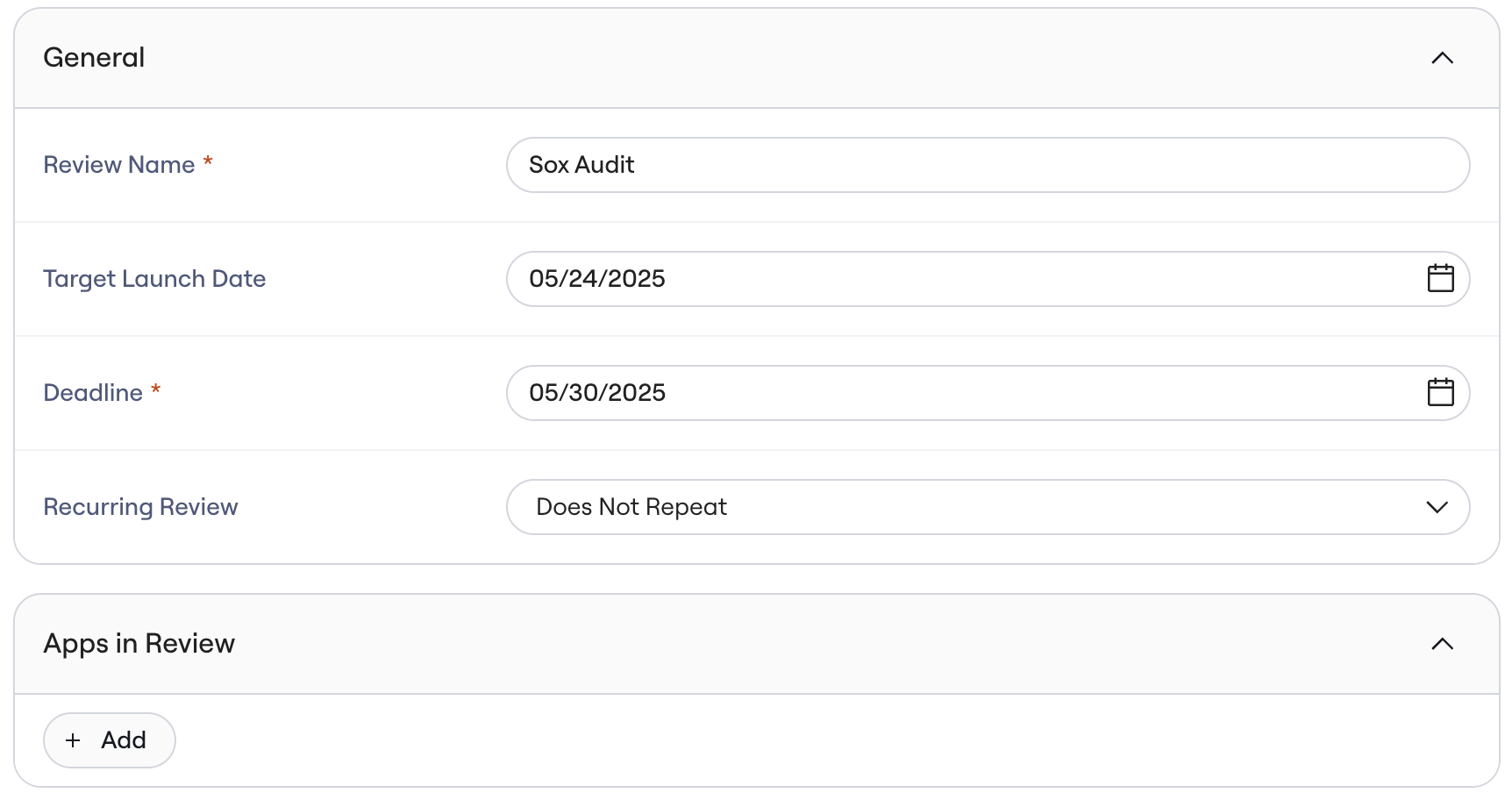 Use the info below to guide your decisions.
* Name
The name of the access review. This is what reviewers will see when they're invited to participate, so use something helpful (e.g. "SOX Access Review").
Names must be unique. If your company already created an access review with the same name, you'll need to rename one of them.
* Target Launch Date
Use this if you want the review to begin on a specific date. Learn more about scheduling reviews here: [Scheduling an Access Review](/kb/access-reviews/preparing-and-completing-an-access-review/scheduling-an-access-review)
* Deadline
The date on which reviewers need to finish their review assignments.
Setting the deadline determines when Lumos should send reminders to reviewers. See [Access Review Notifications](/kb/access-reviews/preparing-and-completing-an-access-review/access-review-notifications)
* Recurring Review
If you choose "Pick a Date" for *Launch Date*, you have the option to make the review recur on a regular cadence. Choose the option that matches how often you want the review to recur.
If you make a review recurring, the launch date for the next review will be the recurrence period + the launch date for this review. Learn more about recurring reviews here: [Scheduling an Access Review](/kb/access-reviews/preparing-and-completing-an-access-review/scheduling-an-access-review)
**Example**: If your *Launch Date* is January 1st and you choose "Every 90 Days", the launch date for the next review will be automatically set to January 1st + 90 days.
**4. See** [Choosing Access Review Apps](/kb/access-reviews/preparing-and-completing-an-access-review/choosing-access-review-apps)**to begin adding apps to your review.**
## Duplicating a previous review
If you want to create a new access review from one you've already done (and want to save yourself a TON of time and clicks) go here to learn more:[Duplicating an Access Review](/kb/access-reviews/preparing-and-completing-an-access-review/duplicating-an-access-review)
Use the info below to guide your decisions.
* Name
The name of the access review. This is what reviewers will see when they're invited to participate, so use something helpful (e.g. "SOX Access Review").
Names must be unique. If your company already created an access review with the same name, you'll need to rename one of them.
* Target Launch Date
Use this if you want the review to begin on a specific date. Learn more about scheduling reviews here: [Scheduling an Access Review](/kb/access-reviews/preparing-and-completing-an-access-review/scheduling-an-access-review)
* Deadline
The date on which reviewers need to finish their review assignments.
Setting the deadline determines when Lumos should send reminders to reviewers. See [Access Review Notifications](/kb/access-reviews/preparing-and-completing-an-access-review/access-review-notifications)
* Recurring Review
If you choose "Pick a Date" for *Launch Date*, you have the option to make the review recur on a regular cadence. Choose the option that matches how often you want the review to recur.
If you make a review recurring, the launch date for the next review will be the recurrence period + the launch date for this review. Learn more about recurring reviews here: [Scheduling an Access Review](/kb/access-reviews/preparing-and-completing-an-access-review/scheduling-an-access-review)
**Example**: If your *Launch Date* is January 1st and you choose "Every 90 Days", the launch date for the next review will be automatically set to January 1st + 90 days.
**4. See** [Choosing Access Review Apps](/kb/access-reviews/preparing-and-completing-an-access-review/choosing-access-review-apps)**to begin adding apps to your review.**
## Duplicating a previous review
If you want to create a new access review from one you've already done (and want to save yourself a TON of time and clicks) go here to learn more:[Duplicating an Access Review](/kb/access-reviews/preparing-and-completing-an-access-review/duplicating-an-access-review)