> ## Documentation Index
> Fetch the complete documentation index at: https://docs.lumos.com/llms.txt
> Use this file to discover all available pages before exploring further.
# Configuring Views for Reviewers in Access Reviews (Permission-based Reviews only)
## Background
Reviewers in an access review don't always know what data matters most to a decision. When the table shows some column by default and hides some others, the noise can hide the appropriate signals of which entitlement is risky, who last logged in, what the AI Insights say. The result is slower reviews and less confident decisions.
As an admin, you have the context reviewers don't. With **admin-configured table views**, you can curate the columns reviewers see by default for each app, so every reviewer in your organization starts from the same focused, decision-ready view.
Configuring views for reviewers lets you:
* **Cut down on noise.** Hide columns that aren't relevant to the decision (e.g., system identifiers, fields used elsewhere in Lumos but not in reviews).
* **Surface what matters.** Lead with the columns reviewers actually rely on, such as **AI Review Insights**, **Last Login**, or **Manager**.
* **Standardize the reviewer experience.** Every reviewer working on a given app sees the same default columns in the same order, across every campaign.
* **Stay flexible.** Reviewers can still tailor their own view if they want to, and reset back to your default at any time.
## Who can configure views
The people who can configure views are:
* People who have the **Manage** permission for Access Reviews through a custom role
* **Campaign owners** can configure views for any access review app within campaigns they own
* **App Review Admins** can configure views for the access review apps they own
Ordinary reviewers (users who are not owners or admins) won't see the Columns button at all once this is fully rolled out.
## How to configure a view
### 1. Open the access review and select the app
From **Access Reviews**, open the campaign and select the app whose view you want to configure.
### 2. Open the **Columns** menu
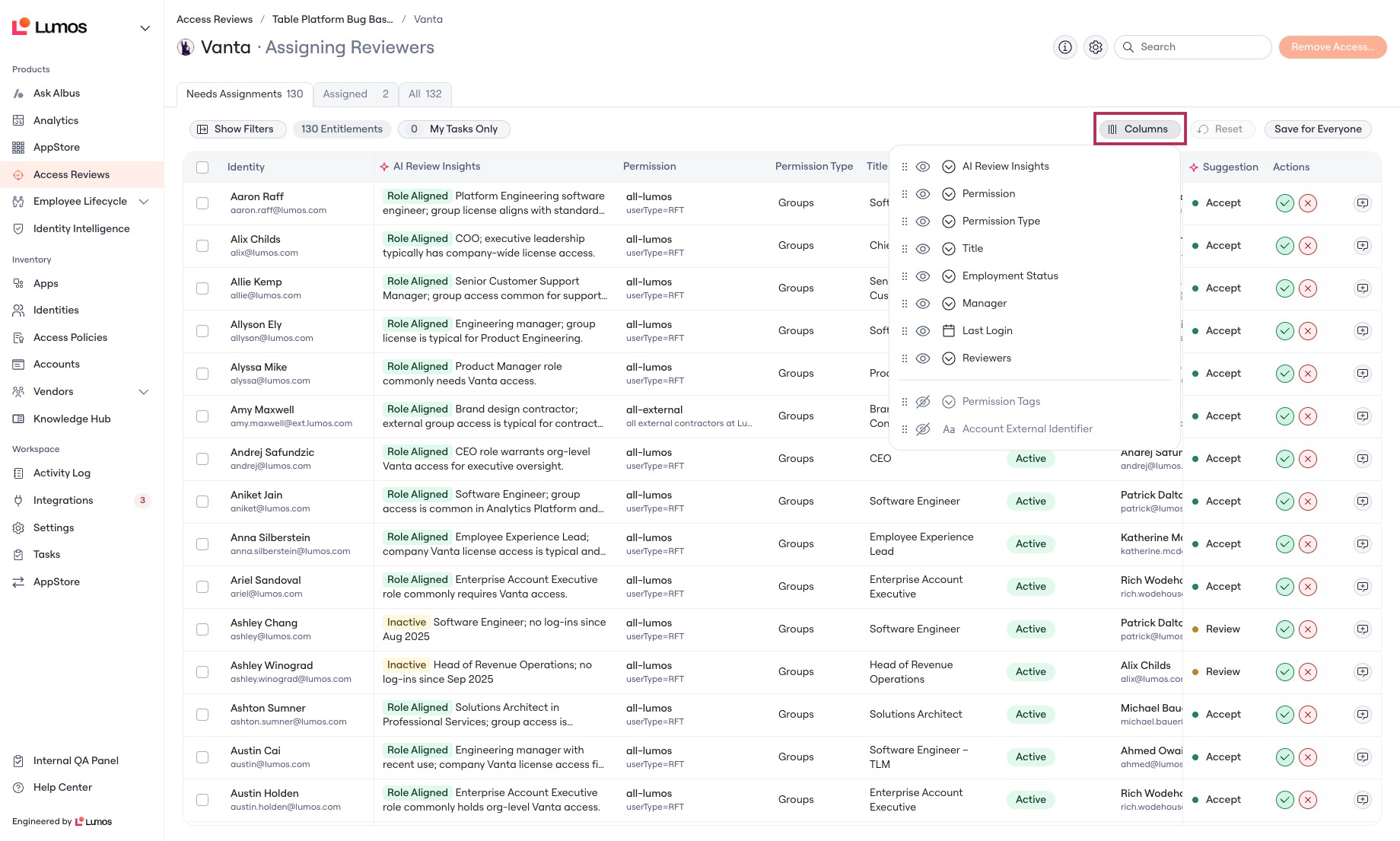
In the top right of the entitlements table, click **Columns**. You'll see the full list of available columns with toggles for visibility, and handles to drag and reorder them.
 ### 3. Show, hide, and reorder columns
**Show/Hide** columns to show data that's most relevant to the Review decision and hide everything else.
### 3. Show, hide, and reorder columns
**Show/Hide** columns to show data that's most relevant to the Review decision and hide everything else.
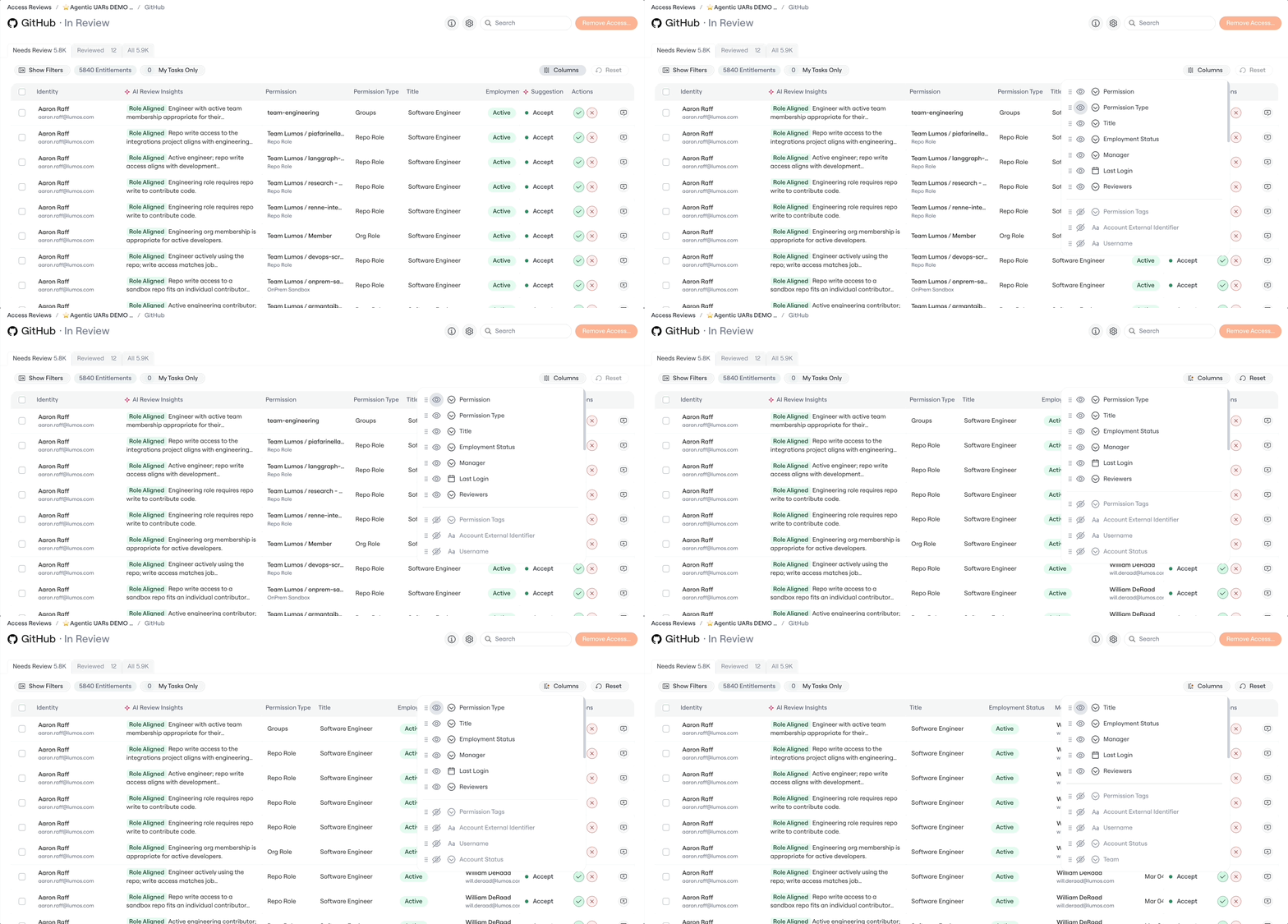 **Drag** columns up or down in the **Columns** into the order you want reviewers to see.
 ### 4. Click **Save for Everyone**
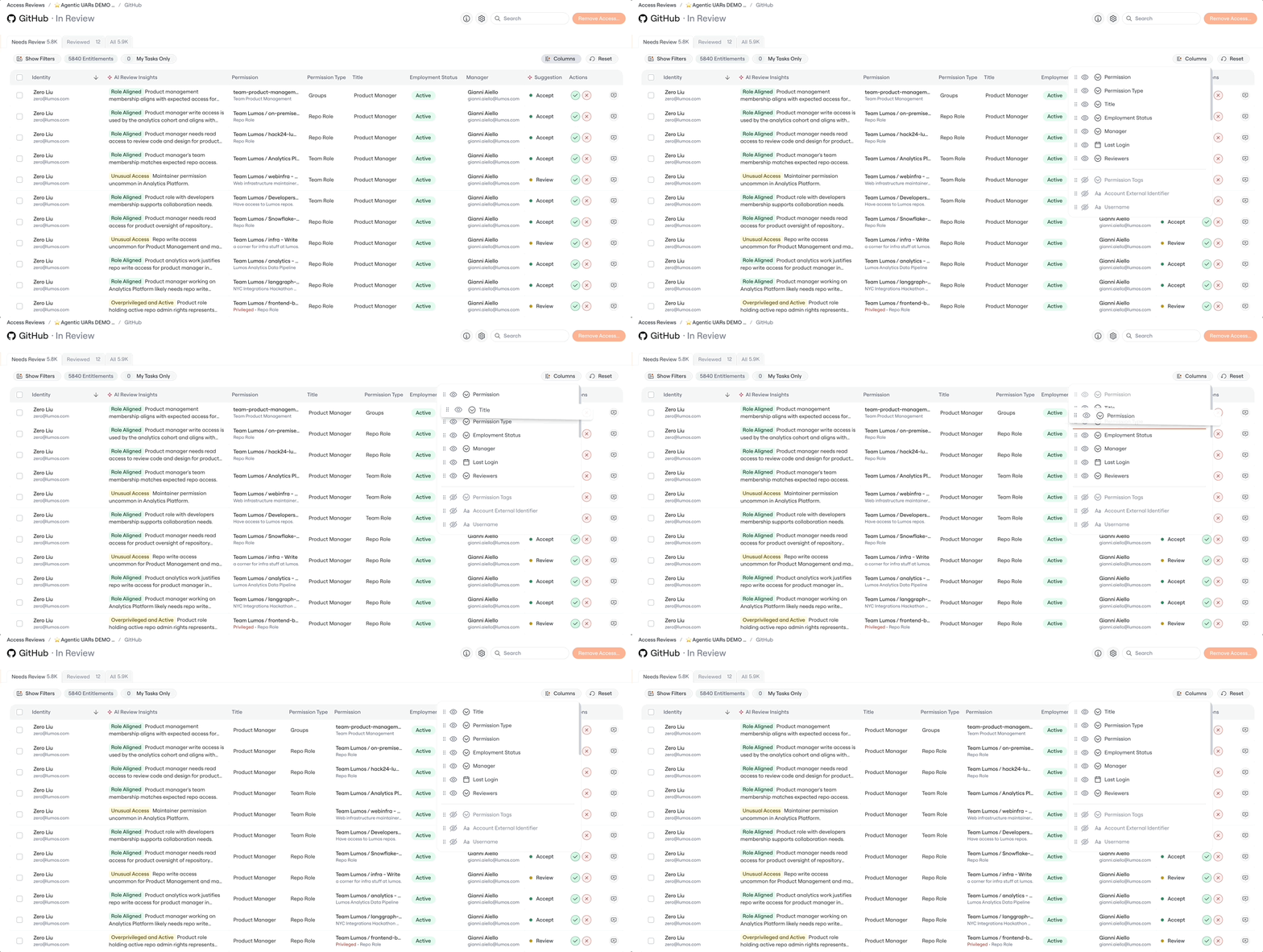
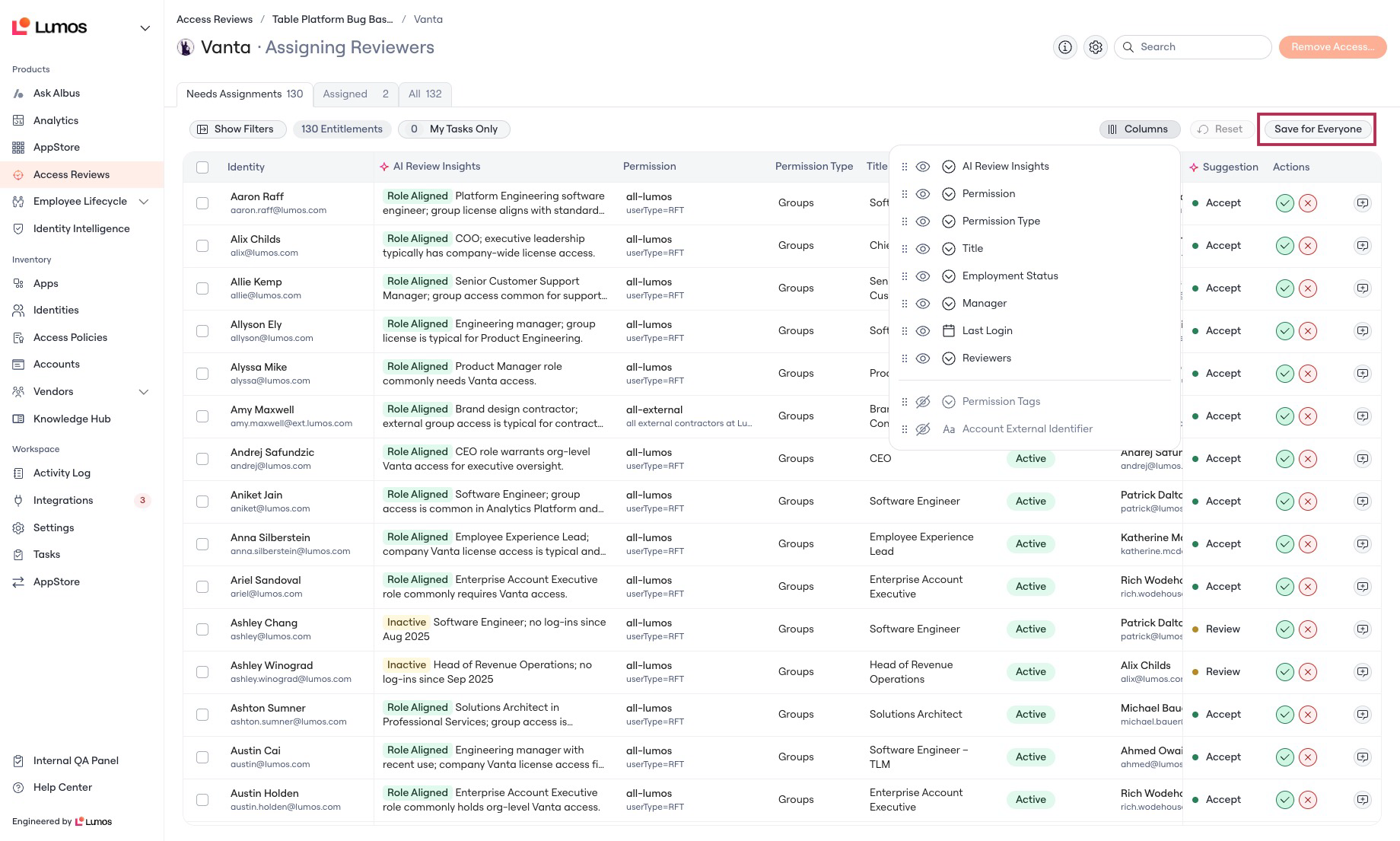
Hit **Save for Everyone** to persist this configuration as the default view for every reviewer working on this app.
If you make changes but don't click Save, nothing is pushed to other reviewers, just to your local view.
### 4. Click **Save for Everyone**
Hit **Save for Everyone** to persist this configuration as the default view for every reviewer working on this app.
If you make changes but don't click Save, nothing is pushed to other reviewers, just to your local view.
 ### 5. Use **Reset** to undo local changes
If you've been experimenting and want to return to the currently saved default, click **Reset**.
## What gets saved (and what doesn't)
* **Saved on click:** column visibility and column order.
* **Not saved:** filters and sorts. Filters and sorts stay local to whoever applied them.
## Where the saved view applies
Admin-configured views are persisted **per app**, not per campaign. That means:
* The saved view applies to **every review of that app**, across past, current, and future campaigns.
* The saved view applies across **all stages** of the review (Assigning Reviewers, Reviewing, etc.) and **all tabs** within a stage (Needs Assignments, Assigned, All).
* When a review transitions to the next stage, that stage uses the column configuration from the previous stage as its starting point.
This means you only have to configure each app's view once. Lumos will use it everywhere that app shows up in a review.
## How reviewers experience the view
Reviewers open the app and see the default view you configured. They can still:
* Show or hide columns locally for their own session.
* Reorder columns locally for their own session.
* Apply filters and sorts as they work.
* Click **Reset** at any time to return to the admin-configured default.
A reviewer's local changes never affect other reviewers, and local changes are cleared after the review is complete.
## Common Questions
### Can admins configure their view without impacting everyone?
Yes. Local changes only become the default for everyone when you click **Save for Everyone**. Toggling and reordering on their own do not cascade.
### What stages and states does the admin-configured view apply to?
All stages of the review (assigning, reviewing, etc.) and all tabs within those stages.
### When can an admin configure views for reviewers?
Anytime before the review is marked Complete.
### Can a reviewer still configure their own view after an admin has configured it?
Yes, for now. Reviewers can show, hide, and reorder columns for themselves. Local changes don't affect other reviewers, and they can hit **Reset** to return to the admin-configured default.
### Will Lumos restrict reviewers' ability to change their view once an admin has configured it?
Not yet.
### Does saving a view affect filters and sorts?
No. Only column visibility and column order are saved. Filters and sorts remain local to each user.
### Does the saved view apply to past campaigns or only future ones?
It applies to every review of that app in that stage, across past, current, and future campaigns.
### 5. Use **Reset** to undo local changes
If you've been experimenting and want to return to the currently saved default, click **Reset**.
## What gets saved (and what doesn't)
* **Saved on click:** column visibility and column order.
* **Not saved:** filters and sorts. Filters and sorts stay local to whoever applied them.
## Where the saved view applies
Admin-configured views are persisted **per app**, not per campaign. That means:
* The saved view applies to **every review of that app**, across past, current, and future campaigns.
* The saved view applies across **all stages** of the review (Assigning Reviewers, Reviewing, etc.) and **all tabs** within a stage (Needs Assignments, Assigned, All).
* When a review transitions to the next stage, that stage uses the column configuration from the previous stage as its starting point.
This means you only have to configure each app's view once. Lumos will use it everywhere that app shows up in a review.
## How reviewers experience the view
Reviewers open the app and see the default view you configured. They can still:
* Show or hide columns locally for their own session.
* Reorder columns locally for their own session.
* Apply filters and sorts as they work.
* Click **Reset** at any time to return to the admin-configured default.
A reviewer's local changes never affect other reviewers, and local changes are cleared after the review is complete.
## Common Questions
### Can admins configure their view without impacting everyone?
Yes. Local changes only become the default for everyone when you click **Save for Everyone**. Toggling and reordering on their own do not cascade.
### What stages and states does the admin-configured view apply to?
All stages of the review (assigning, reviewing, etc.) and all tabs within those stages.
### When can an admin configure views for reviewers?
Anytime before the review is marked Complete.
### Can a reviewer still configure their own view after an admin has configured it?
Yes, for now. Reviewers can show, hide, and reorder columns for themselves. Local changes don't affect other reviewers, and they can hit **Reset** to return to the admin-configured default.
### Will Lumos restrict reviewers' ability to change their view once an admin has configured it?
Not yet.
### Does saving a view affect filters and sorts?
No. Only column visibility and column order are saved. Filters and sorts remain local to each user.
### Does the saved view apply to past campaigns or only future ones?
It applies to every review of that app in that stage, across past, current, and future campaigns.