> ## Documentation Index
> Fetch the complete documentation index at: https://docs.lumos.com/llms.txt
> Use this file to discover all available pages before exploring further.
# Choosing Access Review Apps
## Background
This article shows you how to add the apps you need to audit to an Access Review that you've already created *(see* [Creating a New Access Review](/kb/access-reviews/preparing-and-completing-an-access-review/creating-a-new-access-review)*).*
## How to add apps
**1. Click Add Apps**
**Search** the list of apps and select any apps you want to include.
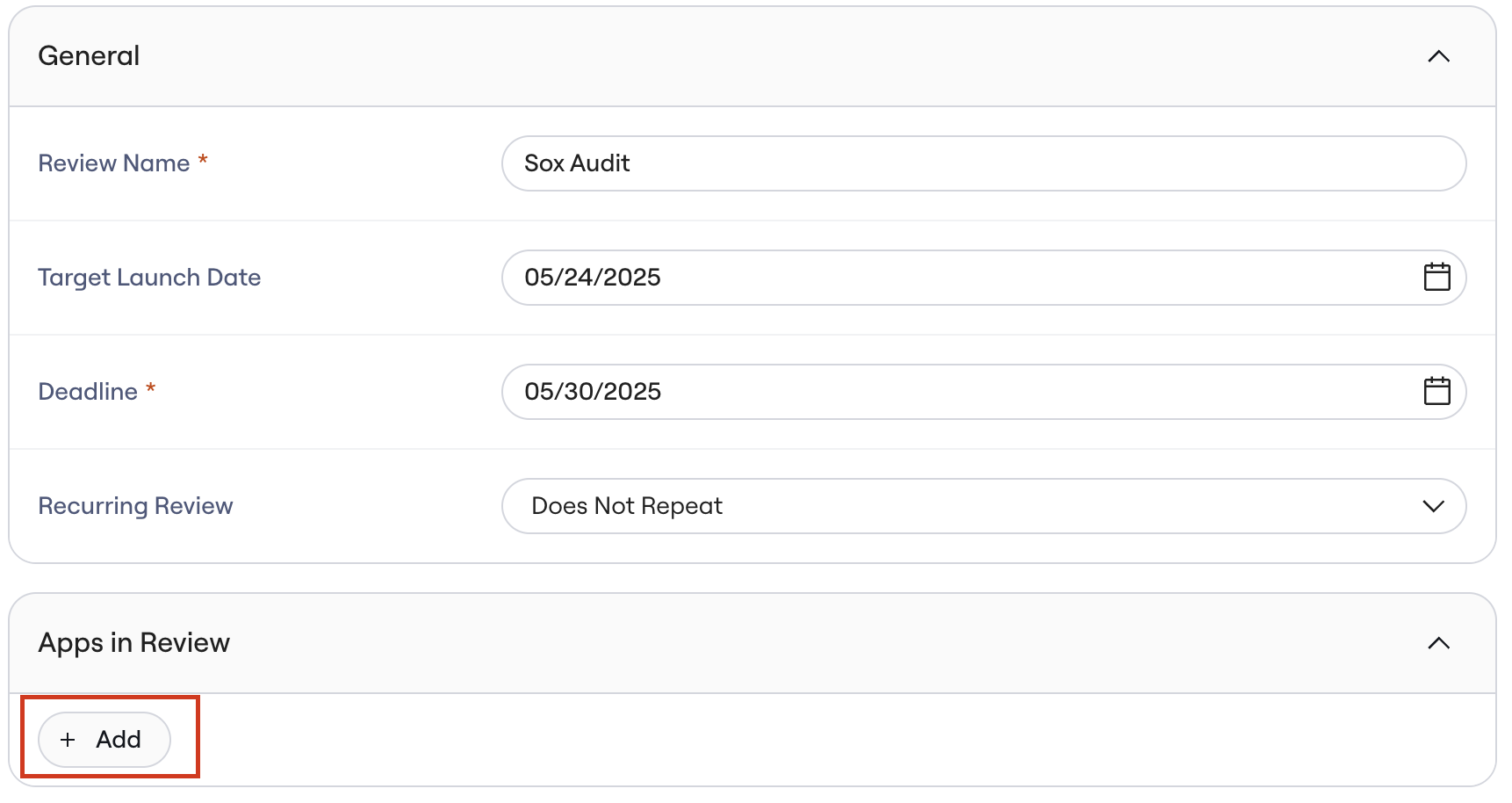 If you can't find the app you're looking for, you can import a custom app. *See* [Adding a Custom App](/kb/identities/custom-apps/adding-a-custom-app)
**2. Scope your Reviews**
You don't always need to review every account or permission. To narrow your review to admins, people on a particular team, or a particular entitlement, scope the Access Review. Scoping narrows down the number of accounts or permissions that need to be reviewed for your audit.
Click **Edit** to specify the scope of each selected app.
If you can't find the app you're looking for, you can import a custom app. *See* [Adding a Custom App](/kb/identities/custom-apps/adding-a-custom-app)
**2. Scope your Reviews**
You don't always need to review every account or permission. To narrow your review to admins, people on a particular team, or a particular entitlement, scope the Access Review. Scoping narrows down the number of accounts or permissions that need to be reviewed for your audit.
Click **Edit** to specify the scope of each selected app.
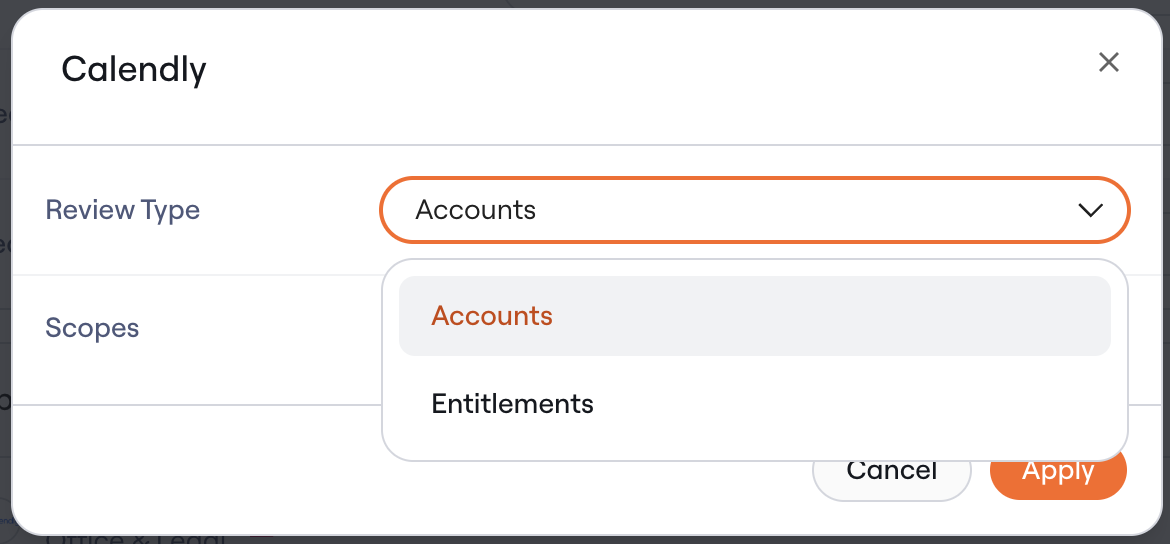
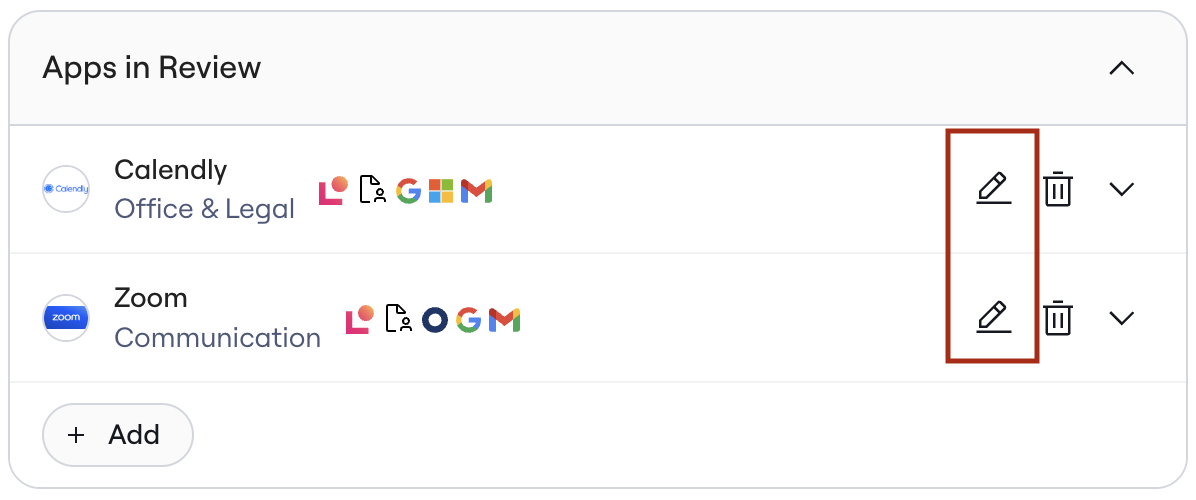 You'll see the ability to configure whether you want to do an Account-First or Permission-First review. To decide which one to choose, see [Choosing Account or Permission Access Reviews](/kb/access-reviews/preparing-and-completing-an-access-review/choosing-account-or-permission-access-reviews)
 **3. Scope by certain attributes**
Based on your app, you'll see a list of possible attributes to scope down by.
This may include:
* Data from direct Lumos integrations (I.e. Role)
* User data (I.e. Team)
* Data from your IdP (I.e. Groups in Okta)
* Manually enriched columns (e.g., [Permission](/kb/ui-ux/adding-tags-to-permissions) [Tags](/kb/ui-ux/adding-tags-to-permissions))
Click on **Add Filter** to select the attributes you want to scope your review on
**3. Scope by certain attributes**
Based on your app, you'll see a list of possible attributes to scope down by.
This may include:
* Data from direct Lumos integrations (I.e. Role)
* User data (I.e. Team)
* Data from your IdP (I.e. Groups in Okta)
* Manually enriched columns (e.g., [Permission](/kb/ui-ux/adding-tags-to-permissions) [Tags](/kb/ui-ux/adding-tags-to-permissions))
Click on **Add Filter** to select the attributes you want to scope your review on
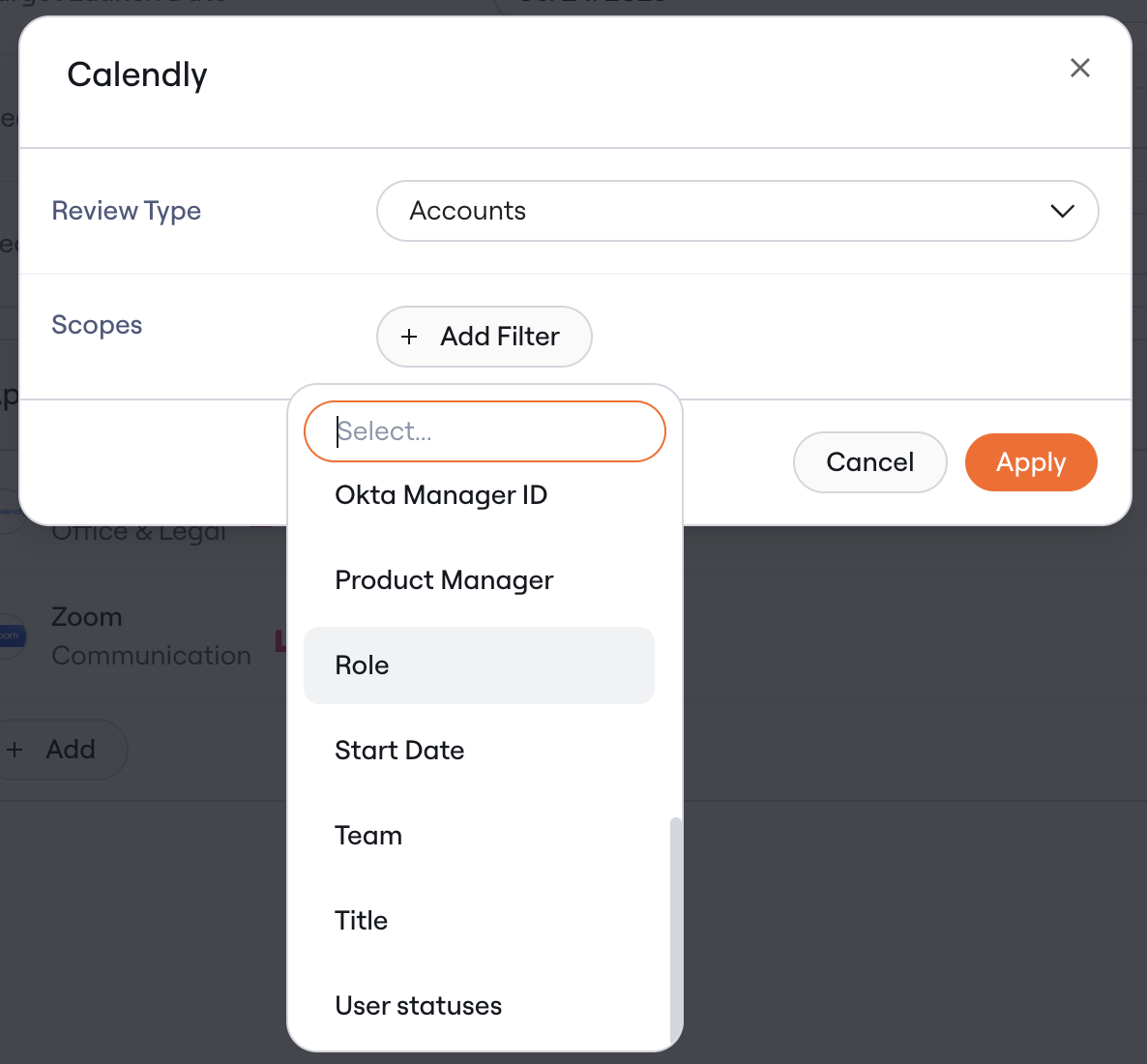 For each attribute, select the values you want to include in your review
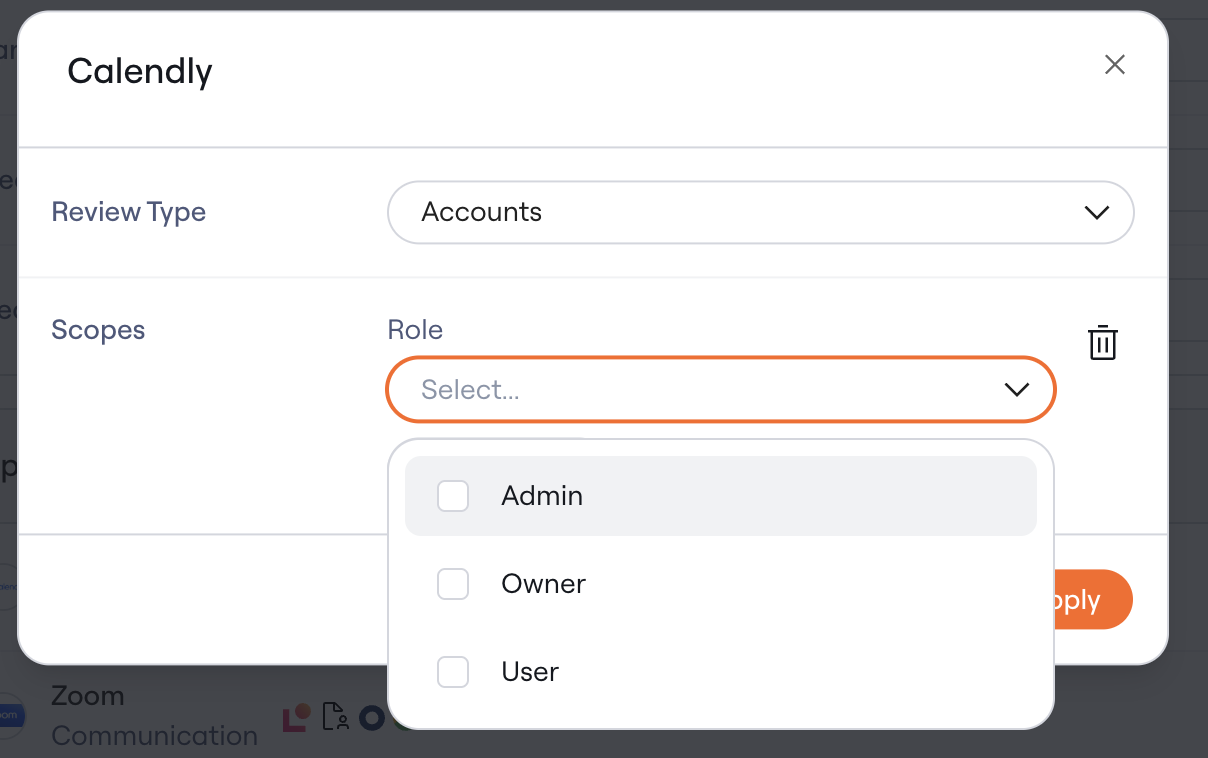 When you are done click **Apply.**
**4. Click Save to continue**
You'll see the apps you selected with the configured scope included in the access review
You'll notice that you're added as the Reviewer by default. Feel free to change this now by clicking on your initials in the "Reviewer" column (you can also change it later).
The Reviewer will be the App Review Admin. *See* [Access Review Roles](/kb/access-reviews/preparing-and-completing-an-access-review/access-review-roles)
**5. Click "Continue Review" for each app.**
**6. Review and edit scoping for each app.**
Click on the gear icon to view your scoping selections
When you are done click **Apply.**
**4. Click Save to continue**
You'll see the apps you selected with the configured scope included in the access review
You'll notice that you're added as the Reviewer by default. Feel free to change this now by clicking on your initials in the "Reviewer" column (you can also change it later).
The Reviewer will be the App Review Admin. *See* [Access Review Roles](/kb/access-reviews/preparing-and-completing-an-access-review/access-review-roles)
**5. Click "Continue Review" for each app.**
**6. Review and edit scoping for each app.**
Click on the gear icon to view your scoping selections
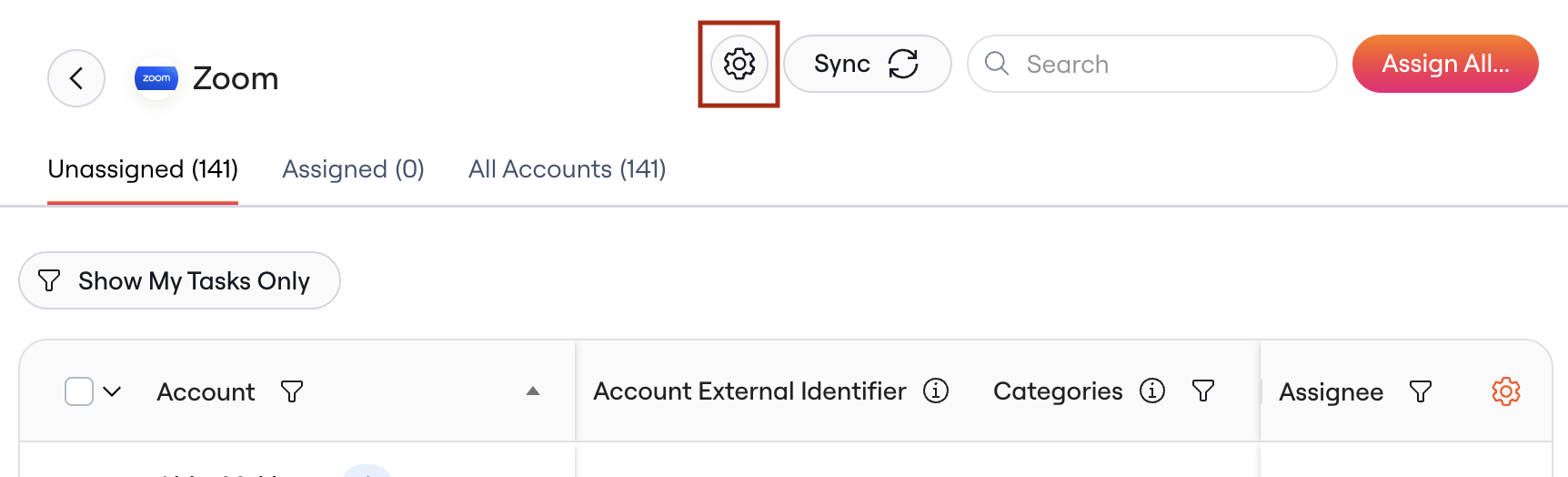 View your selections and make changes to further refine the scope for your review
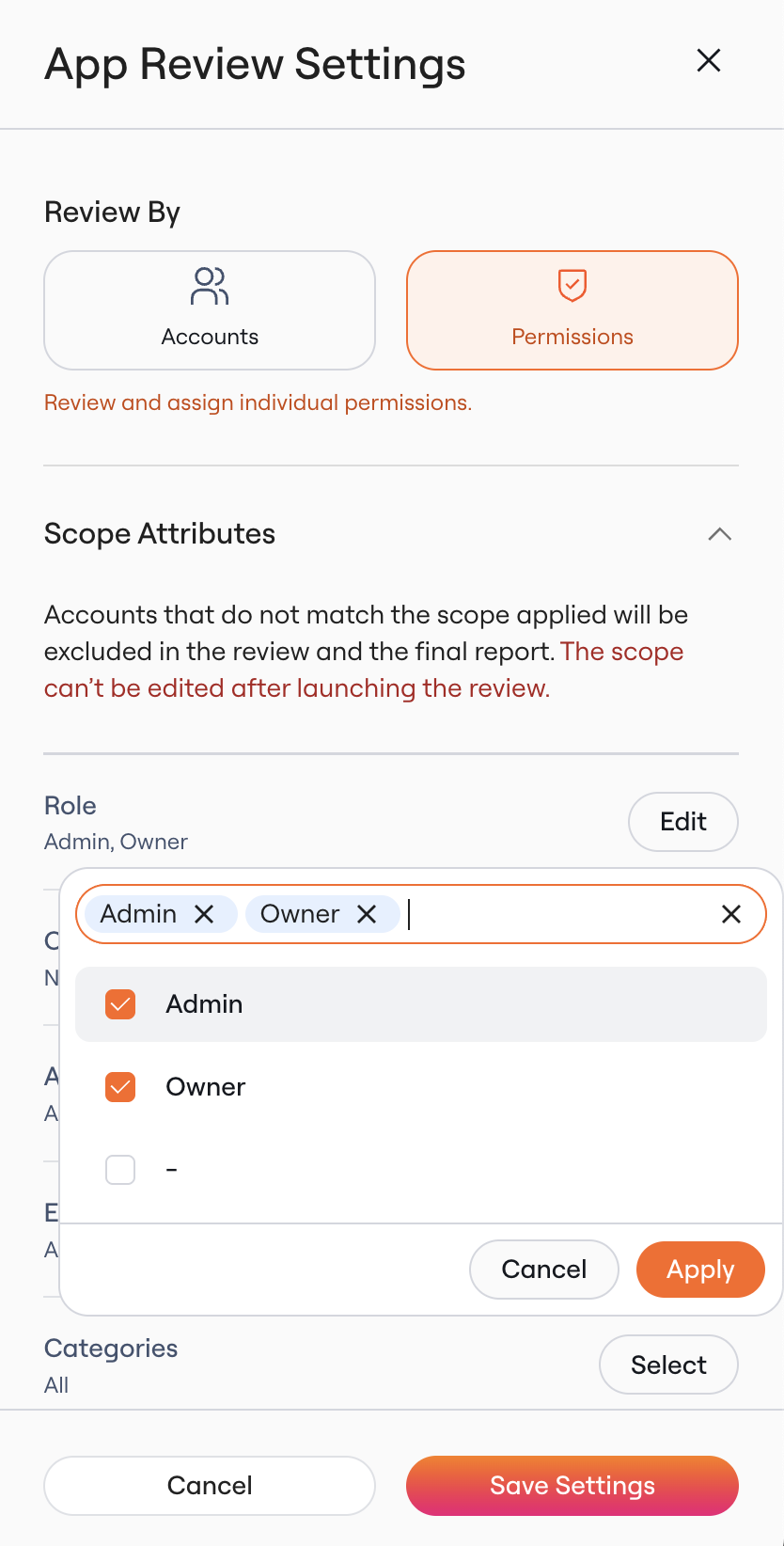 You'll notice that the options for each attribute are narrowed down to only those that represent (1) the data at the time it was snapshotted for this review and (2) the scope of this review. For example, if you scope the review to certain Roles, and then filter on Department you'll only see options for Departments that have accounts with the scoped roles.
To refresh the data in your Access Review see [Update Access Review Snapshot](/kb/access-reviews/preparing-and-completing-an-access-review/update-access-review-snapshot)
## How to remove apps
To remove an app from the review, follow the steps below.
**1. Click "Edit Apps".**
You'll notice that the options for each attribute are narrowed down to only those that represent (1) the data at the time it was snapshotted for this review and (2) the scope of this review. For example, if you scope the review to certain Roles, and then filter on Department you'll only see options for Departments that have accounts with the scoped roles.
To refresh the data in your Access Review see [Update Access Review Snapshot](/kb/access-reviews/preparing-and-completing-an-access-review/update-access-review-snapshot)
## How to remove apps
To remove an app from the review, follow the steps below.
**1. Click "Edit Apps".**
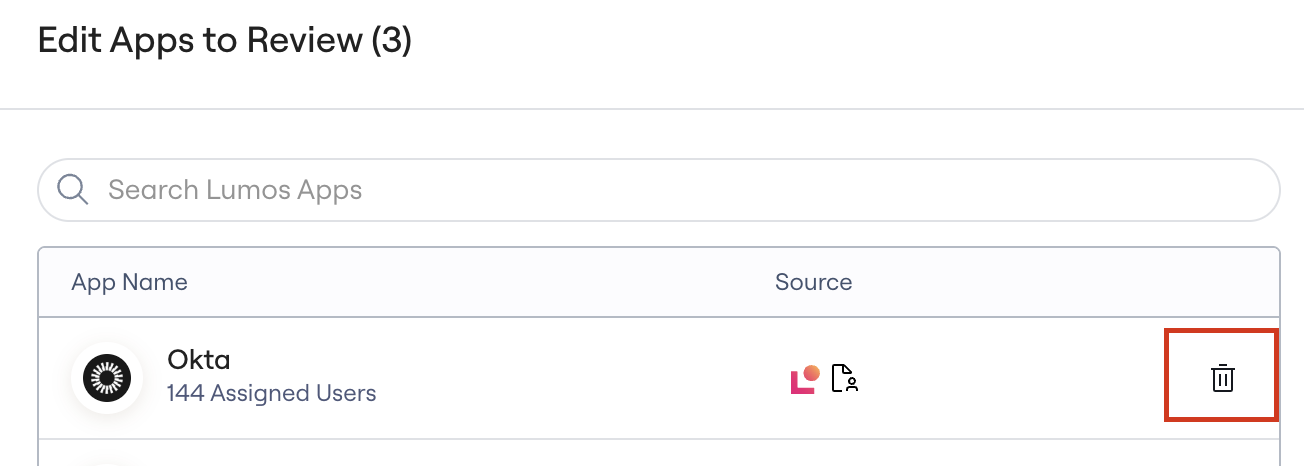
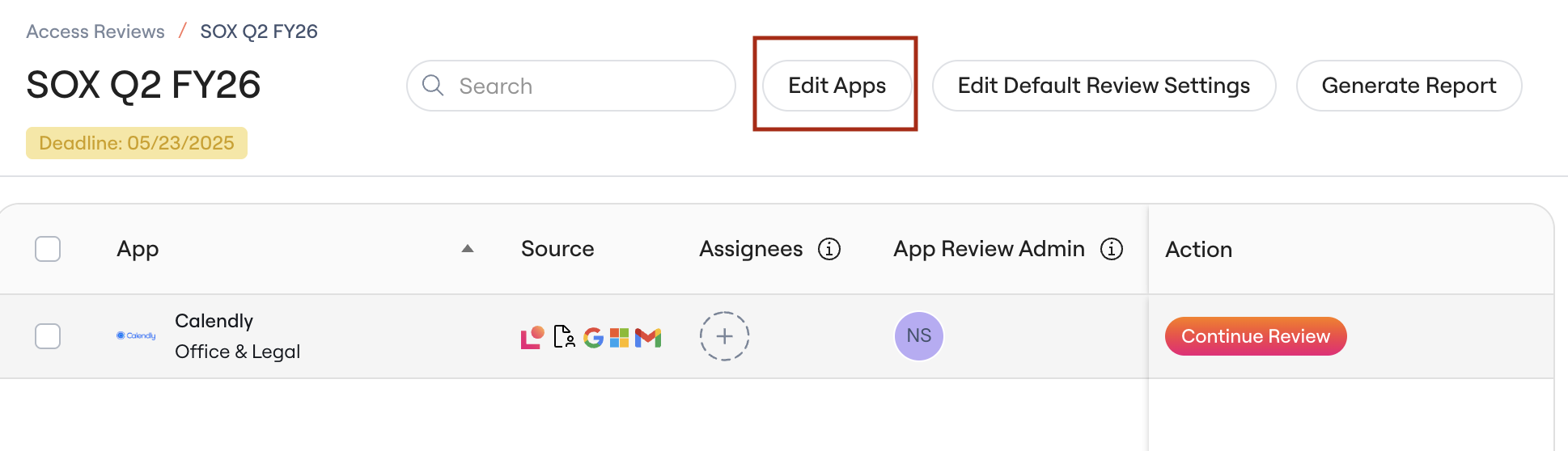 **2. Click the trash can icon next to the app name to remove apps, or add new apps**
 **3. Click "Save Changes".**