> ## Documentation Index
> Fetch the complete documentation index at: https://docs.lumos.com/llms.txt
> Use this file to discover all available pages before exploring further.
# Assigning Reviewers and Launching Your Access Review
## Background
After you choose your apps, the first step is Assign. In this step, you designate who accepts or rejects account access or permissions for each app.
## Steps
### 1. Select your account(s)/permission(s) and then select your assignee(s)
If you don't know whether a user needs access to an app, delegate the approval to someone who does.
**If you want to assign a single account,** you will see a "+" sign in the Access Review:
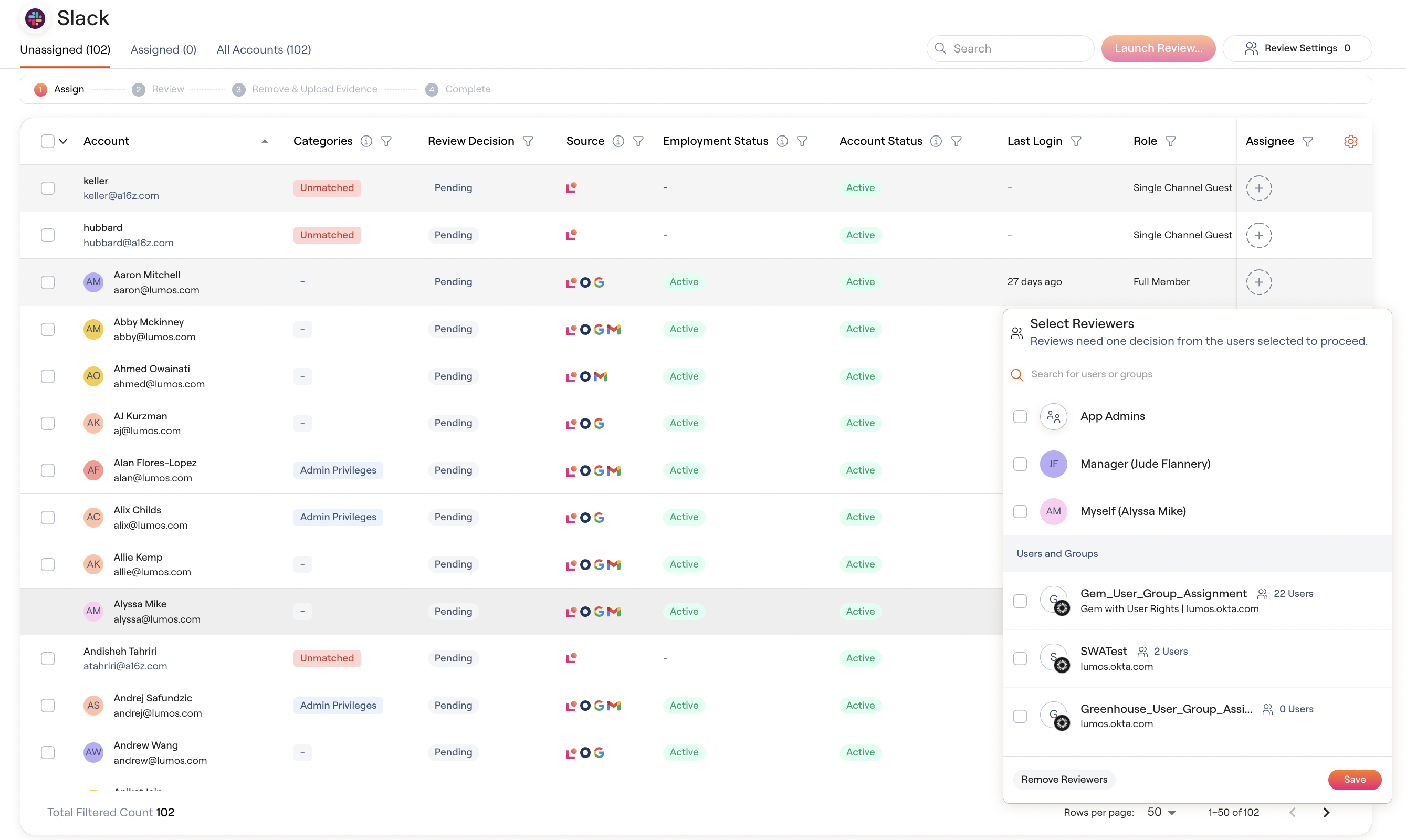 You can then type in the assignee(s) you wish to approve/reject this account. Lumos supports a series of quick selections, including: **Assign to App Admins, Manager and/or Myself.** These options appear depending on if you have set up app admins and managers in Lumos AppHQ.
If you assign multiple users or a group, any one of the assigned users can take action on the account.
Upon assigning, you'll see that they move from the "Unassigned" tab to the "Assigned" tab.
**If you want to assign in bulk,** you can use the **select all checkbox** or multiple check boxes on the left side, and click the "+" sign at the top:
You can then type in the assignee(s) you wish to approve/reject this account. Lumos supports a series of quick selections, including: **Assign to App Admins, Manager and/or Myself.** These options appear depending on if you have set up app admins and managers in Lumos AppHQ.
If you assign multiple users or a group, any one of the assigned users can take action on the account.
Upon assigning, you'll see that they move from the "Unassigned" tab to the "Assigned" tab.
**If you want to assign in bulk,** you can use the **select all checkbox** or multiple check boxes on the left side, and click the "+" sign at the top:
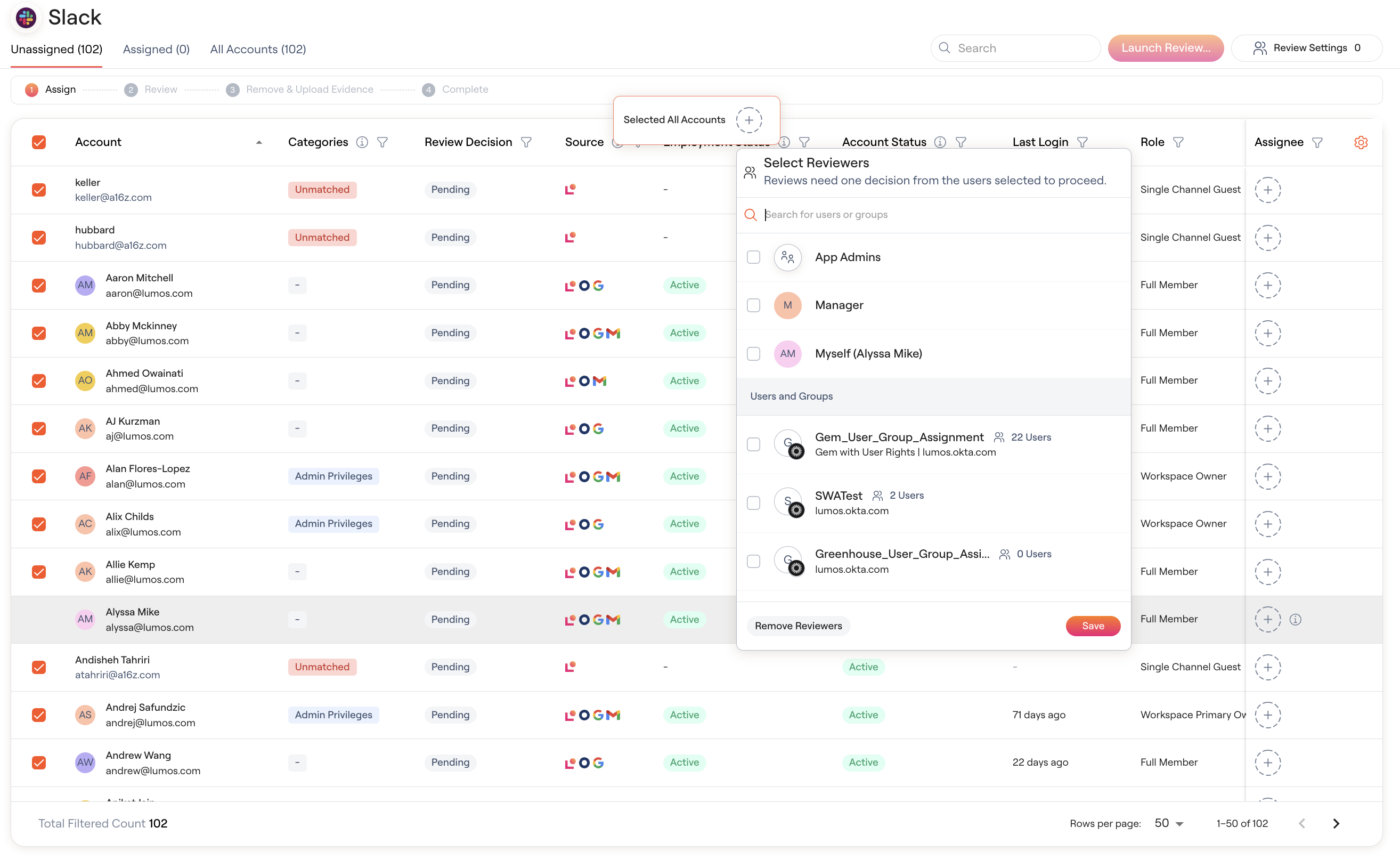 Type in the assignee(s), and click Save / Confirm.
**To unassign in bulk,** perform the same action as above, but do not select any assignee(s) in the modal, and click Save / Confirm.
### 2. Click "Launch Review\..."
In the modal that pops up you can add any instructions or context that your assignees may need to know to conduct their review. You can add links to Jira tickets, Confluence pages, or other resources if they need additional instructions.
### 3. Click "Launch" to notify your assignees
Assignees will be notified via email and/or Slack to go and review the accounts, depending on your notification settings. The assignees then accept or reject access.
## Additional notes and FAQs
### 1. I am the app reviewer and I'm the only one reviewing, do I still assign?
Yes. Select All Accounts, assign them to yourself, and then launch the review. Even if you're the only Reviewer, you still need to complete the Assign and Launch step.
### 2. You cannot approve your own access
To enforce segregation of duties, you cannot assign your own account to yourself to review. Assign it to someone else.
If you are assigned to your own account as part of a group, Lumos will still not allow you to review your own access.
Type in the assignee(s), and click Save / Confirm.
**To unassign in bulk,** perform the same action as above, but do not select any assignee(s) in the modal, and click Save / Confirm.
### 2. Click "Launch Review\..."
In the modal that pops up you can add any instructions or context that your assignees may need to know to conduct their review. You can add links to Jira tickets, Confluence pages, or other resources if they need additional instructions.
### 3. Click "Launch" to notify your assignees
Assignees will be notified via email and/or Slack to go and review the accounts, depending on your notification settings. The assignees then accept or reject access.
## Additional notes and FAQs
### 1. I am the app reviewer and I'm the only one reviewing, do I still assign?
Yes. Select All Accounts, assign them to yourself, and then launch the review. Even if you're the only Reviewer, you still need to complete the Assign and Launch step.
### 2. You cannot approve your own access
To enforce segregation of duties, you cannot assign your own account to yourself to review. Assign it to someone else.
If you are assigned to your own account as part of a group, Lumos will still not allow you to review your own access.
 ### 3. I accidentally assigned this to the wrong person
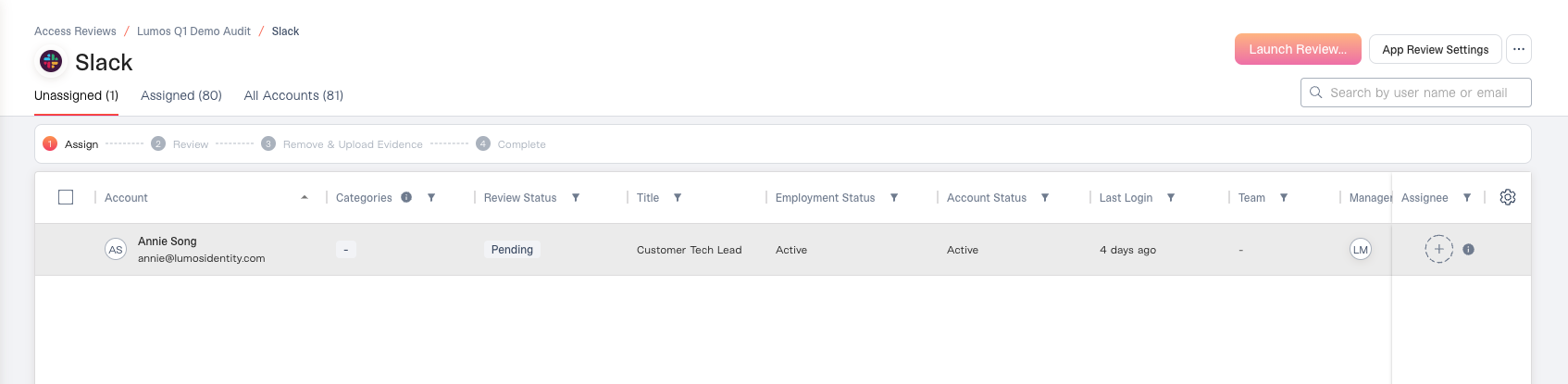
Click on the "Assigned" tab at the top, click on the account(s) in question, and reassign them.
### 4. The review assignee needs someone else to review their assignments
You can allow assignees to reassign their reviews to someone else. See [Reassigning Reviews as a Review Assignee](/kb/access-reviews/preparing-and-completing-an-access-review/reassigning-reviews-as-a-review-assignee)
### 3. I accidentally assigned this to the wrong person
Click on the "Assigned" tab at the top, click on the account(s) in question, and reassign them.
### 4. The review assignee needs someone else to review their assignments
You can allow assignees to reassign their reviews to someone else. See [Reassigning Reviews as a Review Assignee](/kb/access-reviews/preparing-and-completing-an-access-review/reassigning-reviews-as-a-review-assignee)