> ## Documentation Index
> Fetch the complete documentation index at: https://docs.lumos.com/llms.txt
> Use this file to discover all available pages before exploring further.
# AI-Powered Fields for Apps
Automatically classify your entire app portfolio in minutes using AI—so you can spend less time on manual tagging and more time on strategic decisions.
## Overview
AI-Powered Fields is a new capability in the Apps table that lets you automatically classify all your applications using AI. Instead of manually reviewing and tagging each app, you define classification criteria and the system processes your entire portfolio in minutes.
With AI-Powered Fields, you can:
* **Eliminate manual categorization work** — Classify hundreds of apps in \~4 minutes instead of hours
* **Ensure consistency** — AI applies the same logic across all apps, removing human inconsistency
* **Improve downstream AI features** — Clean app data directly improves Policy Mining recommendations and Albus answers
* **Keep classifications current** — Regenerate anytime as your app portfolio changes
## Setting Up an AI-Powered Field
### Step 1: Navigate to the Apps Table
Go to **Apps** in the main navigation.
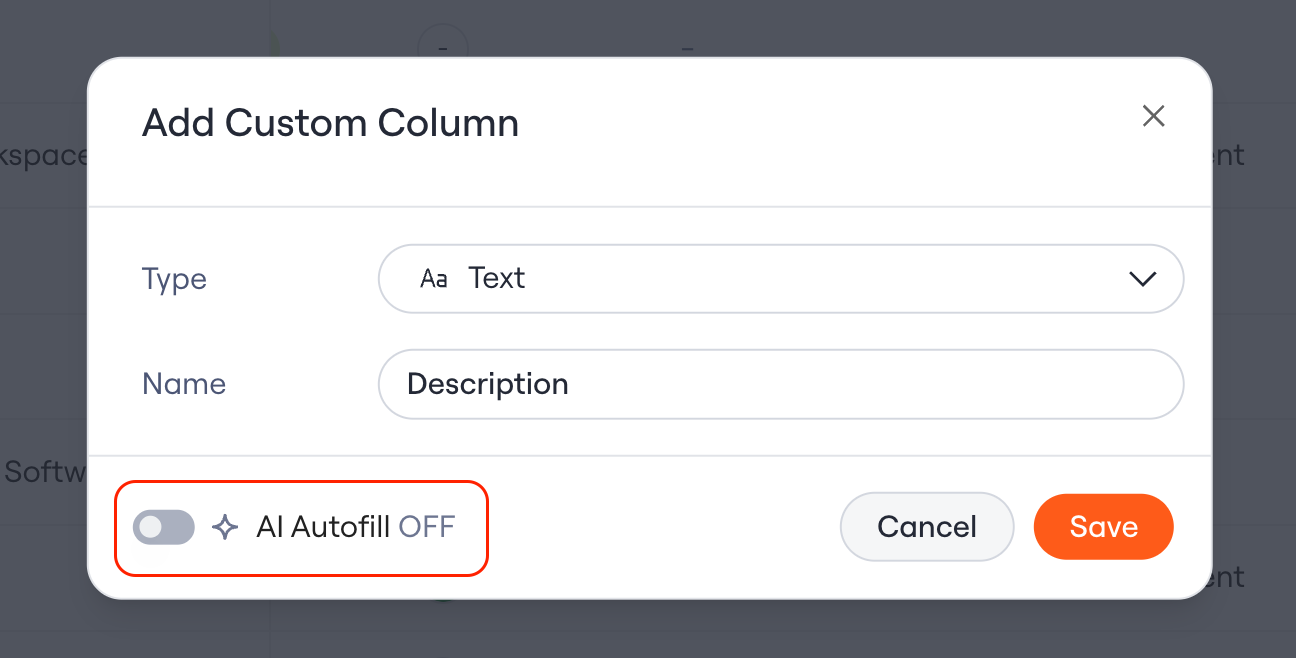
### Step 2: Add a New Column
1. Click **Column** in the table toolbar
2. Select **Create new column** or choose an existing column to enhance
3. Enable **AI Autofill** for the column
 ## Step 3: Configure Your Field
**1. Choose a field type:**
* **Single-select** — One value per app (e.g., Essential / Not Essential / Unknown)
* **Multi-select** — Multiple values per app (e.g., Use Cases like HR, Finance, Engineering)
* **Text** — Free-form AI-generated descriptions
**2. Define your options (for single/multi-select)**
* Add the possible values the AI can assign
* Include an "Unknown" option for apps where AI lacks confidence
**3. Write your classification prompt**
* Use one of the templates below, or write your own
* Be specific about your criteria for each classification
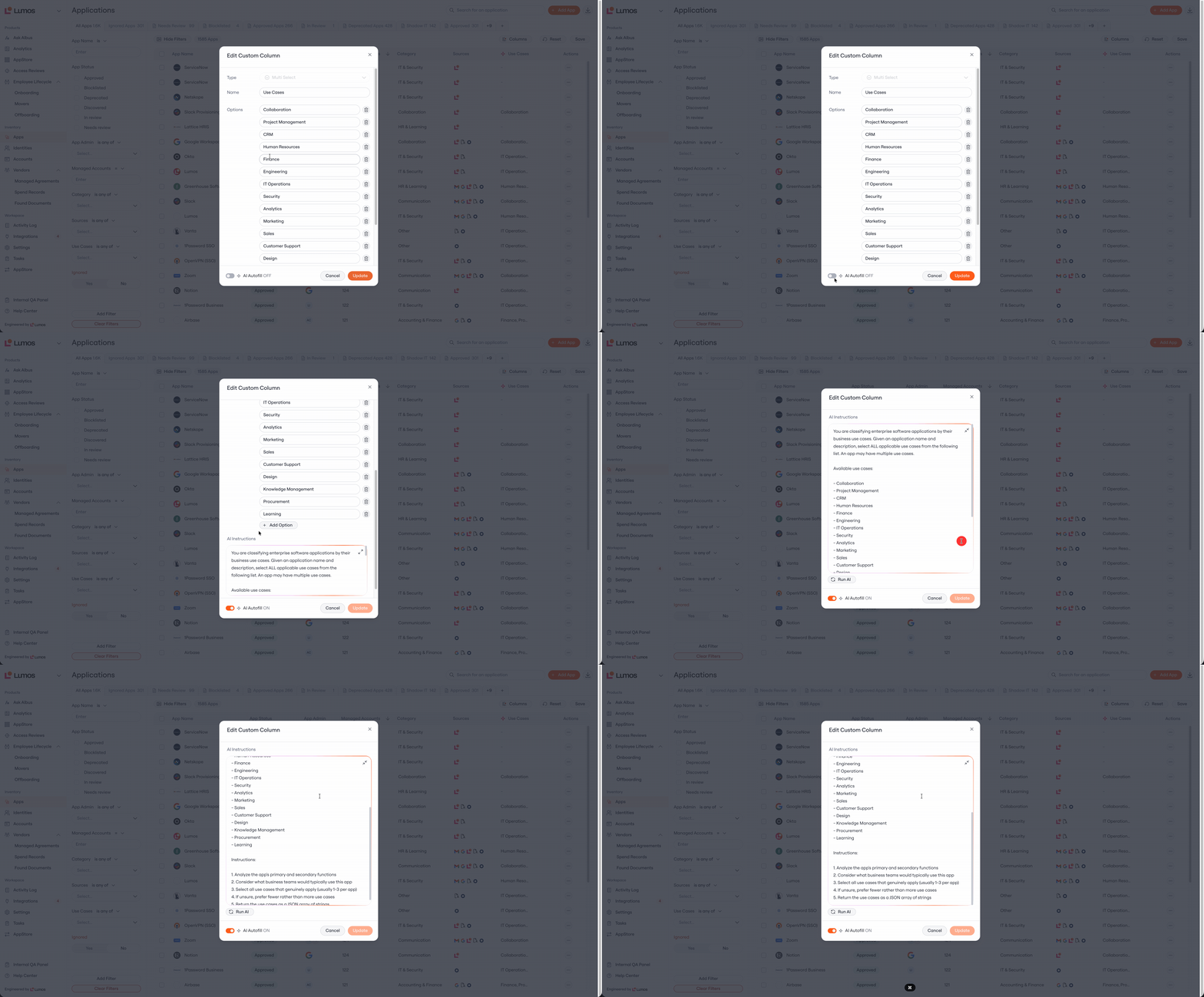
## Step 3: Configure Your Field
**1. Choose a field type:**
* **Single-select** — One value per app (e.g., Essential / Not Essential / Unknown)
* **Multi-select** — Multiple values per app (e.g., Use Cases like HR, Finance, Engineering)
* **Text** — Free-form AI-generated descriptions
**2. Define your options (for single/multi-select)**
* Add the possible values the AI can assign
* Include an "Unknown" option for apps where AI lacks confidence
**3. Write your classification prompt**
* Use one of the templates below, or write your own
* Be specific about your criteria for each classification
 ### Step 4: Generate Classifications
1. Click **Run AI**
2. Wait approximately 4 minutes for processing to complete
3. You can continue working in Lumos while generation runs in the background
### Step 5: Review and Refine
1. Sort or filter by your new column to review results
2. Pay special attention to apps marked "Unknown" — these need manual classification
3. Manually edit any incorrect values by clicking directly on the cell
**Tip:** Spot-check 10-15 apps across different categories to validate accuracy before relying on the classifications.
## Prompt Library
Copy these templates to get started quickly. Customize the criteria to match your organization's definitions.
Essential Apps Classification
**Field type:** Single-select
**Options:** `Essential`, `Not Essential`, `Unknown`
**Prompt:**
```
Classify this application as Essential, Not Essential, or Unknown based on the following criteria:
ESSENTIAL - The app meets ANY of these conditions:
- Critical business operations would stop or be severely impacted without it
- Used by >60% of employees (high assignment percentage)
- Core infrastructure: identity providers, email, communication platforms, HRIS, finance systems
- Compliance or security critical: required for audits, certifications, or regulatory requirements
- No viable alternative exists within the organization
NOT ESSENTIAL - The app meets ALL of these conditions:
- Business could continue functioning without significant disruption
- Used by <10% of employees OR limited to a small team
- Alternatives exist or functionality overlaps with other tools
- Nice-to-have productivity tools, personal preference apps, or deprecated systems
UNKNOWN - Use when:
- App description is missing or unclear
- Cannot determine business criticality from available information
- App could reasonably be classified either way
Base your decision on: app name, description, category, and assignment percentage.
```
Use Cases Classification
**Field type:** Multi-select
**Options:** `Engineering`, `Sales`, `Marketing`, `HR`, `Finance`, `IT`, `Security`, `Operations`, `Customer Support`, `General Productivity`, `Unknown`
**Prompt:**
```
Identify which business functions use this application. Select ALL that apply.
- ENGINEERING - Software development, DevOps, code repositories, CI/CD, monitoring, infrastructure
- SALES - CRM, sales engagement, prospecting, deal management, revenue tools
- MARKETING - Campaign management, analytics, content creation, social media, advertising
- HR - Recruiting, onboarding, performance management, benefits, payroll, learning
- FINANCE - Accounting, expense management, billing, procurement, budgeting
- IT - Help desk, asset management, endpoint management, network tools
- SECURITY - Security monitoring, vulnerability management, access control, compliance
- OPERATIONS - Project management, business intelligence, workflow automation, ERP
- CUSTOMER SUPPORT - Ticketing, knowledge base, live chat, customer success
- GENERAL PRODUCTIVITY - Communication, collaboration, document management, used across teams
Select UNKNOWN only if the app's purpose cannot be determined from available information.
An app can belong to multiple categories. Select all relevant use cases.
```
### Creating Custom Prompts
When writing your own classification prompts:
* **Be explicit about criteria** — Define exactly what qualifies for each classification
* **Include edge case guidance** — Tell the AI what to do when information is ambiguous
* **Reference available data** — The AI can use: app name, description, category, user count, and assignment percentage
* **Add an "Unknown" option** — Gives the AI a safe fallback instead of guessing
## FAQ
### How accurate is the AI?
In internal testing, AI-Powered Fields achieve >90% accuracy on valid classifications. However, Lumos recommends reviewing results rather than trusting them blindly. Apps marked "Unknown" are cases where the AI lacked confidence and explicitly flagged them for your review.
### What data does the AI use?
The AI considers: app name, description, number of accessible accounts, assignment percentage, app status (approved/unapproved), and category. Apps with richer descriptions produce better results. The AI does **not** access user-level data or sensitive account information.
### What if I manually edit an AI-generated value?
Manual edits are preserved during normal operation. However, clicking **Run AI** will reprocess all apps and overwrite your manual changes. Finalize manual edits after you're done iterating on your prompt.
### Can I generate for just some apps?
Currently, Generate processes all apps in your domain. Selective processing is on the roadmap. As a workaround, manually edit individual values after generation.
### Can I export AI-generated classifications?
Yes. AI-generated columns appear in any CSV export from the Apps table, just like manually-created columns.
## Getting Help
AI-Powered Fields is currently in **beta**. If you have questions, encounter unexpected behavior, or want to share feedback on prompt effectiveness, contact your Lumos representative.
### Step 4: Generate Classifications
1. Click **Run AI**
2. Wait approximately 4 minutes for processing to complete
3. You can continue working in Lumos while generation runs in the background
### Step 5: Review and Refine
1. Sort or filter by your new column to review results
2. Pay special attention to apps marked "Unknown" — these need manual classification
3. Manually edit any incorrect values by clicking directly on the cell
**Tip:** Spot-check 10-15 apps across different categories to validate accuracy before relying on the classifications.
## Prompt Library
Copy these templates to get started quickly. Customize the criteria to match your organization's definitions.
Essential Apps Classification
**Field type:** Single-select
**Options:** `Essential`, `Not Essential`, `Unknown`
**Prompt:**
```
Classify this application as Essential, Not Essential, or Unknown based on the following criteria:
ESSENTIAL - The app meets ANY of these conditions:
- Critical business operations would stop or be severely impacted without it
- Used by >60% of employees (high assignment percentage)
- Core infrastructure: identity providers, email, communication platforms, HRIS, finance systems
- Compliance or security critical: required for audits, certifications, or regulatory requirements
- No viable alternative exists within the organization
NOT ESSENTIAL - The app meets ALL of these conditions:
- Business could continue functioning without significant disruption
- Used by <10% of employees OR limited to a small team
- Alternatives exist or functionality overlaps with other tools
- Nice-to-have productivity tools, personal preference apps, or deprecated systems
UNKNOWN - Use when:
- App description is missing or unclear
- Cannot determine business criticality from available information
- App could reasonably be classified either way
Base your decision on: app name, description, category, and assignment percentage.
```
Use Cases Classification
**Field type:** Multi-select
**Options:** `Engineering`, `Sales`, `Marketing`, `HR`, `Finance`, `IT`, `Security`, `Operations`, `Customer Support`, `General Productivity`, `Unknown`
**Prompt:**
```
Identify which business functions use this application. Select ALL that apply.
- ENGINEERING - Software development, DevOps, code repositories, CI/CD, monitoring, infrastructure
- SALES - CRM, sales engagement, prospecting, deal management, revenue tools
- MARKETING - Campaign management, analytics, content creation, social media, advertising
- HR - Recruiting, onboarding, performance management, benefits, payroll, learning
- FINANCE - Accounting, expense management, billing, procurement, budgeting
- IT - Help desk, asset management, endpoint management, network tools
- SECURITY - Security monitoring, vulnerability management, access control, compliance
- OPERATIONS - Project management, business intelligence, workflow automation, ERP
- CUSTOMER SUPPORT - Ticketing, knowledge base, live chat, customer success
- GENERAL PRODUCTIVITY - Communication, collaboration, document management, used across teams
Select UNKNOWN only if the app's purpose cannot be determined from available information.
An app can belong to multiple categories. Select all relevant use cases.
```
### Creating Custom Prompts
When writing your own classification prompts:
* **Be explicit about criteria** — Define exactly what qualifies for each classification
* **Include edge case guidance** — Tell the AI what to do when information is ambiguous
* **Reference available data** — The AI can use: app name, description, category, user count, and assignment percentage
* **Add an "Unknown" option** — Gives the AI a safe fallback instead of guessing
## FAQ
### How accurate is the AI?
In internal testing, AI-Powered Fields achieve >90% accuracy on valid classifications. However, Lumos recommends reviewing results rather than trusting them blindly. Apps marked "Unknown" are cases where the AI lacked confidence and explicitly flagged them for your review.
### What data does the AI use?
The AI considers: app name, description, number of accessible accounts, assignment percentage, app status (approved/unapproved), and category. Apps with richer descriptions produce better results. The AI does **not** access user-level data or sensitive account information.
### What if I manually edit an AI-generated value?
Manual edits are preserved during normal operation. However, clicking **Run AI** will reprocess all apps and overwrite your manual changes. Finalize manual edits after you're done iterating on your prompt.
### Can I generate for just some apps?
Currently, Generate processes all apps in your domain. Selective processing is on the roadmap. As a workaround, manually edit individual values after generation.
### Can I export AI-generated classifications?
Yes. AI-generated columns appear in any CSV export from the Apps table, just like manually-created columns.
## Getting Help
AI-Powered Fields is currently in **beta**. If you have questions, encounter unexpected behavior, or want to share feedback on prompt effectiveness, contact your Lumos representative.