> ## Documentation Index
> Fetch the complete documentation index at: https://docs.lumos.com/llms.txt
> Use this file to discover all available pages before exploring further.
# Microsoft 365 / Entra ID
## After this article
You'll be able to connect Microsoft 365 to Lumos to manage users, groups, licenses, and app access, and to offboard people.
## User and Access Management Capabilities
| **Functionality** | **Type** | **Sync** | **Provision** | **Description** |
| :- | :- | :- | :- | :- |
| Users | Account | Yes | Yes | User account records |
| Roles | Permission | Yes | Yes | Roles in EntraID |
| Groups | Permission | Yes | Yes | Groups in EntraID |
| Microsoft 365 Groups | Permission | Yes | Yes | Groups in Microsoft365 |
| Mail Enabled Security Group | Permission | Yes | No | Mail enabled security groups in Microsoft365 |
| Distribution Group | Permission | Yes | No | Distribution groups in Microsoft365 |
| Product | Permission | Yes | No | Product access |
| License | Permission | Yes | Yes | Licenses |
## Required plan and roles
* **Microsoft access:** a Microsoft Entra ID administrator who can grant admin consent to the Lumos application through Microsoft Graph.
* **Admin consent:** the connection uses Microsoft Graph. Complete the Microsoft sign-in and consent when prompted on the connection card.
## Read-only access vs provisioning
**Is read-only possible?** Yes, but not through self-service setup. By default the connection grants write access, and you can't selectively choose scopes during the initial connect. To connect read-only instead, reach out to Lumos Support.
**What read-only requires.** A Support-assisted connection instead of the standard self-service flow below. With read-only permissions you won't be able to provision new accounts or manage access.
**What full provisioning requires.** The standard admin-consent connection described below, completed by a Microsoft Entra ID administrator. That default connection is what enables account creation, license assignment, group management, suspend, and deprovisioning.
**Watch out for.** You can't narrow the scopes during initial setup on your own. After connecting with default (read/write) access, you can revoke specific optional scopes in the Entra admin center under Enterprise applications → Lumos → Permissions, but getting a fully read-only connection from the start requires contacting Support rather than a self-service toggle.
## Instructions
1. Find the Microsoft 365 / Entra ID card in your Lumos integrations ([Reconnect](https://app.lumosidentity.com/integrations?tab=connected) or [add new](https://app.lumosidentity.com/integrations?tab=can_integrate))
2. Click on the card, make sure you've completed the steps above ("Before you begin"), then click **Connect Microsoft 365 / Entra ID**.
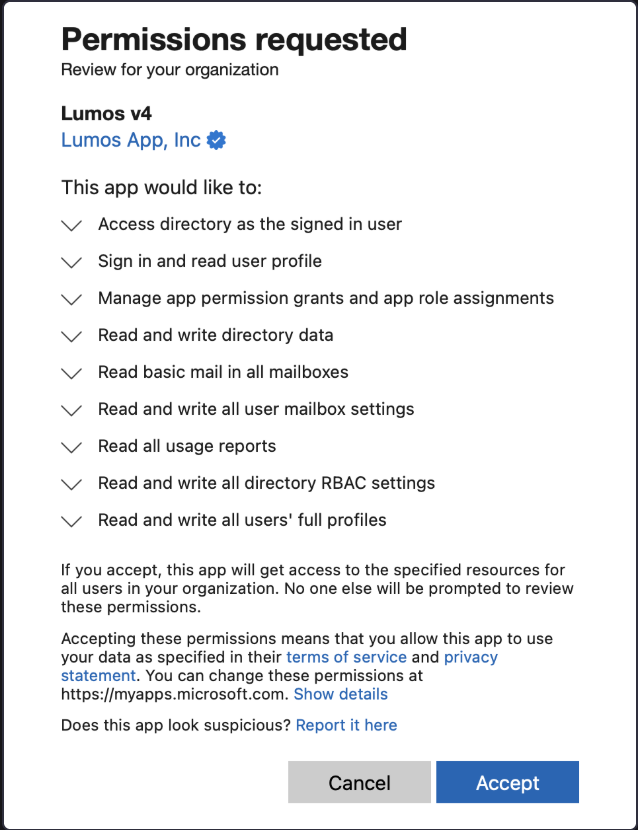
3. Accept the scopes when prompted via OAuth:
 4. The connection is complete.
### Connecting a tenant where your admin is a guest (single-tenant connection)
The standard connection grants admin consent through Microsoft's common endpoint, which records the consent in the **home tenant of the admin who logs in**. If the admin who holds Global Administrator in the tenant you want to connect is only a B2B guest there, consent lands in their home tenant instead and the connection fails or collides with your existing connection.
In that case, choose the **single-tenant** version of the Microsoft 365 / Entra ID integration on the connection card and enter the **Tenant ID** of the tenant to connect. Consent is then requested against that tenant directly. The same Lumos application, scopes, and capabilities apply.
## Scopes
| **Scope** | **Required** | **Description** |
| :- | :- | :- |
| User.Read | Yes | Sign in and read user profile. Allows the application to sign in the user and read the user's profile information. |
| Directory.AccessAsUser.All | Yes | Access directory as the signed-in user. Allows the application to access the directory as the signed-in user. This includes permissions to perform any operation that the signed-in user has privileges to perform within the directory. |
| User.ReadWrite.All | Optional | Read and write all users' full profiles. Allows the app to read and update user profiles without a signed in user. |
| Mail.ReadBasic.All | Optional | Read basic mail in all mailboxes. Allows the app to read basic mail properties in all mailboxes without a signed-in user. Includes all properties except body, previewBody, attachments and any extended properties. |
| Directory.ReadWrite.All | Optional | Read and write directory data. Allows the app to read and write data in your organization's directory, such as users, and groups, without a signed-in user. Does not allow user or group deletion. |
| AppRoleAssignment.ReadWrite.All | Optional | Manage app permission grants and app role assignments. Allows the app to manage permission grants for application permissions to any API (including Microsoft Graph) and application assignments for any app, without a signed-in user. |
| MailboxSettings.ReadWrite | Optional | Read and write all user mailbox settings. Allows the app to create, read, update, and delete user's mailbox settings without a signed-in user. Does not include permission to send mail. |
| Reports.Read.All | Yes | Read last login for Microsoft 365 / Entra ID Allows the application to read all reports related to activity, usage, and insights across various Microsoft 365 services. |
| AuditLog.Read.All | Yes | Read last login for managed apps Grants the application access to audit logs that track user and system activities across Microsoft 365 / Entra ID and connected apps. |
| LicenseAssignment.ReadWrite.All | Optional | Allow assigning and unassigning access to product licenses in Microsoft 365 / Entra ID. |
## How to connect Microsoft 365 / Entra ID as Read-Only?
By default, Lumos gets write access. While you can’t selectively choose scopes during the initial integration setup, you can revoke specific scopes after connecting. For details, see [Microsoft's guide to reviewing and revoking permissions](https://learn.microsoft.com/en-us/entra/identity/enterprise-apps/manage-application-permissions?pivots=portal#review-and-revoke-permissions).
Alternatively, you can connect with read-only permissions. To use Lumos with **read-only** permissions, reach out to Lumos Support.
With read-only permissions, you can't **provision new accounts** or **manage access**.
## Settings
| **Setting** | **Description** |
| :- | :- |
| Use Manager Email | Resolves each user's **Manager** attribute by the manager's email address (`mail`) instead of their user principal name. Turn this on if your tenant contains cross-tenant (B2B) synced users: their guest `userPrincipalName` never matches a Lumos user, so their reports' Manager attribute stays empty until this setting is enabled. |
## FAQ
### Can I connect the Microsoft 365 / Entra ID integration using a [Service Principal](https://learn.microsoft.com/en-us/azure/active-directory/develop/app-objects-and-service-principals)?
This is not currently supported.
### Do I need to reconnect the integration to get *Last Login* data for my managed applications?
If you have **not** yet granted the AuditLog.Read.All permission, you will need to reconnect the **Microsoft 365 / Entra ID integration** in Lumos. Once connected, Lumos will automatically sync last login data for all managed applications.
### Can I change the authenticated Microsoft 365 / Entra ID user for the Lumos integration?
Lumos uses Microsoft's Client Credentials Flow to authenticate to the Microsoft 365 / Entra ID/Microsoft Graph APIs, so Lumos can only access your data *on behalf of* the "Lumos" Microsoft Enterprise Application.
The initial connection flow that you go through to connect the integration grants Admin consent to the application itself, but does not bind authentication to a specific user, so connecting with a dedicated service account should not be necessary to maintain stability of the integration.
### Will Lumos impact my Microsoft rate limits?
The documentation for Microsoft Graph specifies that all of the services Lumos interacts with in a resource-intensive way via API have service usage limits that apply **per app**, not across all apps.
That means that Lumos API requests to your environment could get throttled, but this would not affect requests made by any other app, including any of your own or your users' day-to-day use of email and other Microsoft services.
Below is the throttling documentation for the services Lumos interacts with for application discovery.
* [Outlook](https://docs.microsoft.com/en-us/graph/throttling#outlook-service-limits)
* [Identity and access](https://docs.microsoft.com/en-us/graph/throttling#identity-and-access-service-limits)
### How does Lumos manage against rate limits?
As mentioned above, all Lumos resource-intensive requests are throttled on a per-app basis. That means that **Lumos gets throttled** if it runs into rate limits, but your internal systems and users should remain free to make requests without issues.
Lumos manages throttling by using the "Retry-After" [HTTP header](https://docs.microsoft.com/en-us/graph/throttling#best-practices-to-handle-throttling) and using backoff mechanisms.
If you're concerned that Lumos is impacting your rate limits, you can revoke permissions for Lumos by going to the Enterprise Applications in your Office 365 tenant.
4. The connection is complete.
### Connecting a tenant where your admin is a guest (single-tenant connection)
The standard connection grants admin consent through Microsoft's common endpoint, which records the consent in the **home tenant of the admin who logs in**. If the admin who holds Global Administrator in the tenant you want to connect is only a B2B guest there, consent lands in their home tenant instead and the connection fails or collides with your existing connection.
In that case, choose the **single-tenant** version of the Microsoft 365 / Entra ID integration on the connection card and enter the **Tenant ID** of the tenant to connect. Consent is then requested against that tenant directly. The same Lumos application, scopes, and capabilities apply.
## Scopes
| **Scope** | **Required** | **Description** |
| :- | :- | :- |
| User.Read | Yes | Sign in and read user profile. Allows the application to sign in the user and read the user's profile information. |
| Directory.AccessAsUser.All | Yes | Access directory as the signed-in user. Allows the application to access the directory as the signed-in user. This includes permissions to perform any operation that the signed-in user has privileges to perform within the directory. |
| User.ReadWrite.All | Optional | Read and write all users' full profiles. Allows the app to read and update user profiles without a signed in user. |
| Mail.ReadBasic.All | Optional | Read basic mail in all mailboxes. Allows the app to read basic mail properties in all mailboxes without a signed-in user. Includes all properties except body, previewBody, attachments and any extended properties. |
| Directory.ReadWrite.All | Optional | Read and write directory data. Allows the app to read and write data in your organization's directory, such as users, and groups, without a signed-in user. Does not allow user or group deletion. |
| AppRoleAssignment.ReadWrite.All | Optional | Manage app permission grants and app role assignments. Allows the app to manage permission grants for application permissions to any API (including Microsoft Graph) and application assignments for any app, without a signed-in user. |
| MailboxSettings.ReadWrite | Optional | Read and write all user mailbox settings. Allows the app to create, read, update, and delete user's mailbox settings without a signed-in user. Does not include permission to send mail. |
| Reports.Read.All | Yes | Read last login for Microsoft 365 / Entra ID Allows the application to read all reports related to activity, usage, and insights across various Microsoft 365 services. |
| AuditLog.Read.All | Yes | Read last login for managed apps Grants the application access to audit logs that track user and system activities across Microsoft 365 / Entra ID and connected apps. |
| LicenseAssignment.ReadWrite.All | Optional | Allow assigning and unassigning access to product licenses in Microsoft 365 / Entra ID. |
## How to connect Microsoft 365 / Entra ID as Read-Only?
By default, Lumos gets write access. While you can’t selectively choose scopes during the initial integration setup, you can revoke specific scopes after connecting. For details, see [Microsoft's guide to reviewing and revoking permissions](https://learn.microsoft.com/en-us/entra/identity/enterprise-apps/manage-application-permissions?pivots=portal#review-and-revoke-permissions).
Alternatively, you can connect with read-only permissions. To use Lumos with **read-only** permissions, reach out to Lumos Support.
With read-only permissions, you can't **provision new accounts** or **manage access**.
## Settings
| **Setting** | **Description** |
| :- | :- |
| Use Manager Email | Resolves each user's **Manager** attribute by the manager's email address (`mail`) instead of their user principal name. Turn this on if your tenant contains cross-tenant (B2B) synced users: their guest `userPrincipalName` never matches a Lumos user, so their reports' Manager attribute stays empty until this setting is enabled. |
## FAQ
### Can I connect the Microsoft 365 / Entra ID integration using a [Service Principal](https://learn.microsoft.com/en-us/azure/active-directory/develop/app-objects-and-service-principals)?
This is not currently supported.
### Do I need to reconnect the integration to get *Last Login* data for my managed applications?
If you have **not** yet granted the AuditLog.Read.All permission, you will need to reconnect the **Microsoft 365 / Entra ID integration** in Lumos. Once connected, Lumos will automatically sync last login data for all managed applications.
### Can I change the authenticated Microsoft 365 / Entra ID user for the Lumos integration?
Lumos uses Microsoft's Client Credentials Flow to authenticate to the Microsoft 365 / Entra ID/Microsoft Graph APIs, so Lumos can only access your data *on behalf of* the "Lumos" Microsoft Enterprise Application.
The initial connection flow that you go through to connect the integration grants Admin consent to the application itself, but does not bind authentication to a specific user, so connecting with a dedicated service account should not be necessary to maintain stability of the integration.
### Will Lumos impact my Microsoft rate limits?
The documentation for Microsoft Graph specifies that all of the services Lumos interacts with in a resource-intensive way via API have service usage limits that apply **per app**, not across all apps.
That means that Lumos API requests to your environment could get throttled, but this would not affect requests made by any other app, including any of your own or your users' day-to-day use of email and other Microsoft services.
Below is the throttling documentation for the services Lumos interacts with for application discovery.
* [Outlook](https://docs.microsoft.com/en-us/graph/throttling#outlook-service-limits)
* [Identity and access](https://docs.microsoft.com/en-us/graph/throttling#identity-and-access-service-limits)
### How does Lumos manage against rate limits?
As mentioned above, all Lumos resource-intensive requests are throttled on a per-app basis. That means that **Lumos gets throttled** if it runs into rate limits, but your internal systems and users should remain free to make requests without issues.
Lumos manages throttling by using the "Retry-After" [HTTP header](https://docs.microsoft.com/en-us/graph/throttling#best-practices-to-handle-throttling) and using backoff mechanisms.
If you're concerned that Lumos is impacting your rate limits, you can revoke permissions for Lumos by going to the Enterprise Applications in your Office 365 tenant.