> ## Documentation Index
> Fetch the complete documentation index at: https://docs.lumos.com/llms.txt
> Use this file to discover all available pages before exploring further.
# Upload Evidence for an Access Review
> Upload evidence for rejected or modified accounts in an Access Review as a URL, image files, or a Lumos workflow record, for one account or many at once.
## Background
When you mark accounts as "Reject" or "Modify Access" in your Access Review, you may also need to upload evidence proving that the access was removed. This can happen for any of these reasons:
* Lumos has no way of automating the removal for this app.
* You configured your Evidence Requirements to be Require for All Removals.
* Automated removal failed.
Lumos supports evidence in .jpg, .jpeg, and .png file formats or a URL. If your evidence is in a different format, such as a PDF, document, or spreadsheet, store the file somewhere your auditors can open it, then paste its link in the **URL of Proof** field on the **URL** tab in step 3.
## Steps
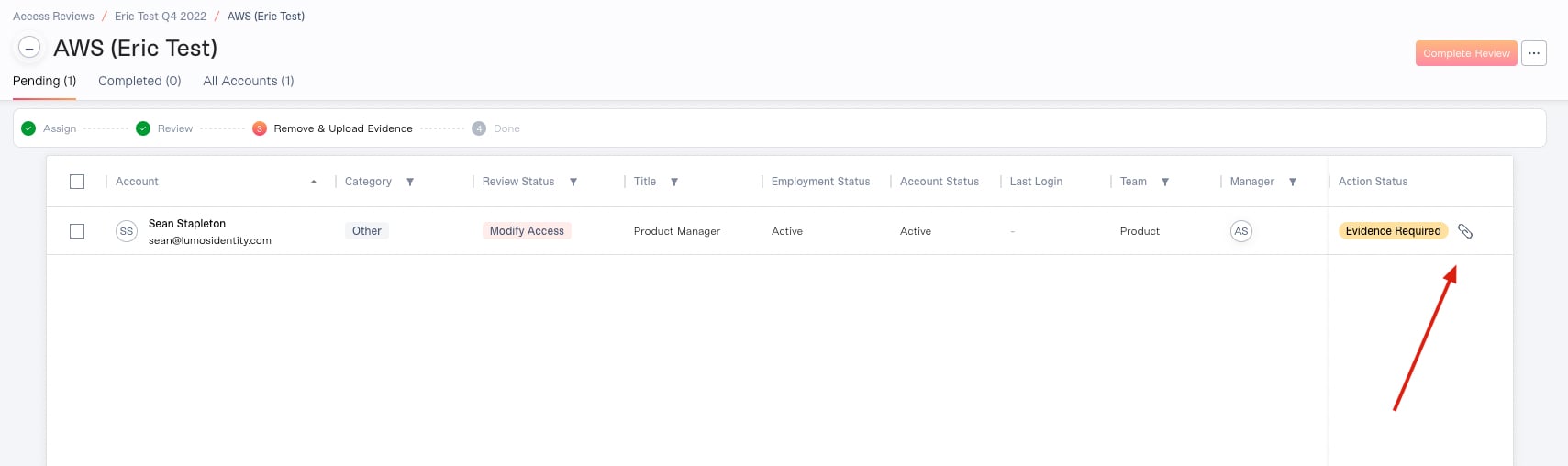
### 1. Navigate to the list of accounts/permissions that need evidence.
These accounts have an "Evidence Required" tag.
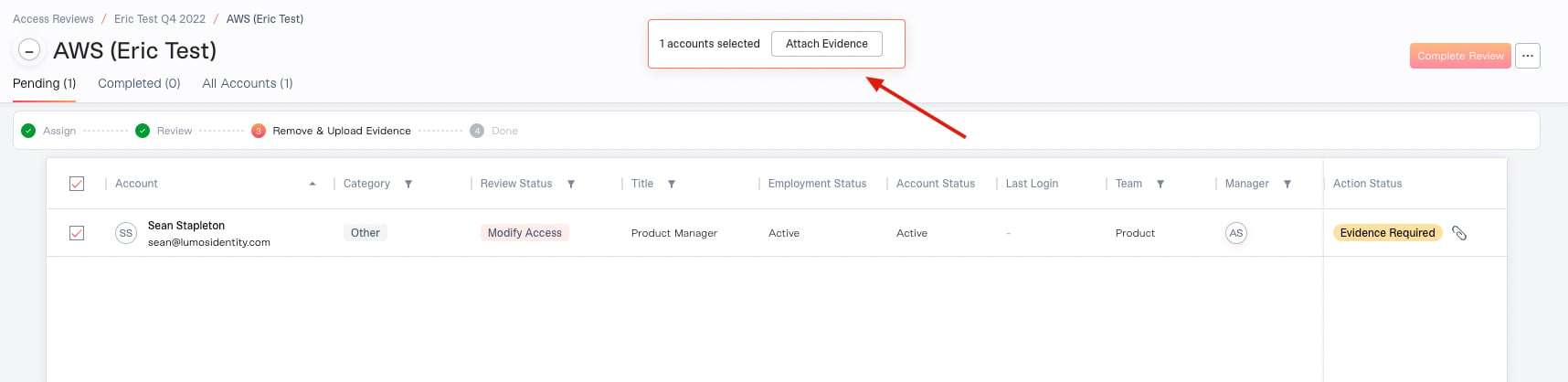
 ### 2. Select the accounts/permissions to associate with the evidence.
Select the checkbox to the left of each employee's name/email to select multiple accounts, or select them one at a time.
### 2. Select the accounts/permissions to associate with the evidence.
Select the checkbox to the left of each employee's name/email to select multiple accounts, or select them one at a time.
 ### 3. Add your evidence.
Choose the tab that matches your evidence:
* **URL**: paste a link in the **URL of Proof** field.
* **Files**: drag and drop screenshots or click to upload them. Files must be .jpg, .jpeg, or .png, up to 5 MB each, and you can attach up to 20 at a time.
* **Workflow Record**: appears only when the account's access was removed through a Lumos workflow. Select the completed workflow steps to attach them as evidence, and the auditor's report will link to those removal actions. If the workflow is still in progress, you can attach its steps once it completes. When you've selected multiple accounts, this tab instead offers a single **Use Workflow Record as Evidence** checkbox.
You can add an optional description to each piece of evidence.
### 4. Click "Submit" to save the evidence.
If you selected multiple accounts, the button is labeled **Attach Evidence**.
### 5. Repeat this process for any remaining accounts that need to be reviewed.
### 3. Add your evidence.
Choose the tab that matches your evidence:
* **URL**: paste a link in the **URL of Proof** field.
* **Files**: drag and drop screenshots or click to upload them. Files must be .jpg, .jpeg, or .png, up to 5 MB each, and you can attach up to 20 at a time.
* **Workflow Record**: appears only when the account's access was removed through a Lumos workflow. Select the completed workflow steps to attach them as evidence, and the auditor's report will link to those removal actions. If the workflow is still in progress, you can attach its steps once it completes. When you've selected multiple accounts, this tab instead offers a single **Use Workflow Record as Evidence** checkbox.
You can add an optional description to each piece of evidence.
### 4. Click "Submit" to save the evidence.
If you selected multiple accounts, the button is labeled **Attach Evidence**.
### 5. Repeat this process for any remaining accounts that need to be reviewed.