> ## Documentation Index
> Fetch the complete documentation index at: https://docs.lumos.com/llms.txt
> Use this file to discover all available pages before exploring further.
# Managing Lumos Roles Through the AppStore
> Make Lumos roles such as Auditor or Read Only Admin requestable in the AppStore by showing the permissions and adding Assign Role and Unassign Role steps.
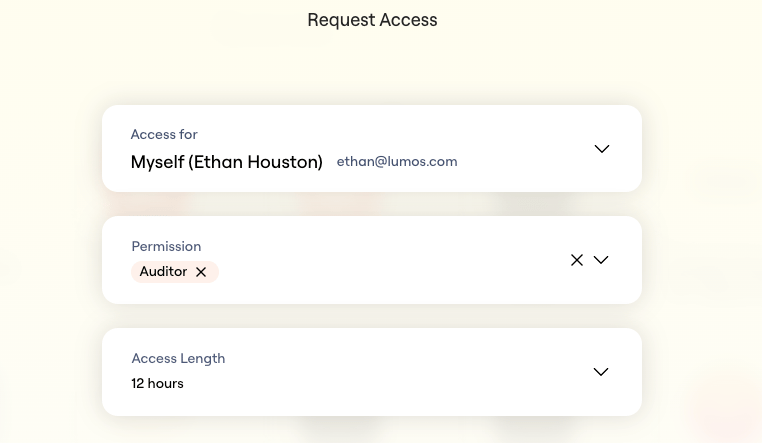
Lumos allows you to make internal roles, such as **Auditor** or **Read Only Admin**, requestable via the AppStore. You can configure these roles with time-based or unlimited access using standard provisioning workflows.
## Setup Instructions
1. **Open the Admin Panel** and navigate to the **AppStore**.
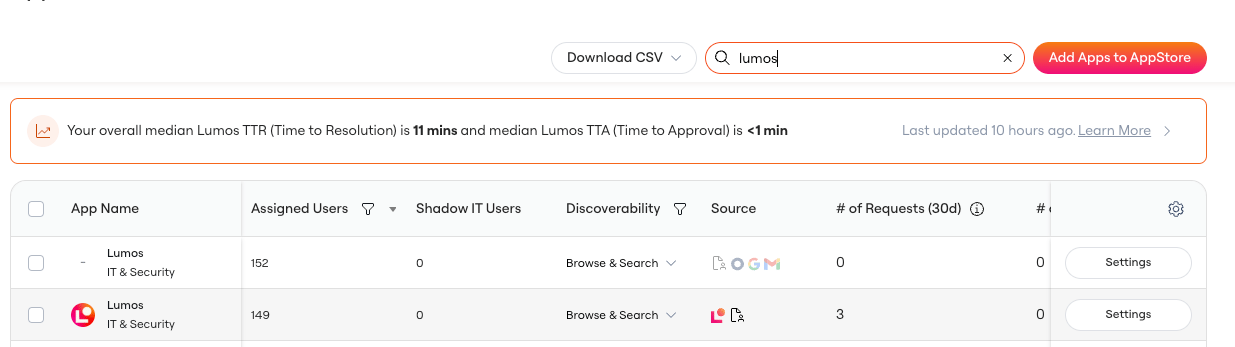
2. Search for the **Lumos** application.
3. In the search results, find the row where **Source = Lumos** and click **Settings**.
 4. Select the **Permissions** tab.
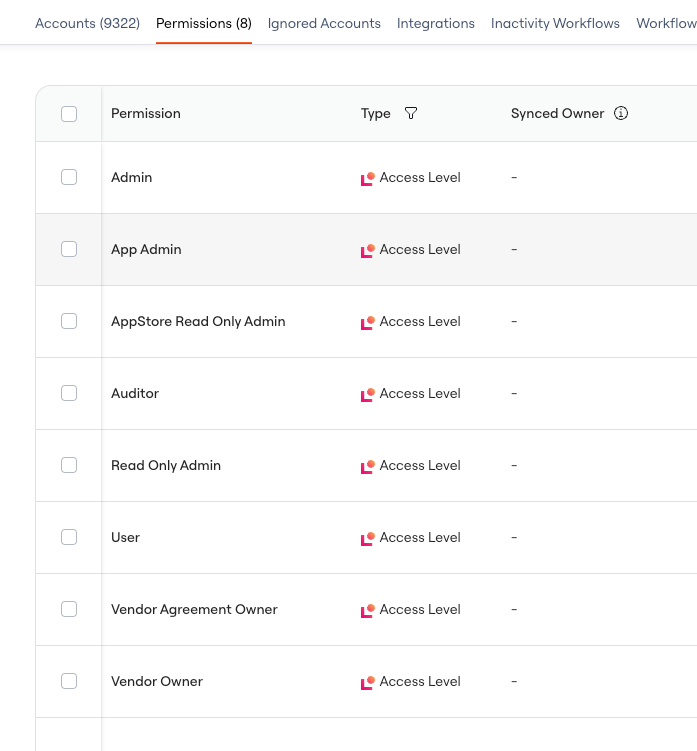
5. Verify that the necessary permissions (e.g. `Auditor`, `Read Only Admin`) are listed.
4. Select the **Permissions** tab.
5. Verify that the necessary permissions (e.g. `Auditor`, `Read Only Admin`) are listed.
 If the Lumos Roles are not displaying under the AppStore Permissions, you likely need to connect the [updated version of the Lumos App](https://app.lumosidentity.com/integrations?tab=can_integrate) found in your Integrations tab.
5. For each permission you want to make requestable:
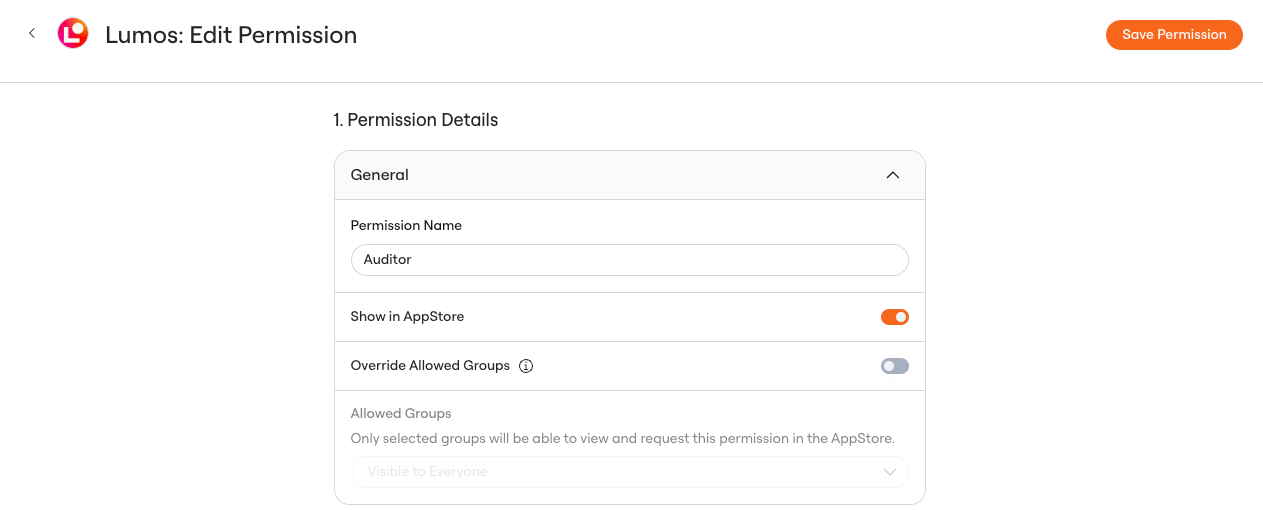
* Click into the permission.
* Enable **Show in AppStore**.
Note: By default, [Synced Permissions](/for-admins/appstore/automatically-syncing-appstore-permissions) are hidden from end users.
If the Lumos Roles are not displaying under the AppStore Permissions, you likely need to connect the [updated version of the Lumos App](https://app.lumosidentity.com/integrations?tab=can_integrate) found in your Integrations tab.
5. For each permission you want to make requestable:
* Click into the permission.
* Enable **Show in AppStore**.
Note: By default, [Synced Permissions](/for-admins/appstore/automatically-syncing-appstore-permissions) are hidden from end users.
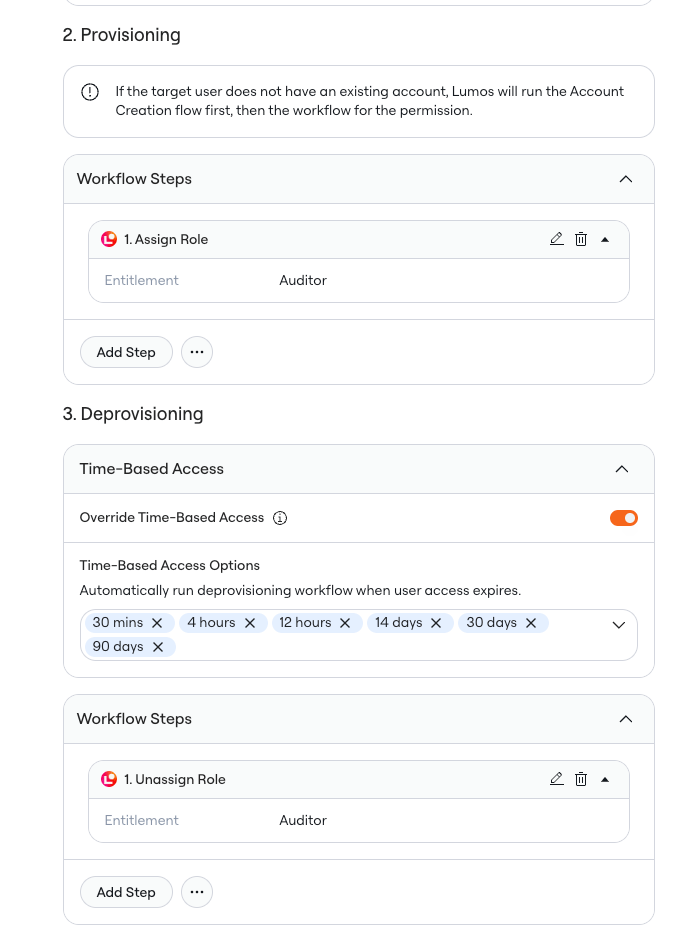
 In the **Provisioning** and **Deprovisioning** sections, ensure the correct workflow steps are configured:
* **Assign Role** in Provisioning
* **Unassign Role** in Deprovisioning
In the **Provisioning** and **Deprovisioning** sections, ensure the correct workflow steps are configured:
* **Assign Role** in Provisioning
* **Unassign Role** in Deprovisioning
 ## End User Experience
Once configured, employees will be able to request access to these roles directly from the AppStore, following the access policies you’ve defined.
## End User Experience
Once configured, employees will be able to request access to these roles directly from the AppStore, following the access policies you’ve defined.