> ## Documentation Index
> Fetch the complete documentation index at: https://docs.lumos.com/llms.txt
> Use this file to discover all available pages before exploring further.
# Branding Your Lumos Tenant
> Brand the Lumos UI with your company logo, rename the Lumos AppStore Slack bot, and give the Lumos tile in your IdP any name and logo.
## After this article
You'll understand your options for branding the Lumos UI with your own name or logo.
## Custom logo
The logo in the upper left corner of the Lumos UI can be changed to your company logo.
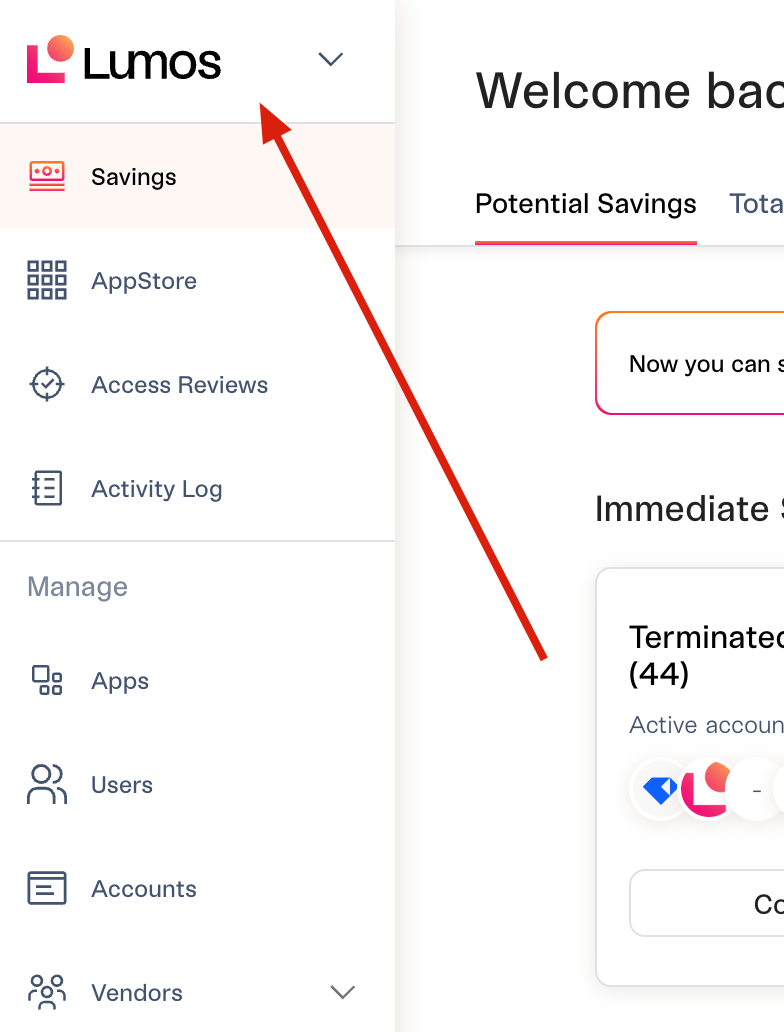 Visit the [Personalization](https://app.lumosidentity.com/settings/personalization) tab to make this change. The image should meet the following requirements.
* Transparent PNG with no negative space
* Recommended height is 32px
* Recommended shape is rectangular (3:1 length to width ratio)
## Slack app
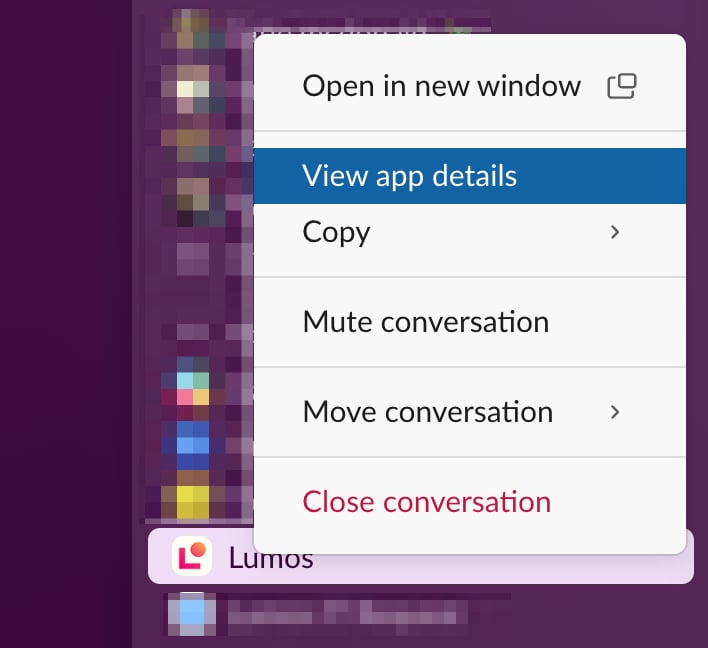
Many companies rename the Lumos AppStore Slack bot to something else (e.g. "\[COMPANY] AppStore"). To do this, follow the steps below:
**1. Right-click on the Lumos Slack app and click "View app details"**
Visit the [Personalization](https://app.lumosidentity.com/settings/personalization) tab to make this change. The image should meet the following requirements.
* Transparent PNG with no negative space
* Recommended height is 32px
* Recommended shape is rectangular (3:1 length to width ratio)
## Slack app
Many companies rename the Lumos AppStore Slack bot to something else (e.g. "\[COMPANY] AppStore"). To do this, follow the steps below:
**1. Right-click on the Lumos Slack app and click "View app details"**
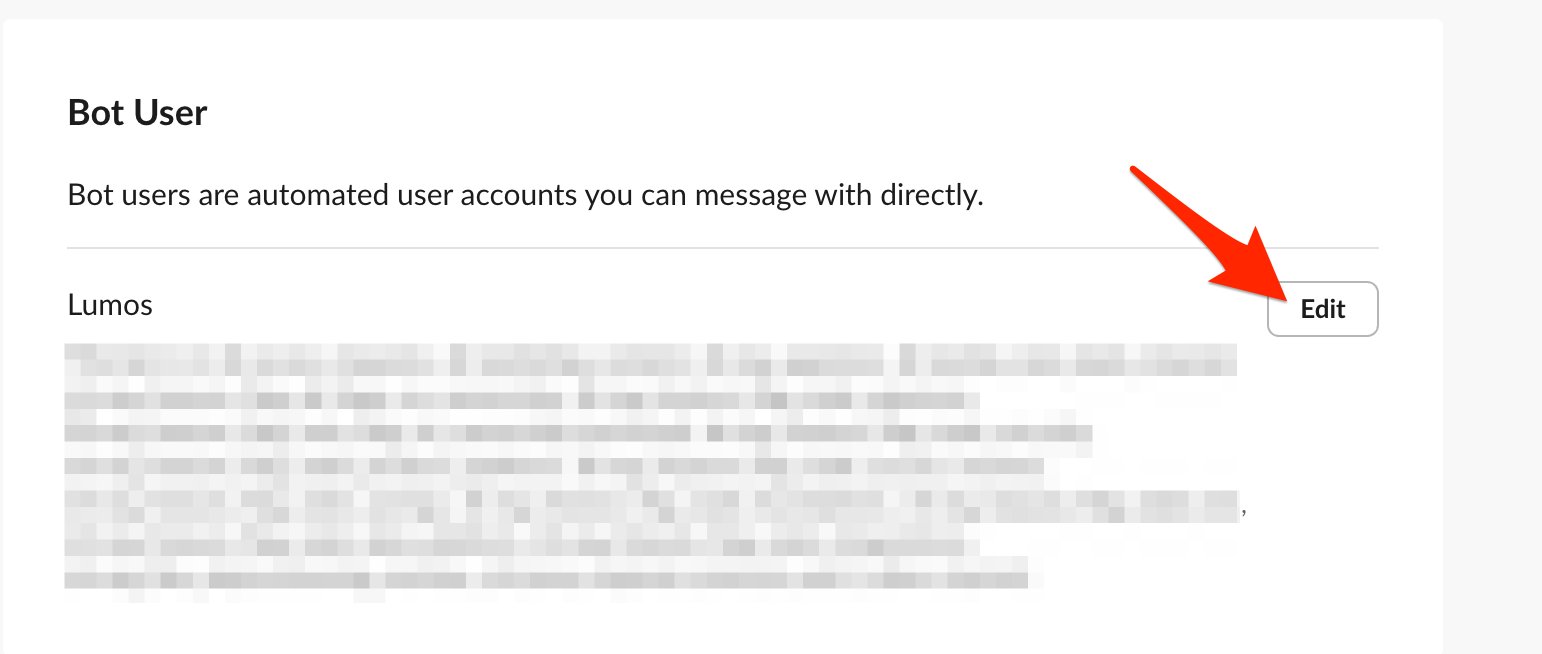
 **2. Scroll to the *Bot User* section and click "Edit"**
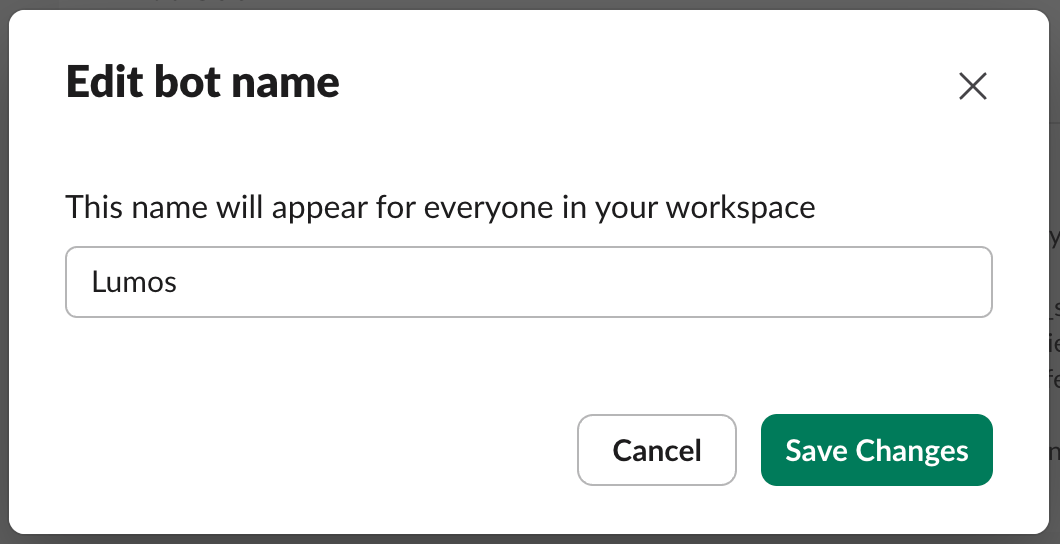
 **3. Change the bot name (the app's name) and click "Save Changes"**
 ## Your IdP tile
In your IdP, you can give the Lumos tile any name. You can also use any logo, including the logo below.
## Your IdP tile
In your IdP, you can give the Lumos tile any name. You can also use any logo, including the logo below.