> ## Documentation Index
> Fetch the complete documentation index at: https://docs.lumos.com/llms.txt
> Use this file to discover all available pages before exploring further.
# Adding Apps To Your AppStore
> Add apps to your AppStore from the AppStore setup tab, choose which apps to start with, assign Approvers and App Admins, and finish setup.
## Background
This article shows you how to add a new app to your AppStore.
## Steps
### 1. Go to the [AppStore setup tab](https://app.lumosidentity.com/admin-app-store)
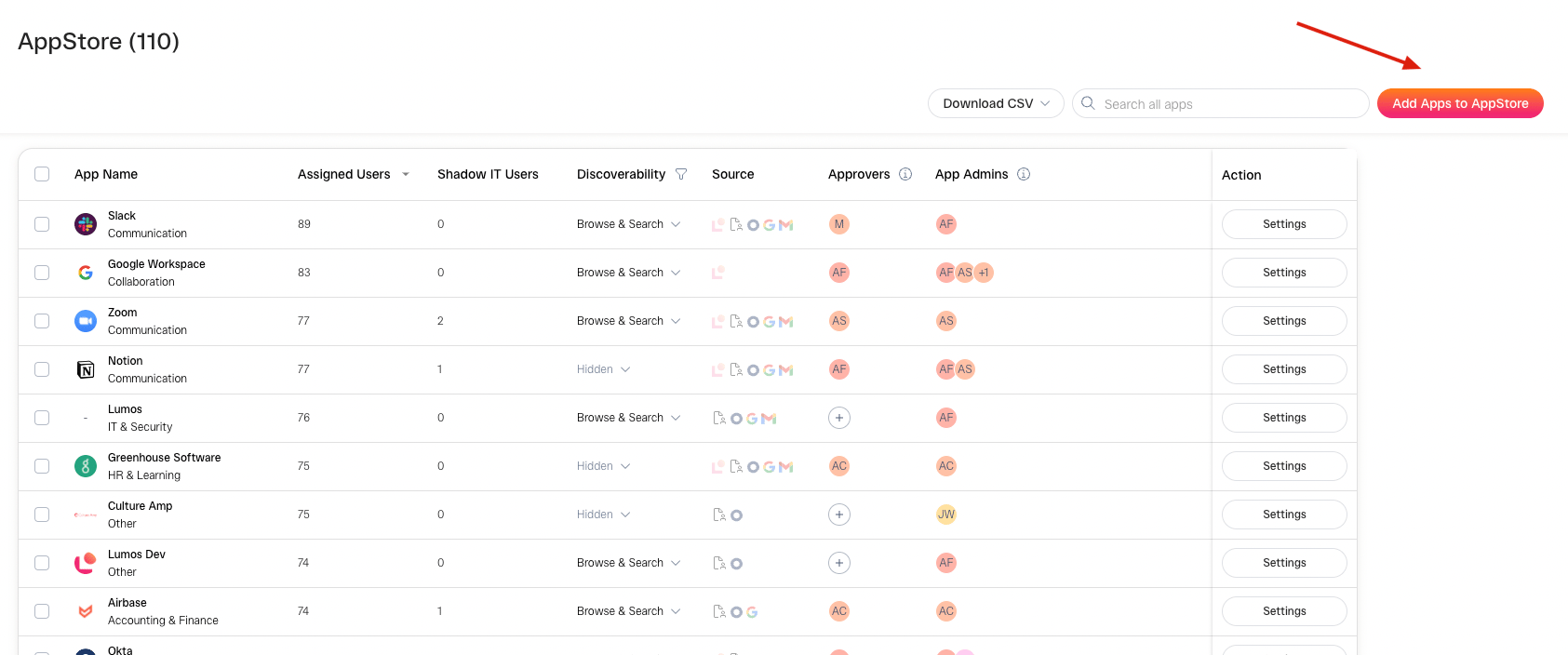
### 2. Click the "Add Apps To AppStore" button.
 ### 3. Choose the apps you want to add
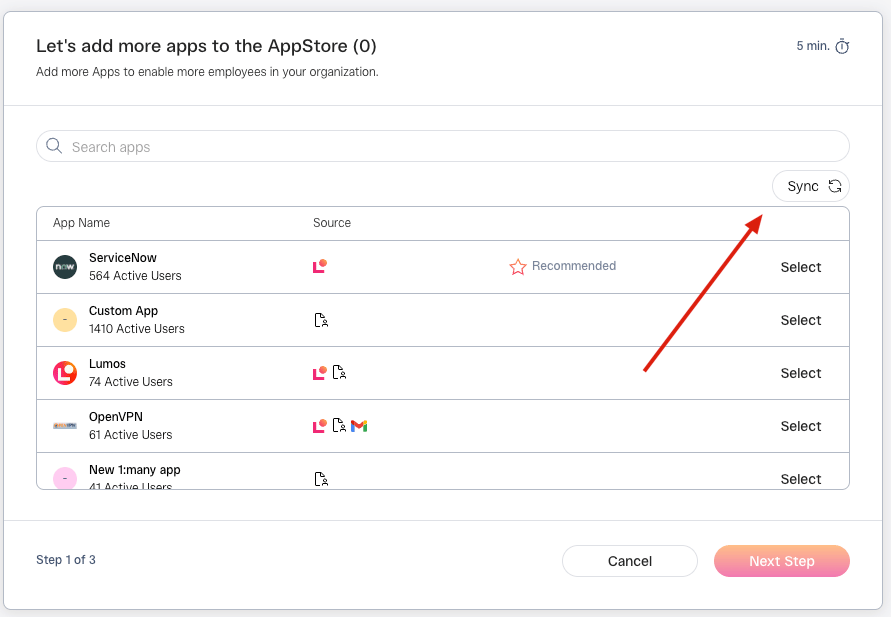
If you can't see an app from your IdP after searching, try clicking the **Sync** button.
### 3. Choose the apps you want to add
If you can't see an app from your IdP after searching, try clicking the **Sync** button.
 Not sure which apps to add? Try to pick apps that fall into one of these buckets.
* **Lots Of Tickets**
Apps that create a lot of tickets are the best candidates for automation.
* **Automatically Provisioned**
If adding the app tile in your IdP automatically creates an account, Lumos can add the tile for you. These are good candidates for automation.
* **IT-Managed**
Does IT fully understand how this app needs to be provisioned to create the account for the requester? If so, Lumos can do it for you automatically.
### 4. Choose Approvers and App Admins
App Admins are required, while Approvers are optional. More info on Approvers and App Admins can be found in this article: [AppStore Configuration Settings](/for-admins/appstore/appstore-configuration-settings)
### 5. Configure advanced settings
You can change these later, so you don't need to set them now. More info on the settings can be found in this article: [AppStore Configuration Settings](/for-admins/appstore/appstore-configuration-settings)
### 6. Click "Finish Setup".
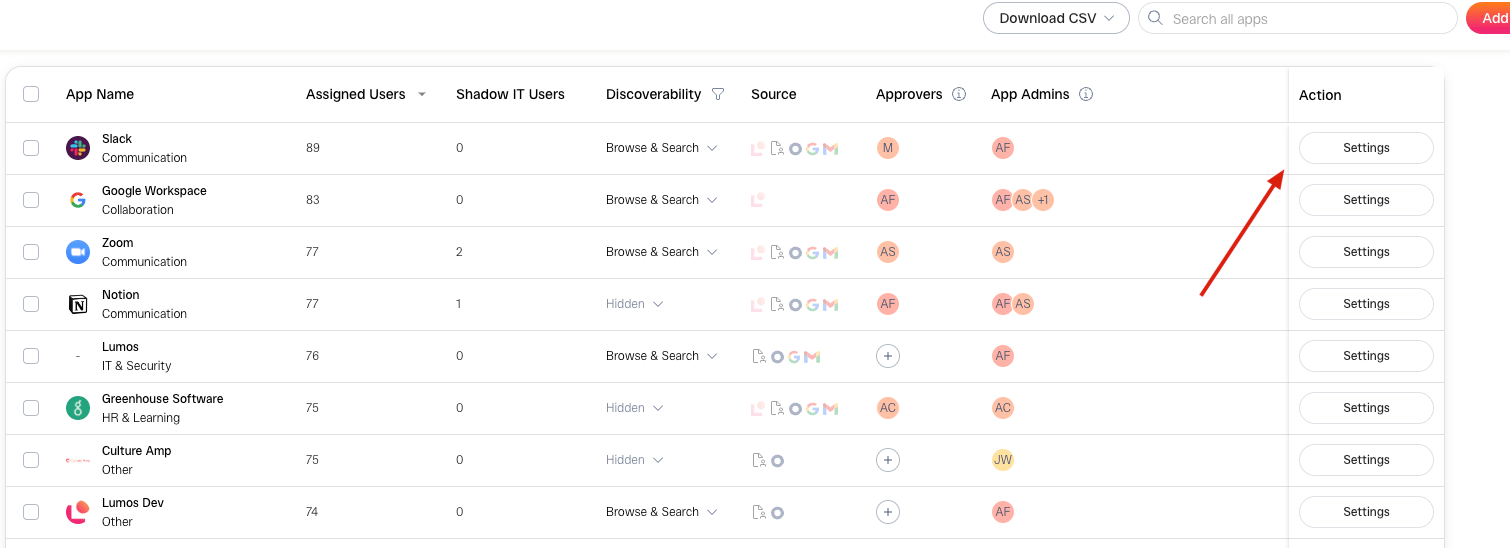
If you need to adjust the app settings, click on the **Settings** button from the [AppStore admin page](https://app.lumosidentity.com/admin-app-store).
Not sure which apps to add? Try to pick apps that fall into one of these buckets.
* **Lots Of Tickets**
Apps that create a lot of tickets are the best candidates for automation.
* **Automatically Provisioned**
If adding the app tile in your IdP automatically creates an account, Lumos can add the tile for you. These are good candidates for automation.
* **IT-Managed**
Does IT fully understand how this app needs to be provisioned to create the account for the requester? If so, Lumos can do it for you automatically.
### 4. Choose Approvers and App Admins
App Admins are required, while Approvers are optional. More info on Approvers and App Admins can be found in this article: [AppStore Configuration Settings](/for-admins/appstore/appstore-configuration-settings)
### 5. Configure advanced settings
You can change these later, so you don't need to set them now. More info on the settings can be found in this article: [AppStore Configuration Settings](/for-admins/appstore/appstore-configuration-settings)
### 6. Click "Finish Setup".
If you need to adjust the app settings, click on the **Settings** button from the [AppStore admin page](https://app.lumosidentity.com/admin-app-store).
 An in-depth reference on the various AppStore configuration settings can be found here: [AppStore Configuration Settings](/for-admins/appstore/appstore-configuration-settings)