> ## Documentation Index
> Fetch the complete documentation index at: https://docs.lumos.com/llms.txt
> Use this file to discover all available pages before exploring further.
# How-To: Match Accounts
> Match an Unmatched app account to a Lumos User from the account Action menu so it appears on that User's page with the rest of their accounts.
## After this article...
You'll know how to match an account from an app to a User in Lumos.
## Why should you match Unmatched accounts?
Accounts in Lumos that aren't matched to a user are labeled "Unmatched". More info on how that happens can be found here:[How does Lumos match accounts?](/for-admins/applications-entitlements/how-does-lumos-match-accounts)
When an account is matched to a User in Lumos, you'll be able to view that account, along with the rest of the accounts that belong to that User, on that User's page in Lumos.
This provides a better picture of what app accounts each employee has and enables you to tie an account to a specific employee identity during audits and other routine exercises.
## Steps
**1. Find the account you want to match**
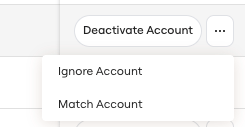
 **2. Click the "..." button in the \_Action\_column, then choose the "Match Account" option.**
 **3. Search for the User who the account belongs to, then click on it to complete the match.**
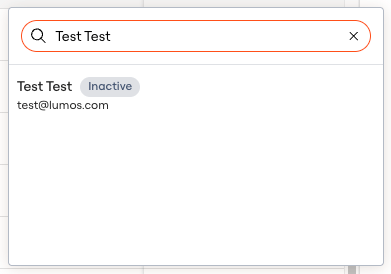 If the match is successful, the account will be matched to the Lumos User you selected and should no longer be labeled "Unmatched".