> ## Documentation Index
> Fetch the complete documentation index at: https://docs.lumos.com/llms.txt
> Use this file to discover all available pages before exploring further.
# Adding Tags to Permissions
> Tag permissions with SOC2, SOX, ISO27001, PCI, HITRUST or Privileged one at a time, in bulk or by CSV, and learn how the auto-added Privileged tag works.
## Why this matters
Apps can have dozens, hundreds, or thousands of permissions with different naming conventions, which makes it difficult to know which ones are high-risk or in scope for audits.
Permission Tags let you categorize permissions so that you can:
* **Scope Reviews quickly and accurately** - select tags to scope the associated permissions into the review instead of selecting them one by one
* **Give Reviewers context** - make it obvious which permissions carry privilege or compliance relevance
* **Support audit clarity** - show which tags (and associated entitlements) were included when defining review scope
**Available tags:**
* SOC2
* SOX
* ISO27001
* PCI
* HITRUST
* Privileged (see details here)
### 1. Navigate to the Apps table > Single App > Permissions Tab
### 2. Add Tags to Permissions
Why am I already seeing the `Privileged` Tag on some of my Permissions? See [Privileged tag](/for-admins/applications-entitlements/adding-tags-to-permissions#privileged-tag).
**Navigate** to the Tags column for a specific permission
**Click** on Add
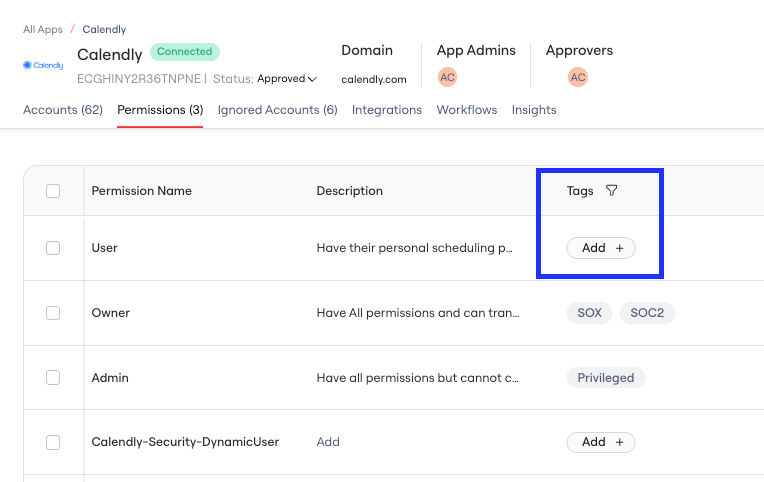 **Select** one or more Tags from the options
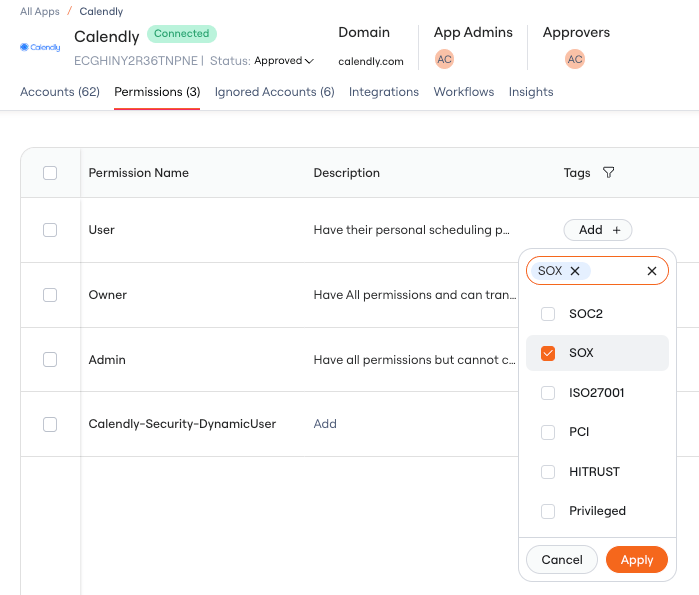 **Click** Apply
**View** added Tags
**Click** Apply
**View** added Tags
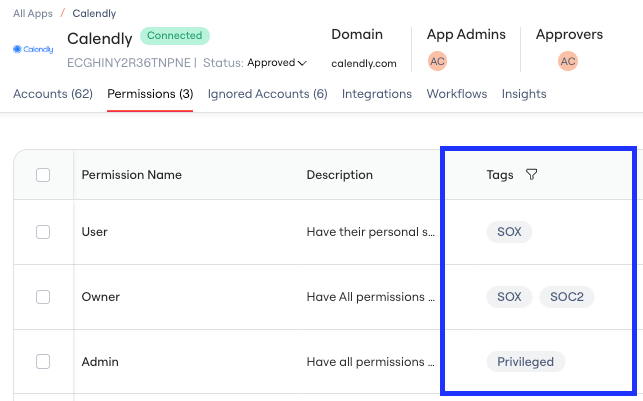 **Hover** over Tags to see the Edit button
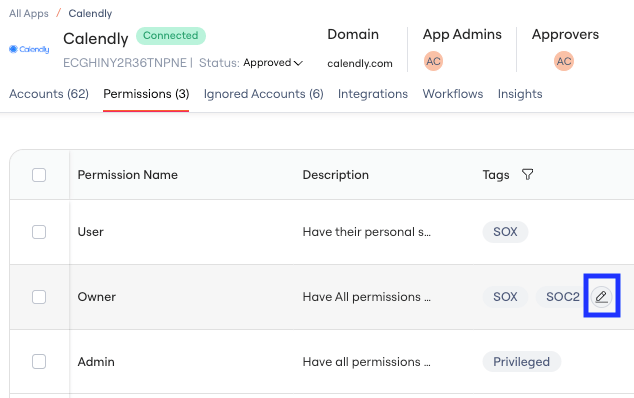 **Click** on the Edit button to add/remove tags
### 3. Add Tags to Permissions in bulk
**Multi-select** Permissions to add Tags in bulk
**Click** on the Edit button to add/remove tags
### 3. Add Tags to Permissions in bulk
**Multi-select** Permissions to add Tags in bulk
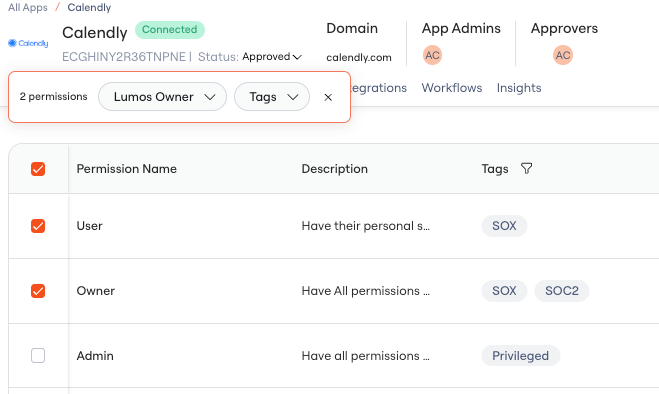 **Click** on the Tags drop down to add Tags to the selected Permissions
**Select** Tags to add to Permissions
**Click** on the Tags drop down to add Tags to the selected Permissions
**Select** Tags to add to Permissions
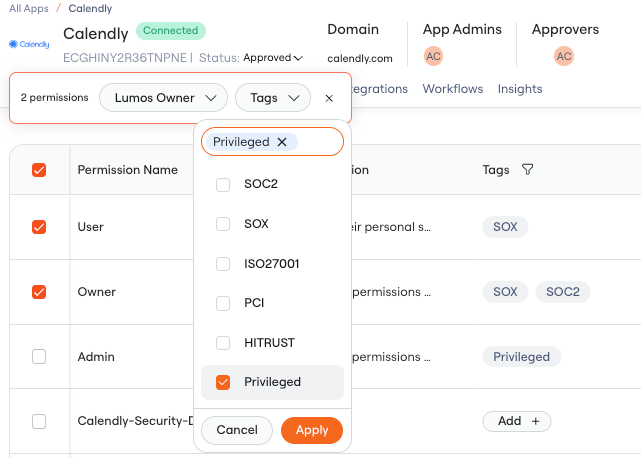 **Click** Apply
Tags applied in bulk will be added to the existing Tags for the selected Permissions. They will not replace existing Tags.
### 4. Add Tags to Permissions via CSV upload
**Download** CSV via the CSV download icon
**Click** Apply
Tags applied in bulk will be added to the existing Tags for the selected Permissions. They will not replace existing Tags.
### 4. Add Tags to Permissions via CSV upload
**Download** CSV via the CSV download icon
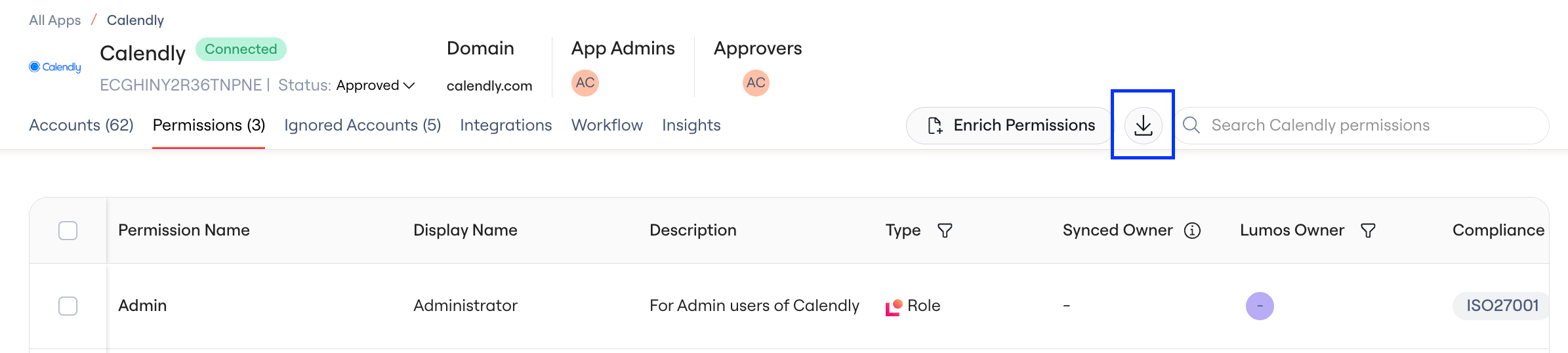 **Update** the CSV file with relevant Tags. For multiple Tags, separate with a comma
**Click** on Enrich Permissions to upload the updated CSV
**Update** the CSV file with relevant Tags. For multiple Tags, separate with a comma
**Click** on Enrich Permissions to upload the updated CSV
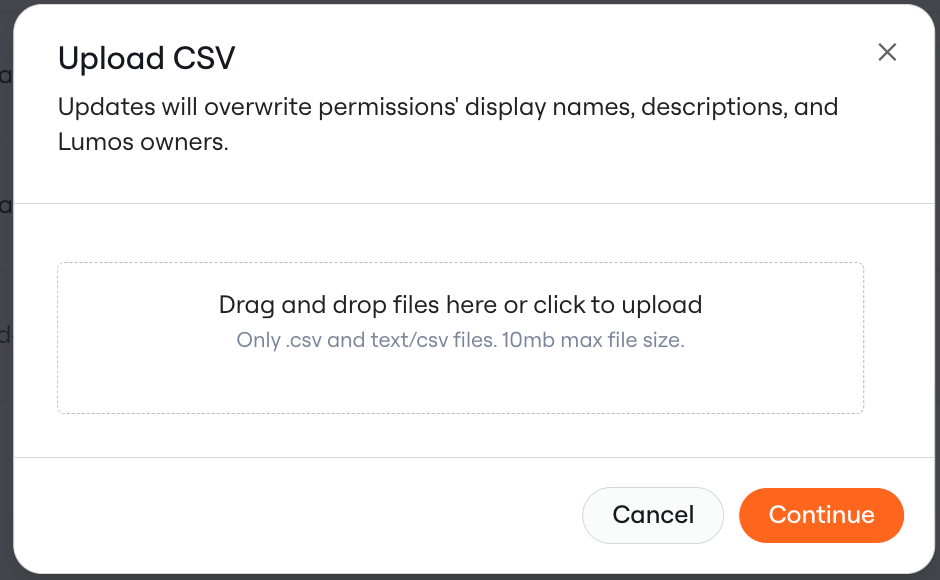
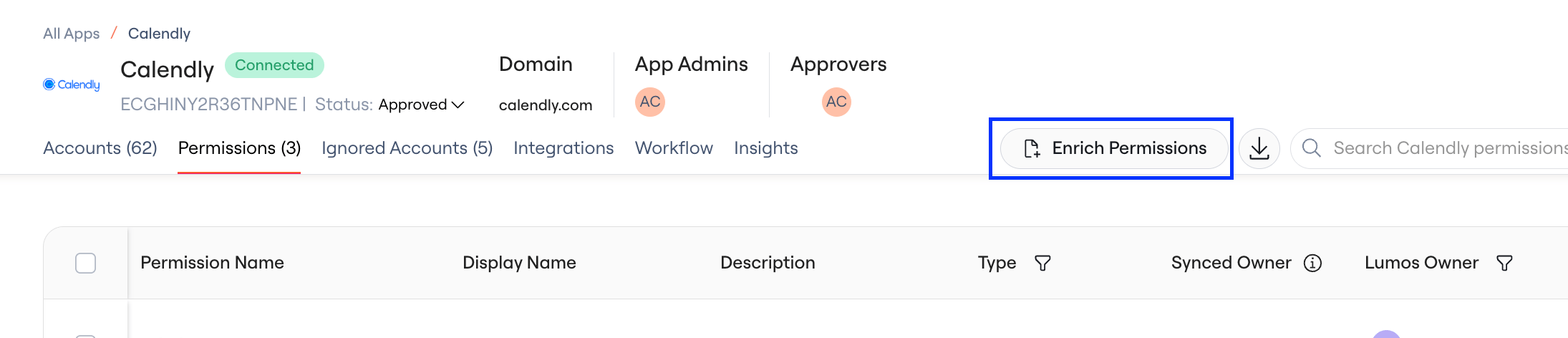 **Select** the appropriate CSV file (max size of 10 MB supported)
 **Map** your CSV columns and specify the delimiter used
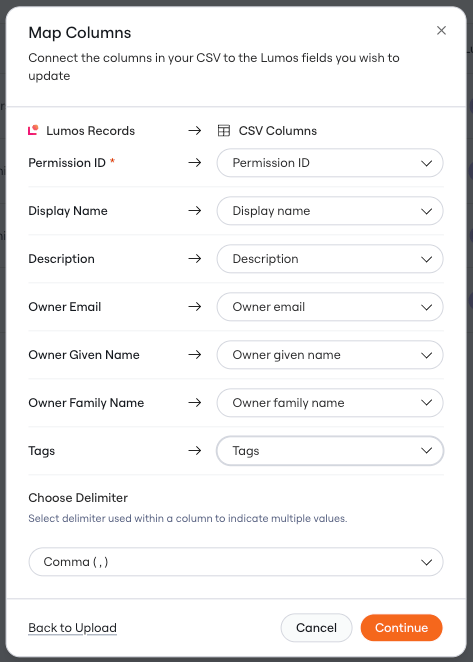 The Permission ID column is required. Learn more about Permission Display Names and Descriptions [Adding Permission Display Names and Descriptions](/for-admins/applications-entitlements/adding-permission-display-names-and-descriptions)
**Confirm** that permissions should be updated.
Tags in the CSV will overwrite applied Tags in the Table
## Scoping Access Reviews using Tags
See [Choosing Access Review Apps](/for-admins/access-reviews/choosing-access-review-apps)and [Scoping Your Access Review](/for-admins/access-reviews/scoping-your-access-review)
## Privileged Tag
* Lumos will auto-add the `Privileged` tag to Permissions whose name contains `"admin"` or `"owner"` (not case-sensitive)
* You can manually remove this Tag and can manually add it to Permissions
* Once it is manually removed from a Permission, it will not be auto re-added to that Permission
* The `Privileged` Tag from the Permissions tab will be reflected in the Categories column in the Access Review. See [Understanding Categories in the Access Review](/for-admins/access-reviews/understanding-categories-in-the-access-review)
If you'd like this Privileged Tag feature turned off, please reach out to Lumos Support
The Permission ID column is required. Learn more about Permission Display Names and Descriptions [Adding Permission Display Names and Descriptions](/for-admins/applications-entitlements/adding-permission-display-names-and-descriptions)
**Confirm** that permissions should be updated.
Tags in the CSV will overwrite applied Tags in the Table
## Scoping Access Reviews using Tags
See [Choosing Access Review Apps](/for-admins/access-reviews/choosing-access-review-apps)and [Scoping Your Access Review](/for-admins/access-reviews/scoping-your-access-review)
## Privileged Tag
* Lumos will auto-add the `Privileged` tag to Permissions whose name contains `"admin"` or `"owner"` (not case-sensitive)
* You can manually remove this Tag and can manually add it to Permissions
* Once it is manually removed from a Permission, it will not be auto re-added to that Permission
* The `Privileged` Tag from the Permissions tab will be reflected in the Categories column in the Access Review. See [Understanding Categories in the Access Review](/for-admins/access-reviews/understanding-categories-in-the-access-review)
If you'd like this Privileged Tag feature turned off, please reach out to Lumos Support