> ## Documentation Index
> Fetch the complete documentation index at: https://docs.lumos.com/llms.txt
> Use this file to discover all available pages before exploring further.
# Scoping Your Access Review
> Scope an Access Review from its settings by attributes such as role, team, IdP groups, or permission tags to narrow the accounts that need review.
## Background
Scoping an Access Review narrows down the number of accounts that need to be reviewed for your audit. For example, you can limit a review to admins, people on a particular team, or a particular entitlement.
## Instructions
### 1. Go to the Access Review that you wish to scope.
### 2. Click the Settings icon in the top right
 ### 3. Open the "Scope Attributes" section
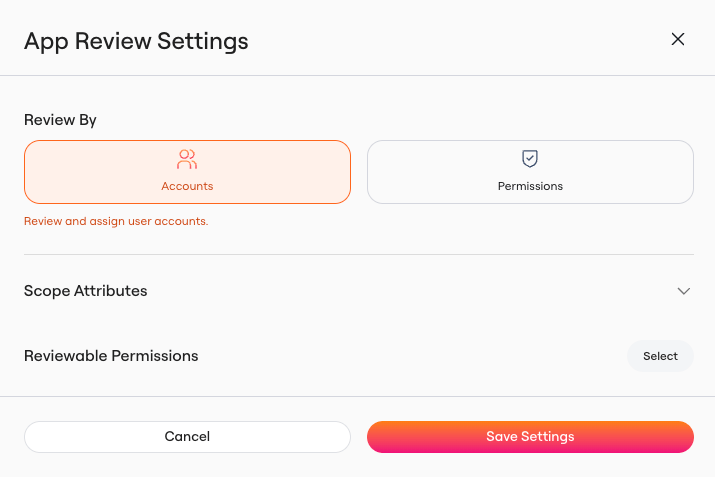 ### 4. Scope your review by attribute
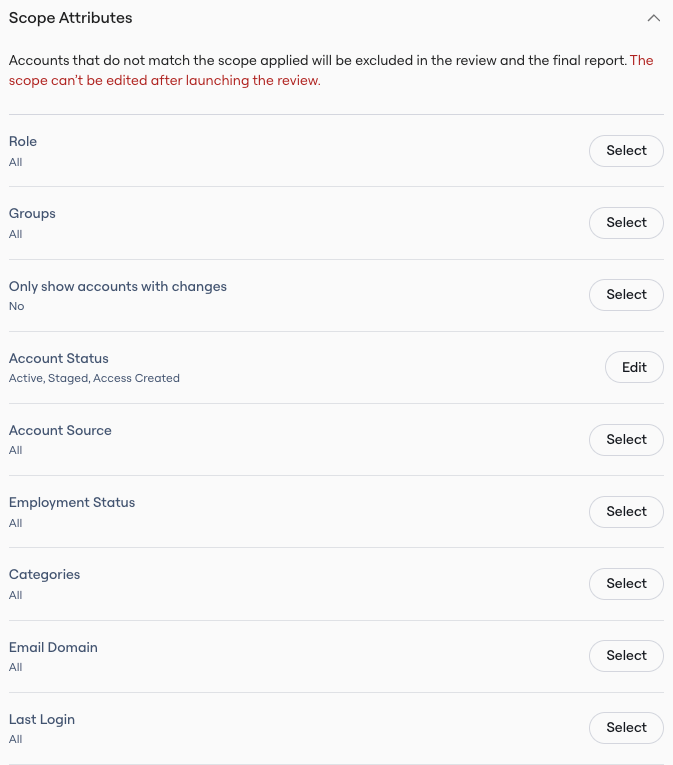
Based on your app, you'll see a list of possible attributes to scope down by.
This may include:
* Data from direct Lumos integrations (e.g., Role)
* User data (e.g., Team)
* Data from your IdP (e.g., Groups in Okta)
* Manually enriched columns (e.g., [Permission Tags](/for-admins/applications-entitlements/adding-tags-to-permissions))
### 4. Scope your review by attribute
Based on your app, you'll see a list of possible attributes to scope down by.
This may include:
* Data from direct Lumos integrations (e.g., Role)
* User data (e.g., Team)
* Data from your IdP (e.g., Groups in Okta)
* Manually enriched columns (e.g., [Permission Tags](/for-admins/applications-entitlements/adding-tags-to-permissions))
 After making your selections, click "Save Settings".
### 5. Proceed with business as usual
After making your selections, click "Save Settings".
### 5. Proceed with business as usual